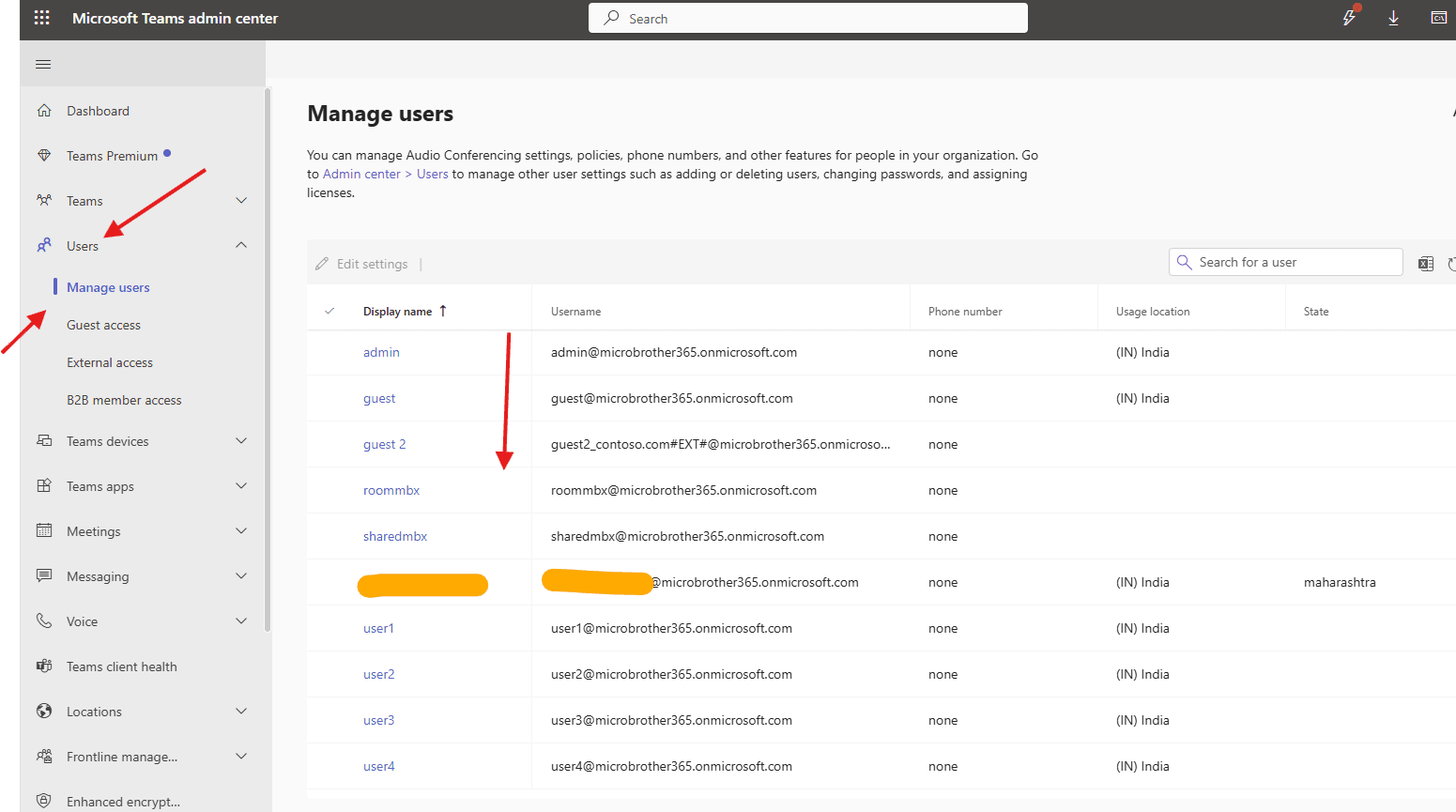
This article talks about on how to manage users in Teams admin center
Manage users
“Manage users in the Teams admin center” means centrally controlling user access, permissions, licenses, and settings for Microsoft Teams, allowing admins to assign roles, manage team membership (add/remove members), set policies (meetings, messaging, apps), view usage, troubleshoot call quality, and configure guest/external access for individuals or groups, all from one portal to govern how users interact with Teams.
Lets see it step by step :
Login to Teams admin center : https://admin.teams.microsoft.com/
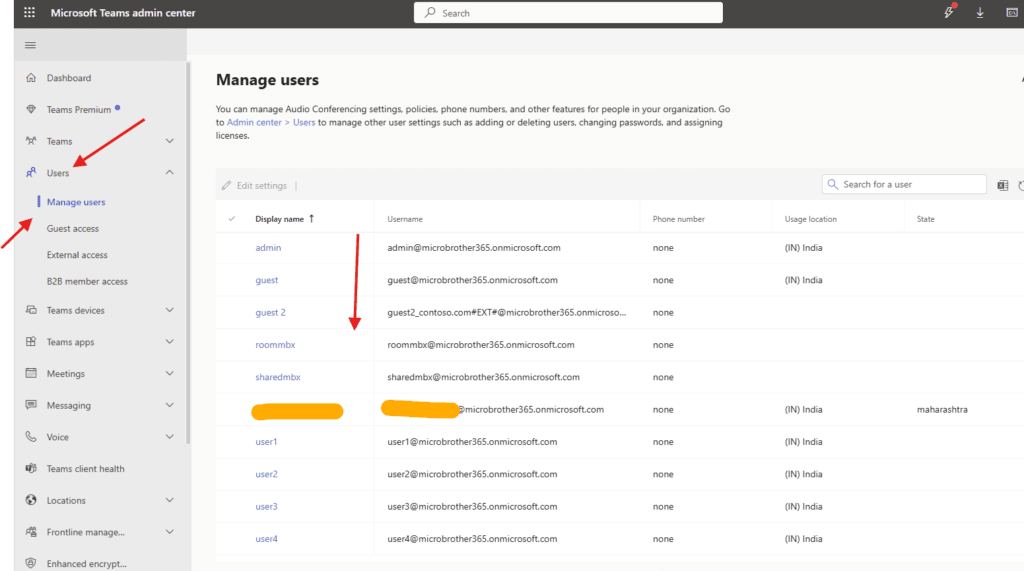
Navigate to Users –> Manage users –> click on the user
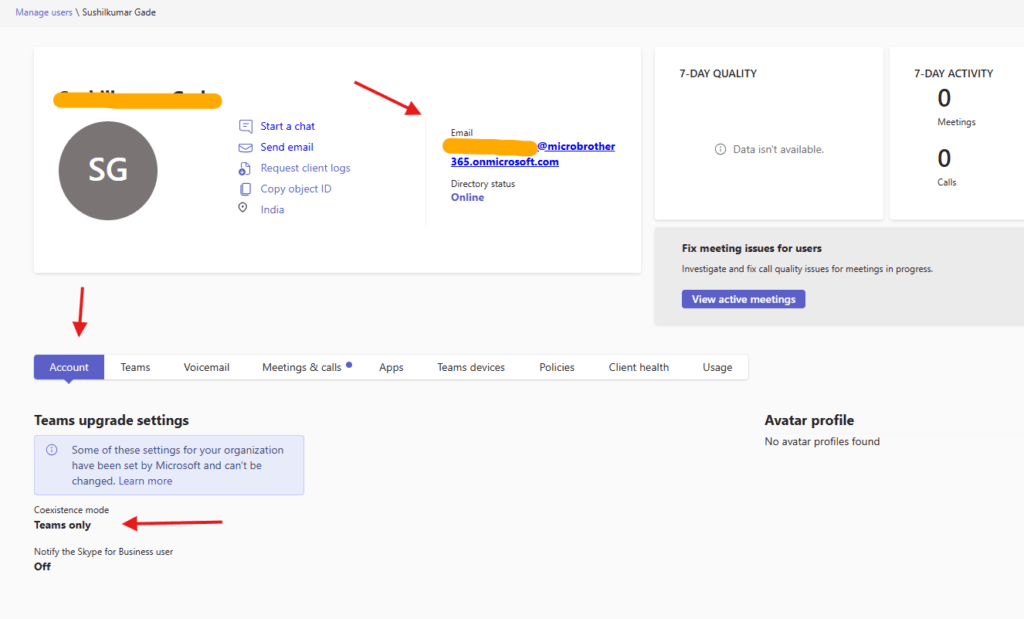
Under account tab –> you will be able to see sip address , assigned EV number , coexistence mode: Teams as my tenant it self is created in M365, Request client logs etc
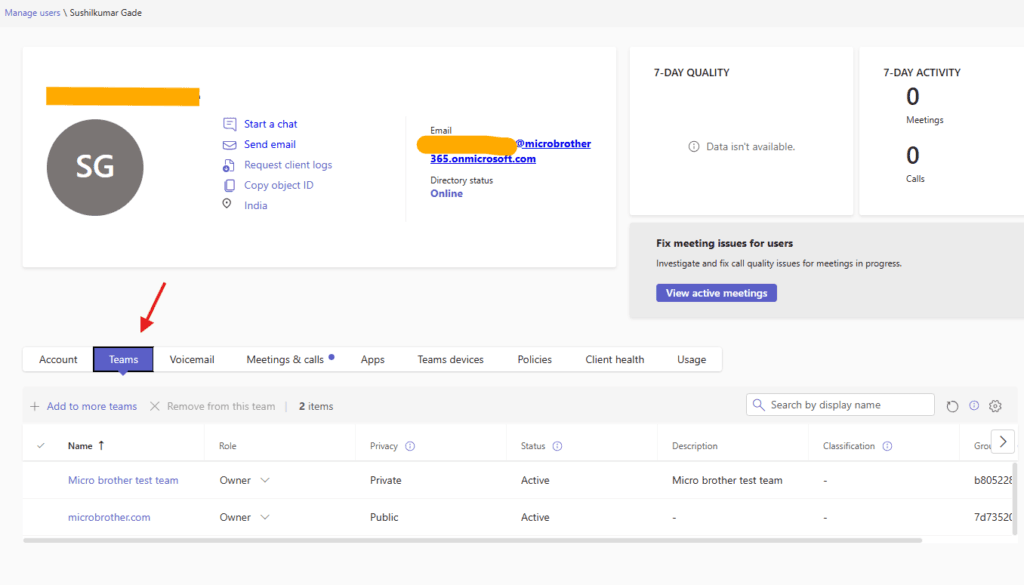
Under Teams tab you will be able to see user is part of which Team
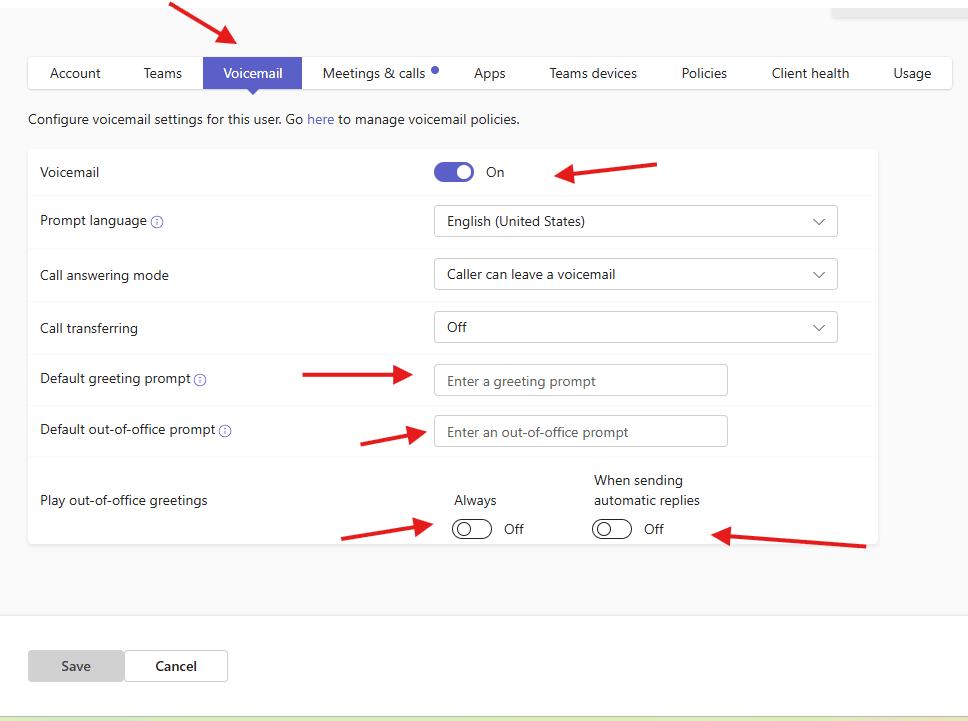
Under Voicemail tab you will find OOF and Voice mails prompts
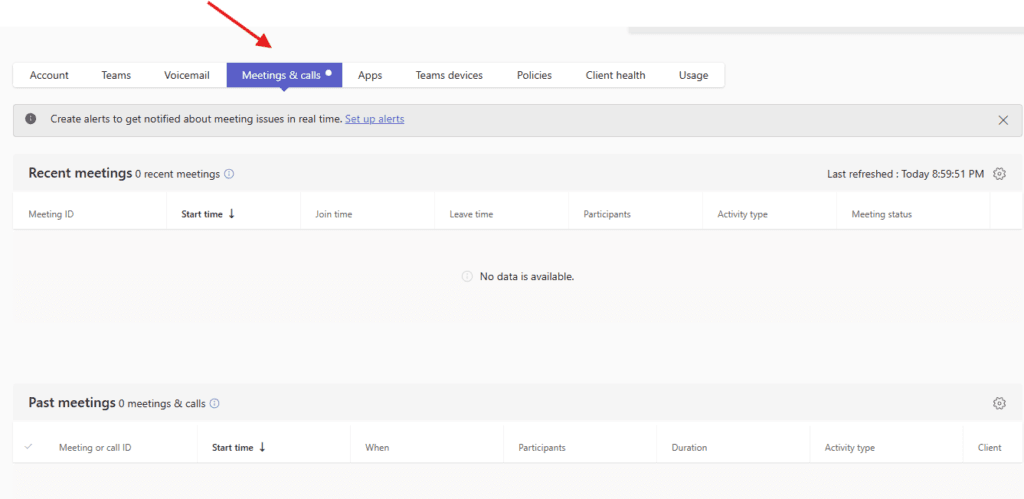
Under Meetings & calls option you will be able to 1:1 Teams, PSTN calling and Meeting details
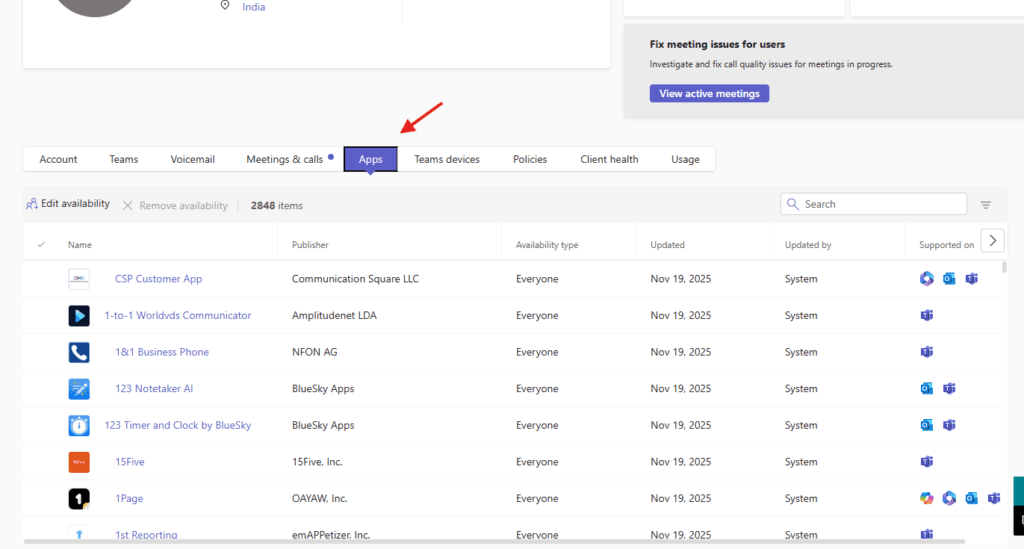
Apps can be view and assigned from here
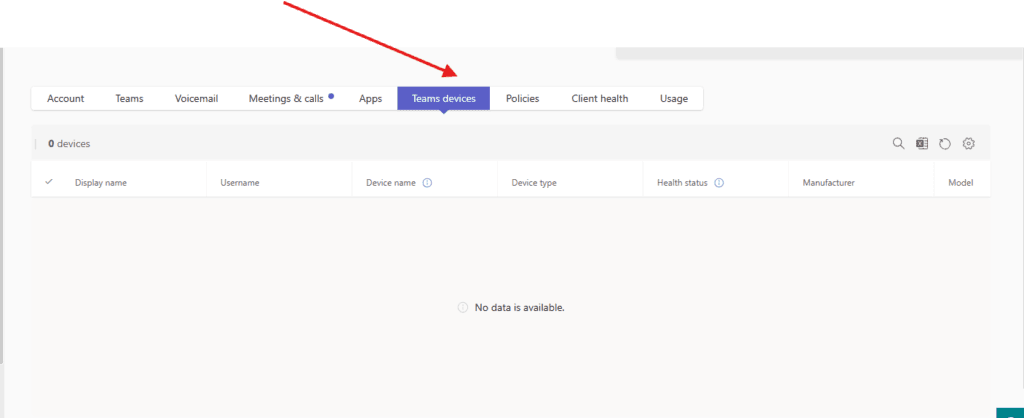
Assigned Teams devices can be viewed from here
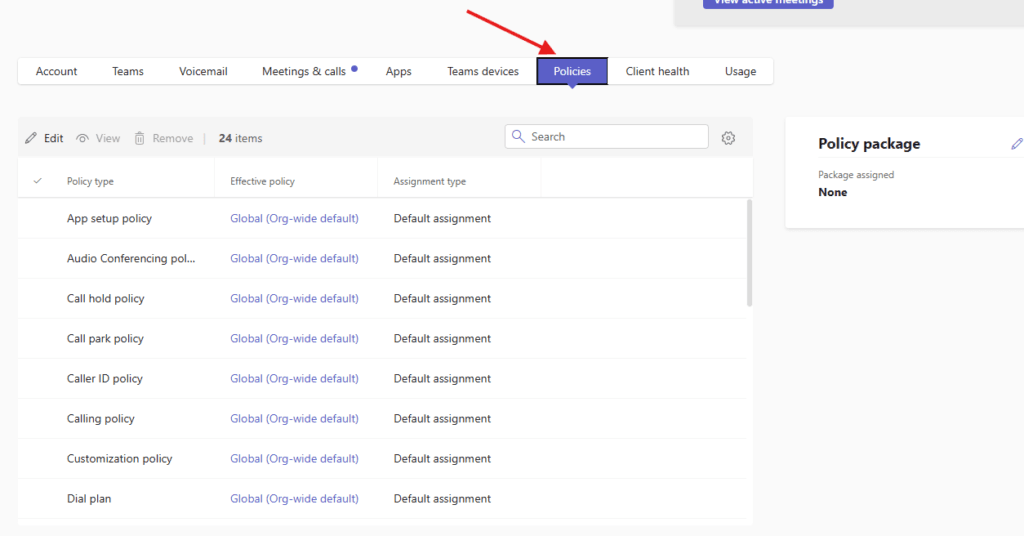
Assigned policies can be seen from here
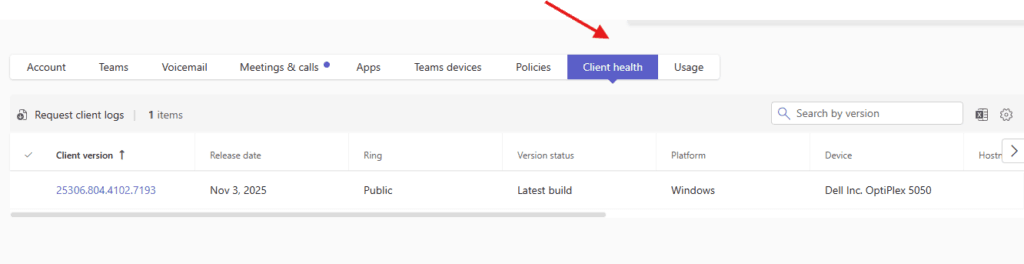
Installed Teams app’s health can be seen from here
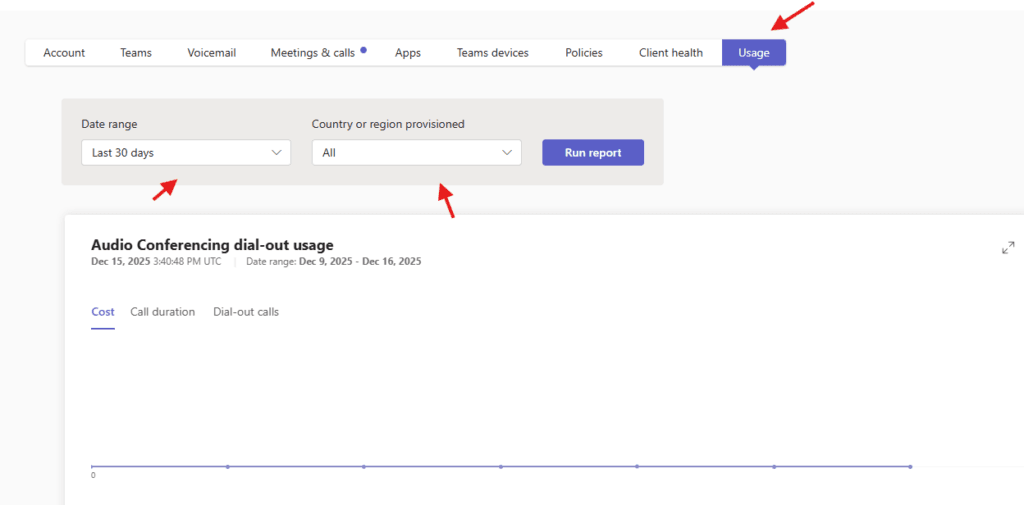
Finally you can pull report of the user
Conclusion:
Post reading above article reader will be able to manage users in Teams admin center
Also you can read https://microbrother.com/how-to-create-teams-upgrade-settings-in-tac/ this article to create Teams upgrade settings in TAC
Thank you 😇