
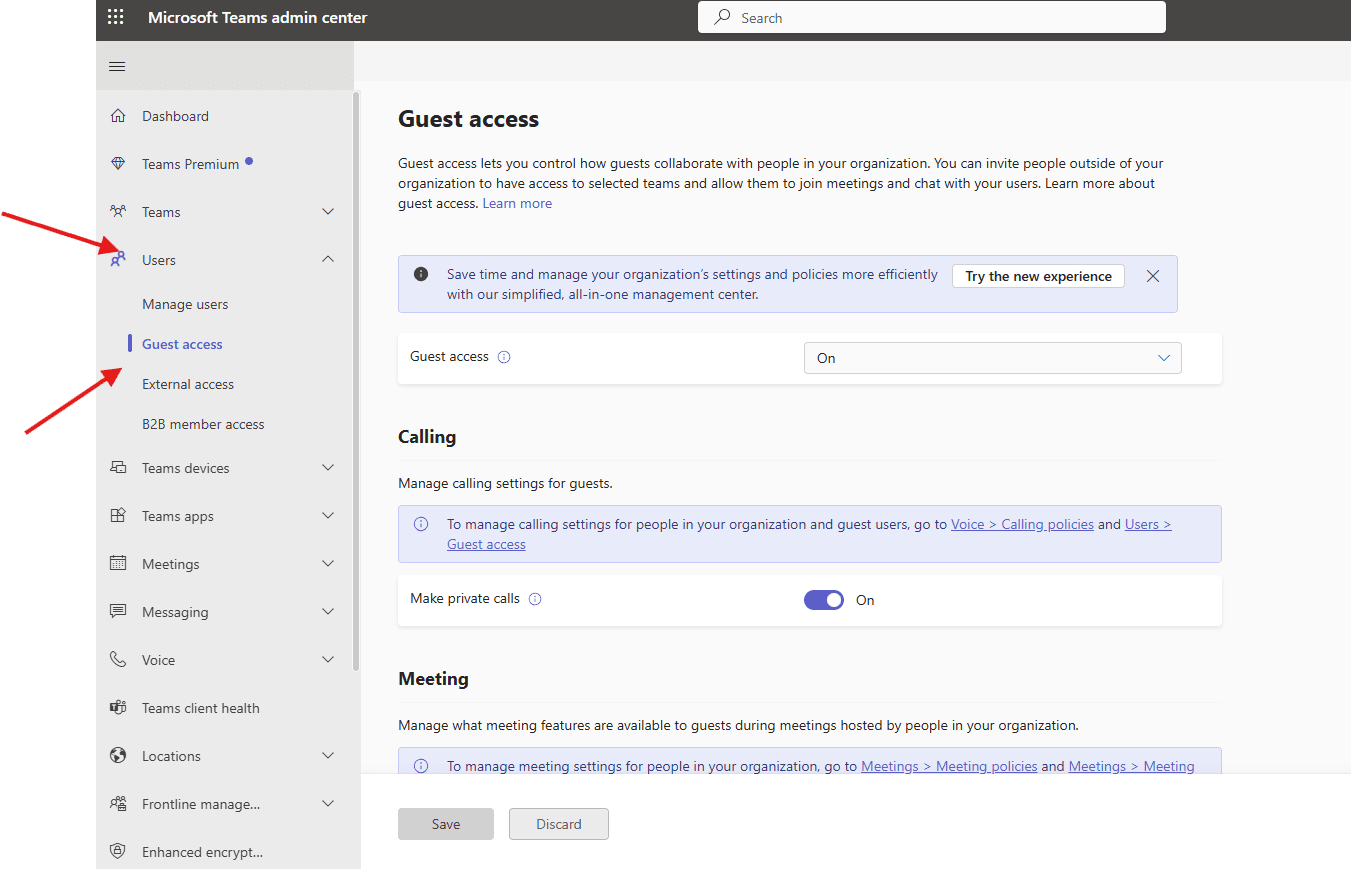
This article talks about Guest access in Teams admin center
Guest access:
It lets you control how guests collaborate with people in your organization. You can invite people outside of your organization to have access to selected teams and allow them to join meetings and chat with your users.
Lets understand it step by step:
Open Teams admin center : https://admin.teams.microsoft.com/
Navigate to users –> Guest-access
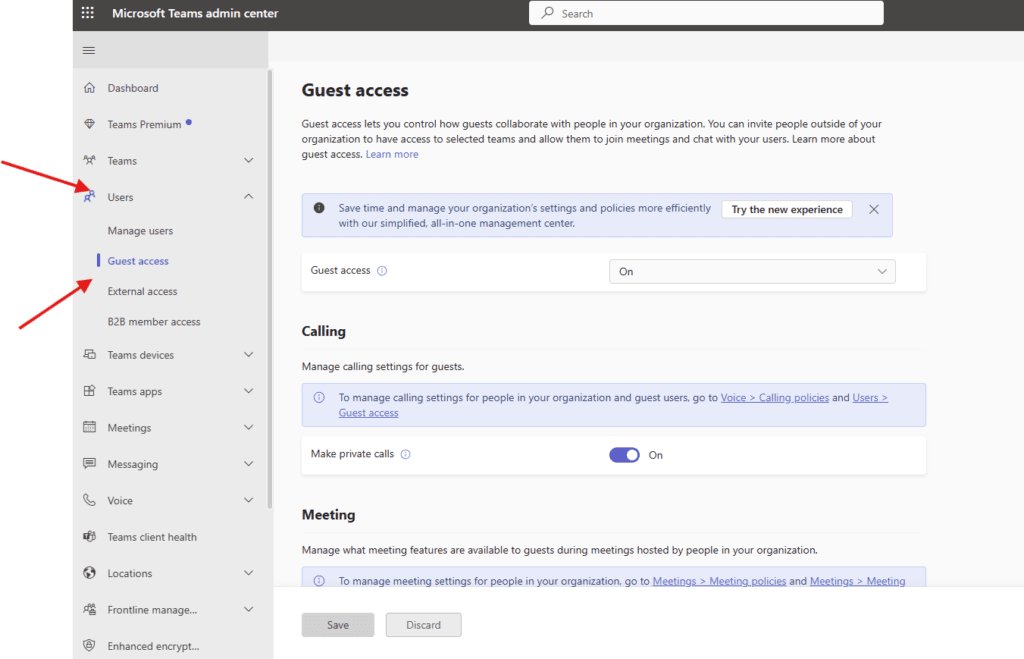
you can turn on or off the guest-access from here
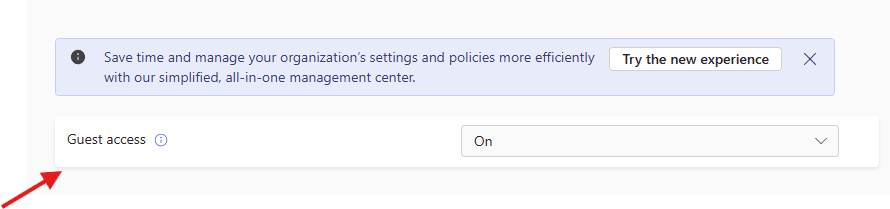
you can manage calling settings for guests from here
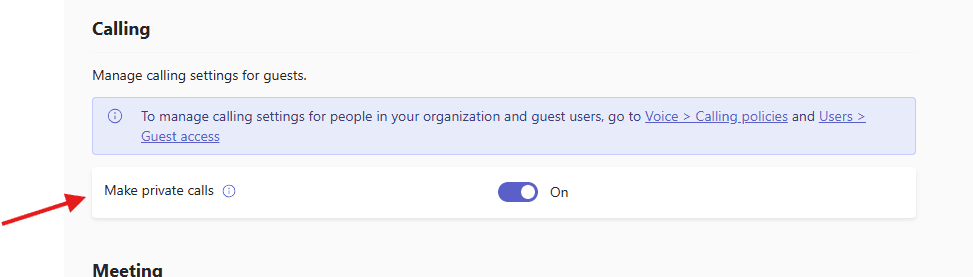
You can manage what meeting features like video conf, screen sharing , meet now, can give control etc are available to guests during meetings hosted by people in your organization.
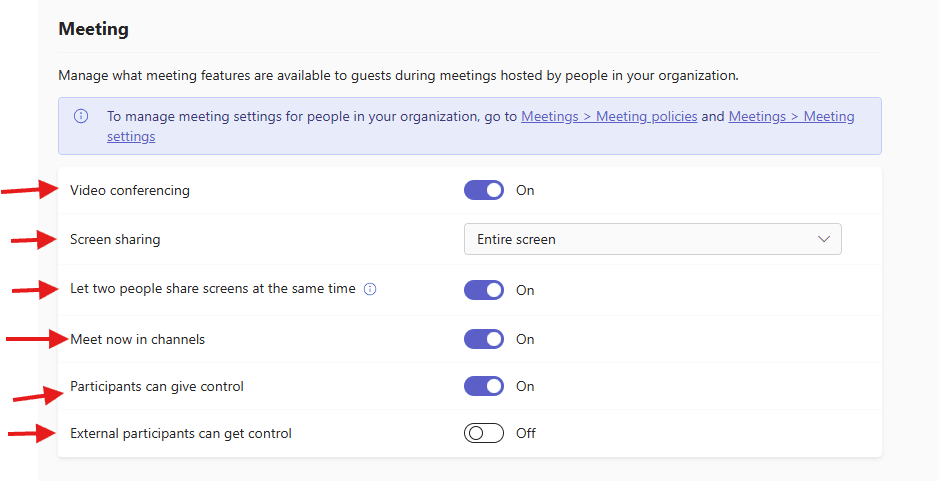
you can manage messaging features like edit sent message, delete chat, giphy, stickers etc for guests in channel conversations and chats
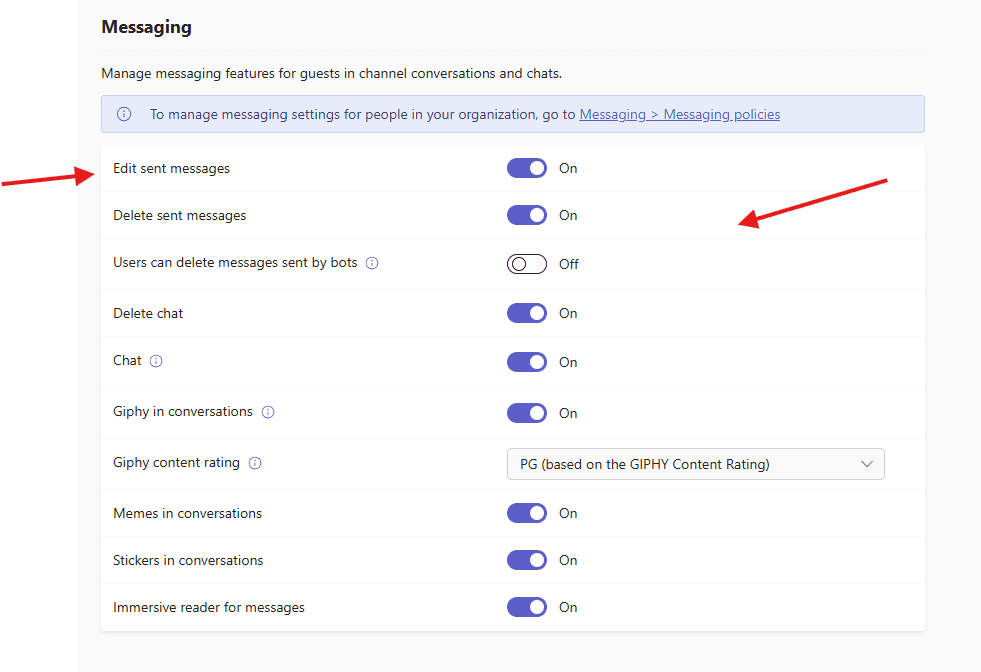
Please read this article to https://microbrother.com/how-to-add-guest-users-in-o365/ add gust users in your tenant
PowerShell script:
Install-Module MicrosoftTeams -Force -AllowClobber
Install-Module Microsoft.Graph -Force

# Connect to Teams
Connect-MicrosoftTeams

# Connect to Microsoft Graph
Connect-MgGraph -Scopes "User.ReadWrite.All","Group.ReadWrite.All","Directory.ReadWrite.All"

# Enable Guest Access globally
Set-CsTeamsClientConfiguration -AllowGuestUser $true

#Configure Guest Permissions
Set-CsTeamsGuestMessagingConfiguration `
-AllowUserEditMessage $true `
-AllowUserDeleteMessage $true `
-AllowChat $true `
-AllowGiphy $true `
-AllowStickersAndMemes $true

#Meeting & Calling Access
Set-CsTeamsGuestCallingConfiguration -AllowPrivateCalling $true
Set-CsTeamsGuestMeetingConfiguration -AllowIPVideo $true

Update-MgPolicyAuthorizationPolicy `
-GuestUserRoleId "10dae51f-b6af-4016-8d66-8c2a99b929b3" `
-AllowInvitesFrom "everyone"

#Enable Guest Access in Azure AD
Update-MgPolicyAuthorizationPolicy `
-GuestUserRoleId "10dae51f-b6af-4016-8d66-8c2a99b929b3" `
-AllowInvitesFrom "everyone"

#Invite a Guest User
$GuestEmail = "guestuser@example.com"

New-MgInvitation `
-InvitedUserEmailAddress $GuestEmail `
-InviteRedirectUrl "https://teams.microsoft.com" `
-SendInvitationMessage $true

$TeamId = "YOUR-TEAM-ID"
$GuestObjectId = (Get-MgUser -Filter "mail eq '$GuestEmail'").Id

#Add Guest to a Team
Add-TeamUser `
-GroupId $TeamId `
-User $GuestEmail `
-Role Guest

#Verify Guest Access
Get-CsTeamsClientConfiguration | Select AllowGuestUser
Get-CsTeamsGuestMessagingConfiguration

#Disable Guest Access (Rollback)
Set-CsTeamsClientConfiguration -AllowGuestUser $false
Conclusion :
Post reading above article reader will be able to create and handle Guest access in Teams admin center
Thank you 😇