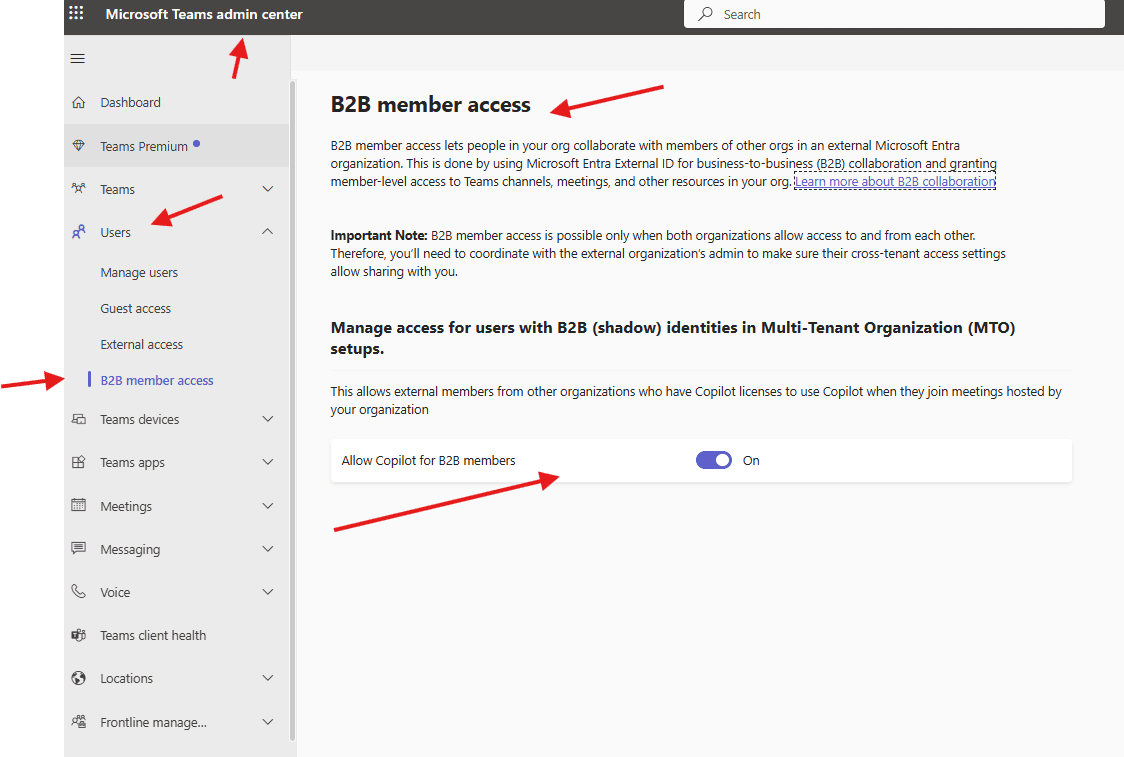
This article talks about B2B member access in Microsoft Teams
B2B member access
B2B member access lets people in your org collaborate with members of other orgs in an external Microsoft Entra organization. This is done by using Microsoft Entra External ID for business-to-business (B2B) collaboration and granting member-level access to Teams channels, meetings, and other resources in your org
check out this article https://learn.microsoft.com/en-us/entra/external-id/user-properties to understand and manage the properties of B2B guest users
B2B member access settings can be found in Teams admin center –> users–> B2B member access
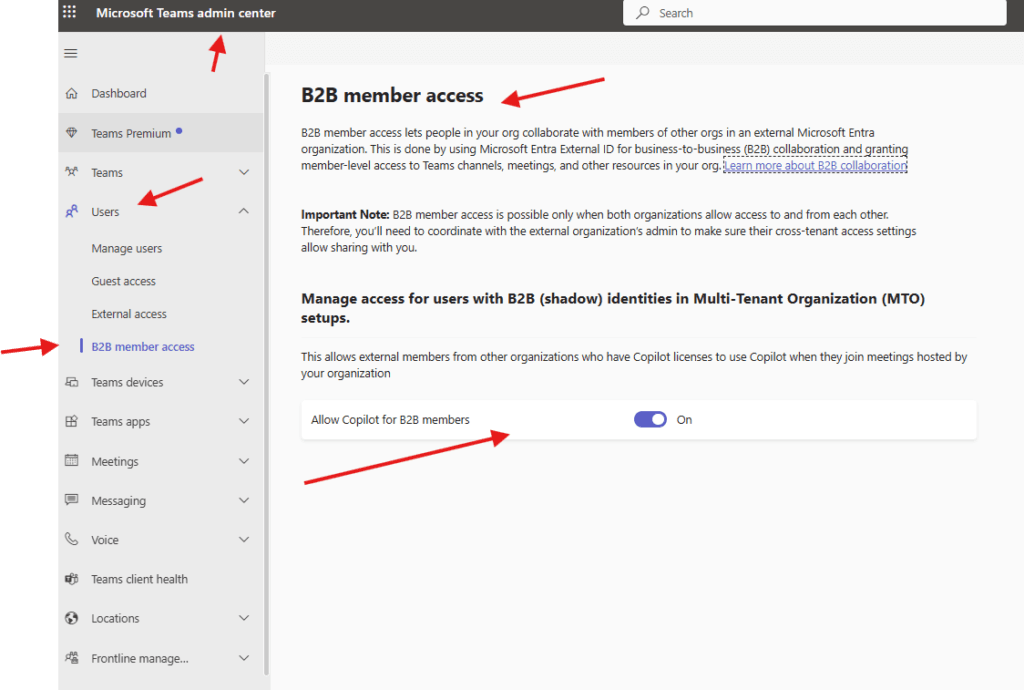
Note : B2B member access is possible only when both organizations allow access to and from each other. Therefore, you’ll need to coordinate with the external organization’s admin to make sure their cross-tenant access settings allow sharing with you.
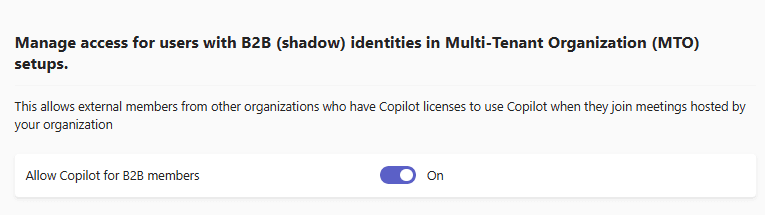
You can also access for users with B2B (shadow) identities in Multi-Tenant Organization (MTO) setups.
PowerShell script:
#Prerequisites
Install-Module Microsoft.Graph -Scope CurrentUser

#Required permissions:

User.ReadWrite.All

Directory.ReadWrite.All

Group.ReadWrite.All

#Connect to Microsoft Graph
Connect-MgGraph -Scopes "User.ReadWrite.All","Directory.ReadWrite.All","Group.ReadWrite.All"

#Create B2B Member User (External User as Member)
# ===============================
# CONFIGURATION
# ===============================
$ExternalEmail = "externaluser@partner.com"
$DisplayName   = "Partner Member User"
$RedirectURL   = "https://myapps.microsoft.com"

# ===============================
# INVITE B2B USER
# ===============================
$invite = New-MgInvitation `
    -InvitedUserEmailAddress $ExternalEmail `
    -InviteRedirectUrl $RedirectURL `
    -SendInvitationMessage $true

Write-Host "Invitation sent to $ExternalEmail"

# ===============================
# WAIT FOR USER OBJECT CREATION
# ===============================
Start-Sleep -Seconds 10

$user = Get-MgUser -Filter "mail eq '$ExternalEmail'"

if (!$user) {
    Write-Error "User not found yet. Try again after invitation acceptance."
    exit
}

# ===============================
# UPDATE USER TO B2B MEMBER
# ===============================
Update-MgUser `
    -UserId $user.Id `
    -UserType "Member" `
    -DisplayName $DisplayName

Write-Host "User converted to B2B Member successfully"

#ADD B2B MEMBER TO A TEAM (M365 Group)
# ===============================
# ADD USER TO TEAM / GROUP
# ===============================
$TeamGroupId = "xxxxxxxx-xxxx-xxxx-xxxx-xxxxxxxxxxxx"  # Teams M365 Group ID

New-MgGroupMember `
    -GroupId $TeamGroupId `
    -DirectoryObjectId $user.Id

Write-Host "User added to Microsoft Team"

#CHECK B2B MEMBER STATUS
Get-MgUser -UserId $ExternalEmail |
Select DisplayName, Mail, UserType, AccountEnabled

#CHANGE MEMBER → GUEST
Update-MgUser `
    -UserId $ExternalEmail `
    -UserType "Guest"

#REMOVE B2B MEMBER ACCESS
Remove-MgUser -UserId $ExternalEmail
Write-Host "B2B Member removed successfully"
Azure automation run book
Azure Automation Runbook
B2B Member Access Management for Microsoft Teams
🔐 ONE-TIME SETUP (Mandatory)
1️⃣ Enable Managed Identity

Azure Portal → Automation Account

Identity → System Assigned → On

Save

2️⃣ Grant Graph API Permissions (Entra ID)

Azure Portal → Entra ID → Enterprise Applications →
Select your Automation Account

Add these Application permissions:

User.ReadWrite.All

Directory.ReadWrite.All

Group.ReadWrite.All

➡️ Grant Admin Consent

3️⃣ Import Required Modules

Automation Account → Modules → Import:

Microsoft.Graph.Authentication

Microsoft.Graph.Users

Microsoft.Graph.Groups

Microsoft.Graph.Identity.DirectoryManagement

📜 RUNBOOK SCRIPT (PowerShell)

Create a PowerShell Runbook and paste the following:

🔹 Runbook: Manage-B2BMemberTeams.ps1
param(
    [Parameter(Mandatory=$true)]
    [string]$ExternalEmail,

    [Parameter(Mandatory=$true)]
    [string]$DisplayName,

    [Parameter(Mandatory=$false)]
    [string]$TeamGroupId
)

# ==============================
# CONNECT USING MANAGED IDENTITY
# ==============================
Connect-MgGraph -Identity

Write-Output "Connected to Microsoft Graph using Managed Identity"

# ==============================
# INVITE B2B USER
# ==============================
$invite = New-MgInvitation `
    -InvitedUserEmailAddress $ExternalEmail `
    -InviteRedirectUrl "https://myapps.microsoft.com" `
    -SendInvitationMessage $true

Write-Output "Invitation sent to $ExternalEmail"

# ==============================
# WAIT FOR USER CREATION
# ==============================
Start-Sleep -Seconds 15

$user = Get-MgUser -Filter "mail eq '$ExternalEmail'"

if (!$user) {
    throw "User not found. Invitation may not be accepted yet."
}

# ==============================
# CONVERT TO B2B MEMBER
# ==============================
Update-MgUser `
    -UserId $user.Id `
    -UserType "Member" `
    -DisplayName $DisplayName

Write-Output "User converted to B2B Member"

# ==============================
# ADD TO MICROSOFT TEAM (OPTIONAL)
# ==============================
if ($TeamGroupId) {
    New-MgGroupMember `
        -GroupId $TeamGroupId `
        -DirectoryObjectId $user.Id

    Write-Output "User added to Microsoft Team"
}

Write-Output "Runbook completed successfully"


🧪 Example Test Run
ExternalEmail : externaluser@partner.com
DisplayName  : Partner Member
TeamGroupId  : 1a2b3c4d-xxxx-xxxx-xxxx-xxxxxxxx
Conclusion:
Post reading above article user will be able to understand and manage the properties of B2B guest users
Also you can read https://microbrother.com/external-access-in-teams-admin-center/ this article to enable External access in Teams admin center
Thank you 😇