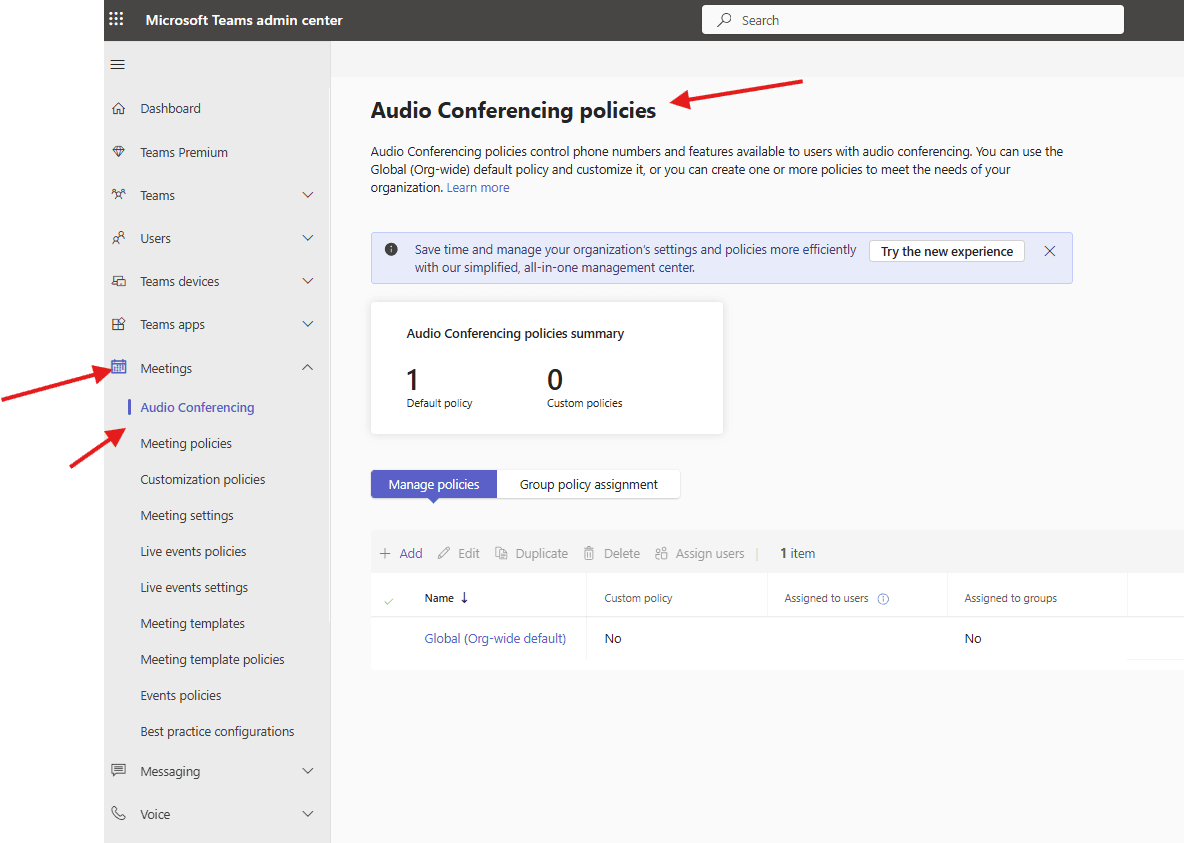
In this article we will study about Audio Conferencing policies in Teams admin center
Audio Conferencing
Audio-Conferencing lets people join Teams meetings by dialing in via phone (PSTN) or having the system call them, useful for those without computer audio; it adds dial-in numbers and conference IDs to invites, allowing anyone to join using a phone with a PIN, integrating standard phone calls with digital Teams meetings seamlessly, and is often included with eligible Microsoft 365 licenses
Lets create or modify Audio Conferencing in TAC step by step
Open Teams admin center : https://admin.teams.microsoft.com/
Navigate to Meetings –> Audio-Conferencing
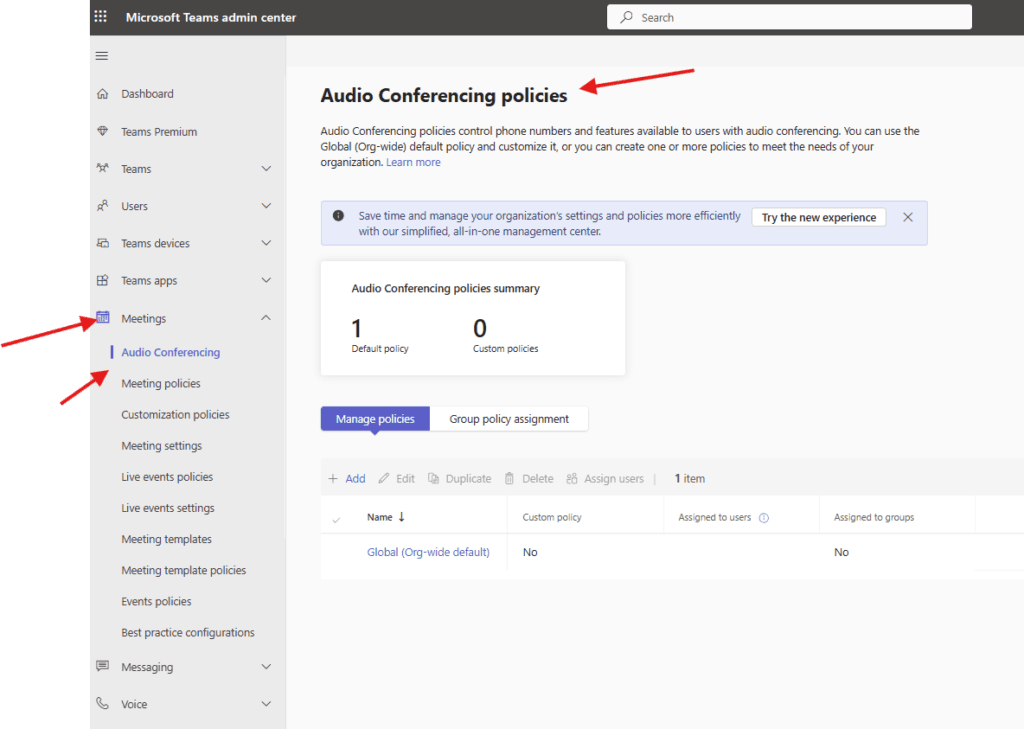
Audio Conferencing policies control phone numbers and features available to users with audio conferencing. You can use the Global (Org-wide) default policy and customize it, or you can create one or more policies to meet the needs of your organization
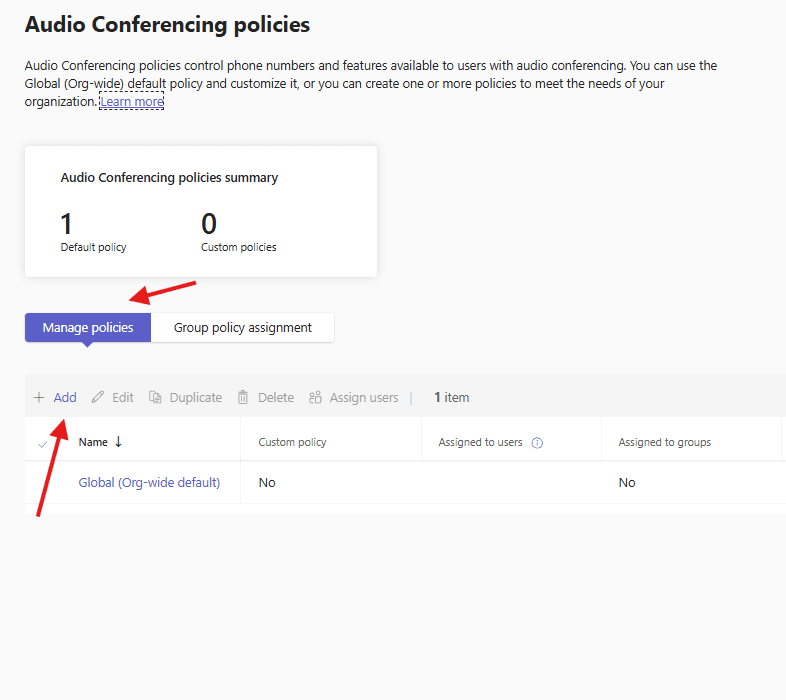
Under manage policies –> click on Add
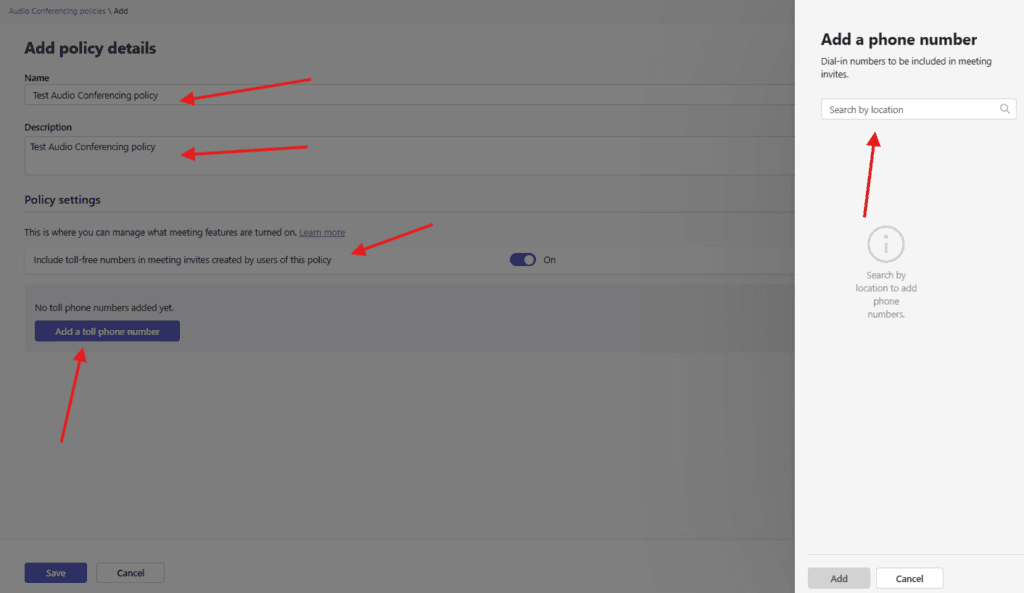
Give a suitable title and add a Toll number also Include toll-free numbers in meeting invites
click on created policy and assign it to the user
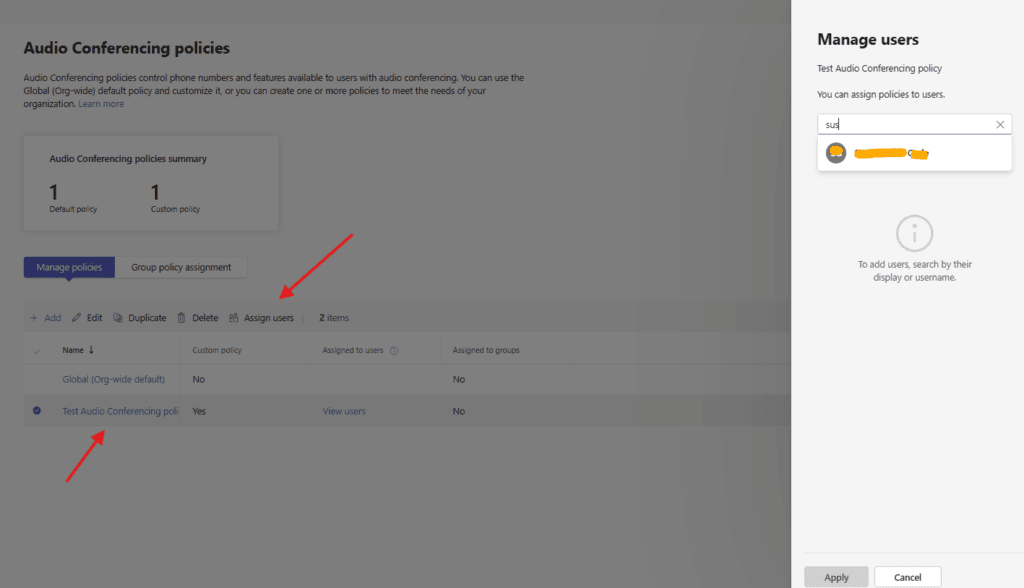
we are done here.
PowerShell script :
# Install Microsoft Teams PowerShell module (if not already installed)
Install-Module -Name MicrosoftTeams -Force -AllowClobber

# Connect to Microsoft Teams
Connect-MicrosoftTeams

# Variables
$PolicyName = "AC-India-TollFree"
$Description = "Audio Conferencing policy with toll-free and toll numbers enabled"

# Create Audio Conferencing Policy
New-CsAudioConferencingPolicy `
    -Identity $PolicyName `
    -Description $Description `
    -AllowTollFreeDialIn $true `
    -AllowTollDialIn $true

#Verify the Policy
Get-CsAudioConferencingPolicy | Select Identity, AllowTollFreeDialIn, AllowTollDialIn


# Assign policy to a single user
Grant-CsAudioConferencingPolicy `
    -Identity user@yourdomain.com `
    -PolicyName $PolicyName

# Assign policy to a bulk user:
#CSV should contain a column named UserPrincipalName
$Users = Import-Csv "C:\Temp\Users.csv"

foreach ($User in $Users) {
    Grant-CsAudioConferencingPolicy `
        -Identity $User.UserPrincipalName `
        -PolicyName $PolicyName
}
Azure automation runbook script:
<#
.SYNOPSIS
Creates a Microsoft Teams Audio Conferencing Policy and assigns it to users

.DESCRIPTION
This runbook connects to Microsoft Teams using Managed Identity,
creates a custom Audio Conferencing Policy if it does not exist,
and optionally assigns it to users.

.AUTHOR
Azure Automation – Teams Admin
#>

param (
    [Parameter(Mandatory = $true)]
    [string] $PolicyName,

    [Parameter(Mandatory = $false)]
    [string] $Description = "Custom Audio Conferencing Policy",

    [Parameter(Mandatory = $false)]
    [bool] $AllowTollFreeDialIn = $true,

    [Parameter(Mandatory = $false)]
    [bool] $AllowTollDialIn = $true,

    [Parameter(Mandatory = $false)]
    [string[]] $UserPrincipalNames
)

Write-Output "Starting Audio Conferencing Policy Runbook..."

# Connect to Microsoft Teams using Managed Identity
Write-Output "Connecting to Microsoft Teams using Managed Identity..."
Connect-MicrosoftTeams -Identity

# Check if policy already exists
$ExistingPolicy = Get-CsAudioConferencingPolicy -Identity $PolicyName -ErrorAction SilentlyContinue

if ($null -eq $ExistingPolicy) {
    Write-Output "Policy does not exist. Creating new policy: $PolicyName"

    New-CsAudioConferencingPolicy `
        -Identity $PolicyName `
        -Description $Description `
        -AllowTollFreeDialIn $AllowTollFreeDialIn `
        -AllowTollDialIn $AllowTollDialIn

    Write-Output "Policy created successfully."
}
else {
    Write-Output "Policy already exists. Skipping creation."
}

# Assign policy to users if provided
if ($UserPrincipalNames -and $UserPrincipalNames.Count -gt 0) {
    Write-Output "Assigning policy to users..."

    foreach ($User in $UserPrincipalNames) {
        try {
            Grant-CsAudioConferencingPolicy `
                -Identity $User `
                -PolicyName $PolicyName

            Write-Output "Policy assigned to $User"
        }
        catch {
            Write-Error "Failed to assign policy to $User. Error: $_"
        }
    }
}
else {
    Write-Output "No users provided. Skipping policy assignment."
}

Write-Output "Runbook execution completed."
Conclusion:
Post reading above article user will be able to Audio Conferencing policies in Teams admin center : manually, by PowerShell or by Azure run book
Also you can read https://microbrother.com/customize-app-store-and-agent-settings-in-tac/ this article to Customize app store and Agent settings in TAC
Thank you 😊