This article talks about Events policies in Microsoft Teams
Events policies in Microsoft Teams
Events policies in Microsoft Teams allow administrators to manage and control features for webinars, town halls, and live events, governing who can organize, present, or attend. These policies, configured in the Teams Admin Center, control settings like, scheduling, recording, and attendee interaction, which can be applied globally or via custom policies for specific users.
Live Events Policies: Control who can create live events, if transcripts are allowed, and recording settings.
Webinar/Town Hall Management: Policies can disable, enable, or restrict the ability to schedule webinars and town halls, such as for students in education settings.
Participant & Access Control: Determine if events are for the entire organization or public (accessible to non-users).
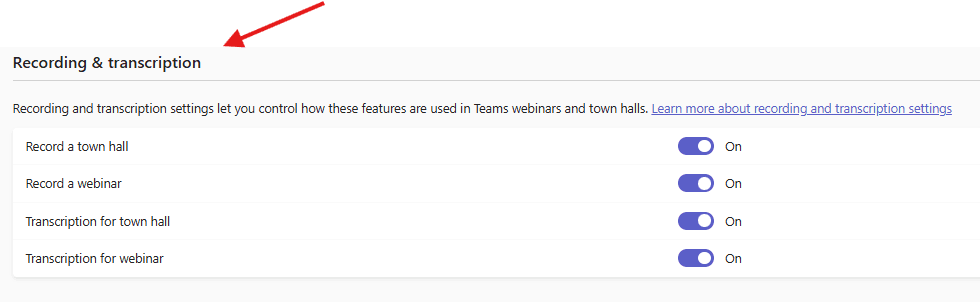
Recording & Transcription: Toggle whether webinars and other events are automatically recorded and transcribed.
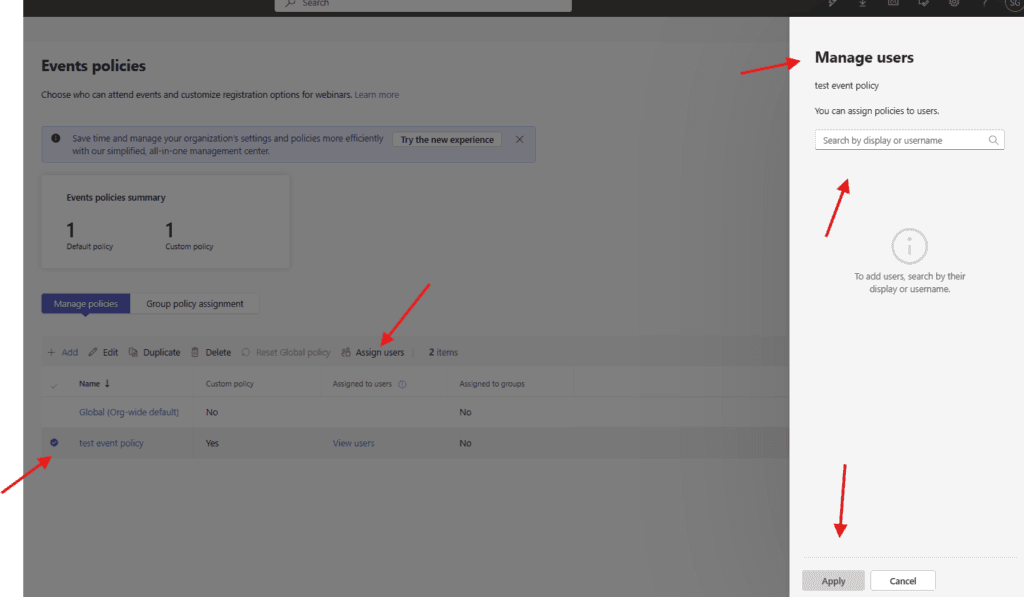
Policy Assignment: Administrators can create custom policies and assign them to specific users or groups to override the default global policy.
Lets create in step by step- Events policies in Microsoft Teams
Login to Teams admin center : https://admin.teams.microsoft.com/
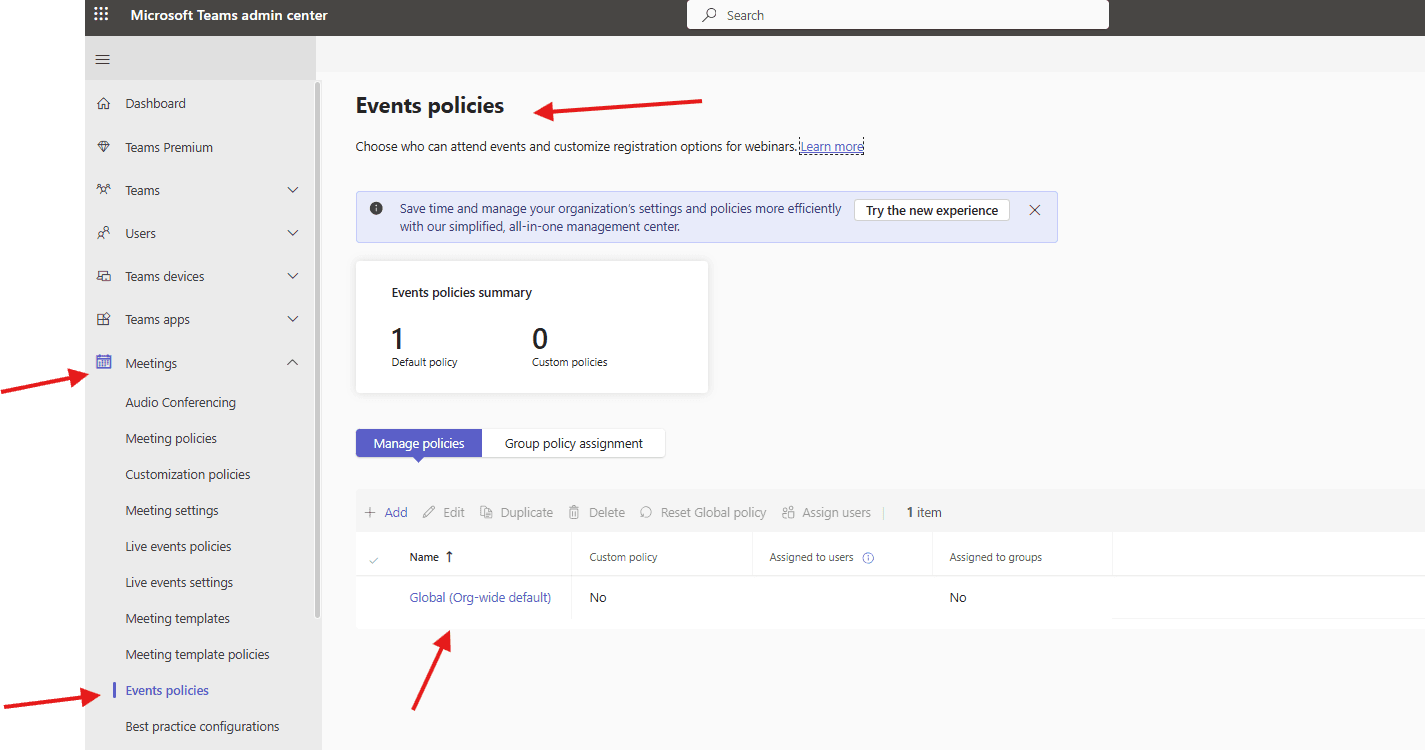
Navigate to Meetings –> Events policies –> Global policy can be seen
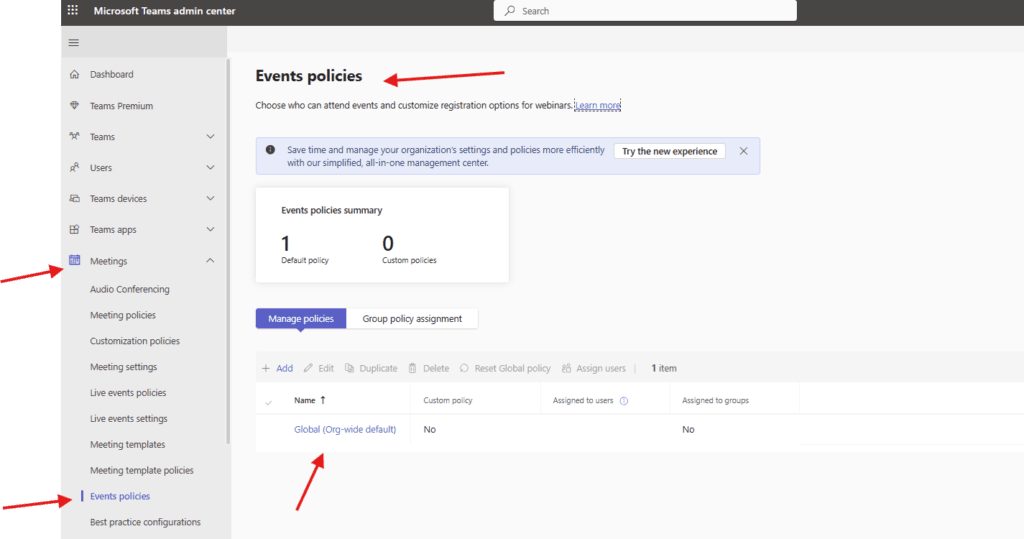
Lets create one test policy –> click on add
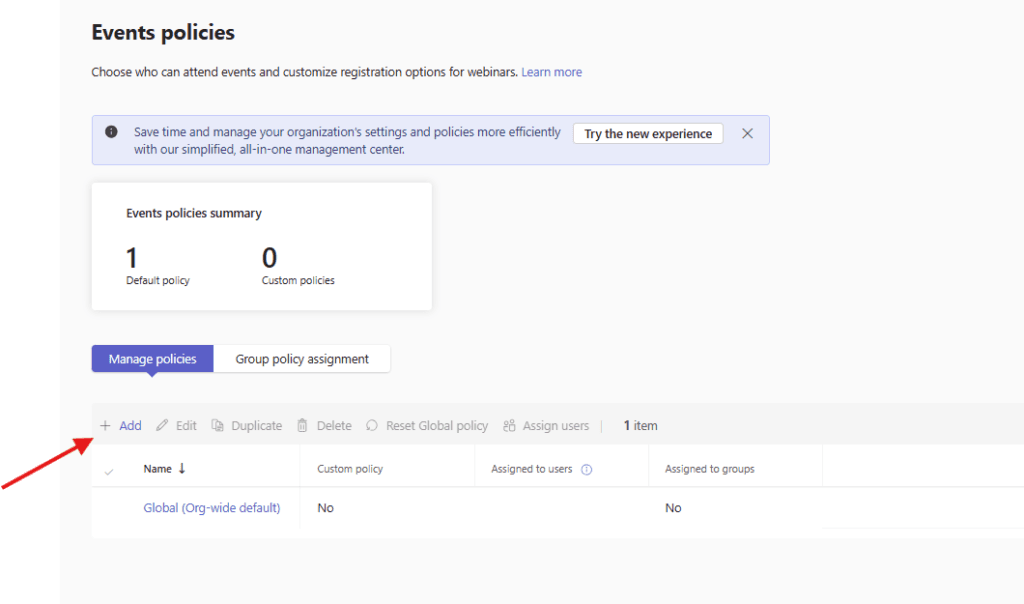
Settings like Webinars, Town halls, Customize event emails, Webinar registration form questions, Use Microsoft ECDN and Recording and transcription can be managed from here
finally click on save and create it
you can assign it to the set of users once done with the policy
We are done here with Events policies in Microsoft Teams
PowerShell script for above manual task
# -------------------------------
# Connect to Microsoft Teams
# -------------------------------
Import-Module MicrosoftTeams
Connect-MicrosoftTeams

# -------------------------------
# Variables
# -------------------------------

$PolicyName = "Corp-Events-Policy"

# -------------------------------
# Check if Policy Exists
# -------------------------------

$ExistingPolicy = Get-CsTeamsEventsPolicy -Identity $PolicyName -ErrorAction SilentlyContinue

if ($null -eq $ExistingPolicy) {

    Write-Host "Creating new Events Policy: $PolicyName" -ForegroundColor Green

    New-CsTeamsEventsPolicy `
        -Identity $PolicyName `
        -AllowLiveEvents $true `
        -AllowTownHall $true `
        -AllowWebinars $true `
        -AllowRecording $true `
        -AllowTranscription $true `
        -AllowAnonymousUsersToJoinMeeting $true `
        -AllowExternalParticipantGiveRequestControl $false `
        -AllowMeetingChat $true `
        -AllowQandA $true `
        -AllowCaptions $true `
        -AllowAttendeeToEnableMic $false `
        -AllowAttendeeToEnableCamera $false `
        -Description "Corporate Events Policy"

    Write-Host "Policy created successfully." -ForegroundColor Green

}
else {
    Write-Host "Policy already exists: $PolicyName" -ForegroundColor Yellow
}

# -------------------------------
# Assign Policy to Users
# -------------------------------

$Users = @(
    "user1@microbrother.com",
    "user2@microbrother.com"
)

foreach ($User in $Users) {

    Write-Host "Assigning policy to $User" -ForegroundColor Cyan

    Grant-CsTeamsEventsPolicy `
        -Identity $User `
        -PolicyName $PolicyName
}

Write-Host "All operations completed." -ForegroundColor Green
Azure Automation Runbook (PowerShell)
<#
.SYNOPSIS
Creates Microsoft Teams Events Policy and assigns it to users

.AUTHOR
Automation Runbook

.REQUIREMENTS
- Azure Automation Account with Managed Identity
- MicrosoftTeams module imported
#>

# -----------------------------
# Variables
# -----------------------------

$PolicyName = "Corp-Events-Policy"

$Users = @(
    "user1@microbrother.com",
    "user2@microbrother.com"
)

# -----------------------------
# Disable Context Autosave
# -----------------------------

Disable-AzContextAutosave -Scope Process | Out-Null

# -----------------------------
# Connect to Microsoft Teams using Managed Identity
# -----------------------------

try {
    Import-Module MicrosoftTeams
    Connect-MicrosoftTeams -Identity

    Write-Output "Connected to Microsoft Teams using Managed Identity"
}
catch {
    throw "Failed to connect to Microsoft Teams. $_"
}

# -----------------------------
# Check if Policy Exists
# -----------------------------

$ExistingPolicy = Get-CsTeamsEventsPolicy -Identity $PolicyName -ErrorAction SilentlyContinue

if (-not $ExistingPolicy) {

    Write-Output "Creating new Events Policy: $PolicyName"

    New-CsTeamsEventsPolicy `
        -Identity $PolicyName `
        -AllowLiveEvents $true `
        -AllowTownHall $true `
        -AllowWebinars $true `
        -AllowRecording $true `
        -AllowTranscription $true `
        -AllowAnonymousUsersToJoinMeeting $true `
        -AllowExternalParticipantGiveRequestControl $false `
        -AllowMeetingChat $true `
        -AllowQandA $true `
        -AllowCaptions $true `
        -AllowAttendeeToEnableMic $false `
        -AllowAttendeeToEnableCamera $false `
        -Description "Corporate Events Policy"

    Write-Output "Policy created successfully"

}
else {
    Write-Output "Policy already exists"
}

# -----------------------------
# Assign Policy to Users
# -----------------------------

foreach ($User in $Users) {

    try {
        Grant-CsTeamsEventsPolicy `
            -Identity $User `
            -PolicyName $PolicyName

        Write-Output "Assigned policy to $User"
    }
    catch {
        Write-Error "Failed to assign policy to $User. $_"
    }
}

Write-Output "Runbook execution completed"
Conclusion:
Post reading above article user will be able to create Events policies in Microsoft Teams
You can also read https://microbrother.com/meeting-templates-in-teams-admin-center/ to create Meeting templates in Teams admin center
Thank you 😇