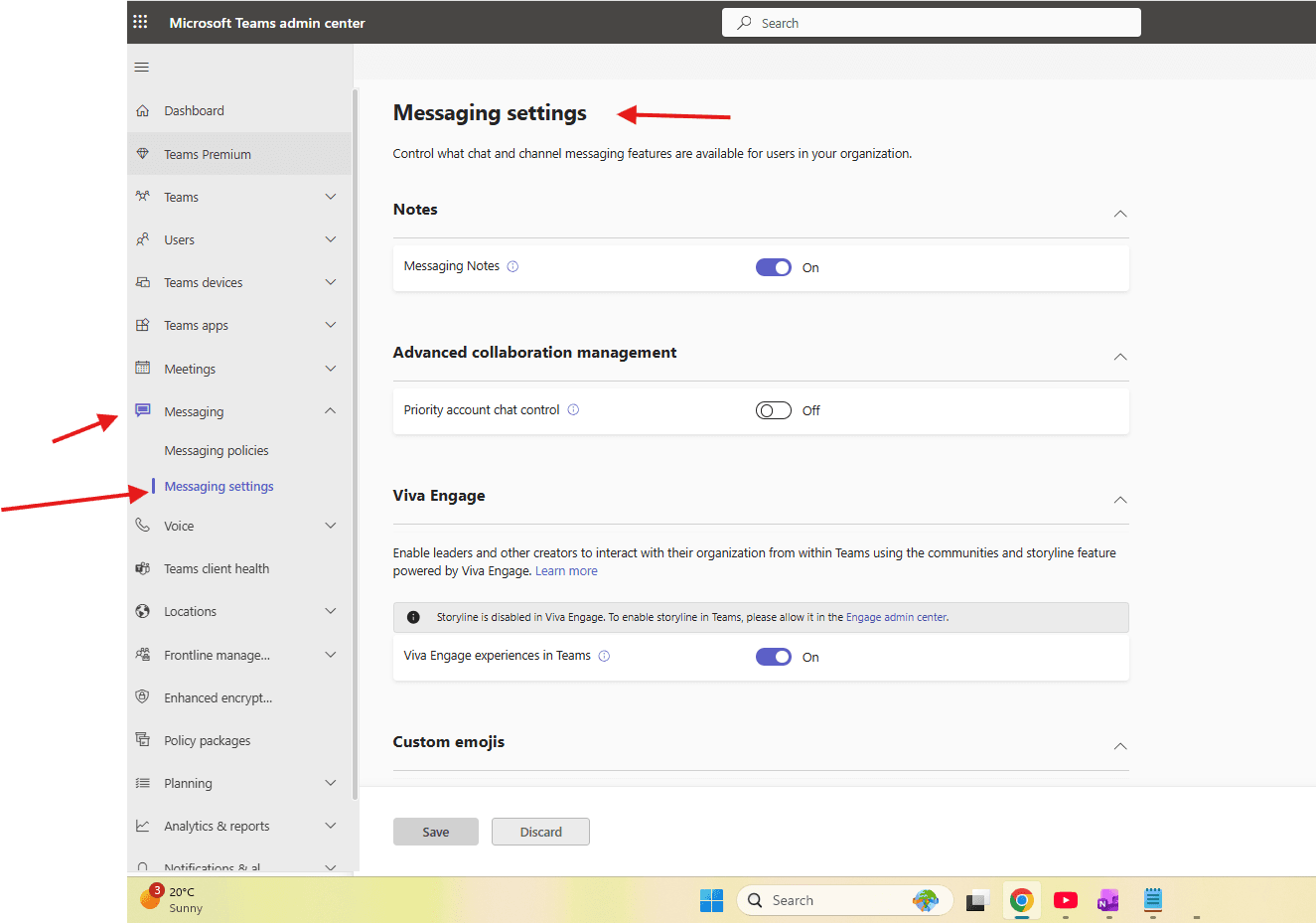
This article talks about Messaging settings in Microsoft Teams
Messaging settings
Messaging settings in Microsoft Teams allow users to customize their chat experience, including setting status messages, managing notifications, and formatting messages with emojis or GIFs.
Key settings include enabling chat in meetings, managing GIPHY/sticker usage, and configuring SMS for external numbers. Control what chat and channel messaging features are available for users in your organization
Lets set it up step by step
Login to Teams admin center : https://admin.teams.microsoft.com/
Navigate to messaging –> messaging settings
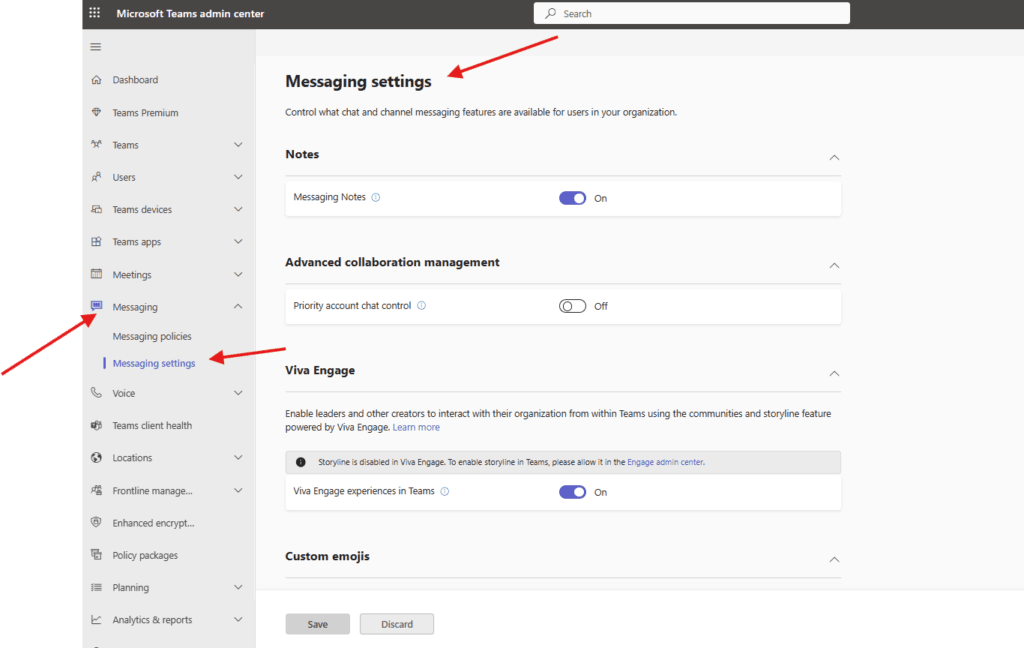
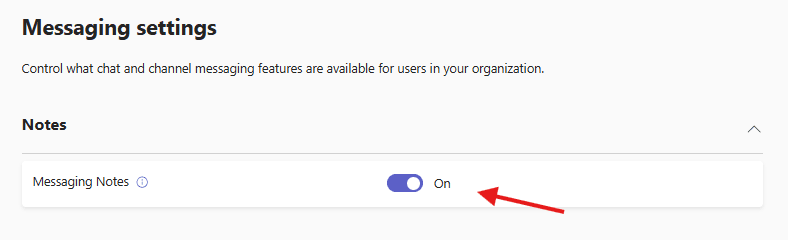
Messaging Notes: Turn Messaging Notes On or Off for all users in your organization. When Messaging Notes are turned Off, they will no longer be visible for end-users. Data will be retained in Purview
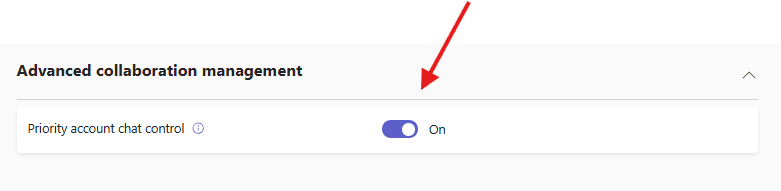
Priority account chat control: When this is On, priority accounts can review, accept, and block any new chat messages from other people in your organization. This won’t impact any of their existing chats. When Off is selected, anyone may start a new chat with priority accounts.
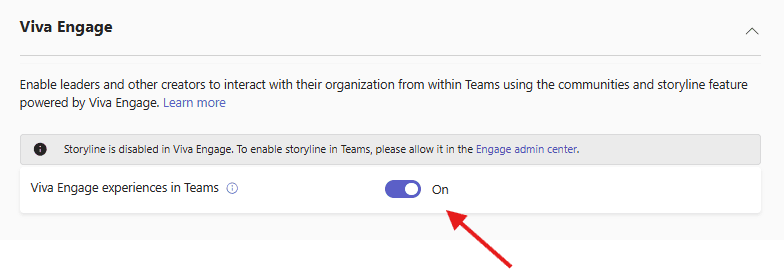
Viva Engage experiences in Teams: Community & storyline content in Teams is hosted by Viva Engage. It is subject to data handling, governance, and compliance capabilities as configured for Viva Engage.
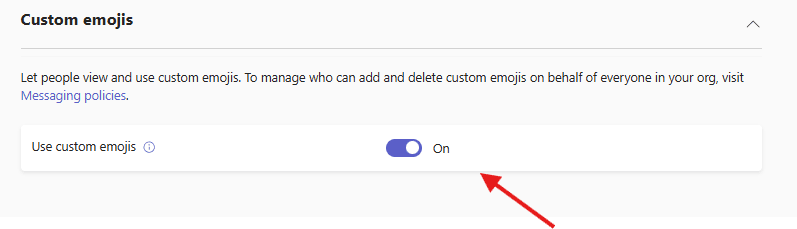
Use custom emojis : When this is on, everyone can view custom emojis created by anyone in your organization.
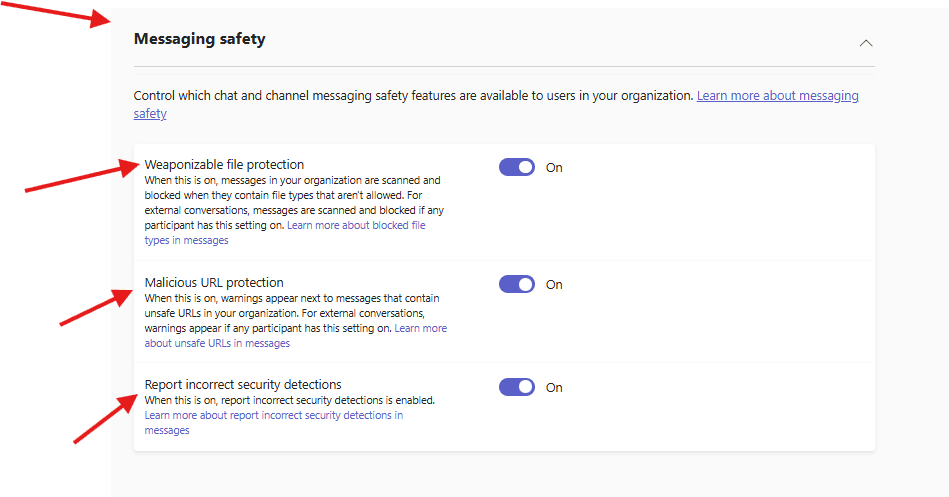
Messaging safety: Control which chat and channel messaging safety features are available to users in your organization
- Weaponizable file protection: When this is on, messages in your organization are scanned and blocked when they contain file types that aren’t allowed. For external conversations, messages are scanned and blocked if any participant has this setting on
2. Malicious URL protection: When this is on, warnings appear next to messages that contain unsafe URLs in your organization. For external conversations, warnings appear if any participant has this setting on
3. Report incorrect security detections: When this is on, report incorrect security detections is enabled.
Finally save it
PowerShell script for above manual task
# Connect to Microsoft Teams
Connect-MicrosoftTeams

# Set Tenant-wide Messaging-Settings
Set-CsTeamsClientConfiguration `
    -AllowMessagingNotes $true `
    -EnablePriorityAccountChatControl $true `
    -EnableVivaEngageExperienceInTeams $true `
    -AllowCustomEmoji $true

Write-Host "Tenant Messaging Settings configured successfully." -ForegroundColor Green
Azure run-book
<#
.SYNOPSIS
 Configure Tenant Messaging Settings in Microsoft Teams

.DESCRIPTION
 Uses System-Assigned Managed Identity to configure tenant-wide
 messaging settings in Microsoft Teams.

.NOTES
 Requires MicrosoftTeams module
 Automation Account must have Teams Admin role
#>

try {

    Write-Output "Starting Teams Tenant Messaging Settings configuration..."

    # Connect using Managed Identity
    Connect-MicrosoftTeams -Identity

    Write-Output "Connected to Microsoft Teams using Managed Identity."

    # Desired Configuration
    $MessagingSettings = @{
        AllowMessagingNotes                  = $true
        EnablePriorityAccountChatControl     = $true
        EnableVivaEngageExperienceInTeams    = $true
        AllowCustomEmoji                     = $true
    }

    Write-Output "Applying tenant messaging settings..."

    Set-CsTeamsClientConfiguration `
        -AllowMessagingNotes $MessagingSettings.AllowMessagingNotes `
        -EnablePriorityAccountChatControl $MessagingSettings.EnablePriorityAccountChatControl `
        -EnableVivaEngageExperienceInTeams $MessagingSettings.EnableVivaEngageExperienceInTeams `
        -AllowCustomEmoji $MessagingSettings.AllowCustomEmoji

    Write-Output "Tenant Messaging Settings applied successfully."

    # Validation
    $current = Get-CsTeamsClientConfiguration

    Write-Output "Current Configuration:"
    Write-Output $current

    Write-Output "Runbook completed successfully."

}
catch {

    Write-Error "ERROR: Failed to configure tenant messaging settings."
    Write-Error $_.Exception.Message
    throw

}
Conclusion
Post reading above article user will be able to create Messaging settings in Microsoft Teams
Also you can read this article https://microbrother.com/messaging-policies-in-microsoft-teams/ to create and apply messaging policies in ms teams
Thank you 😇