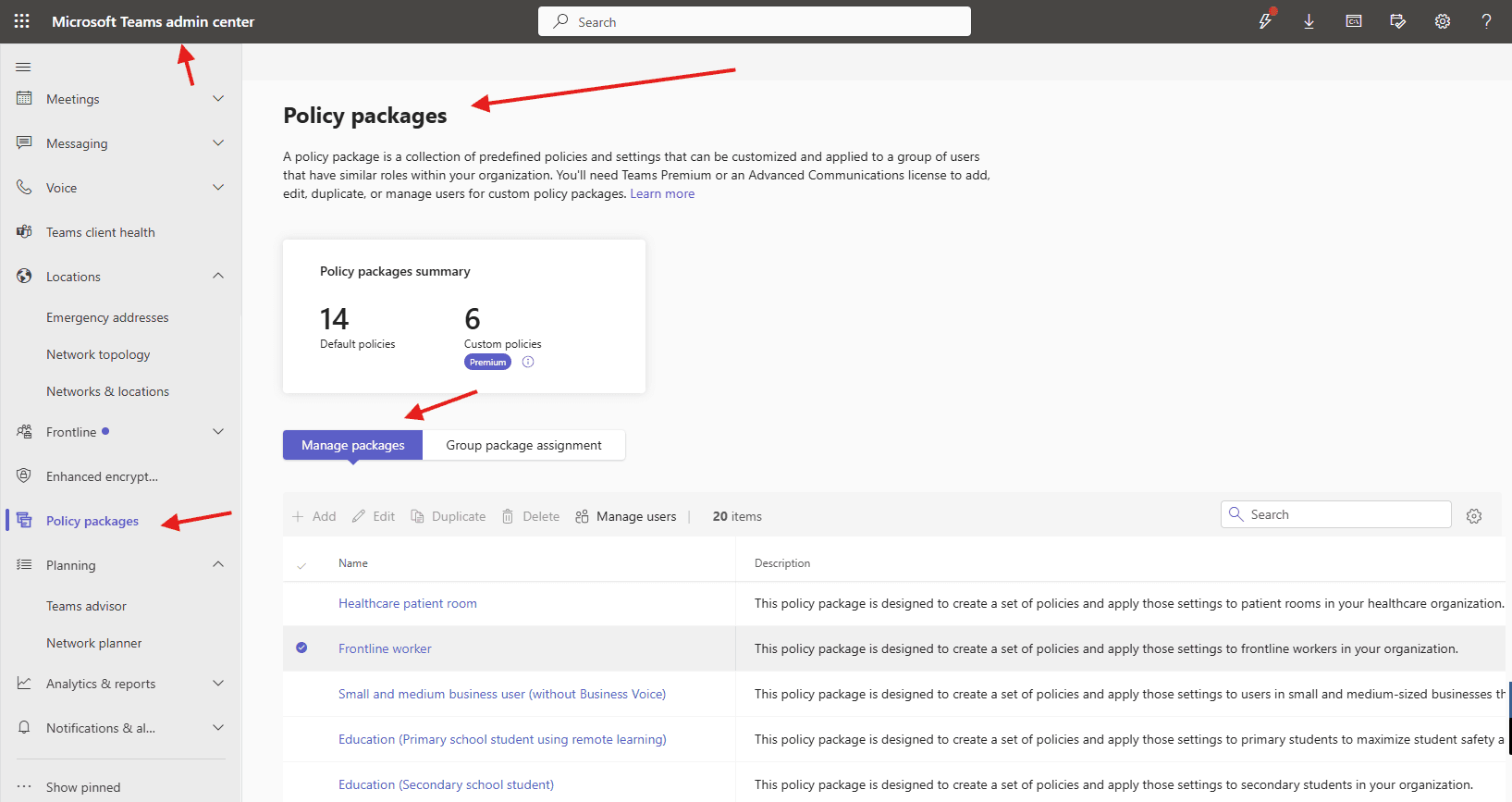
This article talks about on how to create policy packages in MS Teams
Policy packages
A policy package is a collection of predefined policies and settings that can be customized and applied to a group of users that have similar roles within your organization
Lets create Policy packages step by step
Login to Teams admin center : https://admin.teams.microsoft.com/
Navigate to TAC–> policy packages –> manage packages
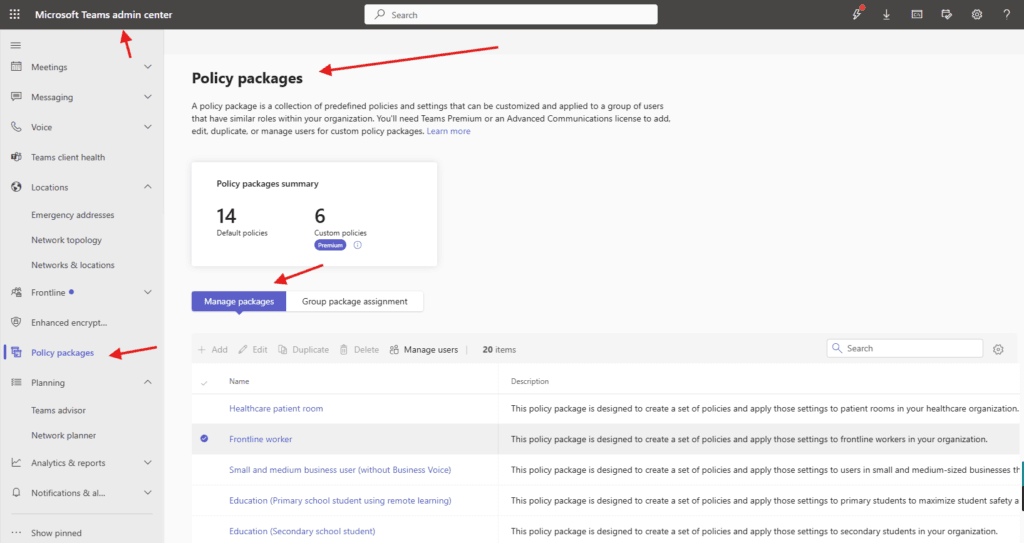
You’ll need Teams Premium or an Advanced Communications license to add, edit, duplicate, or manage users for custom policy packages.
Lets click on Frontline worker
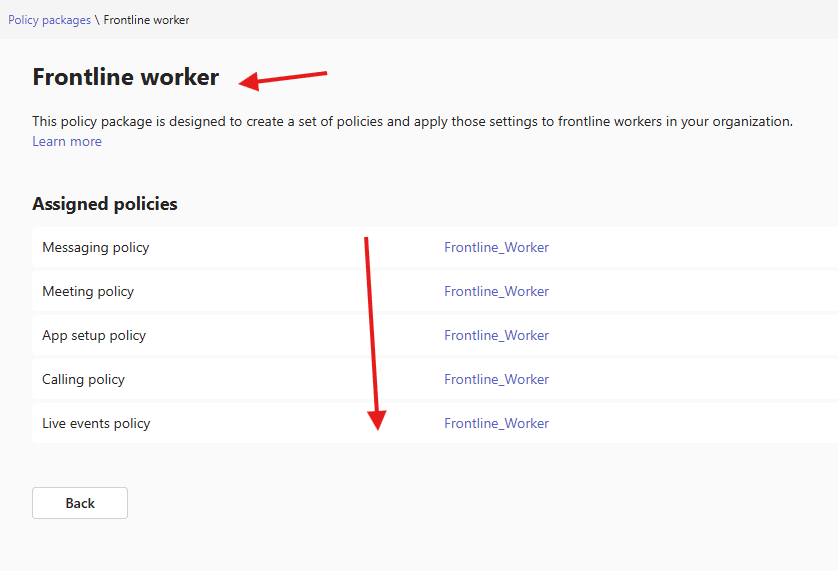
This policy package is designed to create a set of policies and apply those settings to frontline workers in your organization.
you can manage Messaging policy, Meeting policy, App setup policy, Calling policy and Live events policy
click on any policy e.g. Messaging policy it will take you to the Messaging policies
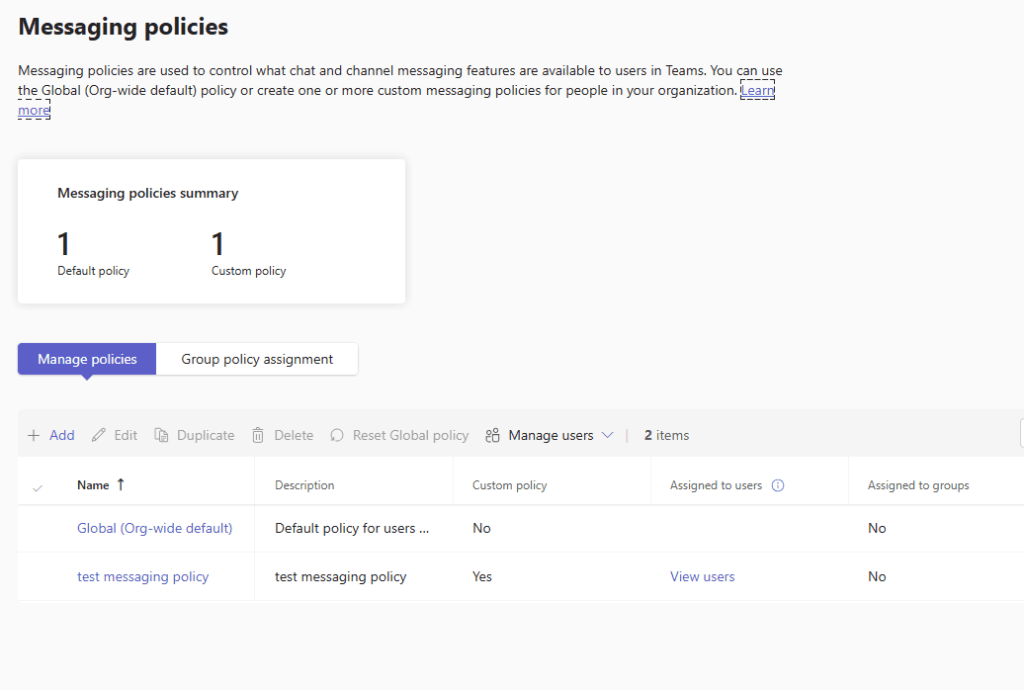
It’s like all in one package you can manage from one place
PowerShell Script: Create Policy Package in Microsoft Teams
# --------------------------------------------
# Script: Create Policy Package in MS Teams
# Requires: MicrosoftTeams PowerShell Module
# --------------------------------------------

# Install Microsoft Teams Module (if not installed)
# Install-Module -Name MicrosoftTeams -Force -AllowClobber

Import-Module MicrosoftTeams

# Connect to Microsoft Teams
Connect-MicrosoftTeams

# Define Policy Package Name & Description
$PackageName        = "Microbrother-PolicyPackage"
$PackageDescription = "Custom policy package for Microbrother company users"

# Define Policies to Include in the Package
# Replace these with your actual policy names
$CallingPolicy            = "Microbrother-CallingPolicy"
$MeetingPolicy            = "Microbrother-MeetingPolicy"
$MessagingPolicy          = "Microbrother-MessagingPolicy"
$AppSetupPolicy           = "Microbrother-AppSetupPolicy"
$AppPermissionPolicy      = "Microbrother-AppPermissionPolicy"
$TeamsUpgradePolicy       = "Microbrother-UpgradePolicy"

# Create the Policy Package
New-CsPolicyPackage `
    -Identity $PackageName `
    -Description $PackageDescription `
    -CallingPolicy $CallingPolicy `
    -MeetingPolicy $MeetingPolicy `
    -MessagingPolicy $MessagingPolicy `
    -TeamsAppSetupPolicy $AppSetupPolicy `
    -TeamsAppPermissionPolicy $AppPermissionPolicy `
    -TeamsUpgradePolicy $TeamsUpgradePolicy

Write-Host "✅ Policy Package Created Successfully: $PackageName" -ForegroundColor Green
We are done here.
Conclusion:
Post reading above article reader will be able to create policy packages in MS Teams
Also you can read https://microbrother.com/enhanced-encryption-policies-in-microsoft-teams/ this article to understand enhanced encryption policies in Microsoft Teams
Thank you 😇