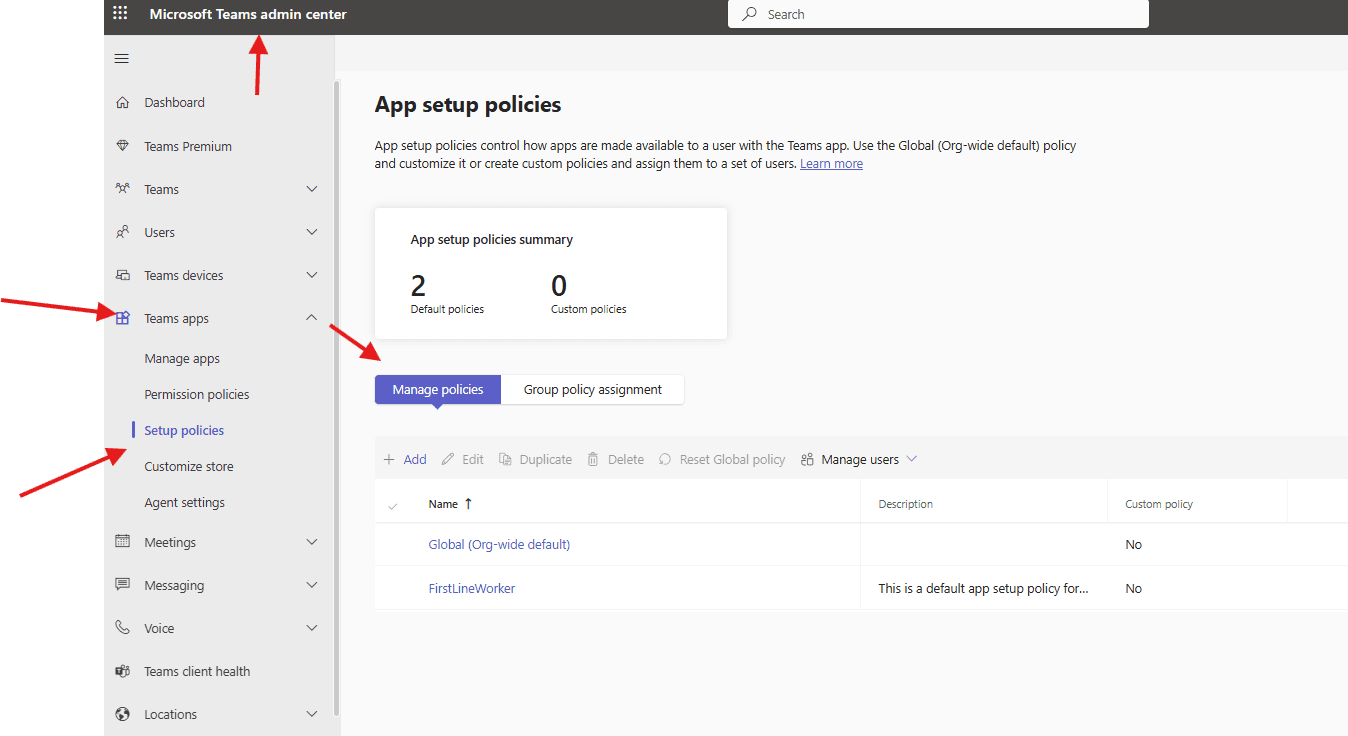
This article talks about on how to set up and manage app setup policies in Microsoft Teams
App setup policies
App setup policies –> As an admin, you use app setup policies to install and pin apps and control which users can upload custom apps in personal or team context. Pinning helps promote adoption of apps for the users and it provides quick access to the relevant apps. App setup policies control how apps are made available to a user with the Teams app.
Lets see App setup policies step by step:
Login to Teams admin center : https://admin.teams.microsoft.com/
Navigate to Teams apps –> set up policies –> manage policies
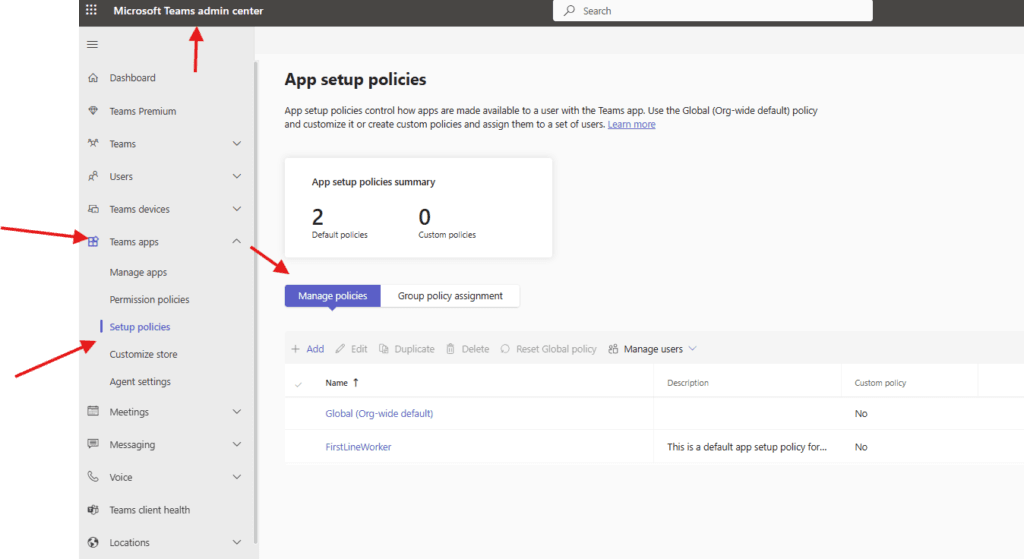
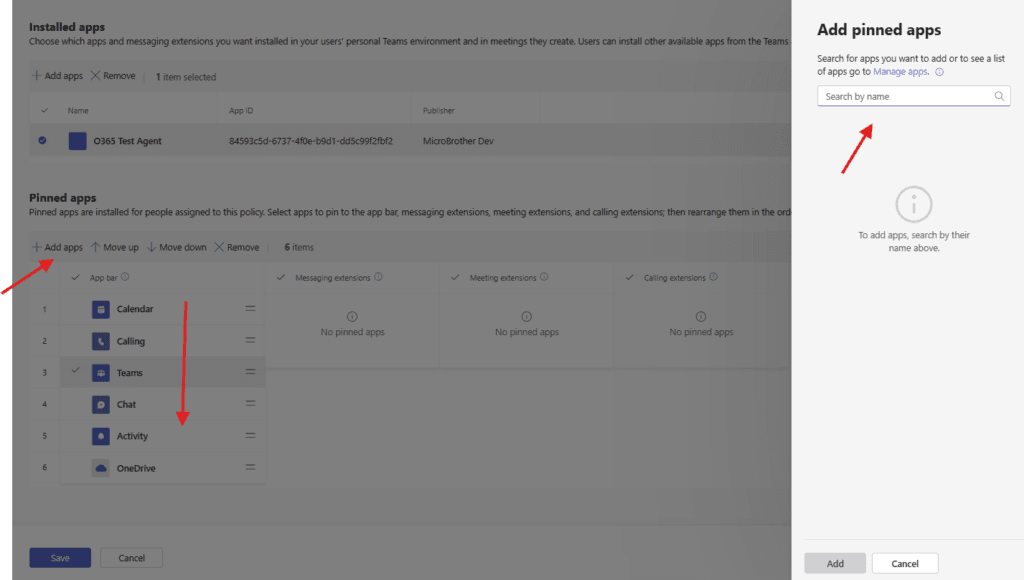
Lets create one test policy –> click on add –> give a suitable title –> user pinning and upload custom app options can be handled from here, now click on add apps –> I have selected pre-created Testing app ( read this article to create https://microbrother.com/benefit-of-manage-apps-in-microsoft-teams/ app in MS Teams )
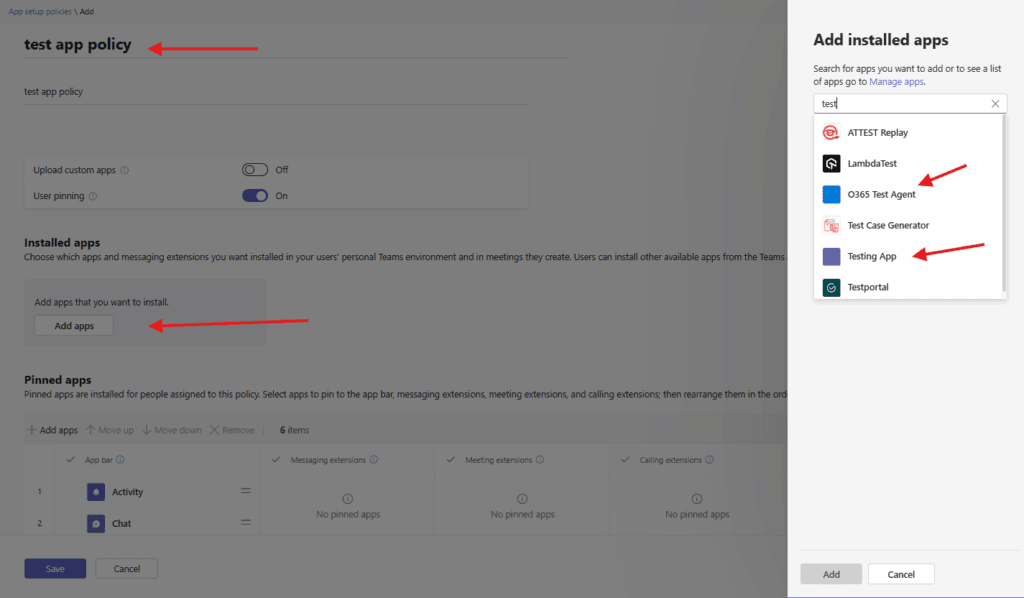
add it
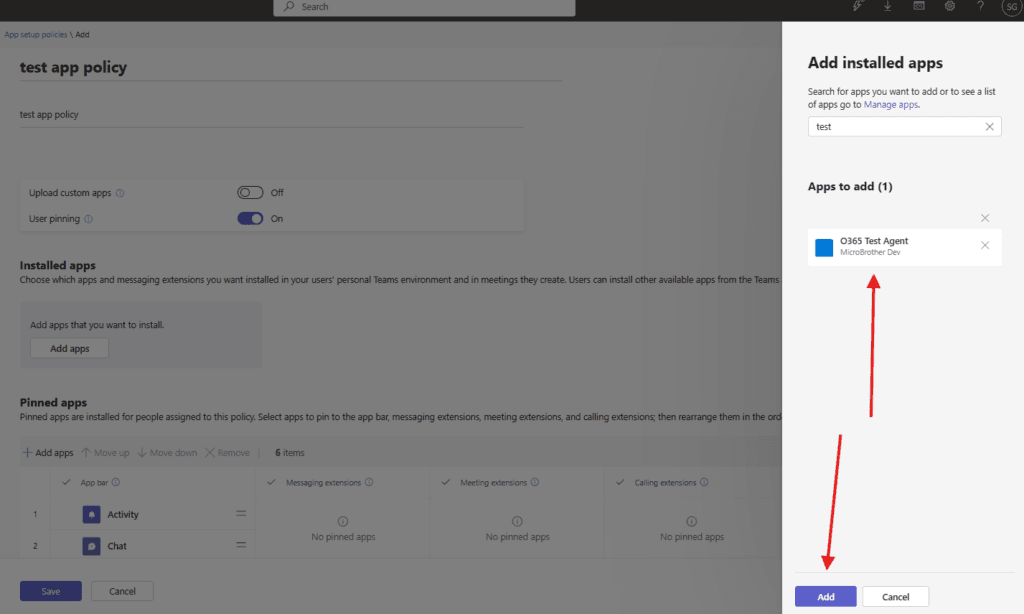
you can manage pinned apps ( Select apps to pin to the app bar, messaging extensions, meeting extensions, and calling extensions; then rearrange them in the order you want them to appear) from here
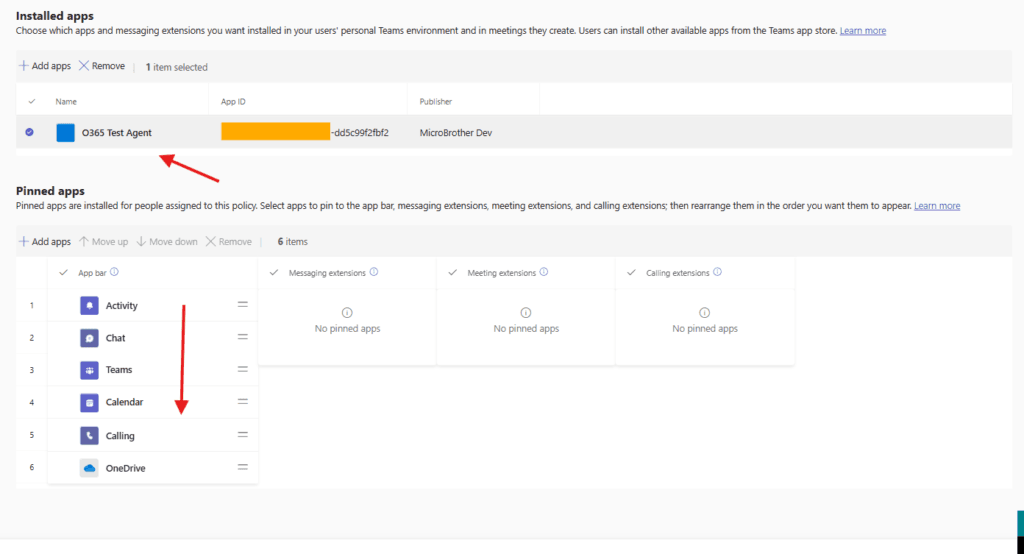
also you can add apps from here also scroll up and down pinned apps
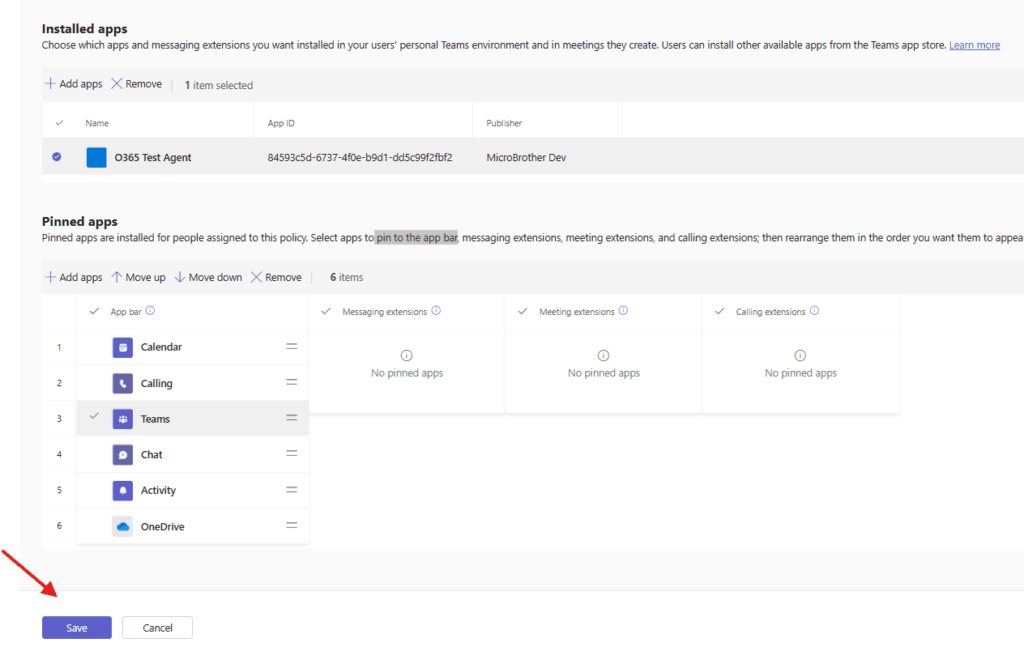
Finally save it
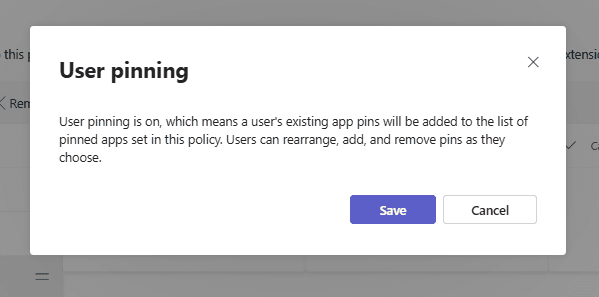
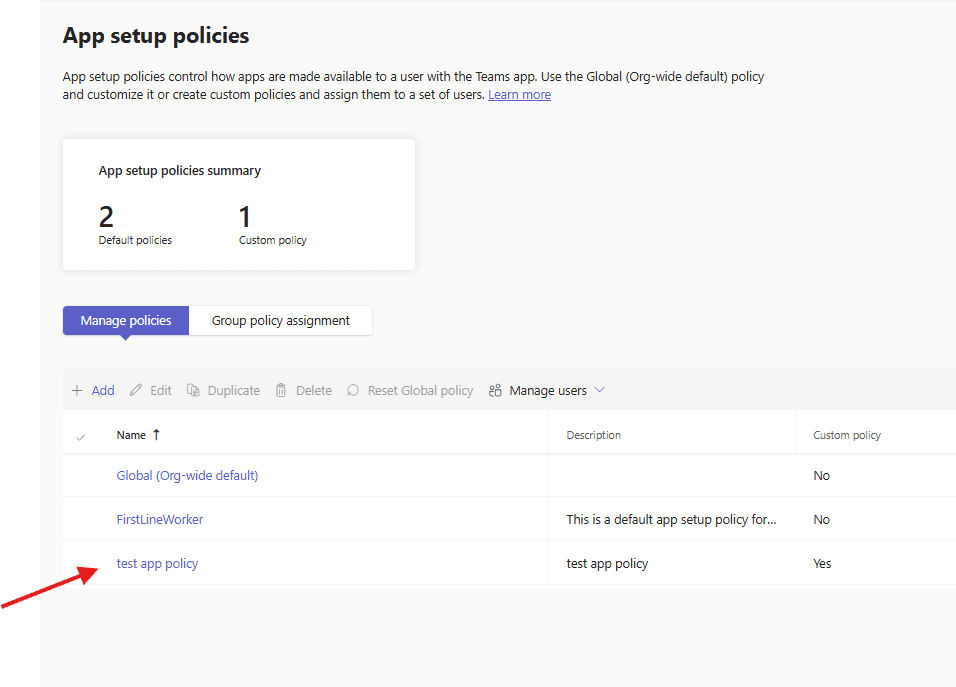
created app set up policies can be managed from here
PowerShell Script – Create App Setup Policy
# -------------------------------
# Connect to Microsoft Teams
# -------------------------------
Connect-MicrosoftTeams

# -------------------------------
# Variables
# -------------------------------
$PolicyName = "Custom-App-Setup-Policy"
$PolicyDescription = "Custom policy to control pinned and installed apps"

# Teams built-in app IDs
$PinnedApps = @(
    "com.microsoft.teamspace.tab.activity",  # Activity
    "com.microsoft.teamspace.tab.chat",      # Chat
    "com.microsoft.teamspace.tab.calendar",  # Calendar
    "com.microsoft.teamspace.tab.calls",     # Calls
    "com.microsoft.teamspace.tab.files"      # Files
)

# -------------------------------
# Create App Setup Policy
# -------------------------------
New-CsTeamsAppSetupPolicy `
    -Identity $PolicyName `
    -Description $PolicyDescription

Write-Host "App Setup Policy '$PolicyName' created successfully." -ForegroundColor Green

# -------------------------------
# Pin Apps to Teams App Bar
# -------------------------------
foreach ($AppId in $PinnedApps) {
    Add-CsTeamsAppSetupPolicyPinnedApp `
        -Identity $PolicyName `
        -AppId $AppId
}

Write-Host "Pinned apps added to the policy." -ForegroundColor Green

# Auto-install Planner
Add-CsTeamsAppSetupPolicyInstalledApp `
    -Identity $PolicyName `
    -AppId "com.microsoft.teamspace.tab.planner"

Grant-CsTeamsAppSetupPolicy `
    -Identity user@domain.com `
    -PolicyName $PolicyName

$Users = Import-Csv "C:\Temp\users.csv"

foreach ($User in $Users) {
    Grant-CsTeamsAppSetupPolicy `
        -Identity $User.UserPrincipalName `
        -PolicyName $PolicyName
}
Azure Automation Runbook Script
<#
.SYNOPSIS
Creates a Microsoft Teams App Setup Policy using Azure Automation

.DESCRIPTION
- Connects to Microsoft Teams using Managed Identity
- Creates a custom App Setup Policy
- Pins apps in the Teams app bar
- Optionally installs apps automatically
#>

try {
    Write-Output "Connecting to Microsoft Teams using Managed Identity..."

    Connect-MicrosoftTeams -Identity

    Write-Output "Connected successfully."
}
catch {
    Write-Error "Failed to connect to Microsoft Teams. $_"
    throw
}

# -------------------------------
# Variables (Customize as needed)
# -------------------------------
$PolicyName = "AA-Custom-App-Setup-Policy"
$PolicyDescription = "Created via Azure Automation Runbook"

# Apps to pin in Teams app bar
$PinnedApps = @(
    "com.microsoft.teamspace.tab.activity",   # Activity
    "com.microsoft.teamspace.tab.chat",       # Chat
    "com.microsoft.teamspace.tab.calendar",   # Calendar
    "com.microsoft.teamspace.tab.calls",      # Calls
    "com.microsoft.teamspace.tab.files"       # Files
)

# Apps to auto-install (optional)
$InstalledApps = @(
    "com.microsoft.teamspace.tab.planner"     # Planner
)

# -------------------------------
# Create App Setup Policy
# -------------------------------
try {
    $existingPolicy = Get-CsTeamsAppSetupPolicy -Identity $PolicyName -ErrorAction SilentlyContinue

    if ($null -eq $existingPolicy) {
        New-CsTeamsAppSetupPolicy `
            -Identity $PolicyName `
            -Description $PolicyDescription

        Write-Output "App Setup Policy '$PolicyName' created."
    }
    else {
        Write-Output "App Setup Policy '$PolicyName' already exists."
    }
}
catch {
    Write-Error "Error creating App Setup Policy. $_"
    throw
}

# -------------------------------
# Add Pinned Apps
# -------------------------------
foreach ($AppId in $PinnedApps) {
    try {
        Add-CsTeamsAppSetupPolicyPinnedApp `
            -Identity $PolicyName `
            -AppId $AppId

        Write-Output "Pinned app added: $AppId"
    }
    catch {
        Write-Warning "Failed to pin app $AppId. It may already exist."
    }
}

# -------------------------------
# Add Installed Apps (Optional)
# -------------------------------
foreach ($AppId in $InstalledApps) {
    try {
        Add-CsTeamsAppSetupPolicyInstalledApp `
            -Identity $PolicyName `
            -AppId $AppId

        Write-Output "Installed app added: $AppId"
    }
    catch {
        Write-Warning "Failed to install app $AppId. It may already exist."
    }
}

Write-Output "Runbook execution completed successfully."
Conclusion:
Post reading above article user will be able to set up and manage app setup policies in Microsoft Teams
Thank you 😇