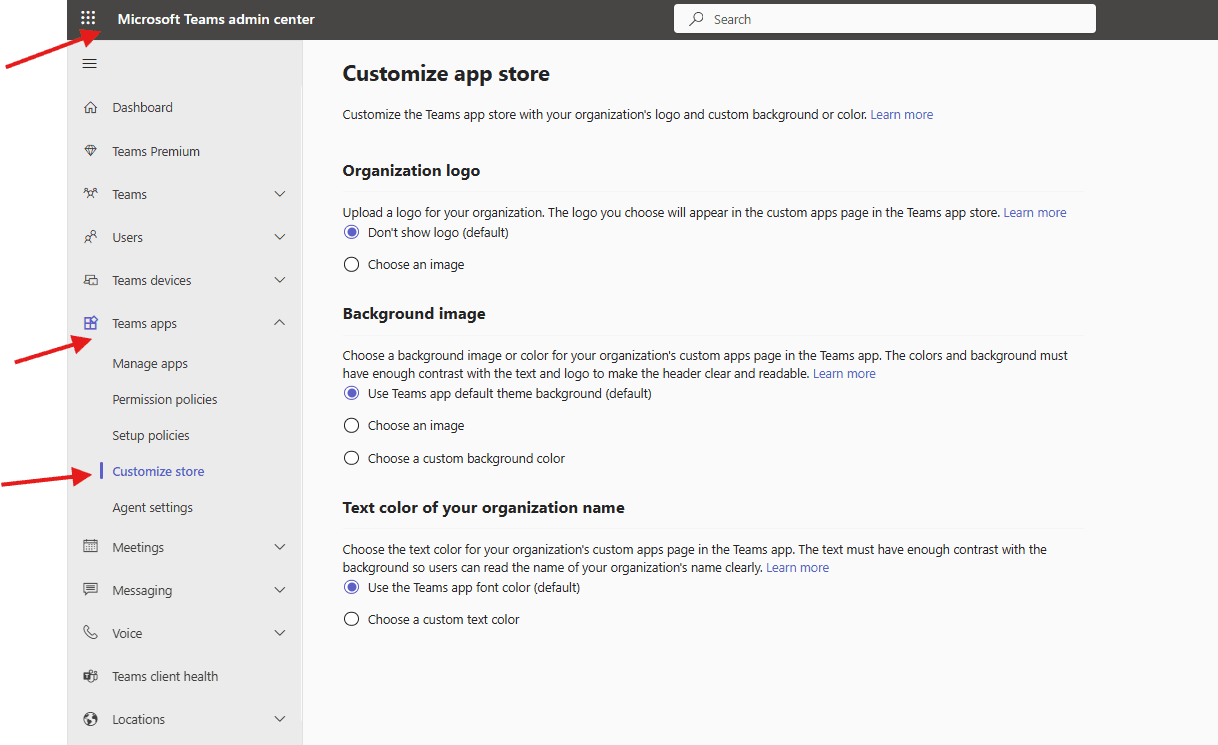
This article talks about on how to Customize app store and Agent settings in TAC
Customize App store and Agent settings in TAC
Customize App store and Agent settings helps you to Customize the Teams app store with your organization’s logo and custom background or color and Manage settings for agents such as whether they are automatically added to conversations to update agent status or availability
Lets set up Customize App store and Agent settings
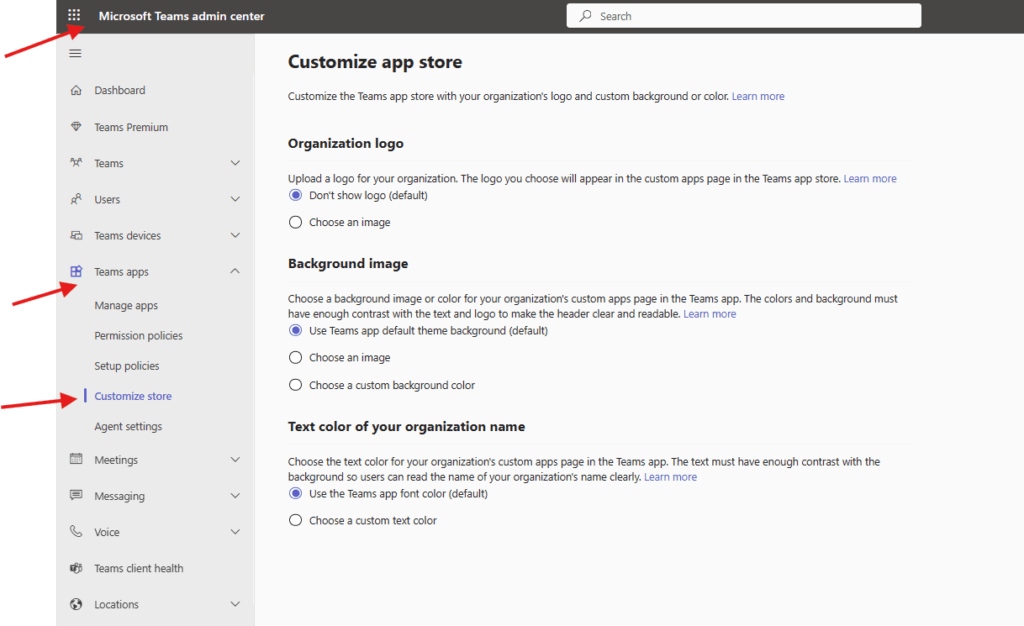
Open Teams admin center : https://admin.teams.microsoft.com/
Navigate to Teams apps –> customize store
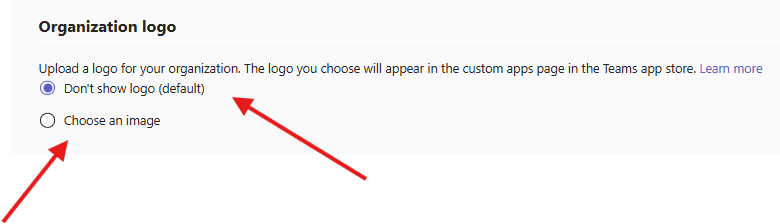
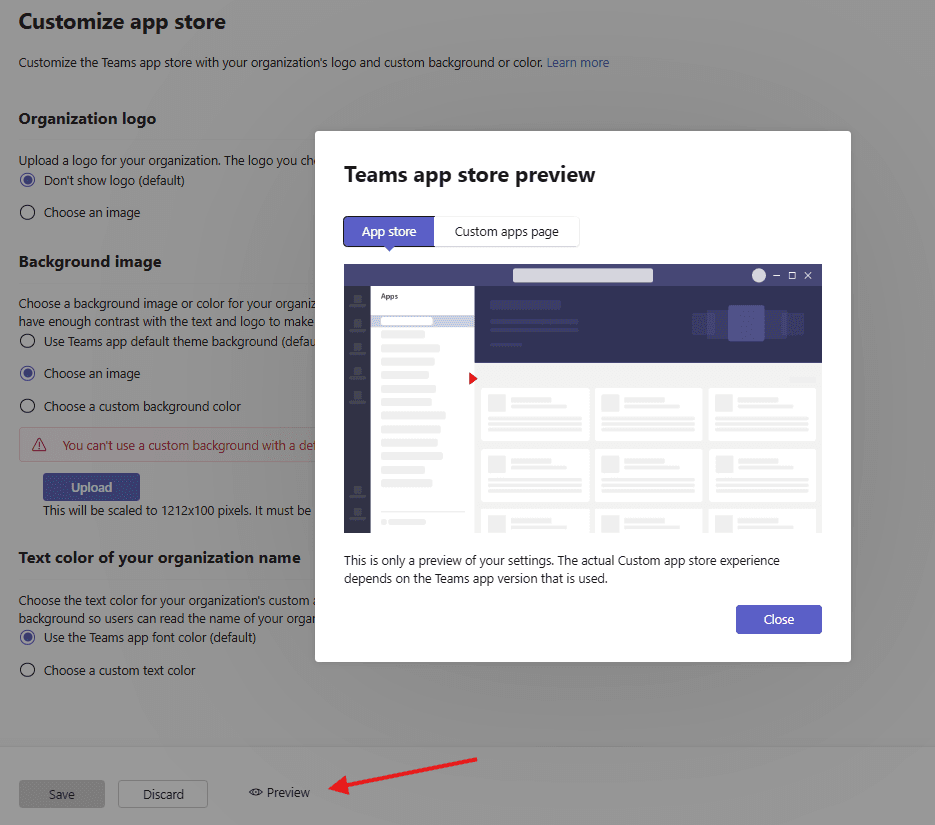
Organization logo: Upload a logo for your organization. The logo you choose will appear in the custom apps page in the Teams app store
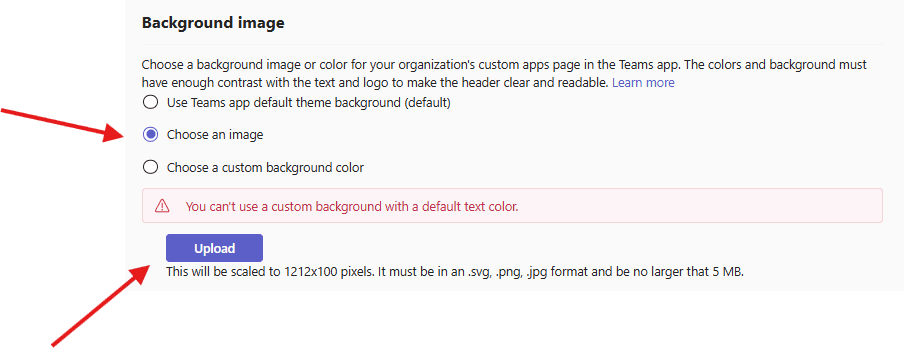
Background image : Choose a background image or color for your organization’s custom apps page in the Teams app. The colors and background must have enough contrast with the text and logo to make the header clear and readable

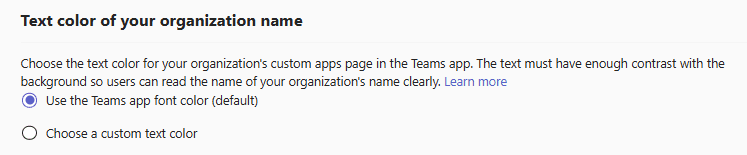
Text color of your organization name: Choose the text color for your organization’s custom apps page in the Teams app. The text must have enough contrast with the background so users can read the name of your organization’s name clearly
You can see preview from here
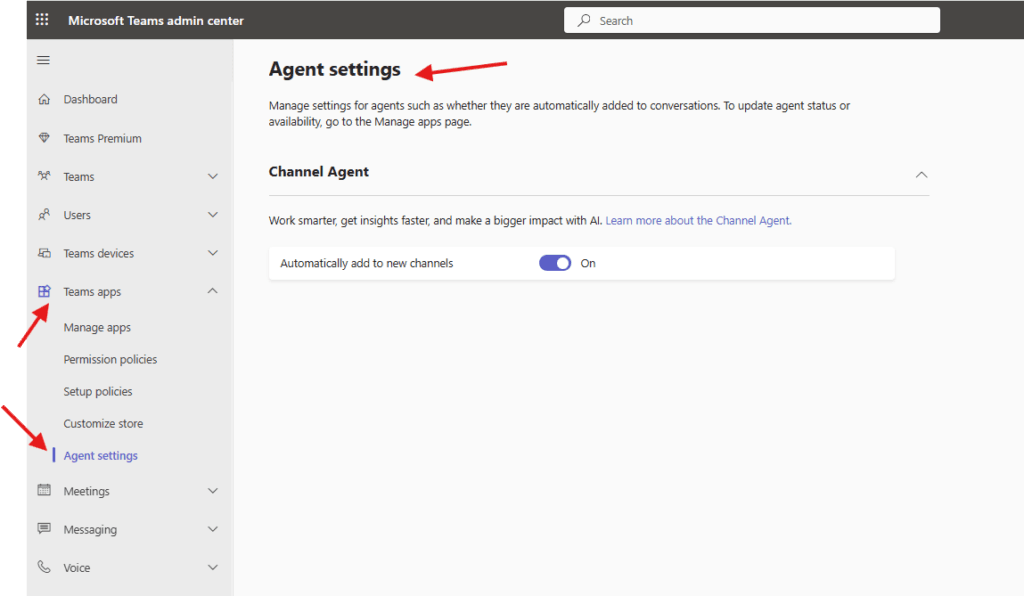
Now navigate to Agent settings
Agent settings: Manage settings for agents such as whether they are automatically added to conversations. To update agent status or availability, go to the Manage apps page then set it up
.
Please read article https://microbrother.com/how-to-add-agents-in-o365-seamlessly/ to deploy agents
Here we are done for Customize App store and Agent settings
Conclusion:
Post reading above article reader will be able to Customize app store and Agent settings in TAC
Thank you 😇