This article talks about Direct Routing in Microsoft Teams
Direct Routing
Direct Routing in Microsoft Teams allows organizations to connect their own external phone lines (PSTN) to the Teams cloud via a certified Session Border Controller (SBC).
Direct Routing enables making/receiving external calls directly in Teams, bypassing Microsoft’s calling plans to use preferred carriers, keep existing numbers, and integrate legacy PBX systems.
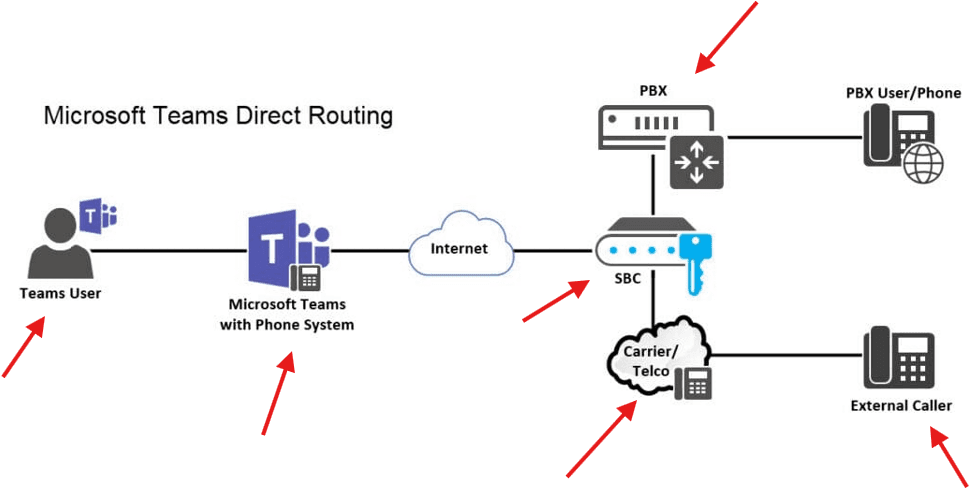
Direct Routing deployment
Login to Teams admin center aka TAC: https://admin.teams.microsoft.com/
Navigate to Voice –> Direct routing –> SBC
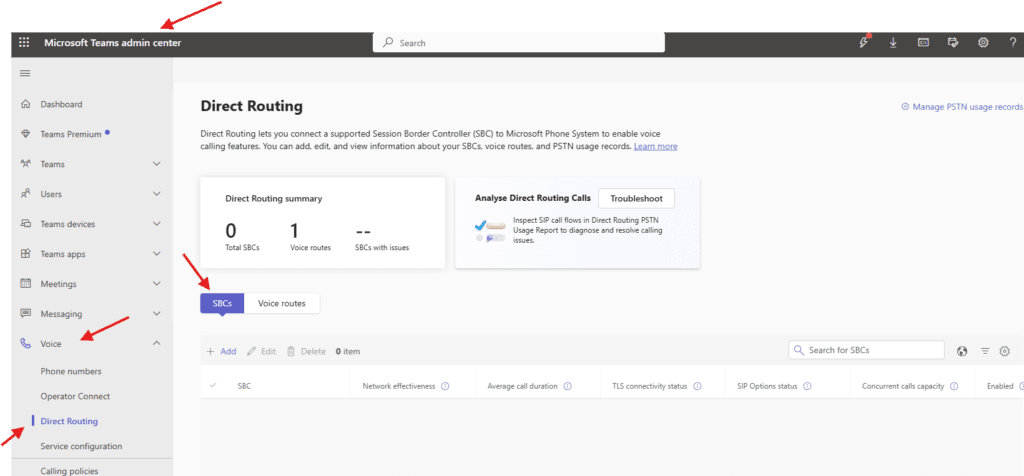
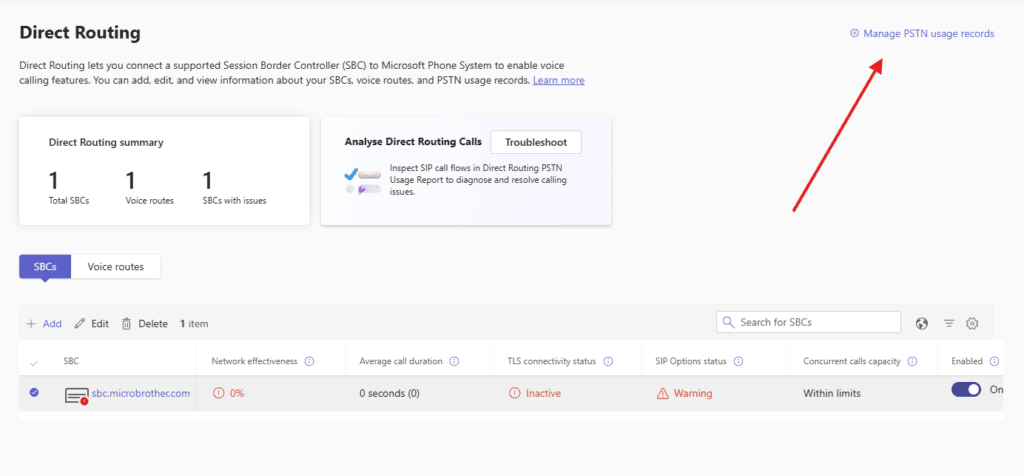
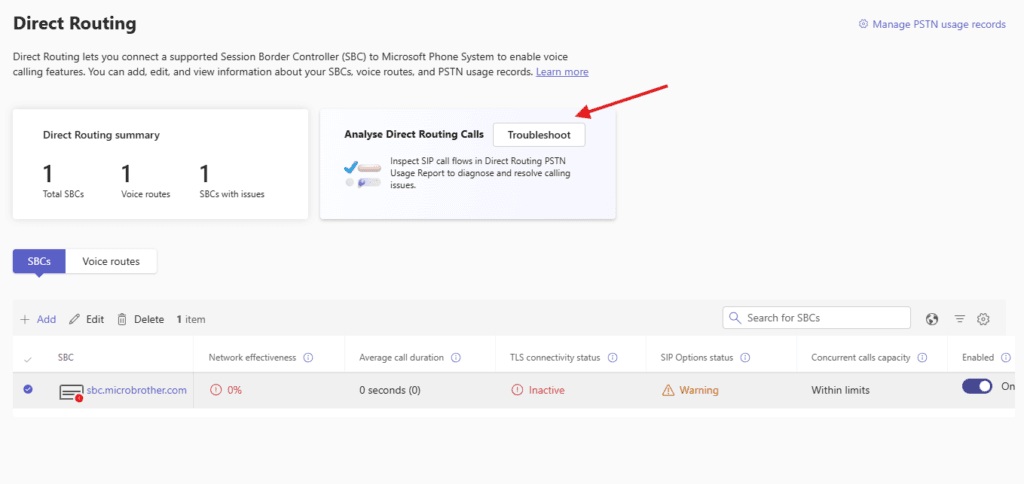
Direct Routing lets you connect a supported Session Border Controller (SBC) to Microsoft Phone System to enable voice calling features. You can add, edit, and view information about your SBCs, voice routes, and PSTN usage records
A Session Border Controller (SBC) for Microsoft Teams is a certified device that acts as a secure, intelligent bridge between your telephony provider (PSTN) and the Teams cloud, enabling Direct Routing for voice calls. It acts as a firewall and traffic controller, handling security, interoperability, media transcoding, and call quality (QoS)
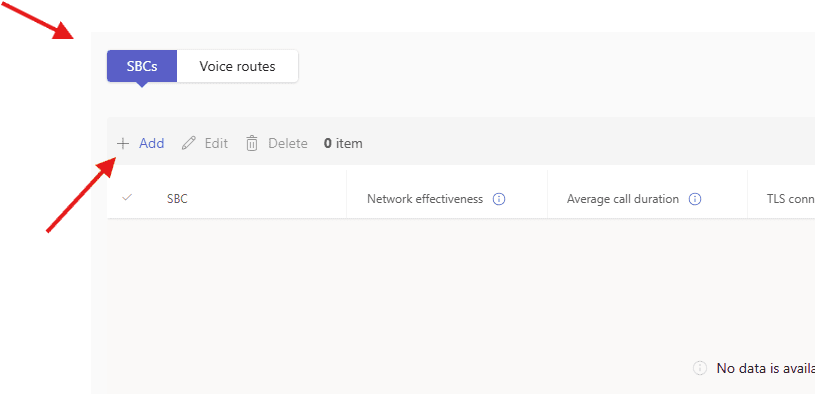
click on add under SBC
You must use the SBC’s FQDN that has the host name registered in DNS. For example, if your organization owns microbrother.com then sbc.microbrother.com is good name for the SBC, but sbc.microbrother.onmicrosoft.com isn’t
Make sure to create host A record of “sbc.microbrother.com” for lookup
Toggle on following attributes : enabled, send sip options, forward call history, Forward P-Asserted-Identity (PAI) header etc
You can toggle off SBC supports PIDF/LO for emergency calls, I will cover it in another article when to enable it and why to enable to
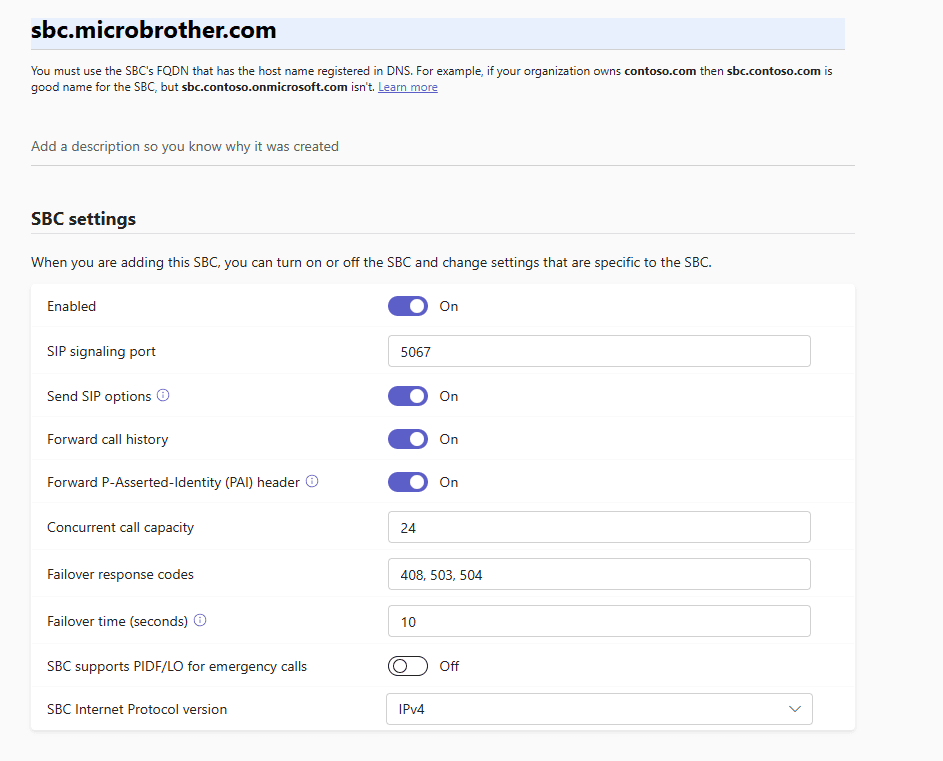
send sip options: This setting defines if an SBC will or won’t send SIP Options messages. If this isn’t turned on, the SBC will be excluded from the monitoring and alerting system. We recommend that you enable SIP Options.
forward call history: Indicates whether call history information is forwarded through the trunk. When you turn this on, the Microsoft 365 proxy sends a History-info and Referred-by header.
Forward P-Asserted-Identity (PAI) header : Indicates whether the P-Asserted-Identity (PAI) header will be forwarded along with the call. The PAI header provides a way to verify the identity of the caller.
Now lets set Location based routing and media optimization settings
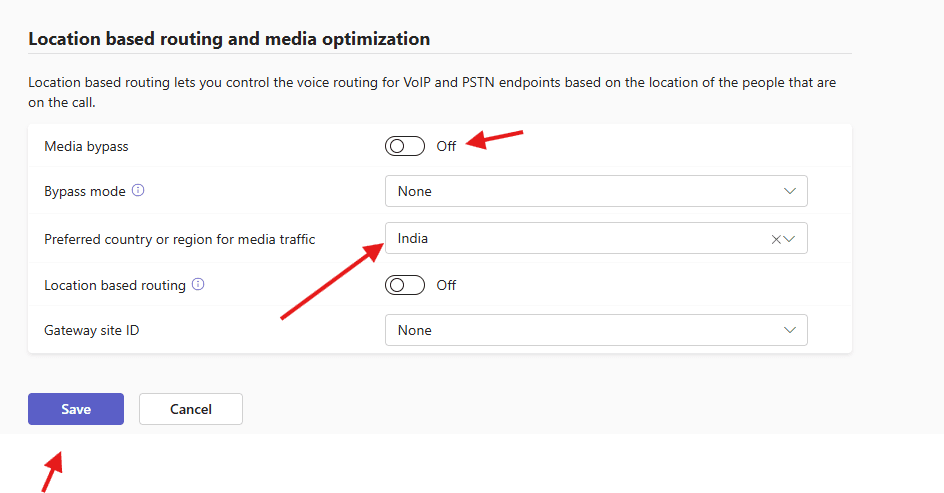
for now toggle off media bypass , I will cover it in another article when to enable it and why to enable to
Media bypass lets you shorten the path of media traffic and reduce the number of hops in transit for better performance.
Make sure to set this attribute Preferred country or region for media traffic as This ensures media traffic is routed to the nearest Microsoft datacenter, rather than relying on default routing, I have selected India as I am from India.
finally save it.
you can view it from here
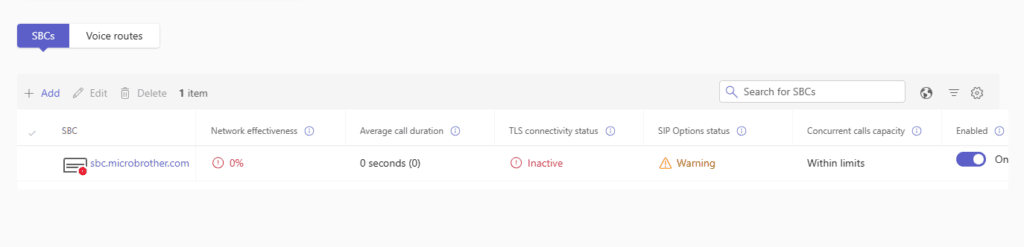
then go to the 2nd tab voice routes
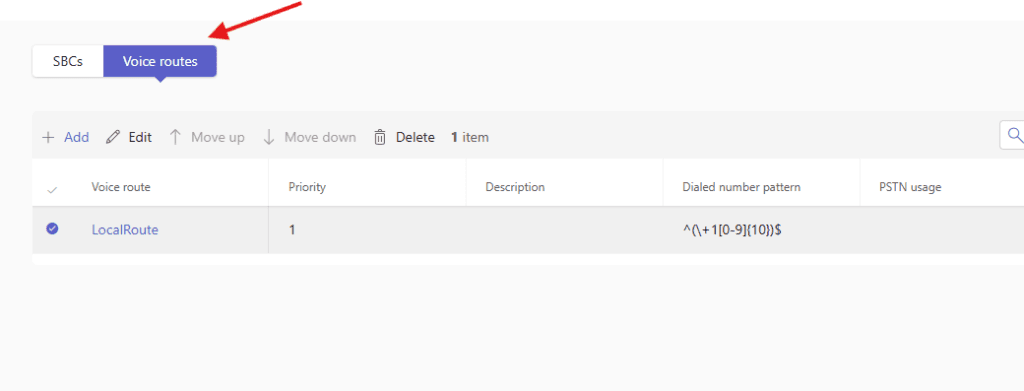
click on existing route or you can create new, for now I am using local route
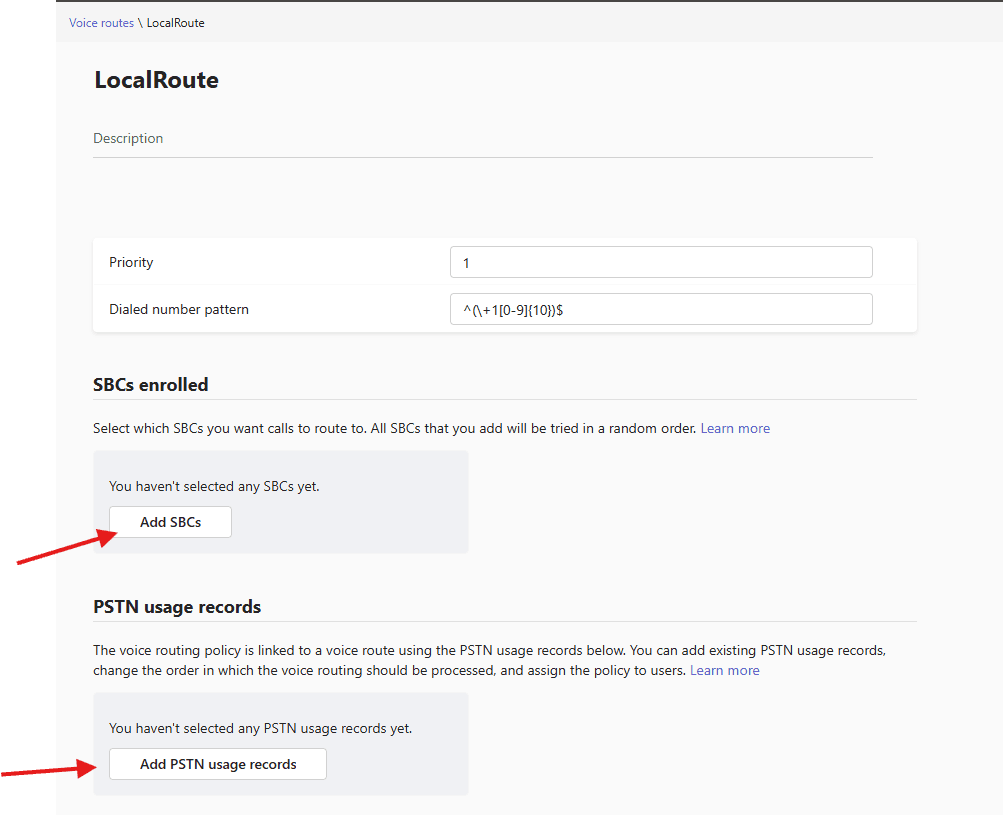
click on add SBC
assign SBC carefully
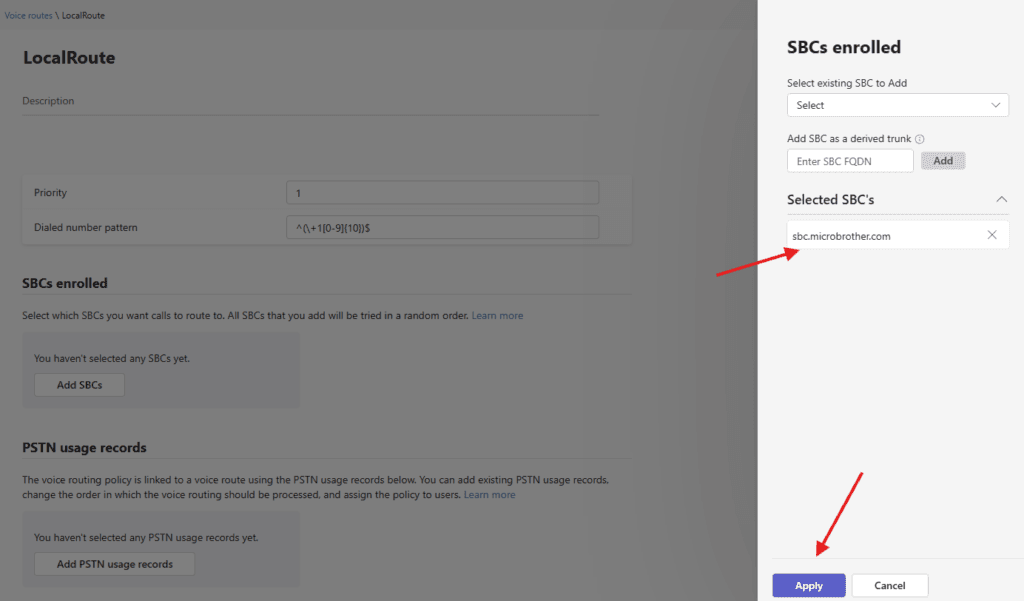
now click on PSTN usage records and create or assign them as per local/international use
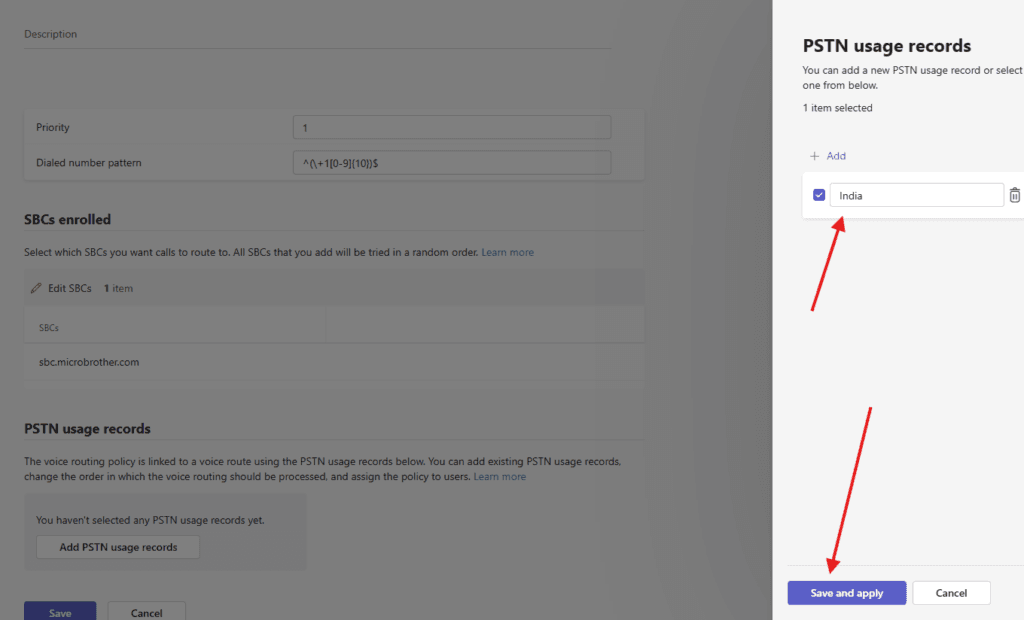
finally save it
click on add under voice routes to create one and you can take help from below patterns
Common Dialed Number Patterns (Regex)
4-Digit Extension: ^(\d{4})$ -> +1425555$1 (Translates 1234 to +14255551234).
7-Digit Local: ^(\d{7})$ -> +1425$1 (Translates 5550100 to +14255550100).
10-Digit (US): ^(\d{10})$ -> +1$1 (Translates 4255550100 to +14255550100).
International: ^+?(\d{10,15})$ -> +$1 (Ensures E.164 format).
Any number: ^(\d*)$ -> $1 (Matches any number; used for routing without modification).
Key Components for Dial Plans
^ (Start): Indicates the start of the string.
$ (End): Indicates the end of the string.
\d{n}: Matches exactly
digits.
\d+: Matches one or more digits.
+:(Normalization): All numbers should ideally be normalized to E.164 format (
Country Code + Phone Number)
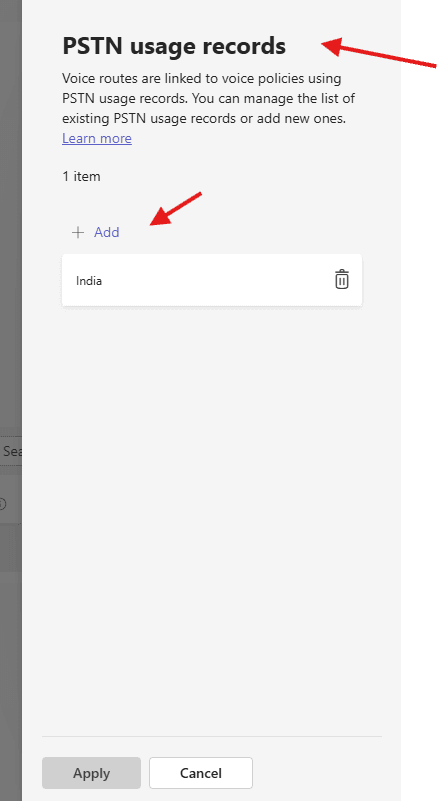
You can manage PSTN usage records from here
PowerShell Script for above manual task
#add sbc
New-CsOnlinePSTNGateway `
-Identity sbc.microbrother.com `
-SIPSignalingPort 5061 `
-MaxConcurrentSessions 100 `
-Enabled $true `
-ForwardCallHistory $true `
-ForwardPai $true `
-SendSipOptions $true `
-MediaBypass $true

#verify sbc
Get-CsOnlinePSTNGateway

#create pstn usage
Set-CsOnlinePstnUsage `
-Identity Global `
-Usage @{Add="SBC-Usage"}

#create voice route
New-CsOnlineVoiceRoute `
-Identity SBC-Route `
-NumberPattern ".*" `
-OnlinePstnGatewayList sbc.microbrother.com `
-Priority 1 `
-OnlinePstnUsages "SBC-Usage"

#create voice routing policy
New-CsOnlineVoiceRoutingPolicy `
-Identity SBC-Policy `
-OnlinePstnUsages "SBC-Usage"


#Assign policy to user
Grant-CsOnlineVoiceRoutingPolicy `
-Identity user@microbrother.com `
-PolicyName SBC-Policy

#enbale EV
Set-CsPhoneNumberAssignment `
-Identity user@contoso.com `
-PhoneNumber +911234567890 `
-PhoneNumberType DirectRouting
You can click on Analyse Direct Routing Calls to troubleshoot the issue related with SBC
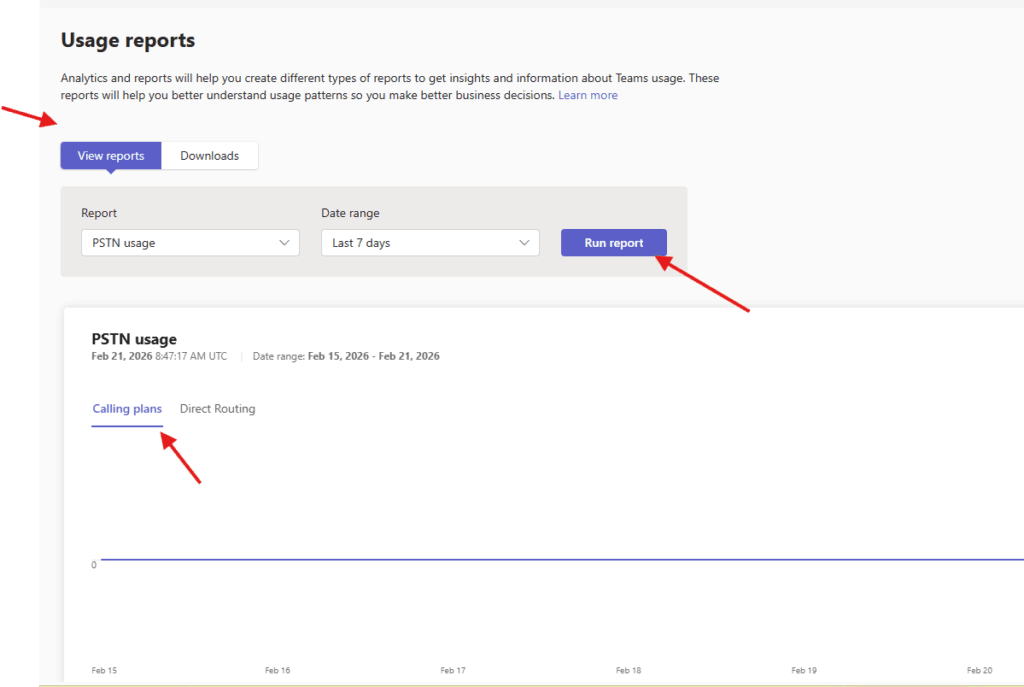
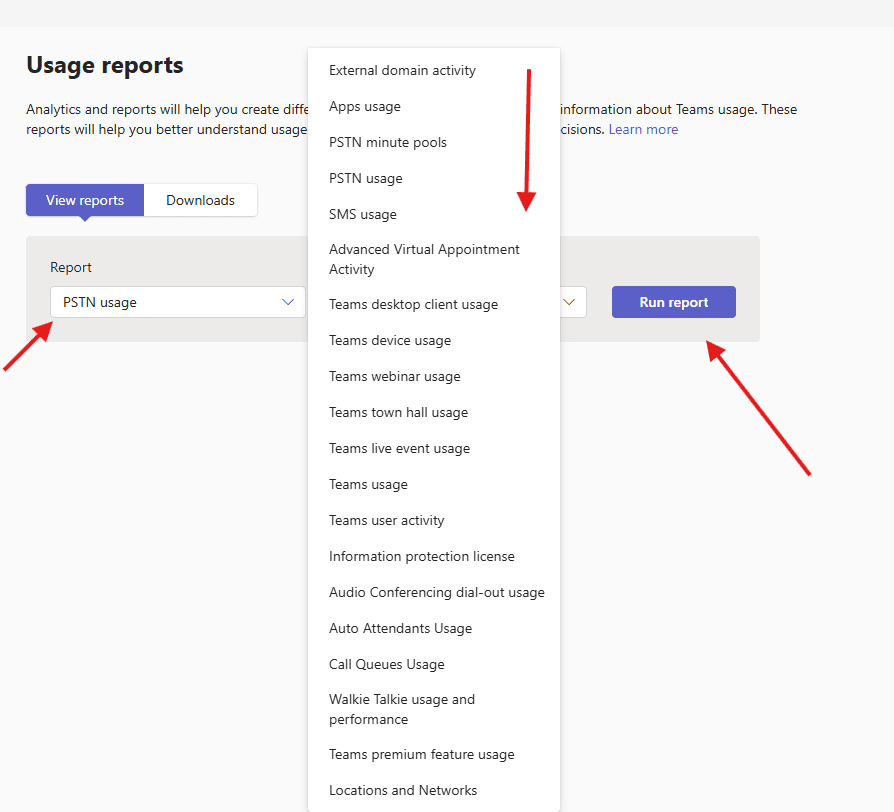
Usage reports: Analytics and reports will help you create different types of reports to get insights and information about Teams usage. These reports will help you better understand usage patterns so you make better business decisions
you can pull below mentioned reports
Conclusion:
Post reading above article reader will be able to deploy and manage Direct Routing
You can also read this article https://microbrother.com/operator-connect-in-microsoft-teams/ to deploy operator connect.
Thank you 😇