This article talks about Emergency calling policies in Microsoft Teams
Emergency calling policies
Emergency calling policies in MS Teams enable, route, and manage 911/emergency calls, ensuring compliance with regulations like Kari’s Law and RAY BAUM’S Act.
Key components include automatic security desk notifications, location confirmation banners, and, for Direct Routing, specific emergency call routing policies. These policies can be assigned to users or network sites, with network-level policies taking precedence
Lets set Emergency calling policies step by step
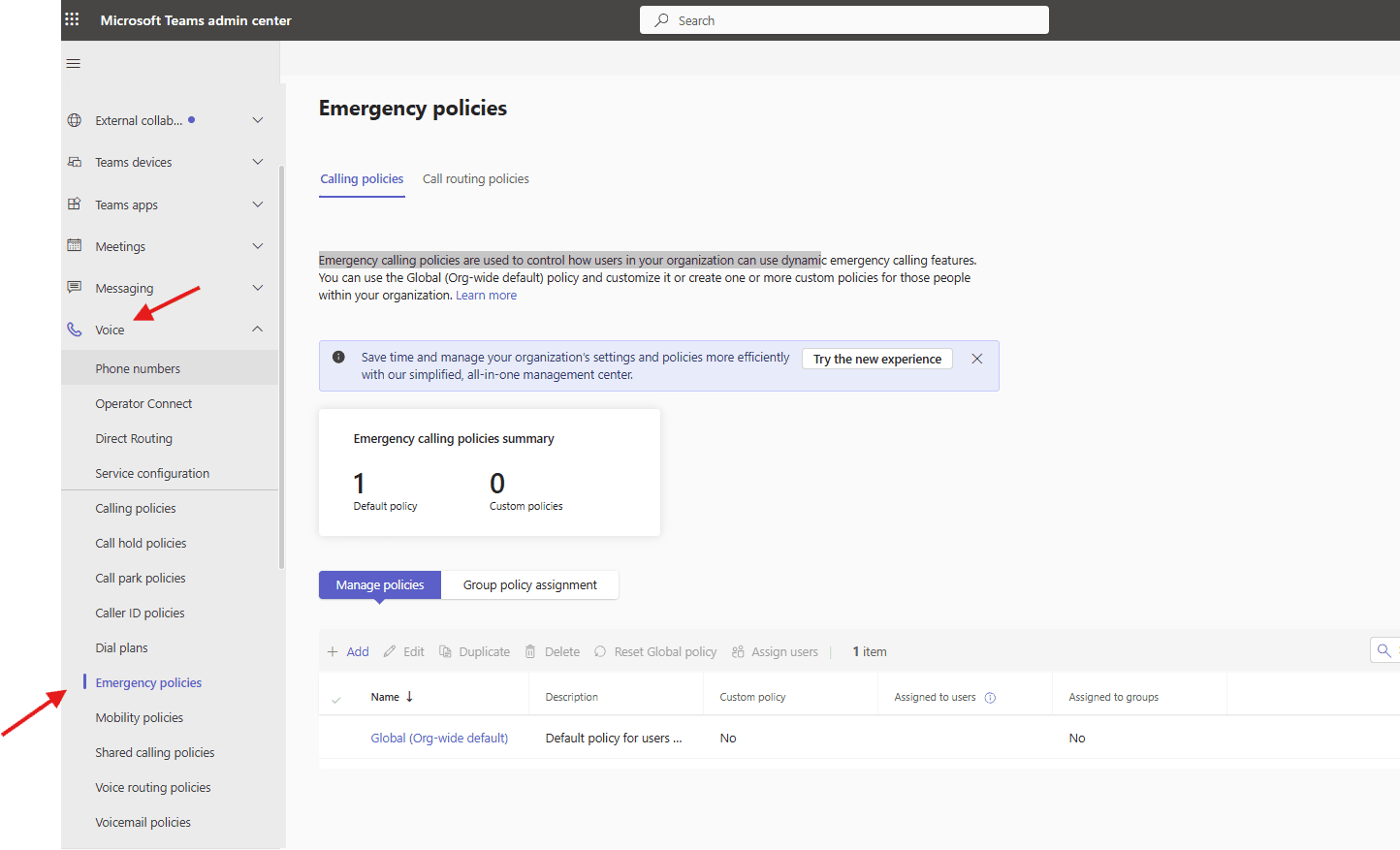
Open Teams admin center –> https://admin.teams.microsoft.com/
Navigate to TAC–> Voice –> emergency policies –> Emergency calling policies are used to control how users in your organization can use dynamic emergency calling features.
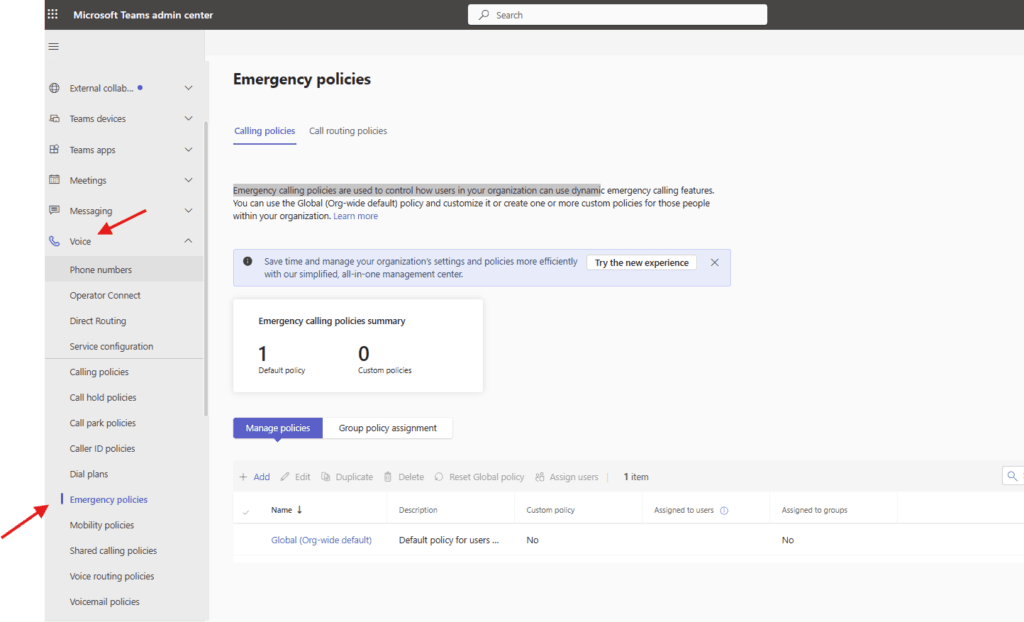
You can use the Global (Org-wide default) policy and customize it or create one or more custom policies for those people within your organization
Lets create new policy
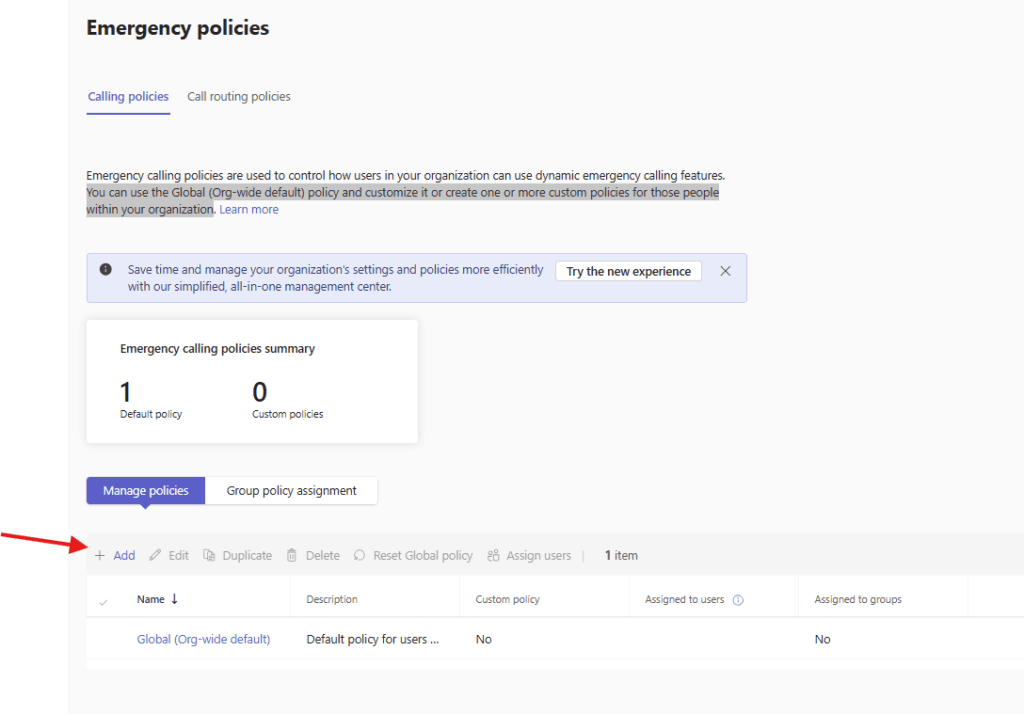
give suitable title
toggle on External location lookup mode which means in Microsoft Teams is an emergency policy setting that allows remote or off-premise users to manually input, edit, or confirm their current address
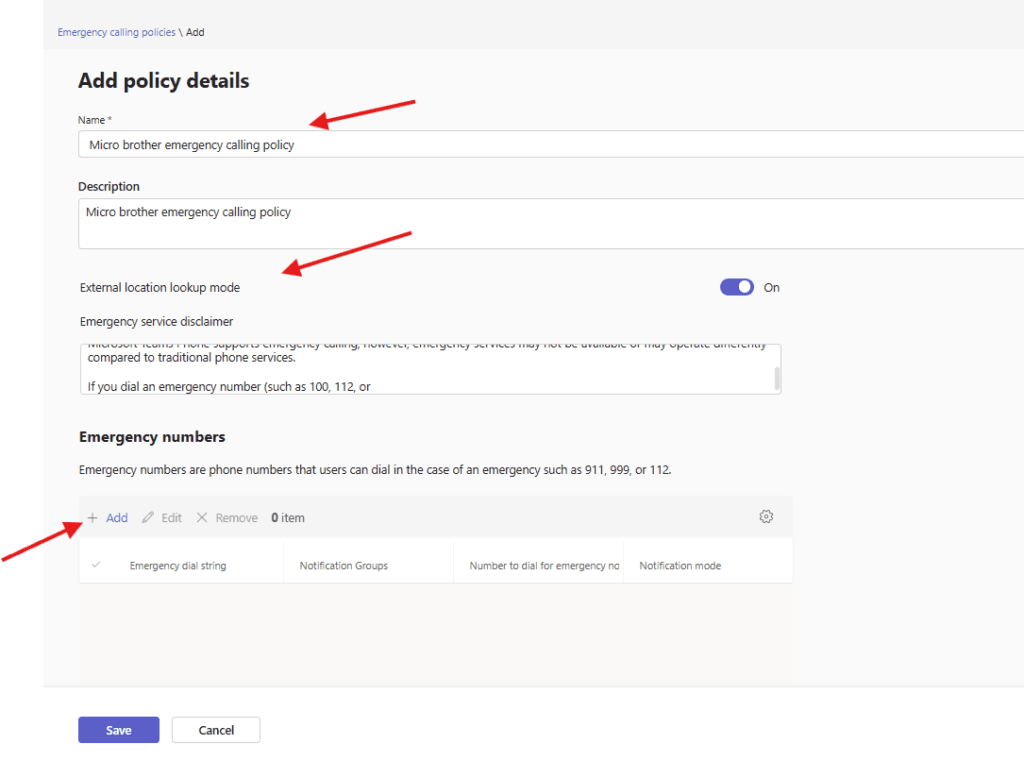
click on add to add emergency number
for an example I have given 933 as emergency number and I have selected Notification mode as send notification only .( You can choose one or more users and groups that will be notified for emergency calls. For example, if an emergency call comes in, you may want to notify the Security group and the receptionist for the building to alert them of the call. You can send notifications to the email addresses for users, distribution and security groups.)
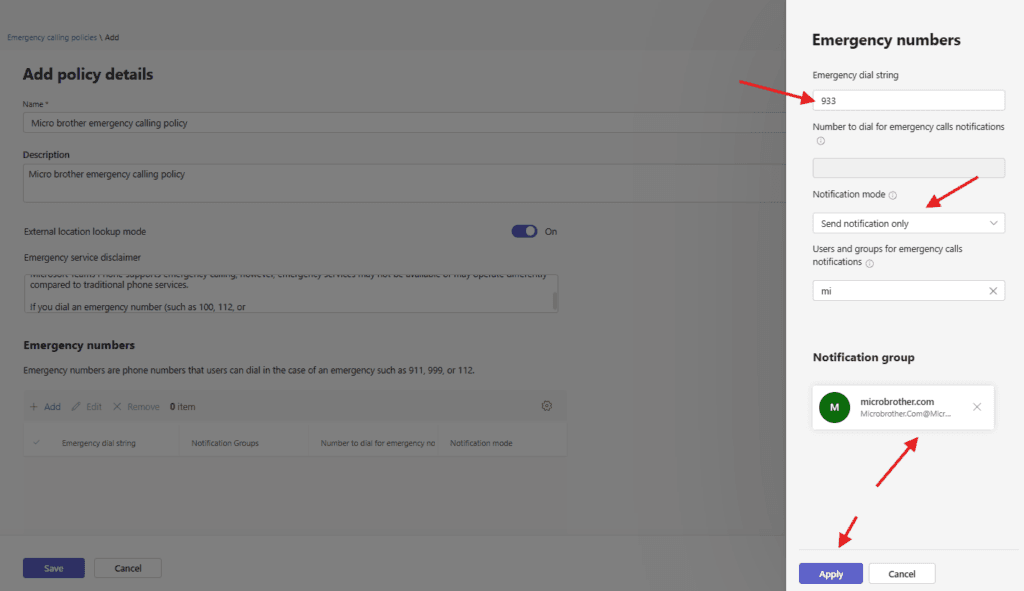
finally apply it
save it
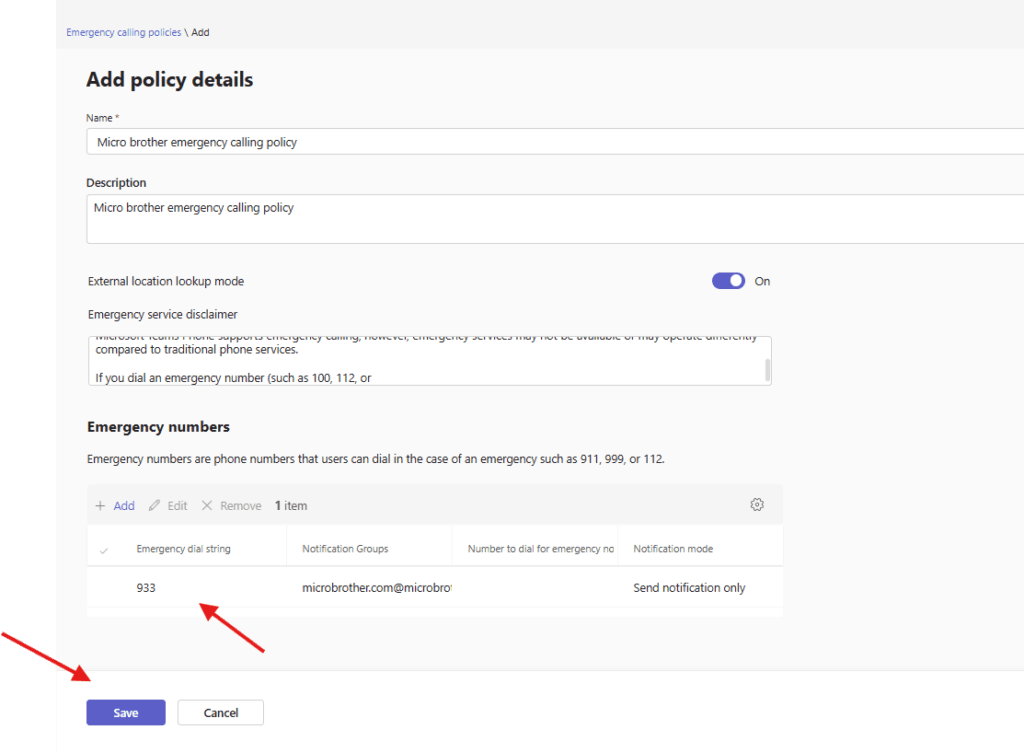
now click on call routing policies
Emergency call routing policies are used to set up emergency numbers for Direct Routing and then specify how those emergency calls are routed.
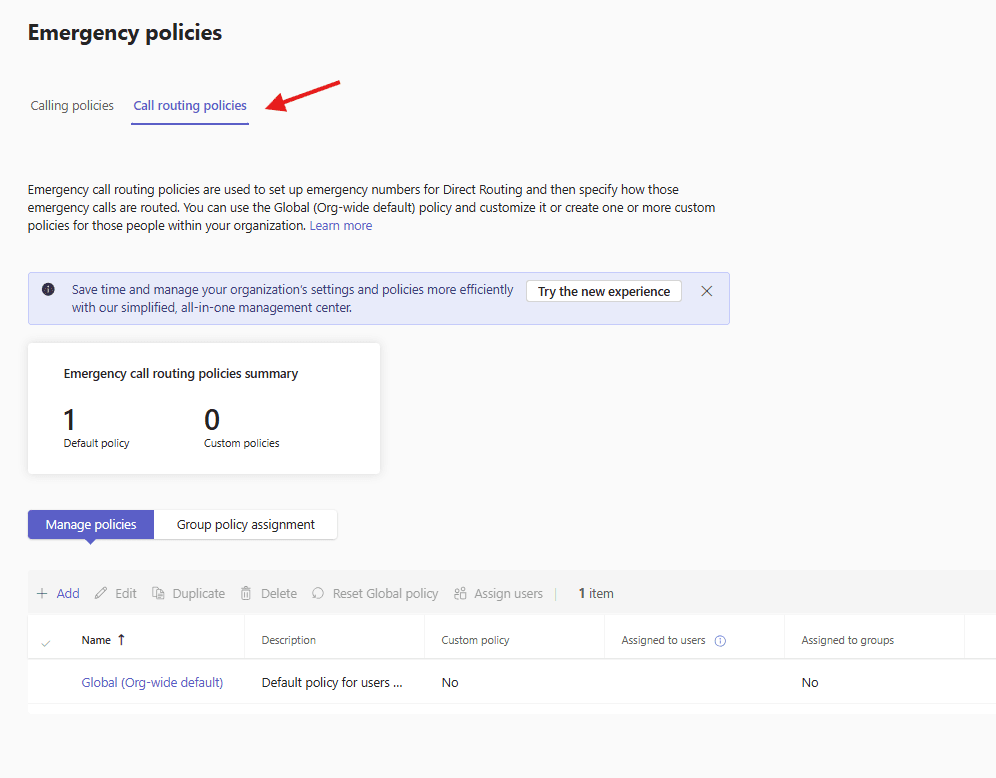
You can use the Global (Org-wide default) policy and customize it or create one or more custom policies for those people within your organization
Lets create one
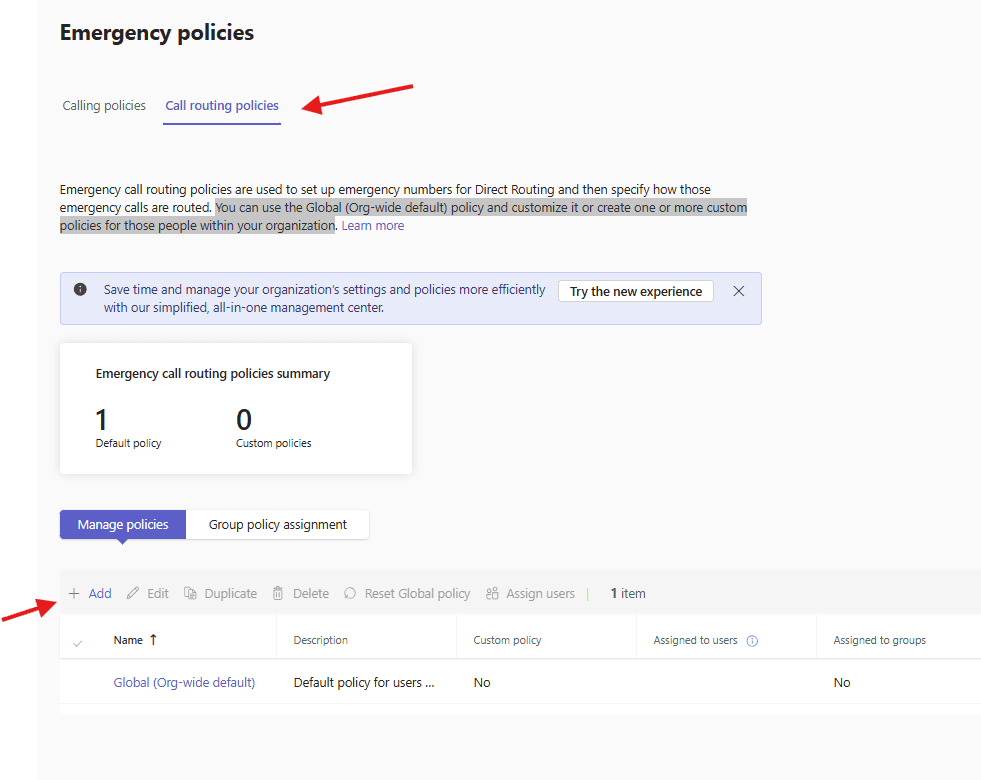
give a suitable name and toggle on “Dynamic emergency calling” If you turn this on, users assigned to the policy can use emergency call routing features when they move from one location to another.
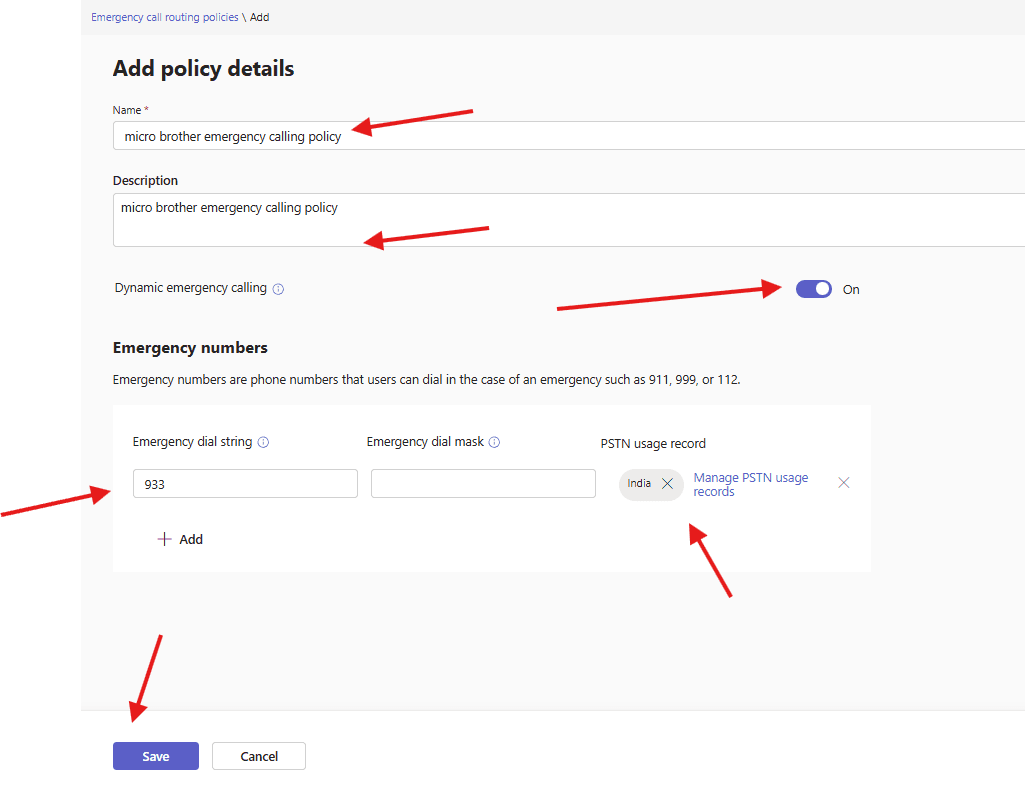
finally save it
PowerShell script for above manual task
# Create Emergency Calling Policy
$EmergencyPolicyName = "Microbrother-EmergencyCallingPolicy"

# Create Emergency Calling Policy
New-CsTeamsEmergencyCallingPolicy `
-Identity $EmergencyPolicyName `
-AllowEnhancedEmergencyServices $true `
-Description "Emergency calling policy for Teams users"

# Create Emergency Call Routing Policy
$RoutingPolicyName = "Microbrother-EmergencyRoutingPolicy"

# Create Emergency Call Routing Policy
New-CsTeamsEmergencyCallRoutingPolicy `
-Identity $RoutingPolicyName `
-Description "Emergency routing policy for Teams"

#Add Emergency Numbers and Routes
Set-CsTeamsEmergencyCallRoutingPolicy `
-Identity Microbrother-EmergencyRoutingPolicy `
-EmergencyNumbers @(
    @{EmergencyDialString="112";EmergencyDialMask="112";OnlinePstnUsage="Emergency"},
    @{EmergencyDialString="100";EmergencyDialMask="100";OnlinePstnUsage="Emergency"}
)
You can assign created policy to the user
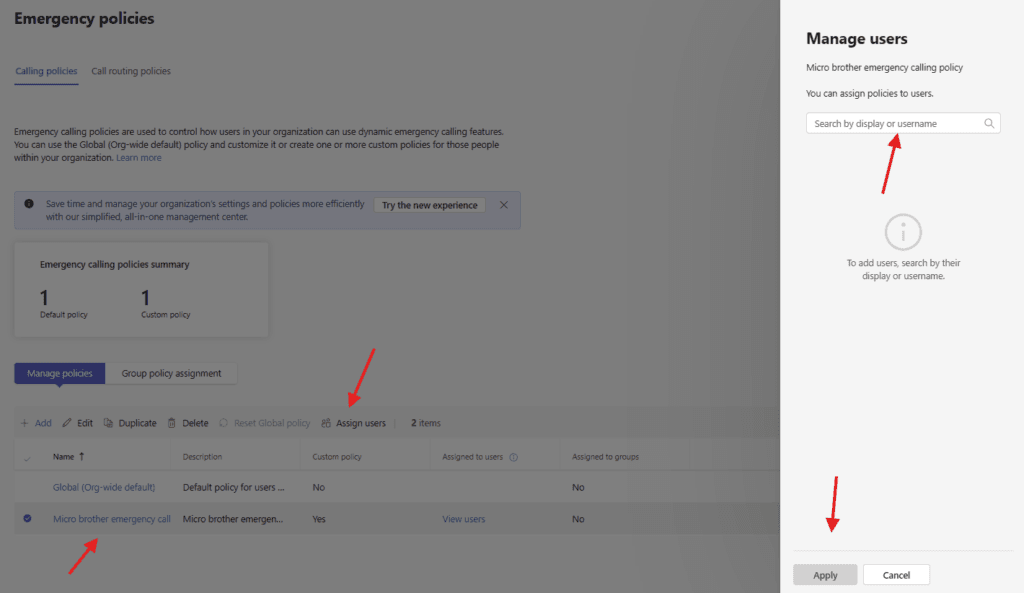
We are done here
Conclusion:
Post reading above article user will be able to create and manage Emergency Calling Policy and mergency Call Routing Policy
Also you can read https://microbrother.com/dial-plans-in-microsoft-teams/ this article to create and manage dial plan in MS Teams
Thank you 😇