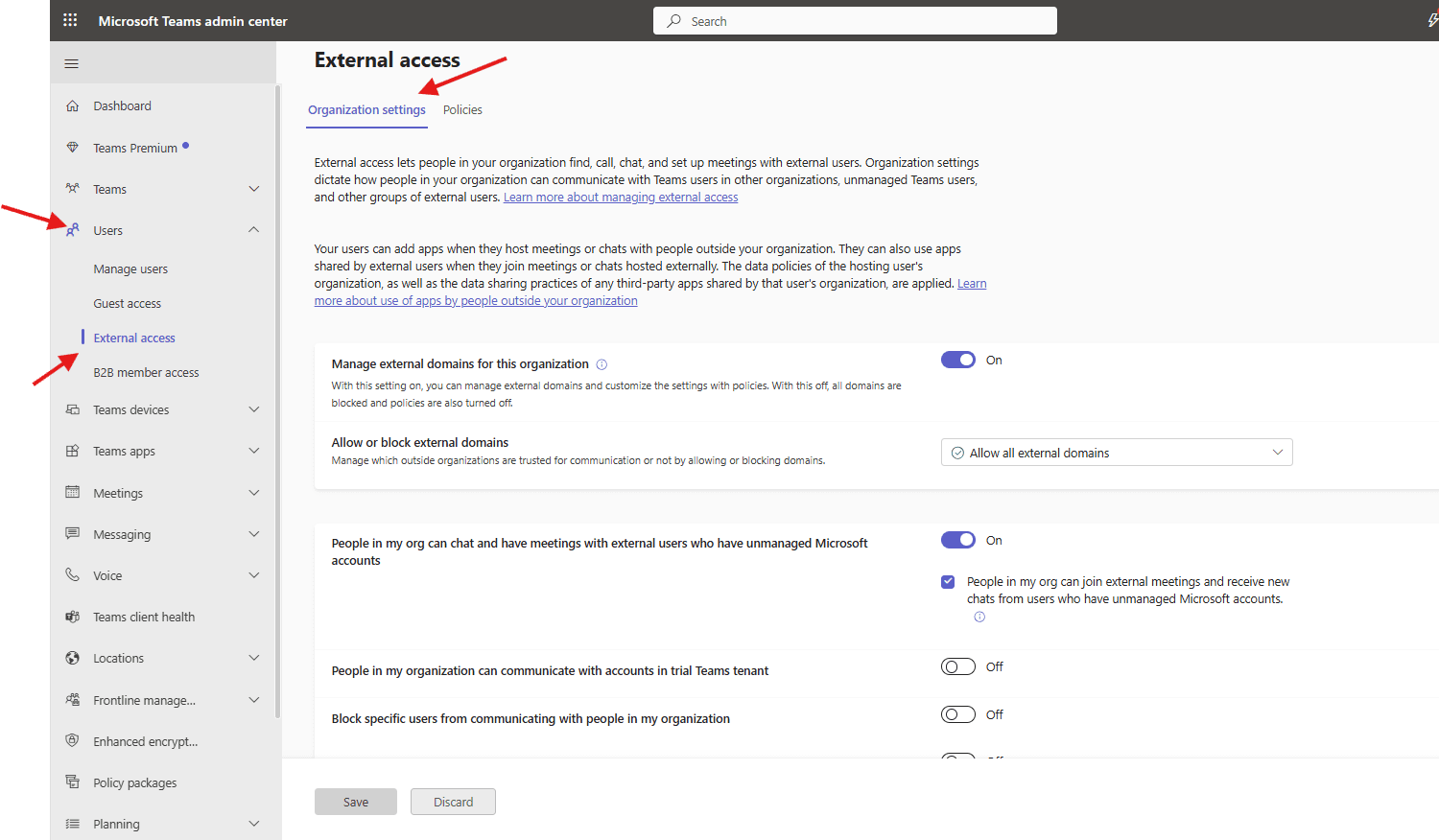
This article talks on how to manage external access in Teams admin center
External access
External access lets people in your organization find, call, chat, and set up meetings with external users/federated users. Organization settings dictate how people in your organization can communicate with Teams users in other organizations, unmanaged Teams users, and other groups of external users
Your users can add apps when they host meetings or chats with people outside your organization. They can also use apps shared by external users when they join meetings or chats hosted externally. The data policies of the hosting user’s organization, as well as the data sharing practices of any third-party apps shared by that user’s organization, are applied.
Lets do it step by step
Open Teams admin center: https://admin.teams.microsoft.com/
Navigate to users–> external access–> organizational settings
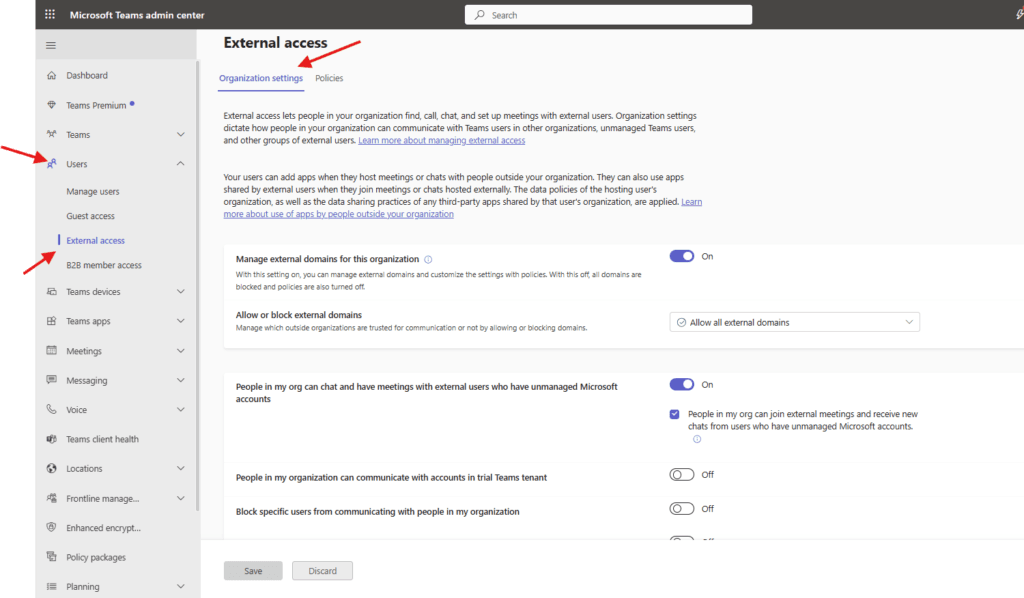
Manage external domains for this organization : With this setting on, you can manage external domains and customize the settings with policies. With this off, all domains are blocked and policies are also turned off.

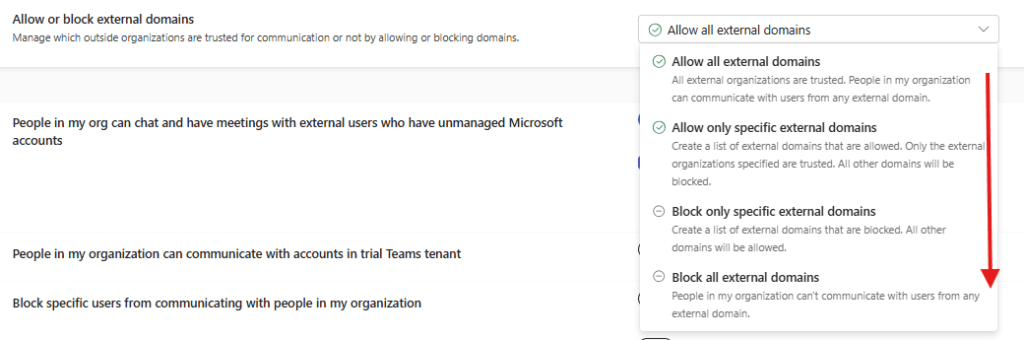
Allow or block external domains : Manage which outside organizations are trusted for communication or not by allowing or blocking domains.
People in my org can chat and have meetings with external users who have unmanaged Microsoft accounts: When this is on, external users with unmanaged Microsoft accounts can search for and send new chats to your users. This setting also allows people in your org to join external meetings hosted by users with unmanaged Microsoft accounts as authenticated users.

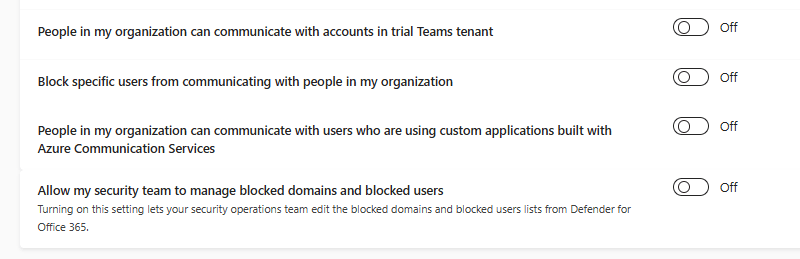
below are the rest options are People in my organization can communicate with accounts in trial Teams tenant, Block specific users from communicating with people in my organization, People in my organization can communicate with users who are using custom applications built with Azure Communication Services and Allow my security team to manage blocked domains and blocked users etc
External access policies let you specify which users in your organization can chat or meet with external users. Use the Global (Org-wide default) policy or create custom user policies to grant access to specific features
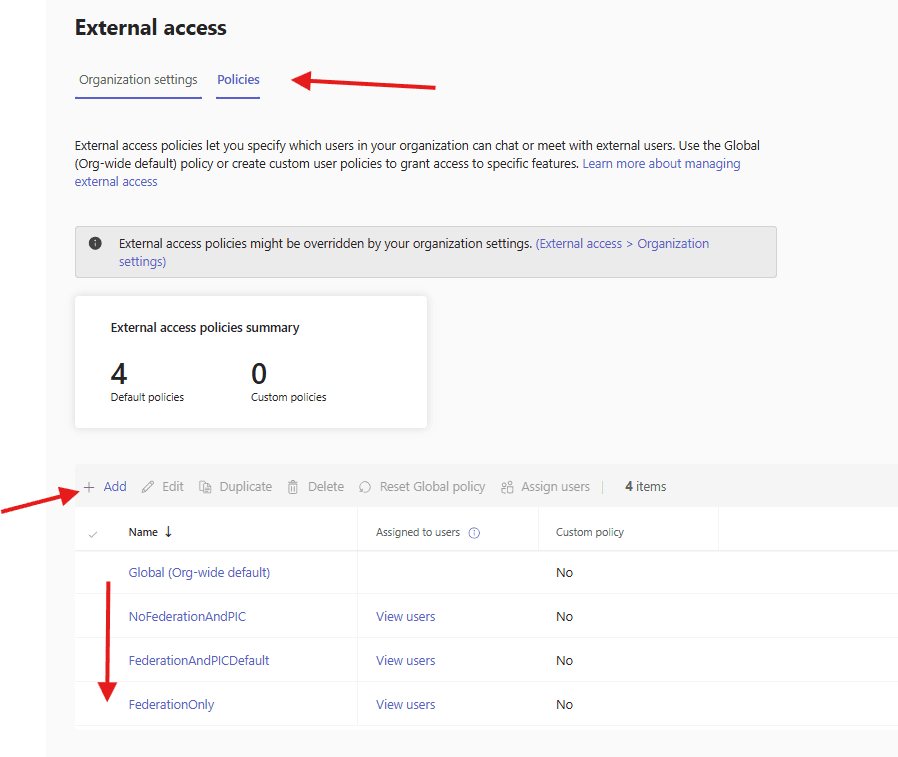
you can add a policy as per the business requirement by hitting add button ‘
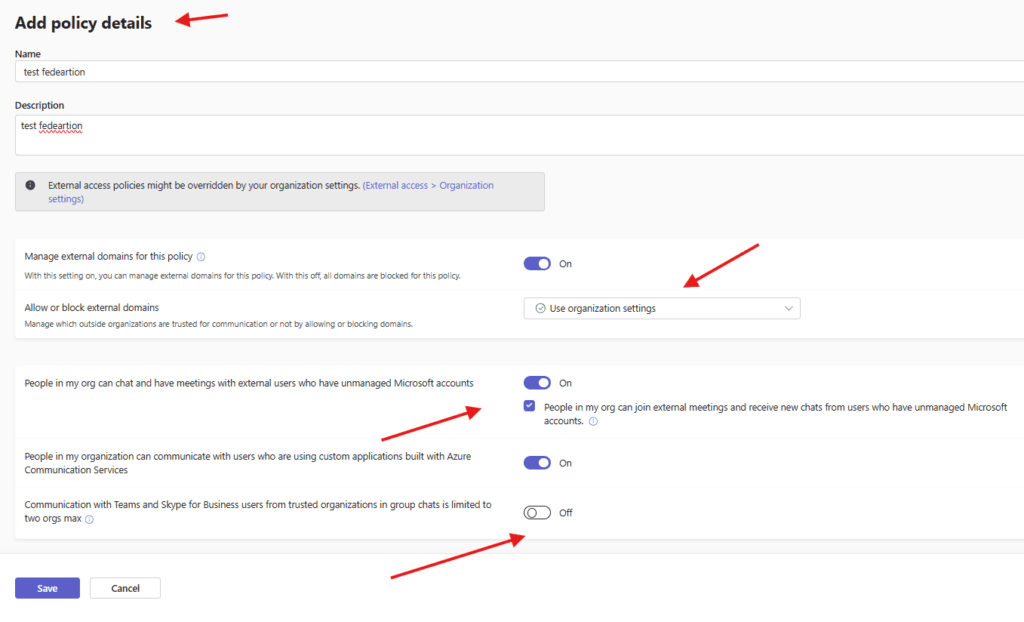
PowerShell script to set up and manage external access
#Install Microsoft Teams PowerShell Module
Install-Module MicrosoftTeams -Force -AllowClobber

#Connect to Microsoft Teams
Import-Module MicrosoftTeams
Connect-MicrosoftTeams

#Enable External Access (Federation)
Set-CsTenantFederationConfiguration `
    -AllowFederatedUsers $true `
    -AllowPublicUsers $false `
    -AllowTeamsConsumer $false `
    -AllowTeamsConsumerInbound $false

#Disable External Access Completely
Set-CsTenantFederationConfiguration `
    -AllowFederatedUsers $false `
    -AllowPublicUsers $false `
    -AllowTeamsConsumer $false `
    -AllowTeamsConsumerInbound $false

#Allow Specific External Domains (Whitelist)
Set-CsTenantFederationConfiguration `
    -AllowedDomains @{ Add = "contoso.com","partnercompany.com" }

#Block Specific External Domains
Set-CsTenantFederationConfiguration `
    -BlockedDomains @{ Add = "blockedcompany.com" }

#Remove Domains from Allowed or Blocked List
Set-CsTenantFederationConfiguration `
    -AllowedDomains @{ Remove = "partnercompany.com" }

Set-CsTenantFederationConfiguration `
    -BlockedDomains @{ Remove = "blockedcompany.com" }

#View Current External Access Configuration
Get-CsTenantFederationConfiguration | Format-List
Conclusion:
Post reading above article user will be able to manage external access in Teams admin center
You can also read https://microbrother.com/swiftly-guest-access-in-teams-admin-center/ this article to handle guest access in TAC
Thank you 😇