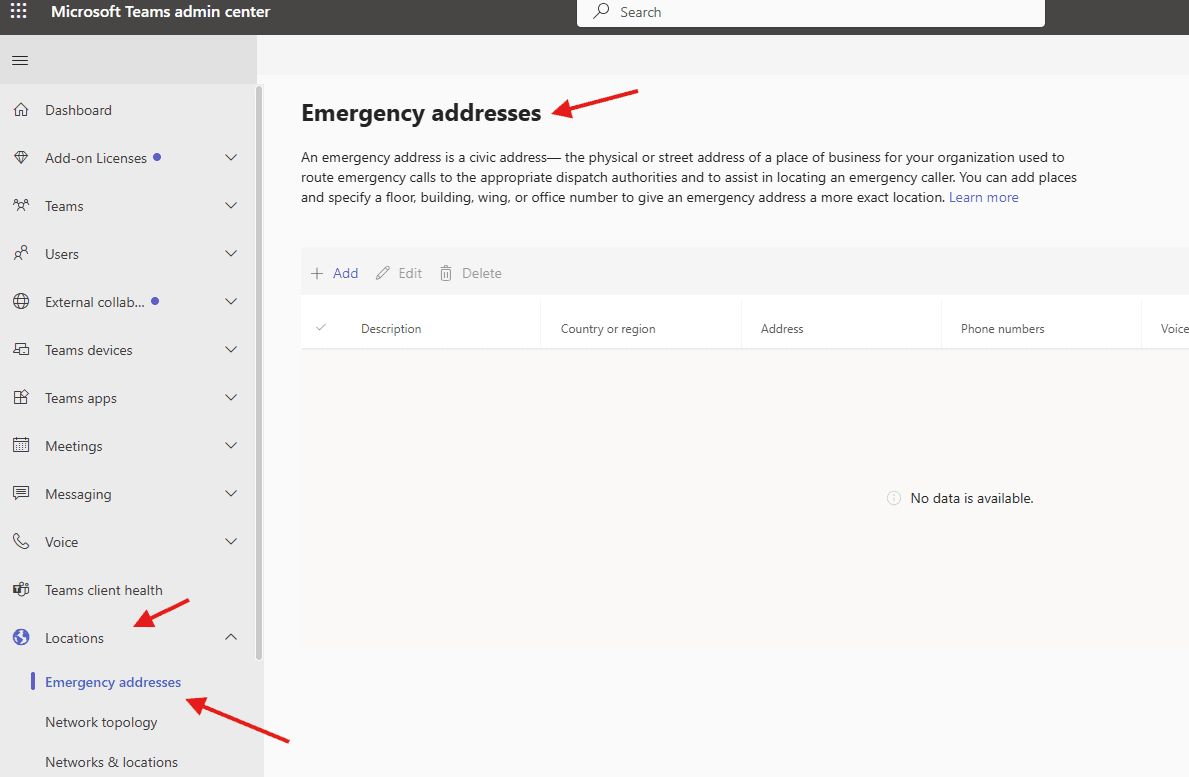
This article talks about on how to add Emergency addresses in Microsoft Teams
Emergency addresses
Emergency address is a civic address— the physical or street address of a place of business for your organization used to route emergency calls to the appropriate dispatch authorities and to assist in locating an emergency caller.
You can add places and specify a floor, building, wing, or office number to give an emergency address a more exact location
Lets create Emergency addresses step by step
Login to Teams admin center : https://admin.teams.microsoft.com/
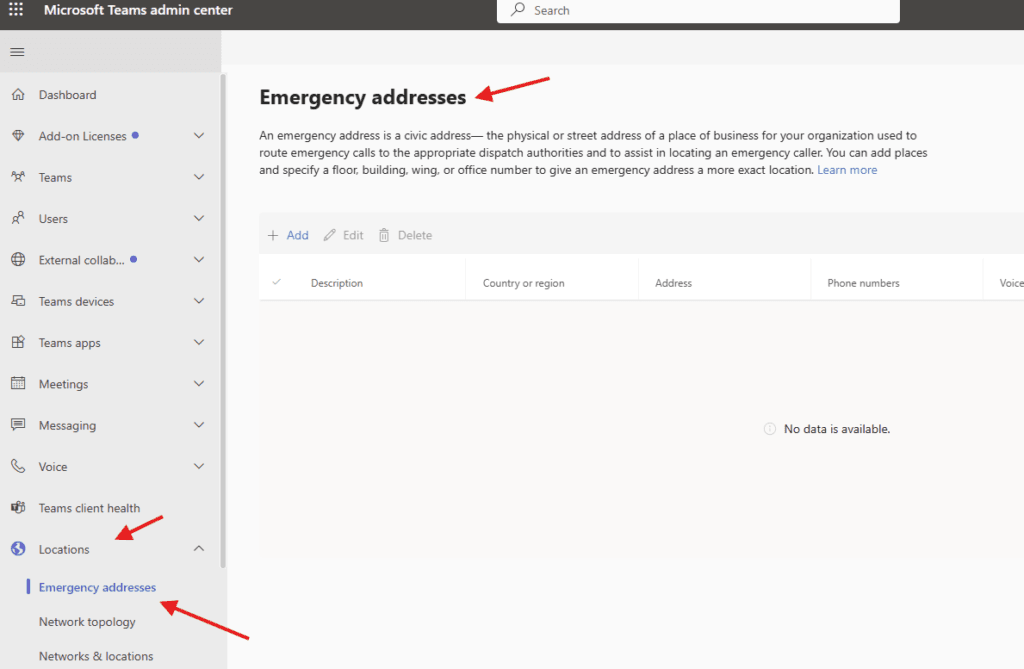
Navigate to TAC–> Locations –> Emergency addresses
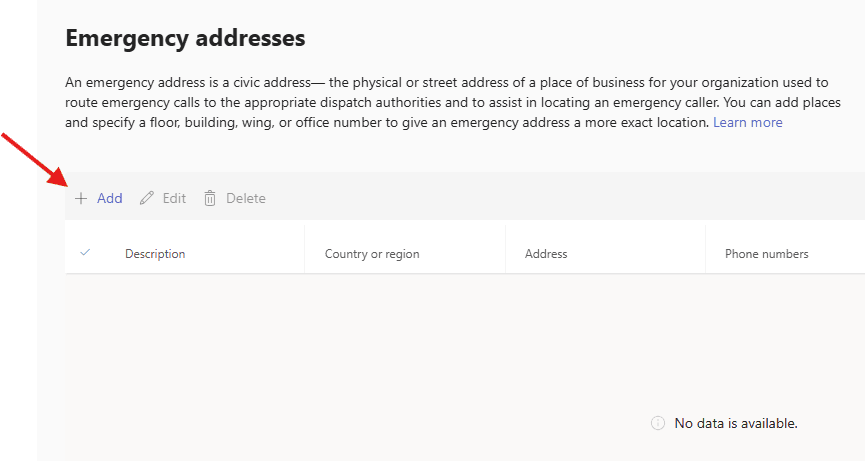
Lets add one
fill all required details
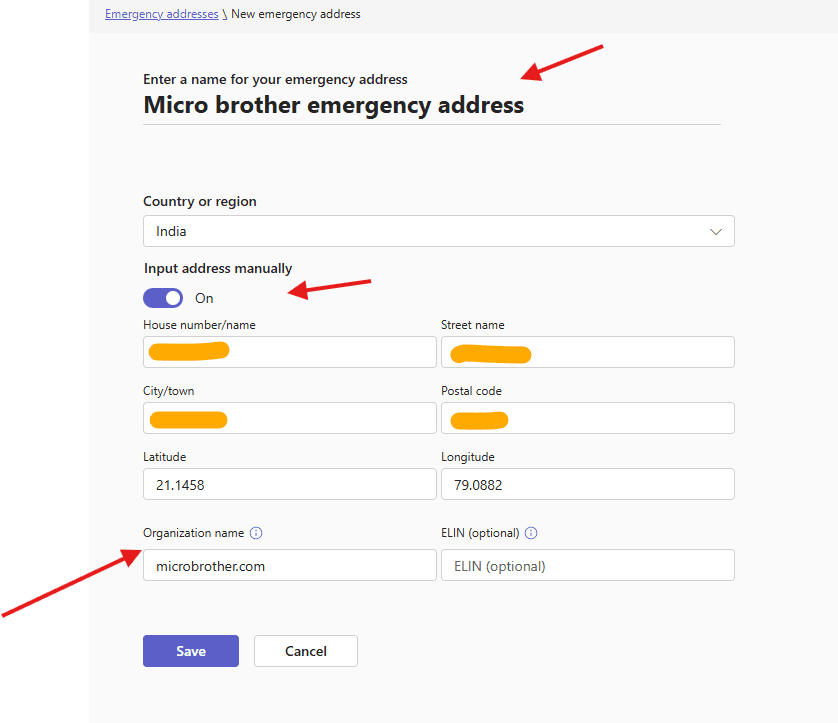
ELIN: When you are dividing your emergency addresses into locations or places, you can add more ELINs. Each emergency location can be assigned one or more ELINs that have different numbers that are dialed to reach emergency services
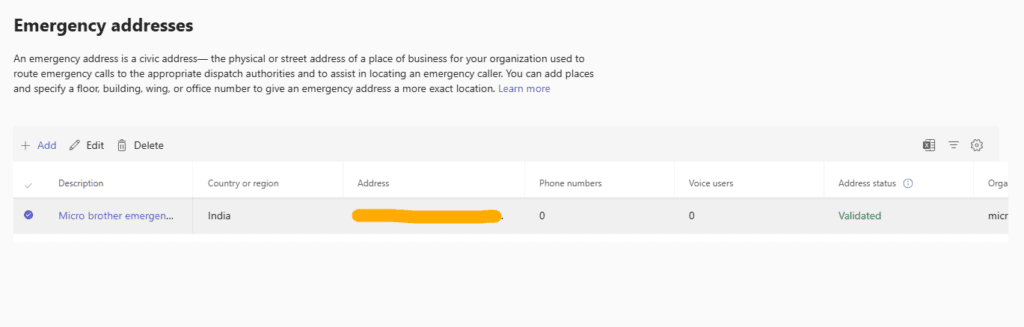
we are done here
PowerShell Script: Add Emergency Addresses in Microsoft Teams
# ==========================================
# Script: Create Emergency Addresses in MS Teams
# Author: Your Name
# Description: Adds Emergency Locations (Addresses) for Teams Emergency Calling
# ==========================================

# Install Microsoft Teams module if not installed
# Install-Module MicrosoftTeams -Force -AllowClobber

# Connect to Microsoft Teams
Write-Host "Connecting to Microsoft Teams..." -ForegroundColor Cyan
Connect-MicrosoftTeams

# ==========================================
# Emergency Address List (Edit as needed)
# ==========================================

$EmergencyAddresses = @(
    @{
        Description   = "Head Office - Nagpur"
        CompanyName   = "Microbrother"
        Street        = "Wardha Road"
        City          = "Nagpur"
        State         = "Maharashtra"
        CountryOrRegion = "IN"
        PostalCode    = "440001"
    },
    @{
        Description   = "Branch Office - Pune"
        CompanyName   = "Microbrother"
        Street        = "Hinjewadi Phase 1"
        City          = "Pune"
        State         = "Maharashtra"
        CountryOrRegion = "IN"
        PostalCode    = "411006"
    },
    @{
        Description   = "Branch Office - Mumbai"
        CompanyName   = "Microbrother"
        Street        = "Andheri East"
        City          = "Mumbai"
        State         = "Maharashtra"
        CountryOrRegion = "IN"
        PostalCode    = "400069"
    }
)

# ==========================================
# Create Emergency Locations
# ==========================================

foreach ($Address in $EmergencyAddresses) {

    Write-Host "Creating Emergency Address: $($Address.Description)" -ForegroundColor Yellow

    try {
        New-CsOnlineLisLocation `
            -Description $Address.Description `
            -CompanyName $Address.CompanyName `
            -Street $Address.Street `
            -City $Address.City `
            -StateOrProvince $Address.State `
            -CountryOrRegion $Address.CountryOrRegion `
            -PostalCode $Address.PostalCode

        Write-Host "SUCCESS: Created $($Address.Description)" -ForegroundColor Green
    }
    catch {
        Write-Host "FAILED: Could not create $($Address.Description)" -ForegroundColor Red
        Write-Host $_.Exception.Message
    }

    Write-Host "---------------------------------------------"
}

# ==========================================
# Display All Created Locations
# ==========================================

Write-Host "Fetching all Emergency Locations..." -ForegroundColor Cyan
Get-CsOnlineLisLocation | Select-Object Description, Street, City, StateOrProvince, CountryOrRegion, PostalCode | Format-Table -AutoSize
Conclusion:
Post reading above article user will be able to set Emergency addresses in MS Teams
You can also read https://microbrother.com/how-to-create-service-accounts-in-microsoft-teams/ this article to create service accounts in MS Teams
Thank you 😇