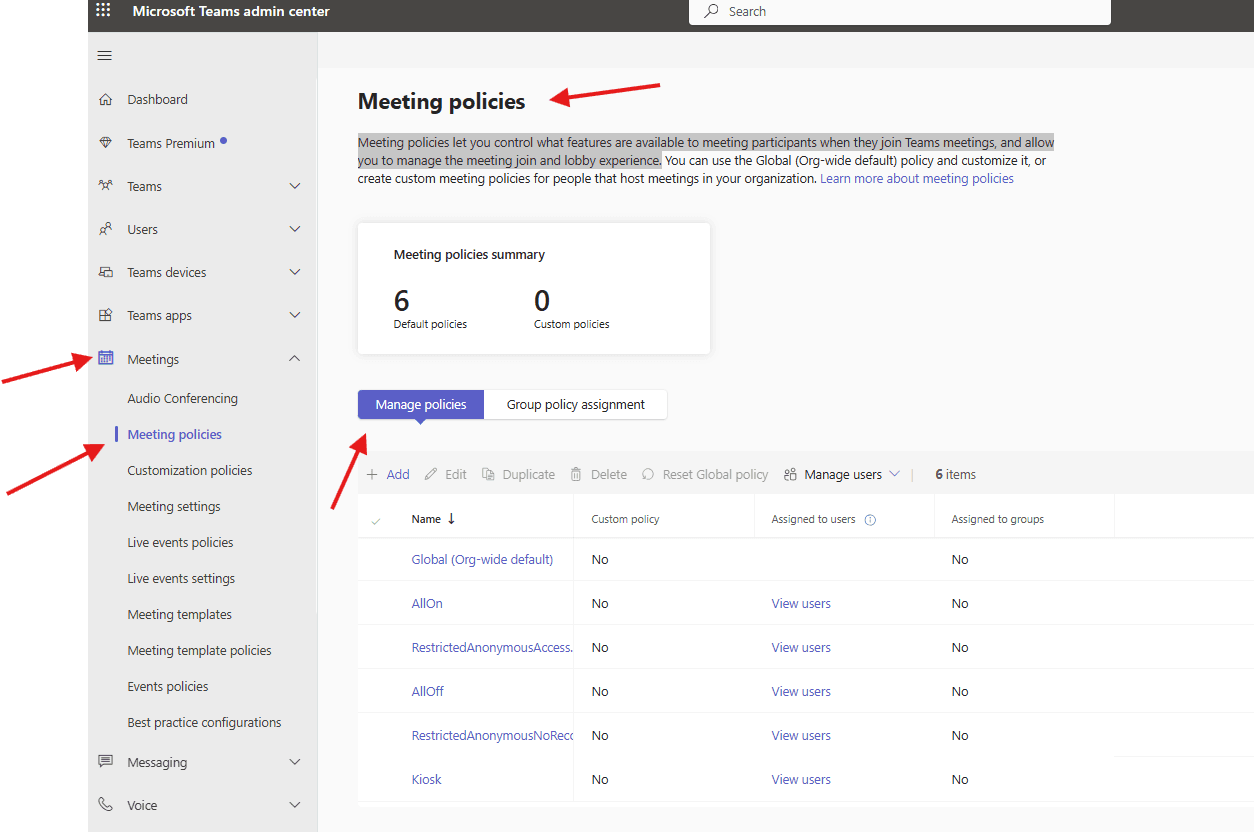
This article talks about on how to create Meeting policies in Teams admin center
Meeting policies
Meeting policies let you control what features are available to meeting participants when they join Teams meetings, and allow you to manage the meeting join and lobby experience.
Lets create Meeting policies step by step
Login to Teams admin center : https://admin.teams.microsoft.com/
Navigate to meetings –> meeting policies
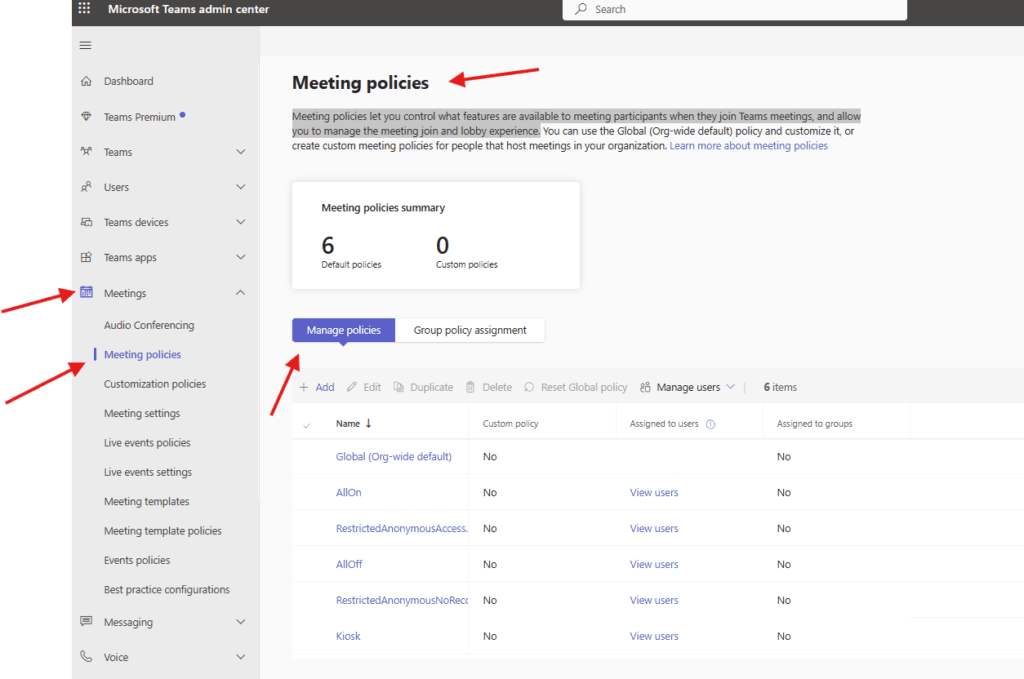
Under manage polices we have already predefined policies–> navigate thro it and assign it to the users as per business requirement, lets create new one
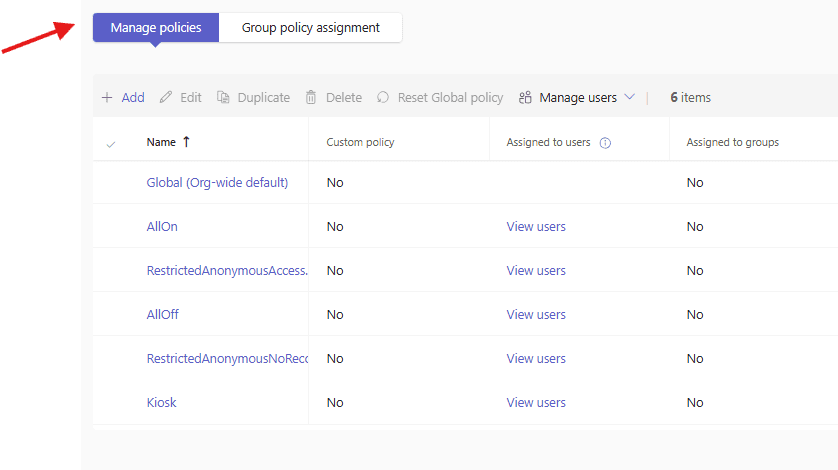
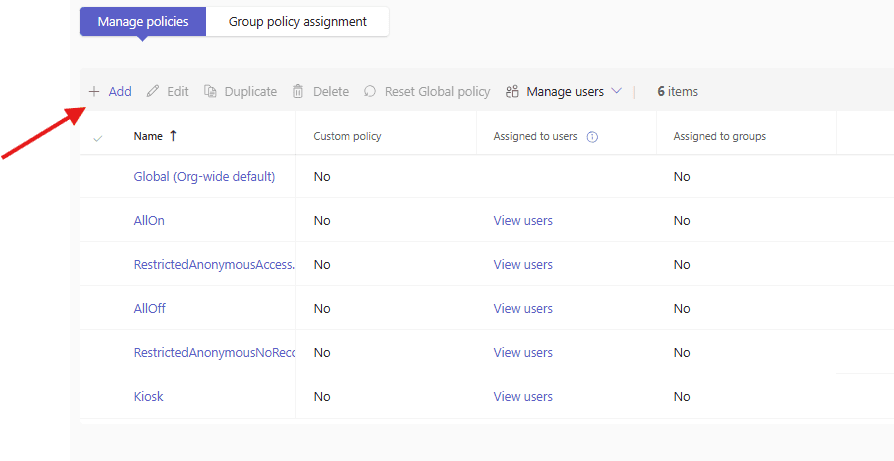
click on add
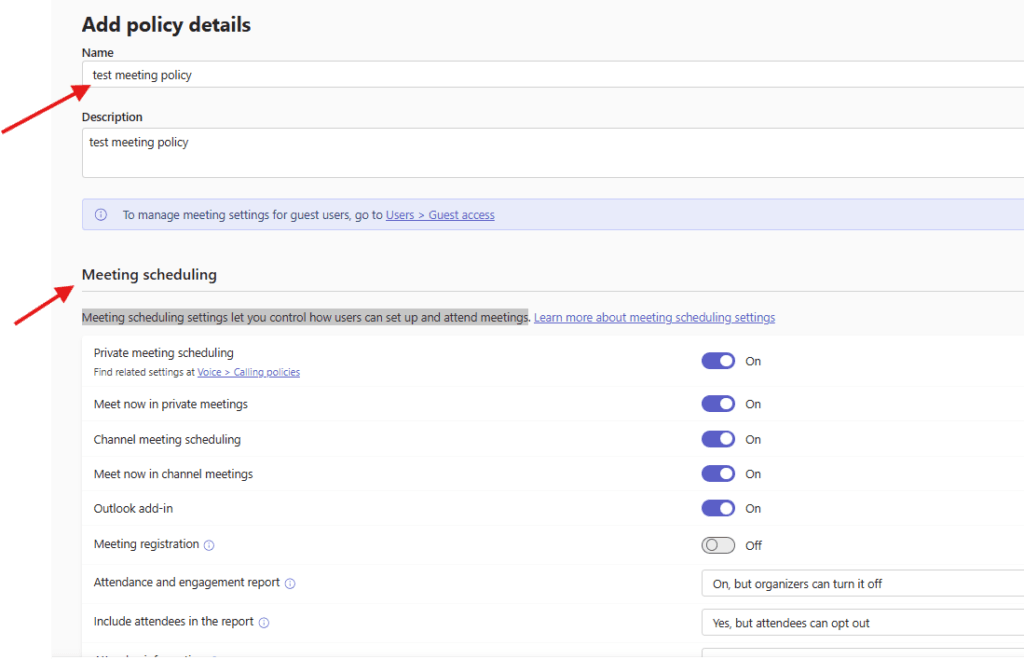
Give a suitable title and set meeting scheduling attributes
Meeting scheduling settings let you control how users can set up and attend meetings
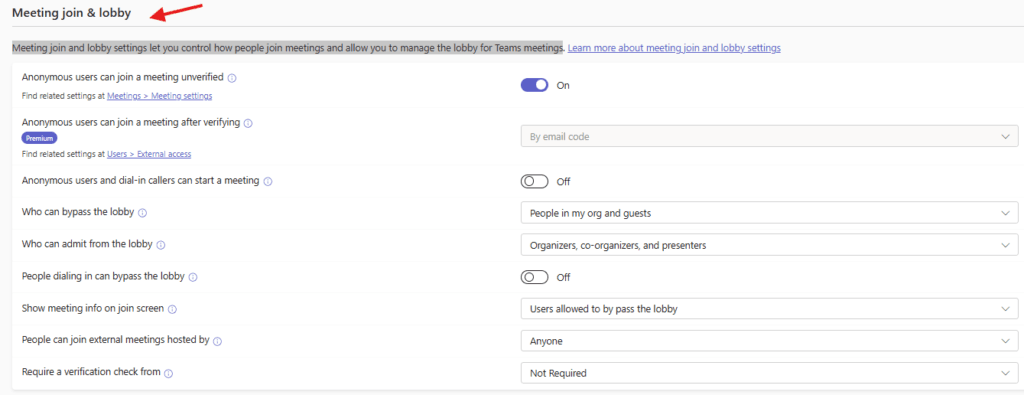
then set Meeting join and lobby settings, it let you control how people join meetings and allow you to manage the lobby for Teams meetings
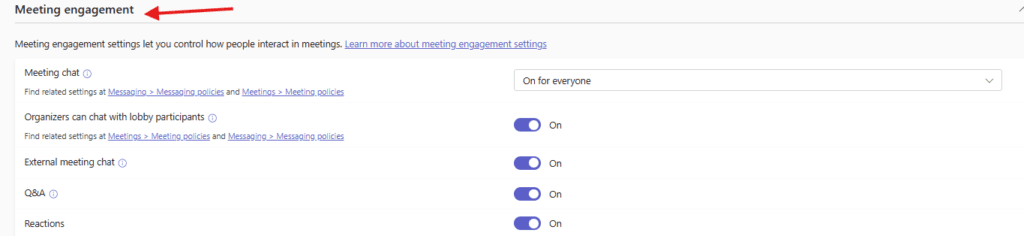
then set Meeting engagement settings, it let you control how people interact in meetings
then set Content sharing settings, it let you control the different types of content that can be used during Teams meetings that are held in your organization
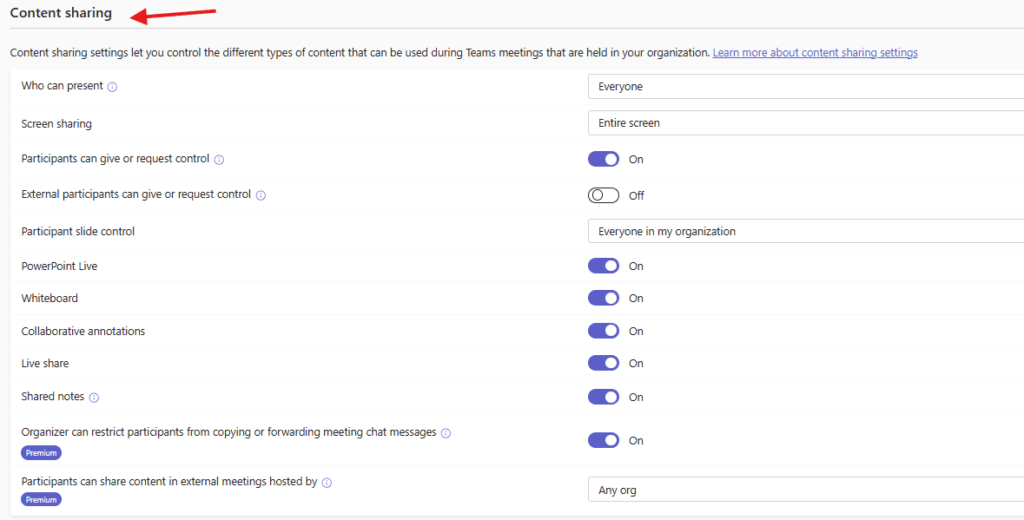
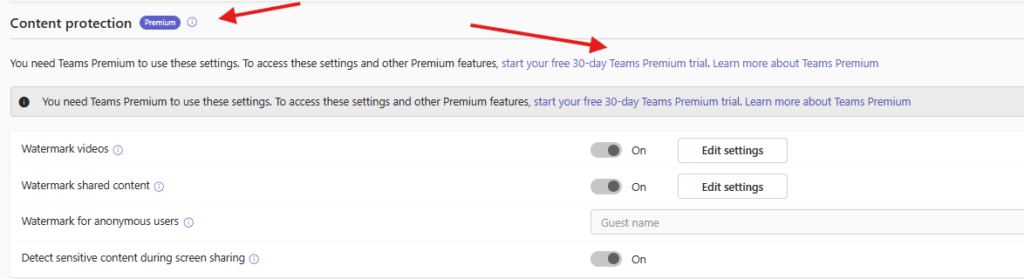
For content protection You need Teams Premium to use these settings.
Please check this article for https://microbrother.com/teams-premium-features-explained-quickly/ Teams Premium features
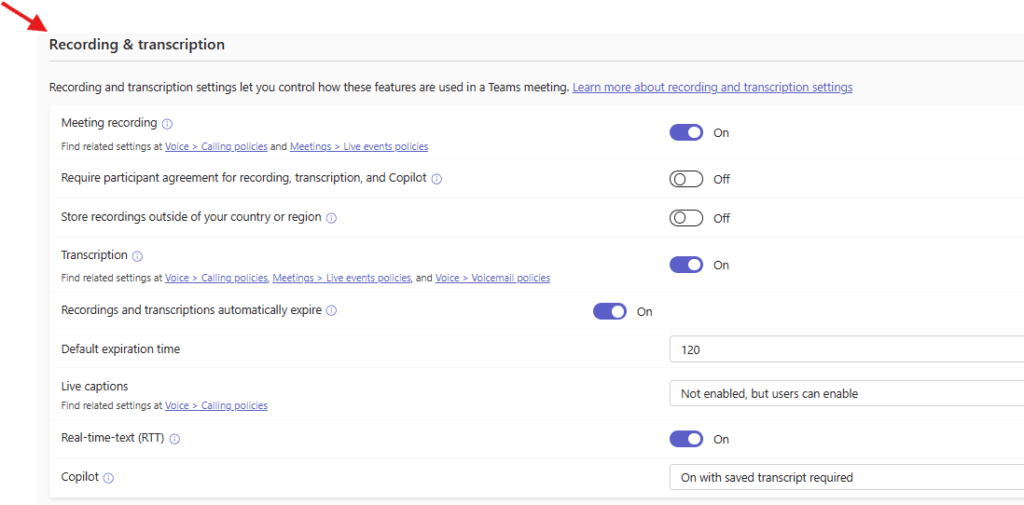
next set up Recording and transcription settings which let you control how these features are used in a Teams meeting
Finally Audio and video settings let you turn on or off features that are used during Teams meetings.
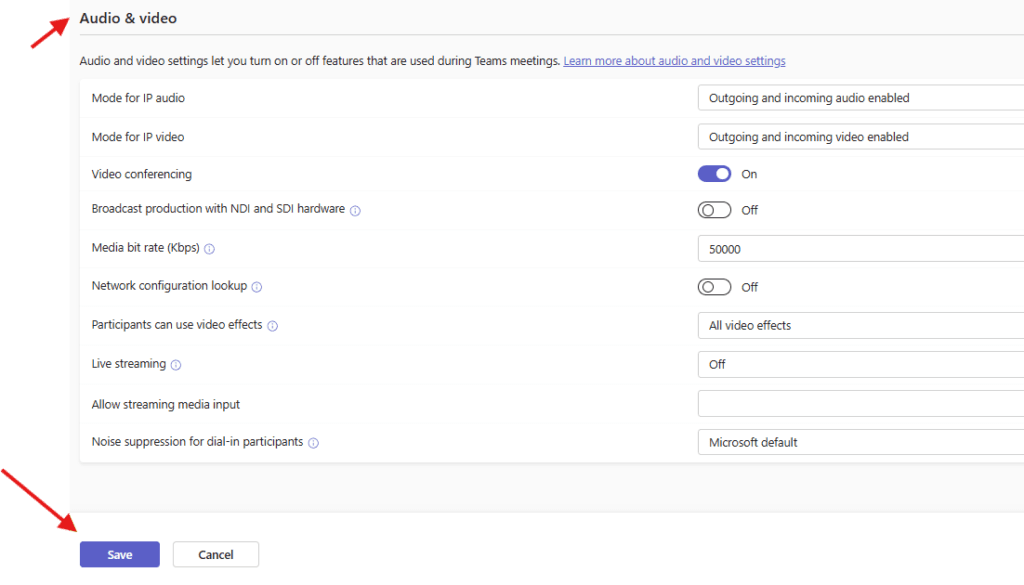
finally save it
Once done then assign it to the users
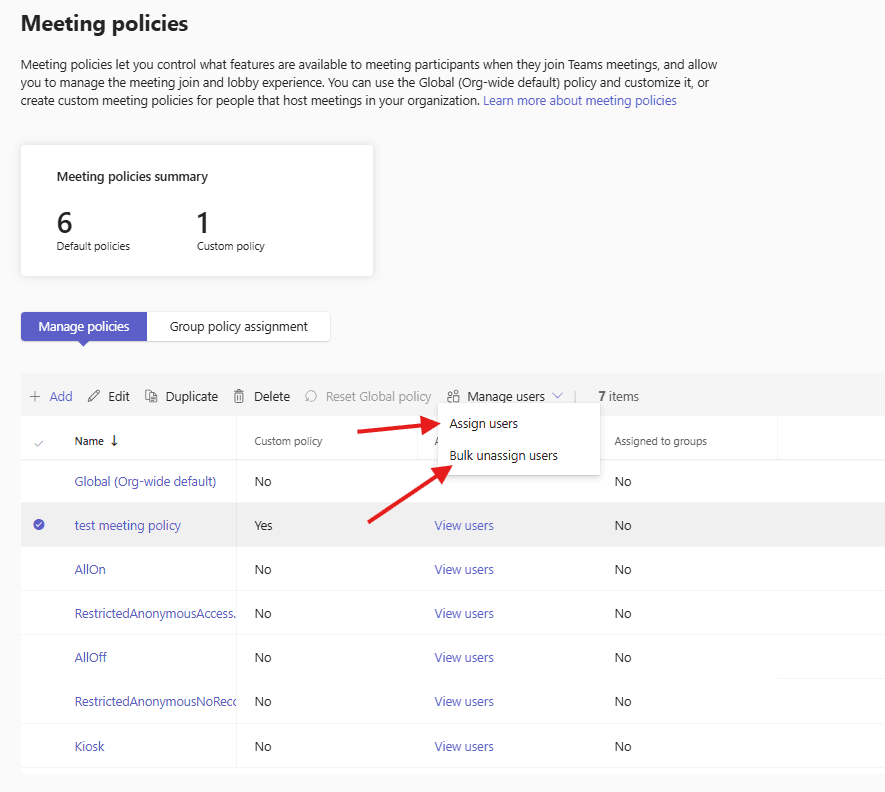
we are done here
PowerShell script for above manual task
Install-Module MicrosoftTeams -Force -AllowClobber

Connect-MicrosoftTeams

# Variables
$PolicyName = "Custom-Meeting-Policy"
$Description = "Custom meeting policy for restricted users"

#Create a New Teams Meeting Policy
New-CsTeamsMeetingPolicy `
    -Identity $PolicyName `
    -Description $Description `
    -AllowMeetNow $true `
    -AllowPrivateMeetings $true `
    -AllowCloudRecording $false `
    -AllowTranscription $false `
    -AllowAnonymousUsersToJoinMeeting $false `
    -AllowExternalParticipantGiveRequestControl $false `
    -AllowIPVideo $true `
    -AllowScreenSharing "SingleApplication" `
    -WhoCanPresent "Organizer"

#Modify an Existing Meeting Policy
Set-CsTeamsMeetingPolicy `
    -Identity "Custom-Meeting-Policy" `
    -AllowCloudRecording $true `
    -AllowTranscription $true `
    -AllowScreenSharing "EntireScreen"

#assign policy to bulk user
$Users = @(
    "user1@yourdomain.com",
    "user2@yourdomain.com",
    "user3@yourdomain.com"
)

foreach ($User in $Users) {
    Grant-CsTeamsMeetingPolicy -Identity $User -PolicyName "Custom-Meeting-Policy"
}
Conclusion:
Post reading above article user will be able to create Meeting policies in Teams admin center
Thank you 😇