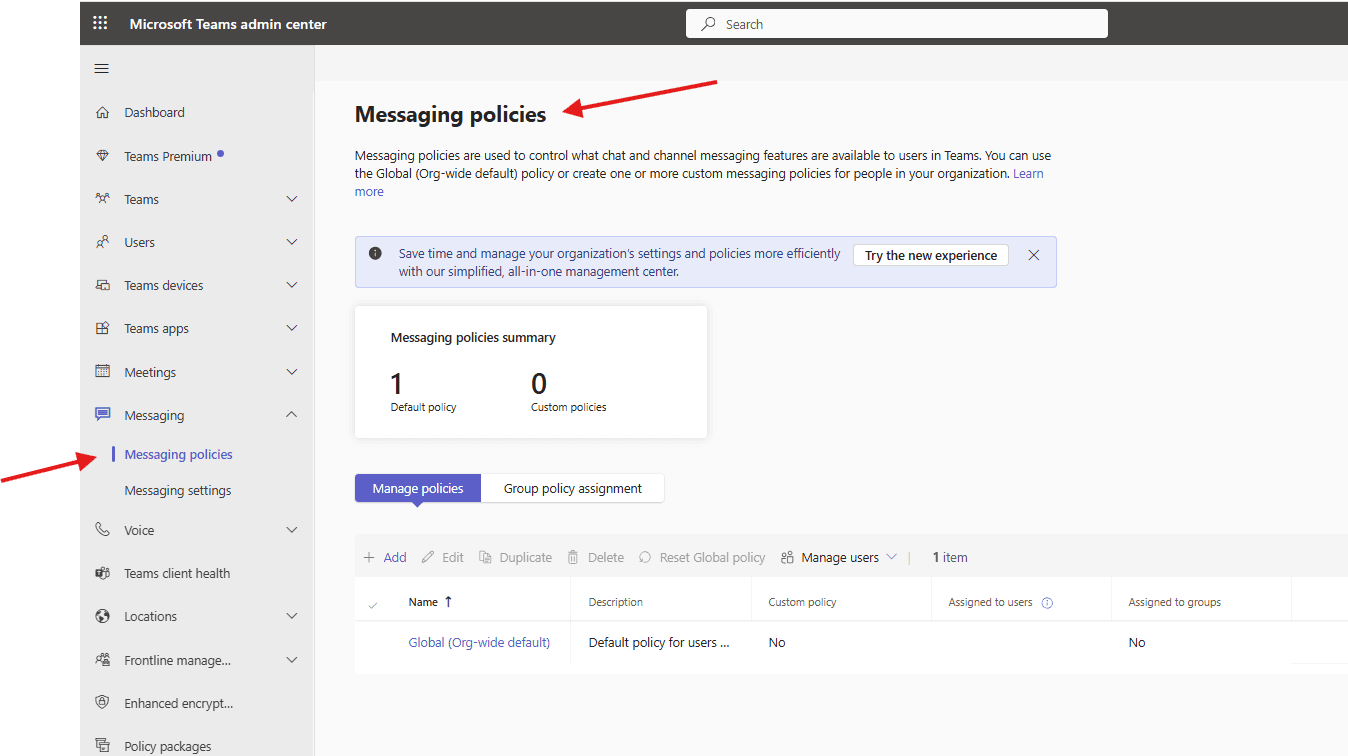
This article talks about Messaging policies in Microsoft Teams
Messaging policies
Messaging policies in Microsoft Teams control user access to chat and channel features, such as editing/deleting messages, GIFs, memes, and read receipts. Managed via the Teams Admin Center, these policies allow administrators to customize settings for specific users or apply a global default policy to the organization
Lets see it step by step
Login to Teams admin center : https://admin.teams.microsoft.com/
Navigate to TAC–> Messaging –> Messaging policies
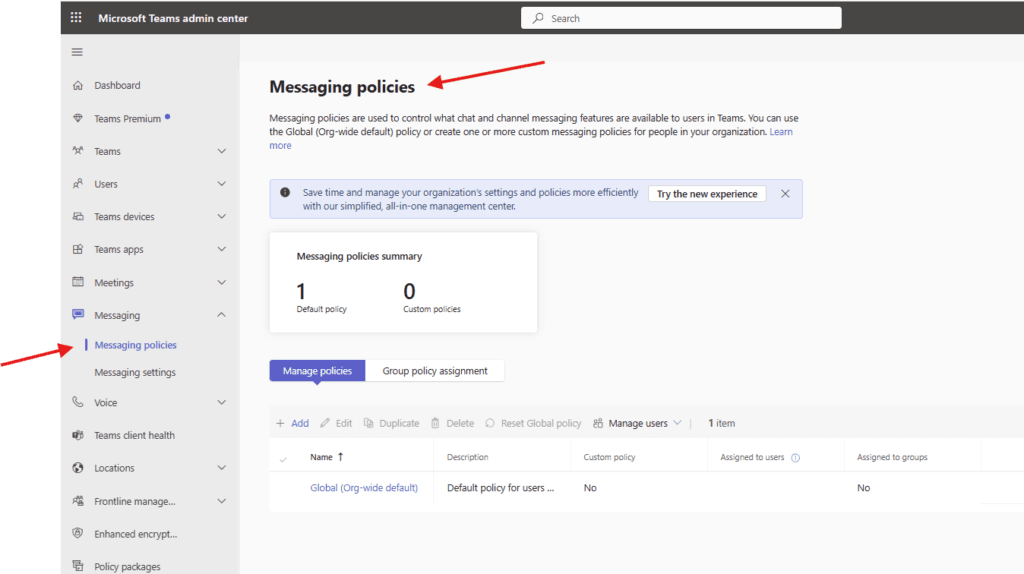
Messaging policies are used to control what chat and channel messaging features are available to users in Teams. You can use the Global (Org-wide default) policy or create one or more custom messaging policies for people in your organization
Lets create test messaging policy–> click on Add
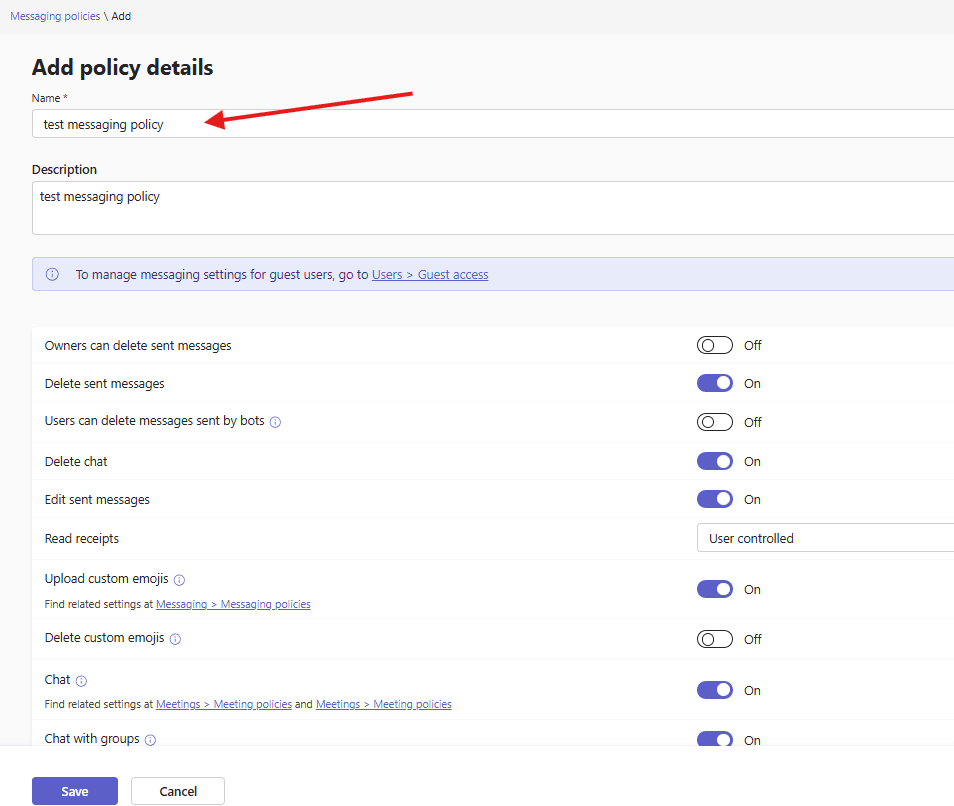
here are the various attributes for above policy : set it accordingly
Owners can delete sent messages, Delete sent messages, Users can delete messages sent by bots, Delete chat, Edit sent messages, Read receipts, Upload custom emojis, Delete custom emojis, Chat with groups, Custom avatars for group chats, Giphy in conversations, Giphy content rating, Memes in conversations, Stickers in conversations, URL previews, Report inappropriate content, Report a security concern, Translate messages, Immersive reader for messages, Send urgent messages using priority notifications, Create voice messages, On mobile devices, display favorite channels above recent chats, Remove users from group chats,
save the policy properly
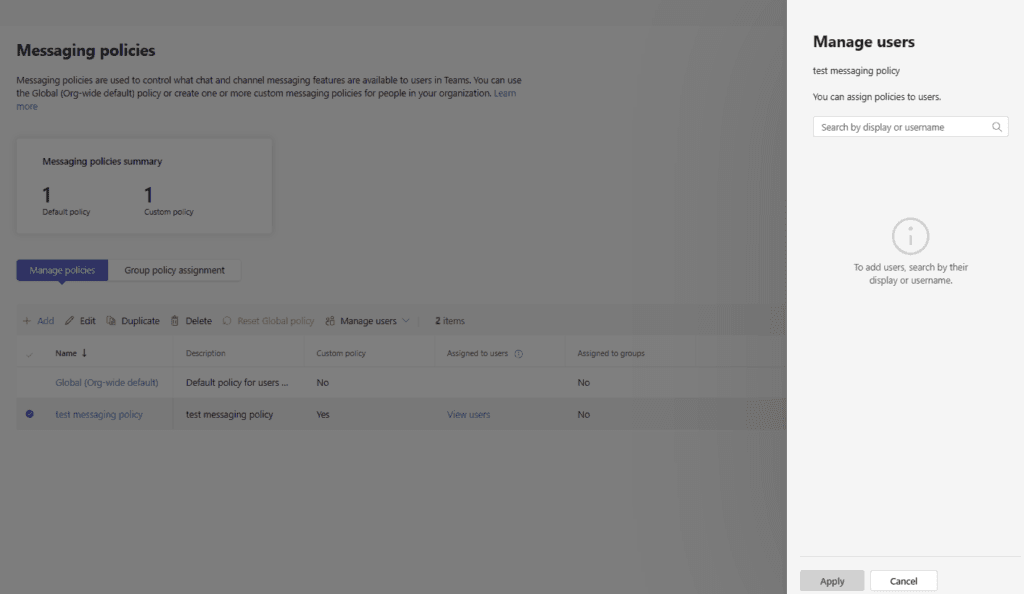
Assign created policy to the set of users
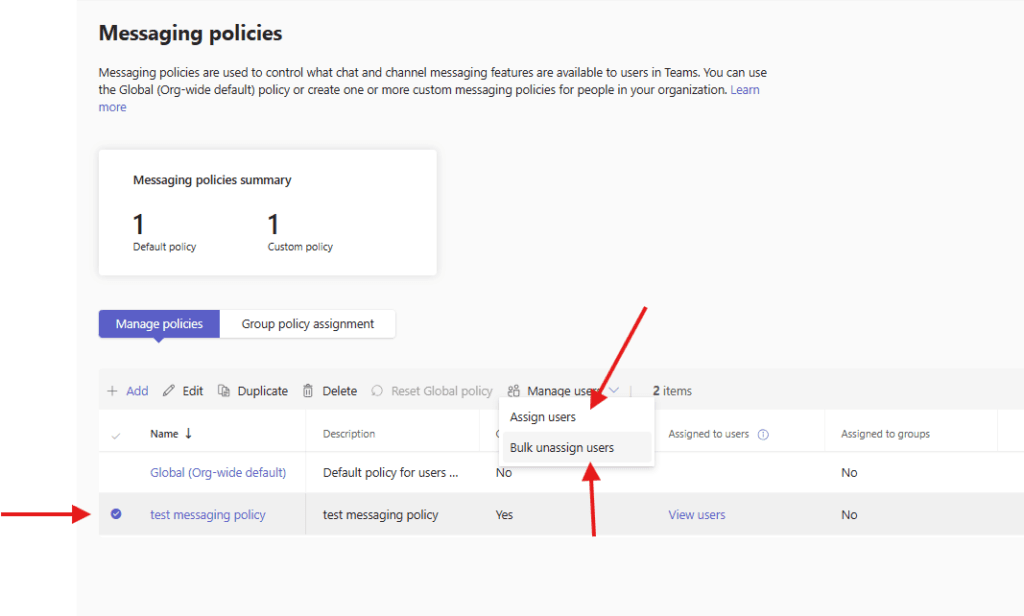
PowerShell script for above manual task
# Connect to Microsoft Teams
Connect-MicrosoftTeams

# Define Messaging Policies
$MessagingPolicies = @(
    @{
        Name = "Messaging-Standard-Users"
        AllowUserChat = $true
        AllowGiphy = $true
        GiphyRatingType = "Moderate"
        AllowMemes = $true
        AllowStickers = $true
        AllowOwnerDeleteMessage = $true
        AllowUserDeleteMessage = $true
        AllowUserEditMessage = $true
        AllowImmersiveReader = $true
        AllowPriorityMessages = $true
        AllowUrlPreviews = $true
    },
    @{
        Name = "Messaging-Restricted-Users"
        AllowUserChat = $true
        AllowGiphy = $false
        AllowMemes = $false
        AllowStickers = $false
        AllowOwnerDeleteMessage = $false
        AllowUserDeleteMessage = $false
        AllowUserEditMessage = $true
        AllowImmersiveReader = $true
        AllowPriorityMessages = $false
        AllowUrlPreviews = $true
    }
)

# Create Policies
foreach ($Policy in $MessagingPolicies) {

    $ExistingPolicy = Get-CsTeamsMessagingPolicy -Identity $Policy.Name -ErrorAction SilentlyContinue

    if ($null -eq $ExistingPolicy) {

        Write-Host "Creating Messaging Policy: $($Policy.Name)" -ForegroundColor Green

        New-CsTeamsMessagingPolicy `
            -Identity $Policy.Name `
            -AllowUserChat $Policy.AllowUserChat `
            -AllowGiphy $Policy.AllowGiphy `
            -GiphyRatingType $Policy.GiphyRatingType `
            -AllowMemes $Policy.AllowMemes `
            -AllowStickers $Policy.AllowStickers `
            -AllowOwnerDeleteMessage $Policy.AllowOwnerDeleteMessage `
            -AllowUserDeleteMessage $Policy.AllowUserDeleteMessage `
            -AllowUserEditMessage $Policy.AllowUserEditMessage `
            -AllowImmersiveReader $Policy.AllowImmersiveReader `
            -AllowPriorityMessages $Policy.AllowPriorityMessages `
            -AllowUrlPreviews $Policy.AllowUrlPreviews
    }
    else {
        Write-Host "Messaging Policy already exists: $($Policy.Name)" -ForegroundColor Yellow
    }
}

Write-Host "Messaging policy creation completed." -ForegroundColor Cyan
Azure run-book steps
Before using the runbook:

 Enable System-Assigned Managed Identity

Azure Portal → Automation Account → Identity → System Assigned → On

Grant API Permissions to the Managed Identity

In Microsoft Entra ID (Azure AD):

Assign these Application permissions to the Automation Account identity:

TeamSettings.ReadWrite.All

Policy.ReadWrite.Messaging

User.Read.All

Then click Grant admin consent.

 Install Required Module in Automation Account

Automation Account → Modules → Browse Gallery → Install:

MicrosoftTeams

🧾 Azure Automation Runbook (PowerShell)

Create a new PowerShell Runbook and paste this:

<#
.SYNOPSIS
Creates Microsoft Teams Messaging Policies using Managed Identity
#>

#region Logging Function
function Write-Log {
    param (
        [string]$Message,
        [string]$Level = "INFO"
    )

    $timestamp = (Get-Date).ToString("yyyy-MM-dd HH:mm:ss")
    Write-Output "$timestamp [$Level] $Message"
}
#endregion

try {
    Write-Log "Starting Messaging Policy Runbook..."

    # Connect using Managed Identity
    Write-Log "Connecting to Microsoft Teams using Managed Identity..."
    Connect-MicrosoftTeams -Identity
    Write-Log "Connected successfully."

    # Define Messaging Policies
    $MessagingPolicies = @(
        @{
            Name = "Messaging-Standard-Users"
            AllowUserChat = $true
            AllowGiphy = $true
            GiphyRatingType = "Moderate"
            AllowMemes = $true
            AllowStickers = $true
            AllowOwnerDeleteMessage = $true
            AllowUserDeleteMessage = $true
            AllowUserEditMessage = $true
            AllowImmersiveReader = $true
            AllowPriorityMessages = $true
            AllowUrlPreviews = $true
        },
        @{
            Name = "Messaging-Restricted-Users"
            AllowUserChat = $true
            AllowGiphy = $false
            AllowMemes = $false
            AllowStickers = $false
            AllowOwnerDeleteMessage = $false
            AllowUserDeleteMessage = $false
            AllowUserEditMessage = $true
            AllowImmersiveReader = $true
            AllowPriorityMessages = $false
            AllowUrlPreviews = $true
        }
    )

    foreach ($Policy in $MessagingPolicies) {

        Write-Log "Processing policy: $($Policy.Name)"

        $ExistingPolicy = Get-CsTeamsMessagingPolicy `
            -Identity $Policy.Name `
            -ErrorAction SilentlyContinue

        if ($null -eq $ExistingPolicy) {

            Write-Log "Creating policy: $($Policy.Name)"

            New-CsTeamsMessagingPolicy `
                -Identity $Policy.Name `
                -AllowUserChat $Policy.AllowUserChat `
                -AllowGiphy $Policy.AllowGiphy `
                -GiphyRatingType $Policy.GiphyRatingType `
                -AllowMemes $Policy.AllowMemes `
                -AllowStickers $Policy.AllowStickers `
                -AllowOwnerDeleteMessage $Policy.AllowOwnerDeleteMessage `
                -AllowUserDeleteMessage $Policy.AllowUserDeleteMessage `
                -AllowUserEditMessage $Policy.AllowUserEditMessage `
                -AllowImmersiveReader $Policy.AllowImmersiveReader `
                -AllowPriorityMessages $Policy.AllowPriorityMessages `
                -AllowUrlPreviews $Policy.AllowUrlPreviews

            Write-Log "Policy created successfully: $($Policy.Name)"
        }
        else {
            Write-Log "Policy already exists: $($Policy.Name)" "WARN"
        }
    }

    Write-Log "Messaging Policy Runbook completed successfully."

}
catch {
    Write-Log "Runbook failed: $_" "ERROR"
    throw
}
Conclusion :
Post reading above article user will be able to create Messaging policies in Microsoft Teams
Also you can read https://microbrother.com/best-practice-configurations-in-microsoft-teams/ this article for Best practice configurations in Microsoft Teams
Thank you 😇