This article talks about the Mobility policies in MS Teams
Mobility policies
Mobility policies in MS Teams are administrative controls designed to manage user behavior, security, and functionality specifically on mobile devices (iOS/Android).
They enable administrators to control how Teams phone calls are handled (e.g., using the native dialer vs. Teams app), restrict video/screen sharing over cellular, and enforce security policies like MAM (Mobile Application Management).
Lets create Mobility policies step by step
Open Teams admin center : https://admin.teams.microsoft.com/
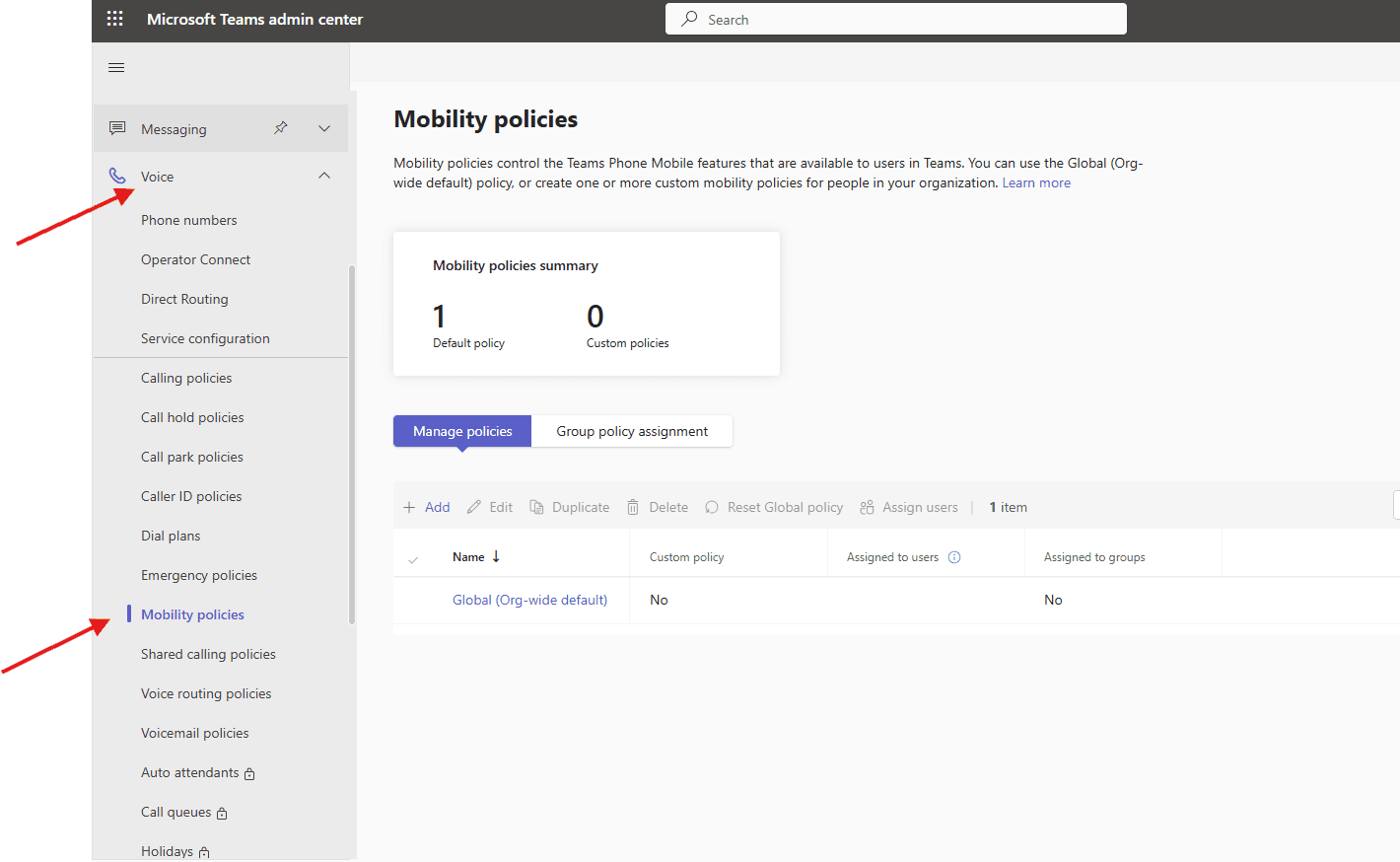
Navigate to TAC–> voice–> mobility policies
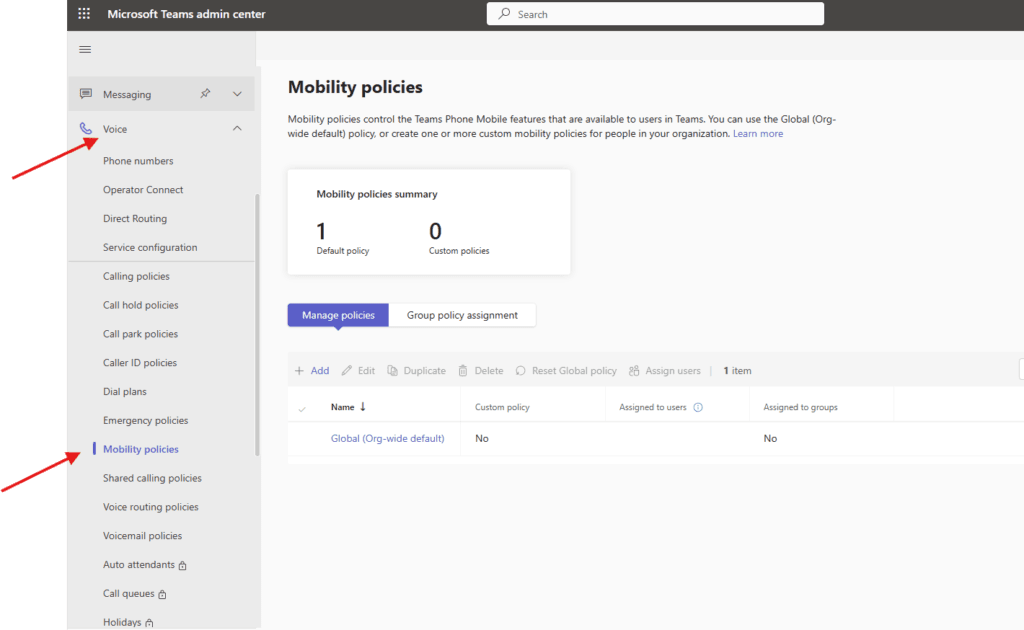
You can use the Global (Org-wide default) policy, or create one or more custom mobility policies for people in your organization
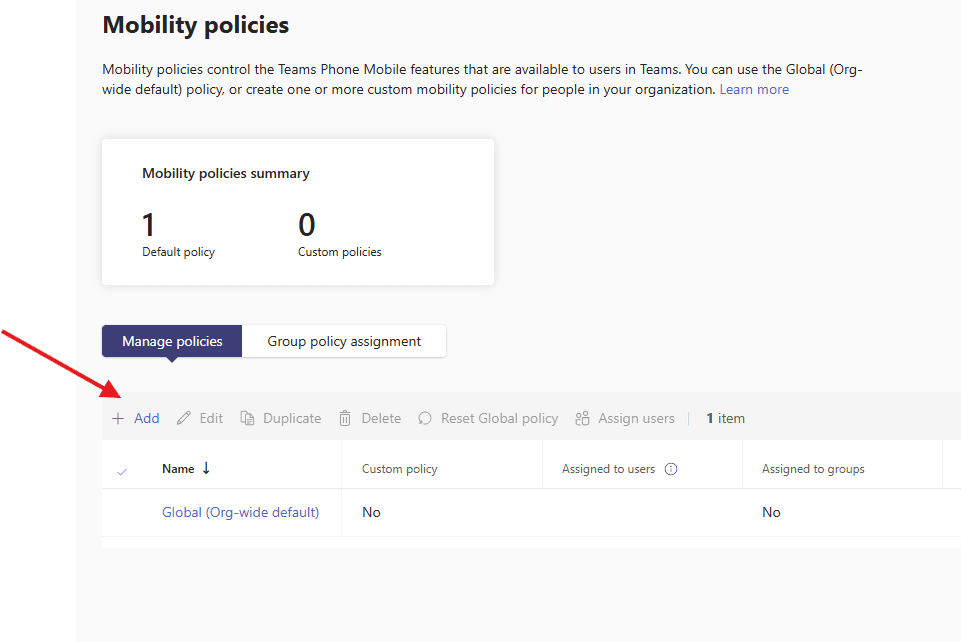
Lets create one test policy
click on Add
Give a suitable title and Select a mobile dialer , I have selected as user controlled , you can also go for Teams or native dialer as per business requirement
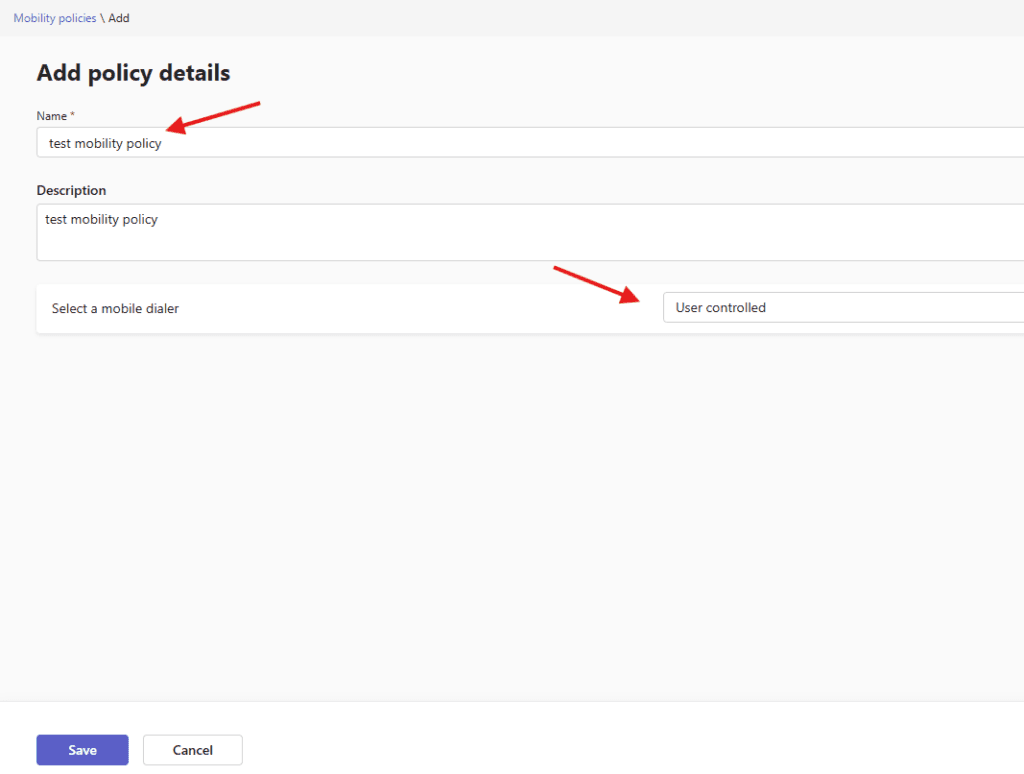
finally save it
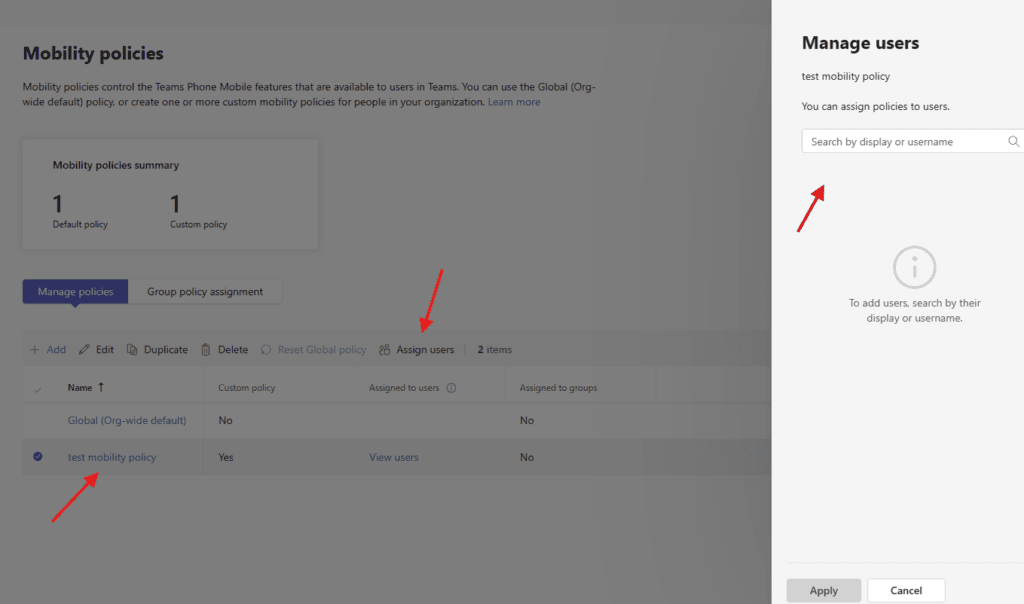
you can assign policy from here
PowerShell script for above manual task
# Install module (if not already installed)
# Install-Module -Name MicrosoftTeams -Force -AllowClobber

# Connect to Microsoft Teams
Import-Module MicrosoftTeams
Connect-MicrosoftTeams

# Define Policy Name
$PolicyName = "EnableMobilityPolicy"

# Check if policy already exists
$existingPolicy = Get-CsTeamsMobilityPolicy -Identity $PolicyName -ErrorAction SilentlyContinue

if (-not $existingPolicy) {
    Write-Host "Creating new Mobility Policy..."

    New-CsTeamsMobilityPolicy `
        -Identity $PolicyName `
        -AllowIPVideo $true `
        -AllowCamera $true `
        -AllowScreenSharing $true `
        -AllowPrivateCalling $true `
        -AllowVoicemail $true
}
else {
    Write-Host "Policy already exists. Updating settings..."

    Set-CsTeamsMobilityPolicy `
        -Identity $PolicyName `
        -AllowIPVideo $true `
        -AllowCamera $true `
        -AllowScreenSharing $true `
        -AllowPrivateCalling $true `
        -AllowVoicemail $true
}

# Assign policy to a specific user
$user = "user@microbrother.com"

Grant-CsTeamsMobilityPolicy `
    -Identity $user `
    -PolicyName $PolicyName

Write-Host "Mobility Policy applied successfully to $user"
We are done here
Conclusion:
Post reading above article user will be able to create and manage Mobility policies in MS Teams
Also you can read this article https://microbrother.com/emergency-calling-policies-in-microsoft-teams/ this article to create emergency policies
Thank you 😇