This article talks about Understanding of Network topology in MS Teams
Network topology
Network topology involves configuring network sites, subnets, and region mappings within the Teams Admin Center to optimize voice and video quality, manage location-based routing, and handle emergency calling.
It connects on-premises IP subnets and Wi-Fi access points to specific locations, enabling the cloud service to identify if users are in the office or remote, ensuring proper QoS tagging and media routing
Lets create Network topology step by step
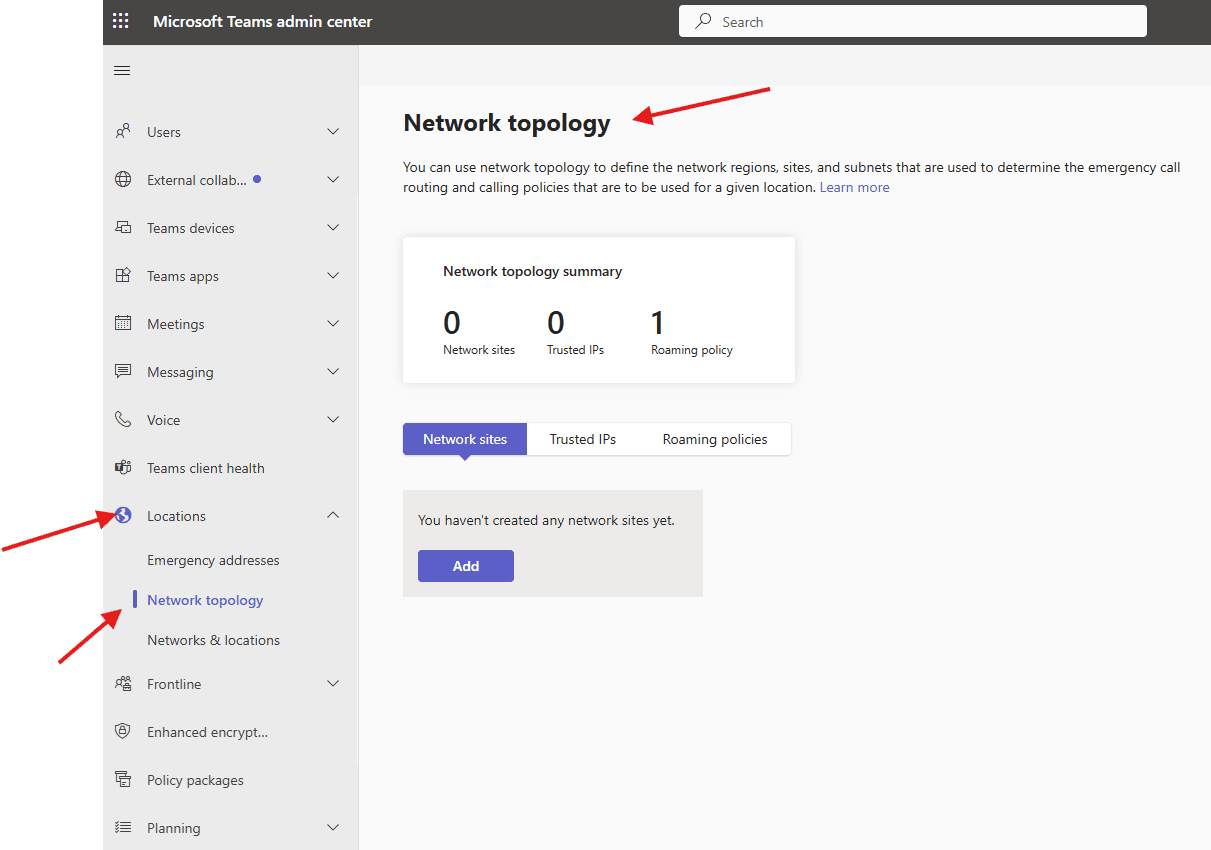
Open Teams admin center : https://admin.teams.microsoft.com/
Navigate to Locations–> network topology
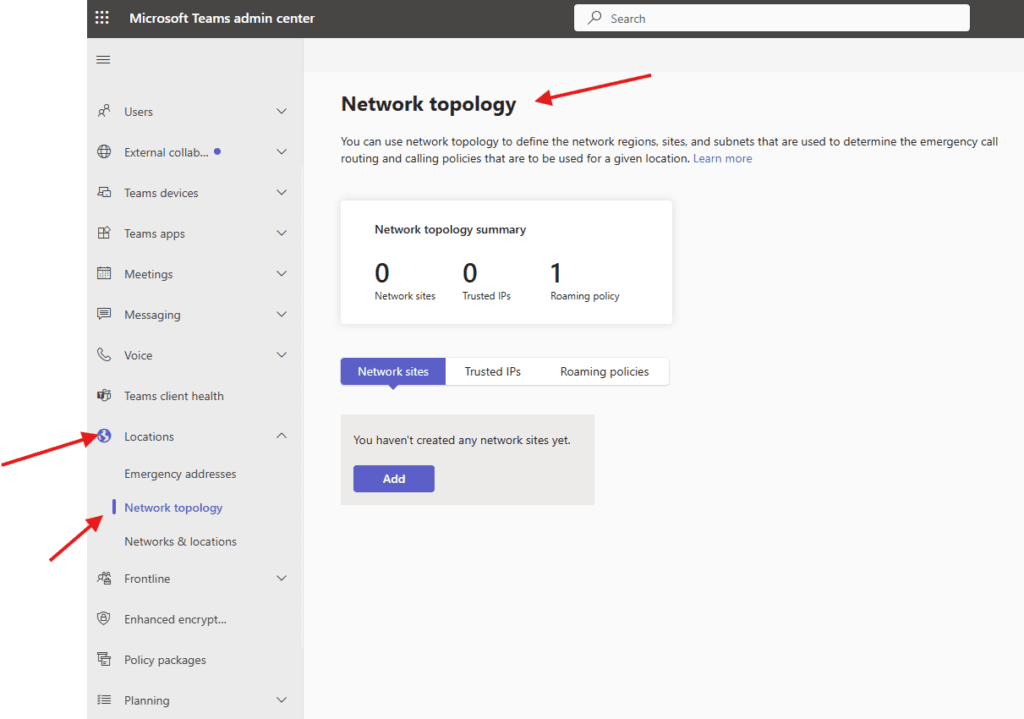
navigate to network sites –> add
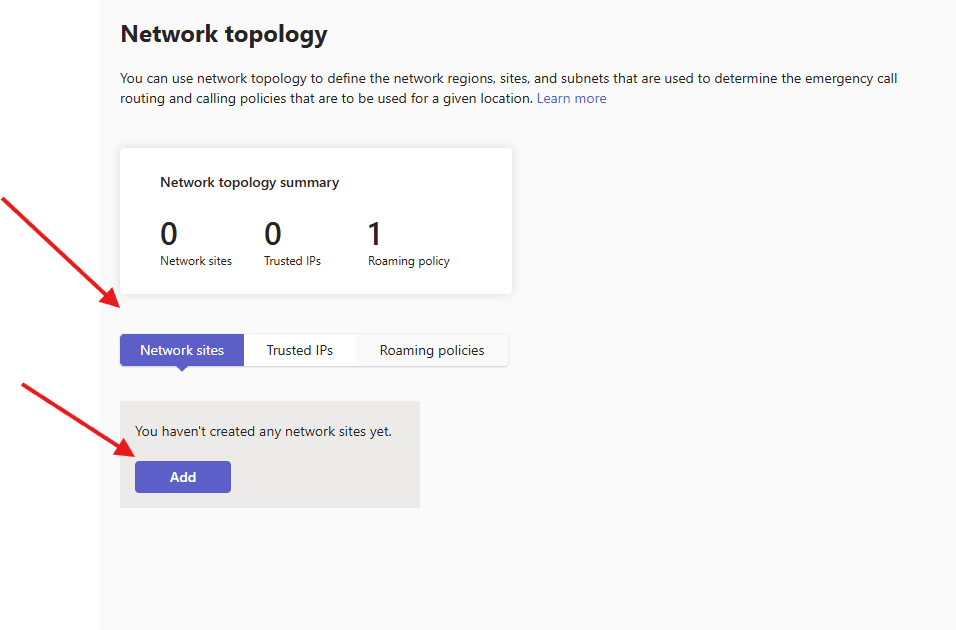
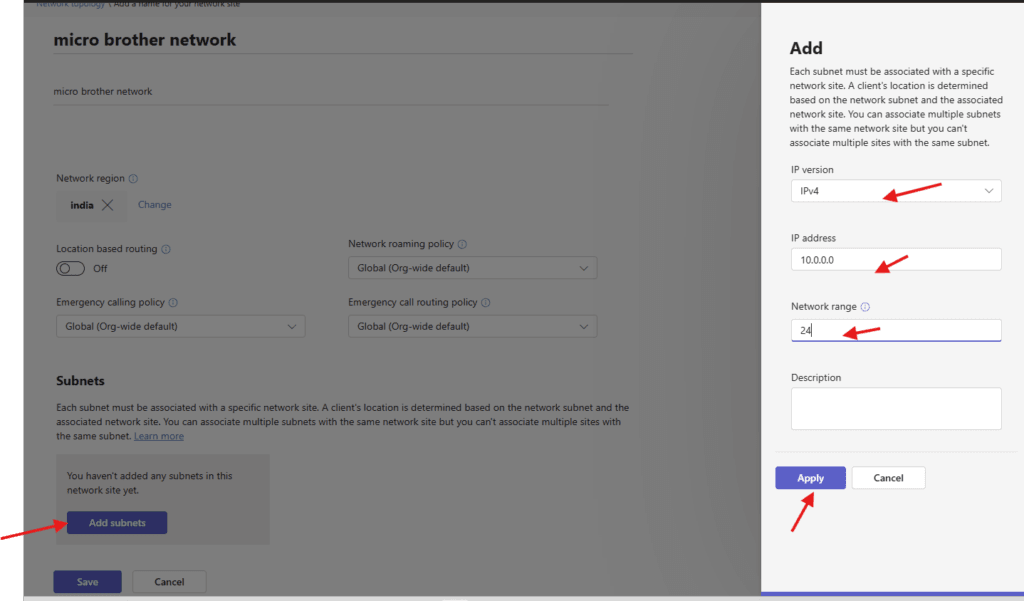
give a suitable title and add region
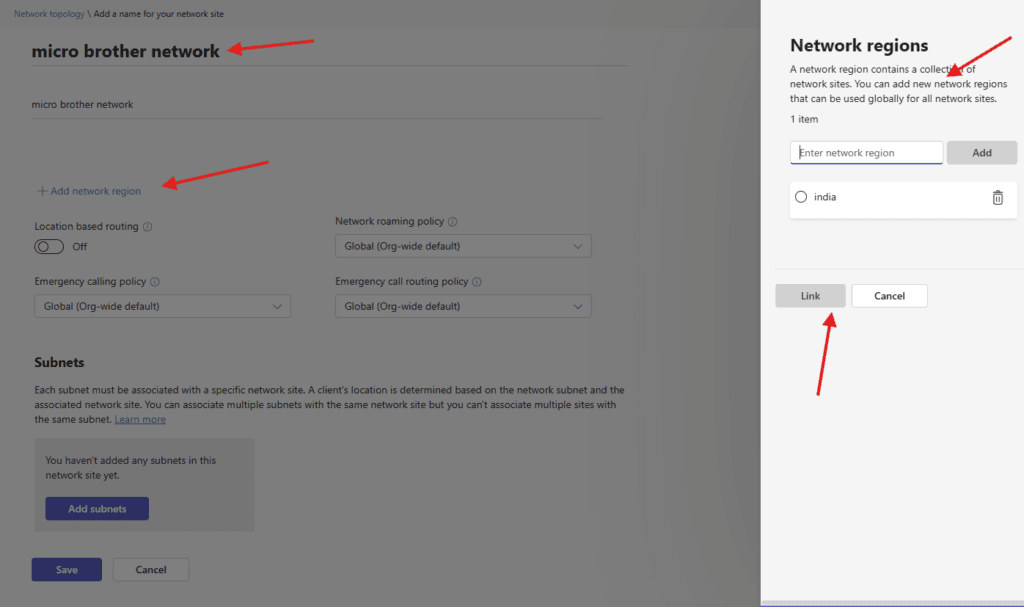
toggle on/off below attributes as per business requirement
- Location based routing : is a feature that lets you restrict toll bypass based on policy and the user’s geographic location at the time of an inbound or outbound PSTN call ),
- Emergency calling policy : lets you define what happens when emergency services are called, how to make the call, and how to send ) notifications to other people,
- Network roaming :policy lets you choose a policy to define the desired behavior when users are connected to this network)
- Emergency call : routing policy lets you specify the emergency numbers that can be called for a location using Direct Routing.
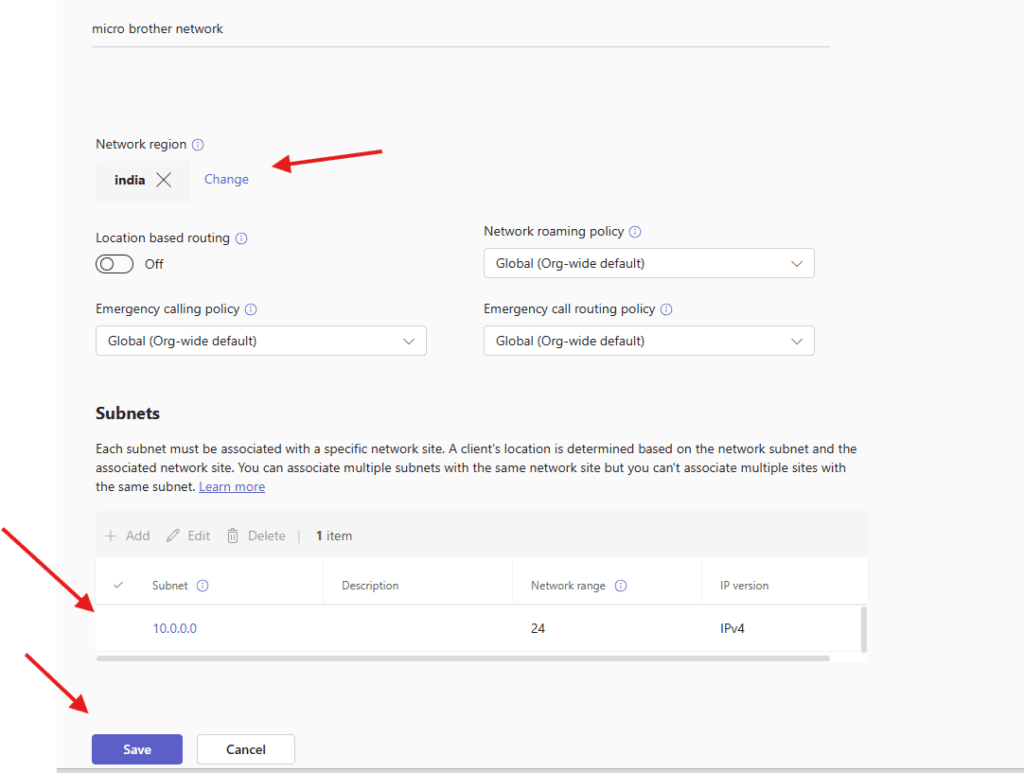
add subnet properly
finally save it
PowerShell Script: Create Network Topology in Microsoft Teams
# -----------------------------------------------
# Microsoft Teams Network Topology Setup Script
# Author: Microbrother
# Description: Creates Teams Network Topology
# (Regions, Sites, Subnets, Trusted IPs)
# -----------------------------------------------

# Install Microsoft Teams PowerShell Module (if not installed)
# Install-Module MicrosoftTeams -Force -AllowClobber

Import-Module MicrosoftTeams

# Connect to Microsoft Teams
Write-Host "Connecting to Microsoft Teams..." -ForegroundColor Cyan
Connect-MicrosoftTeams

# -------------------------------
# STEP 1: Create Network Regions
# -------------------------------
Write-Host "Creating Network Regions..." -ForegroundColor Yellow

New-CsTenantNetworkRegion -NetworkRegionID "India" -Description "India Region"
New-CsTenantNetworkRegion -NetworkRegionID "US" -Description "United States Region"

# -------------------------------
# STEP 2: Create Network Sites
# -------------------------------
Write-Host "Creating Network Sites..." -ForegroundColor Yellow

New-CsTenantNetworkSite -NetworkSiteID "Pune-Site" -NetworkRegionID "India" -Description "Pune Office"
New-CsTenantNetworkSite -NetworkSiteID "Mumbai-Site" -NetworkRegionID "India" -Description "Mumbai Office"
New-CsTenantNetworkSite -NetworkSiteID "NewYork-Site" -NetworkRegionID "US" -Description "New York Office"

# -------------------------------
# STEP 3: Create Network Subnets
# -------------------------------
Write-Host "Creating Network Subnets..." -ForegroundColor Yellow

New-CsTenantNetworkSubnet -SubnetID "10.10.0.0" -MaskBits 24 -NetworkSiteID "Pune-Site"
New-CsTenantNetworkSubnet -SubnetID "10.20.0.0" -MaskBits 24 -NetworkSiteID "Mumbai-Site"
New-CsTenantNetworkSubnet -SubnetID "192.168.10.0" -MaskBits 24 -NetworkSiteID "NewYork-Site"

# -------------------------------
# STEP 4: Create Trusted IP Addresses
# -------------------------------
Write-Host "Creating Trusted IP Addresses..." -ForegroundColor Yellow

New-CsTenantTrustedIPAddress -IPAddress "203.0.113.10" -Description "Pune Internet Public IP"
New-CsTenantTrustedIPAddress -IPAddress "203.0.113.20" -Description "Mumbai Internet Public IP"
New-CsTenantTrustedIPAddress -IPAddress "198.51.100.10" -Description "New York Internet Public IP"

# -------------------------------
# STEP 5: Verify Configuration
# -------------------------------
Write-Host "Verifying Network Topology Configuration..." -ForegroundColor Green

Write-Host "`n--- Network Regions ---" -ForegroundColor Cyan
Get-CsTenantNetworkRegion | Format-Table

Write-Host "`n--- Network Sites ---" -ForegroundColor Cyan
Get-CsTenantNetworkSite | Format-Table

Write-Host "`n--- Network Subnets ---" -ForegroundColor Cyan
Get-CsTenantNetworkSubnet | Format-Table

Write-Host "`n--- Trusted IP Addresses ---" -ForegroundColor Cyan
Get-CsTenantTrustedIPAddress | Format-Table

Write-Host "`nTeams Network Topology setup completed successfully!" -ForegroundColor Green
we are done here.
Conclusion:
Post reading above article reader will be able to create Network topology in MS Teams
Also you can read https://microbrother.com/how-to-add-emergency-addresses-in-microsoft-teams/ this article to add emergency address in MS Teams
Thank you 😇