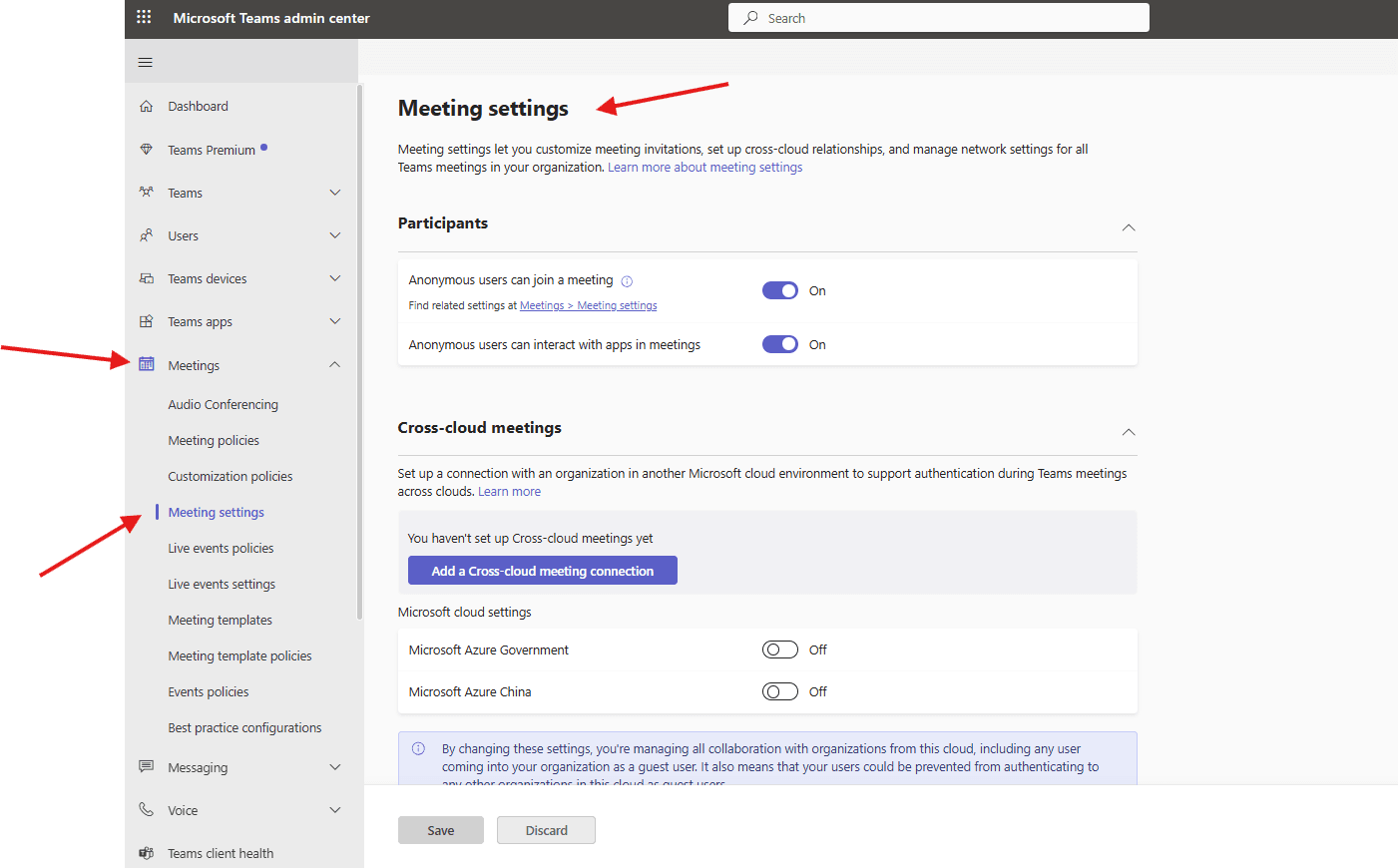
This article talks about Meeting settings in Teams admin center
Meeting settings
Meeting settings let you customize meeting invitations, set up cross-cloud relationships, and manage network settings for all Teams meetings in your organization
Lets do it step by step
Login to Teams admin center: https://admin.teams.microsoft.com/
Navigate to meetings –> meeting settings
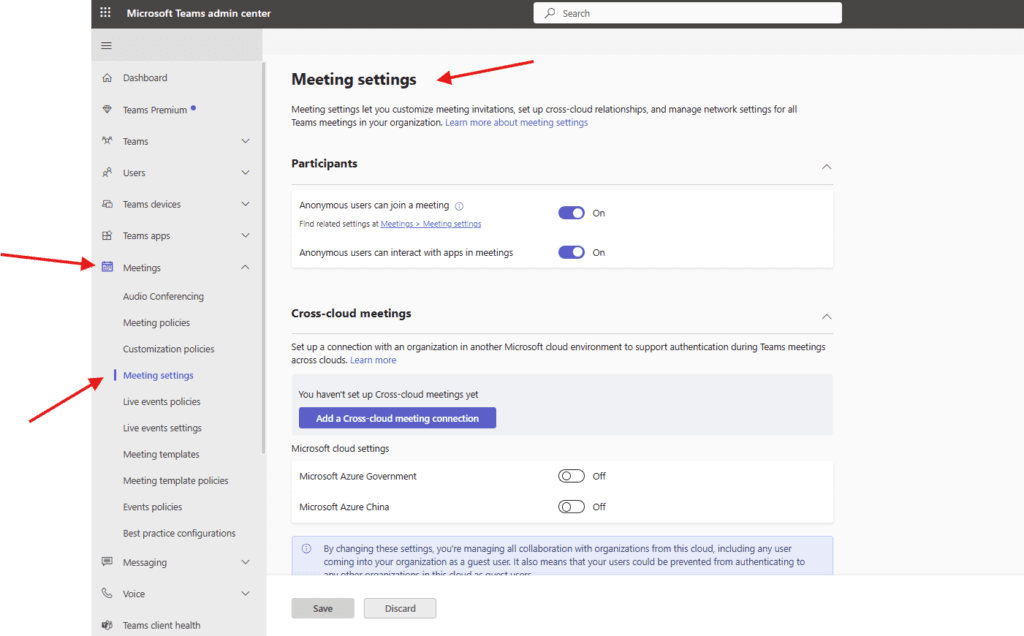
Participants : can anonymous user join meeting and with which apps he/she can interact
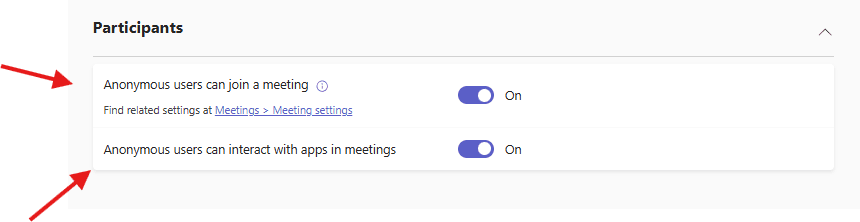
Cross-cloud meetings : Set up a connection with an organization in another Microsoft cloud environment to support authentication during Teams meetings across clouds
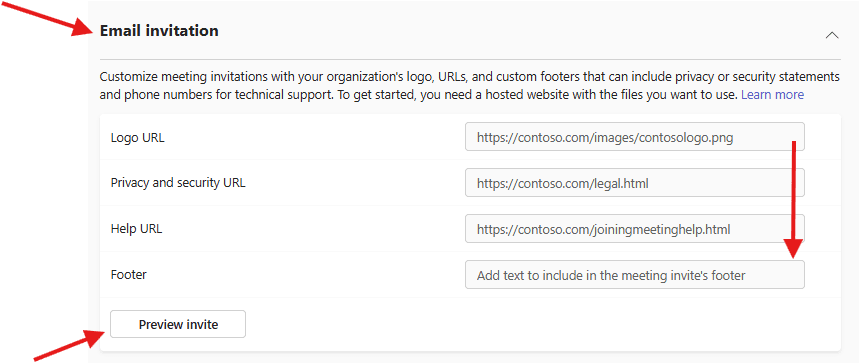
Email invitations: Customize meeting invitations with your organization’s logo, URLs, and custom footers that can include privacy or security statements and phone numbers for technical support. To get started, you need a hosted website with the files you want to use
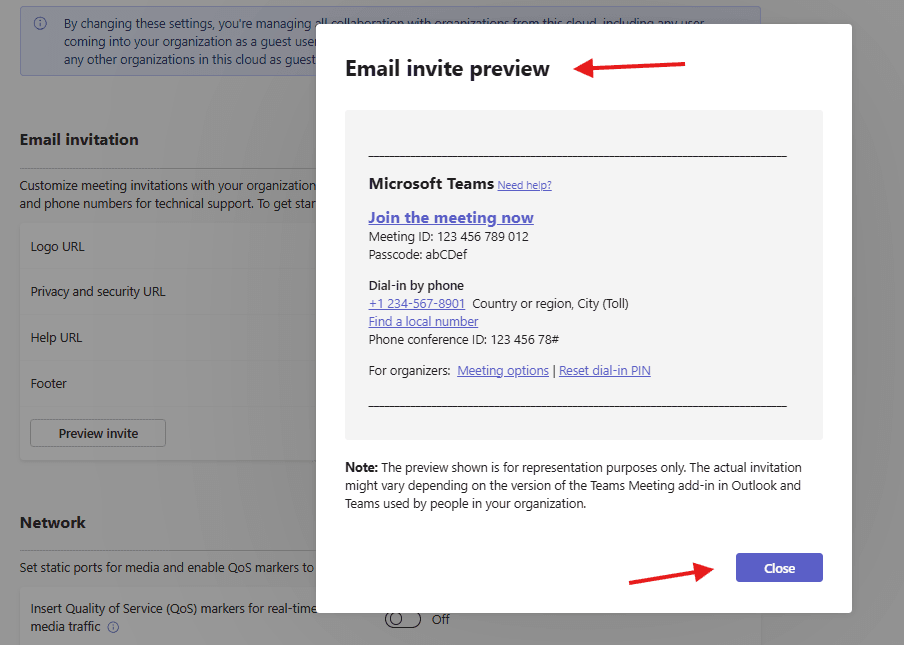
Preview invite sample
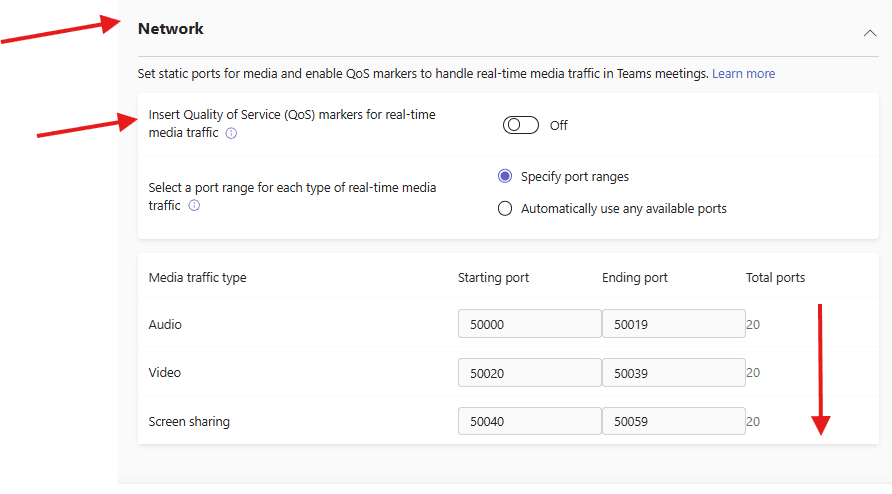
Network : Set static ports for media and enable QoS markers to handle real-time media traffic in Teams meetings
PowerShell script to set up Meeting settings
# ================================
# Connect to Microsoft Teams
# ================================
Connect-MicrosoftTeams

# ================================
# Variables
# ================================
$PolicyName = "Custom-Meeting-Policy"
$Description = "Custom meeting policy created via PowerShell"

# ================================
# Create Meeting Policy
# ================================
New-CsTeamsMeetingPolicy `
    -Identity $PolicyName `
    -Description $Description `
    -AllowCloudRecording $true `
    -AllowTranscription $true `
    -AllowMeetingChat "Enabled" `
    -AllowAnonymousUsersToJoinMeeting $true `
    -AllowExternalParticipantGiveRequestControl $true `
    -AllowIPVideo $true `
    -AllowParticipantGiveRequestControl $true `
    -AllowPowerPointSharing $true `
    -AllowSharedNotes $true `
    -AllowWhiteboard $true `
    -AllowMeetingReactions $true `
    -LiveCaptionsEnabledType "Enabled" `
    -MediaBitRateKb 50000 `
    -PreferredMeetingProviderForIslandsMode "Teams"

Write-Host "Meeting Policy '$PolicyName' created successfully." -ForegroundColor Green
Azure Automation Runbook – Create Teams Meeting Policy
1.(One-Time Setup)
 Enable Managed Identity on Automation Account

Azure Portal → Automation Account → Identity →
Enable System-assigned identity

2.Grant Required Permissions

Assign this role to the Automation Account identity:

Role	Where
Teams Administrator	Entra ID → Roles
OR Global Administrator	(Not recommended unless needed)
3.Import Required Modules

Automation Account → Modules → Import:

MicrosoftTeams

 Ensure module version ≥ latest stable

Runbook Code (PowerShell)

Create a PowerShell Runbook and paste the following:

<#
.SYNOPSIS
Creates a Microsoft Teams Meeting Policy using Azure Automation
.AUTHOR
Your Name
#>

# ================================
# Connect to Microsoft Teams
# ================================
try {
    Write-Output "Connecting to Microsoft Teams..."
    Connect-MicrosoftTeams -Identity
    Write-Output "Connected successfully."
}
catch {
    throw "Failed to connect to Microsoft Teams. $_"
}

# ================================
# Variables
# ================================
$PolicyName  = "AA-Custom-Meeting-Policy"
$Description = "Meeting policy created via Azure Automation"

# ================================
# Check if Policy Exists
# ================================
$ExistingPolicy = Get-CsTeamsMeetingPolicy -Identity $PolicyName -ErrorAction SilentlyContinue

if ($ExistingPolicy) {
    Write-Output "Policy '$PolicyName' already exists. Skipping creation."
}
else {
    Write-Output "Creating Meeting Policy '$PolicyName'..."

    New-CsTeamsMeetingPolicy `
        -Identity $PolicyName `
        -Description $Description `
        -AllowCloudRecording $true `
        -AllowTranscription $true `
        -AllowMeetingChat "Enabled" `
        -AllowAnonymousUsersToJoinMeeting $true `
        -AllowExternalParticipantGiveRequestControl $true `
        -AllowIPVideo $true `
        -AllowParticipantGiveRequestControl $true `
        -AllowPowerPointSharing $true `
        -AllowSharedNotes $true `
        -AllowWhiteboard $true `
        -AllowMeetingReactions $true `
        -LiveCaptionsEnabledType "Enabled" `
        -MediaBitRateKb 50000 `
        -PreferredMeetingProviderForIslandsMode "Teams"

    Write-Output "Meeting Policy '$PolicyName' created successfully."
}

# ================================
# Optional: Assign Policy to User
# ================================
# Uncomment and edit if needed
# $UserUPN = "user@domain.com"
# Grant-CsTeamsMeetingPolicy -Identity $UserUPN -PolicyName $PolicyName
# Write-Output "Policy assigned to $UserUPN"

Write-Output "Runbook execution completed."
Conclusion:
Post reading above article reader will be able to create and manage Meeting settings in Teams admin center using both manual and using PowerShell.
Also you can read https://microbrother.com/meeting-customization-policies-in-teams-admin/ this article to set Meeting customization policies in Teams admin center
Thank you 😇