
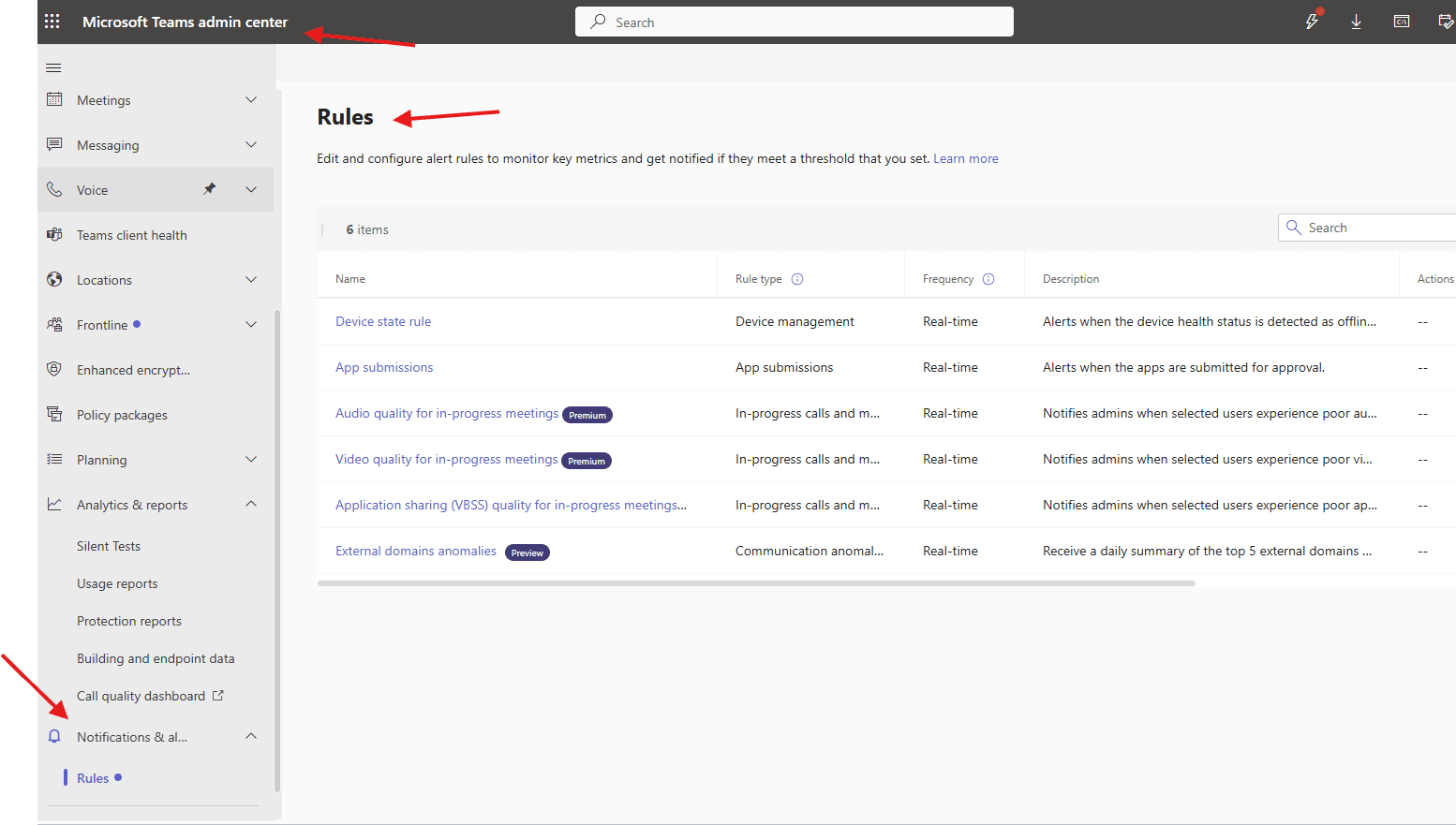
This article talks about on how to set Notifications & alerts in Microsoft Teams
Notifications & alerts in Microsoft Teams
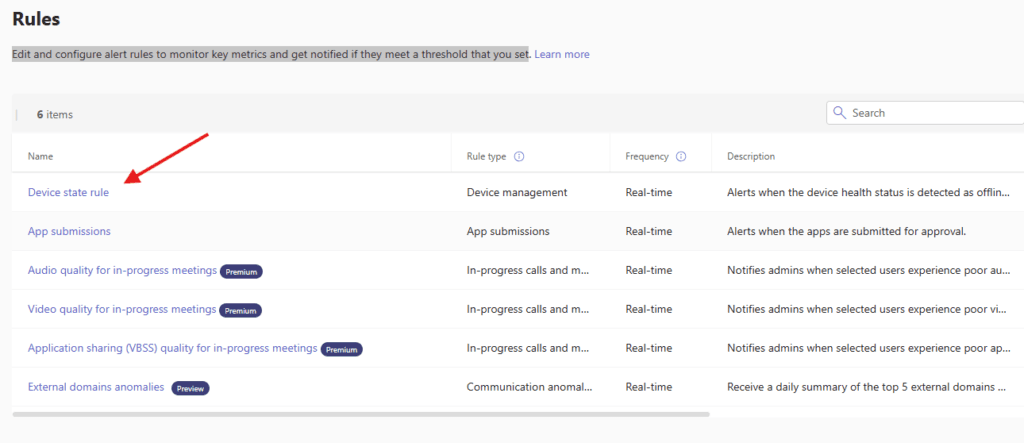
We can set Notifications & alerts for Device state rule, App submissions, Audio quality for in-progress meetings, Video quality for in-progress meetings, Application sharing (VBSS) quality for in-progress meetings and External domains anomalies etc
Notifications & alerts set up step by step
Open Teams admin center : https://admin.teams.microsoft.com/
Navigate to TAC–> Notifications & alerts–> rules
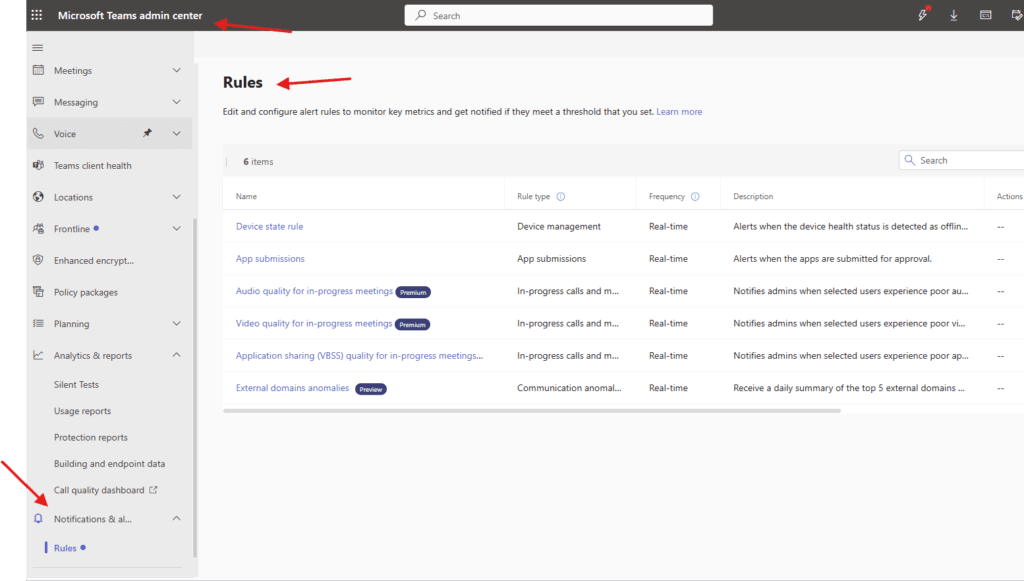
you can Edit and configure alert rules to monitor key metrics and get notified if they meet a threshold that you set
lets see them one by one
Device stale rule –> Alerts when the device health status is detected as offline or critical
you can set condition, scope, actions and status from here
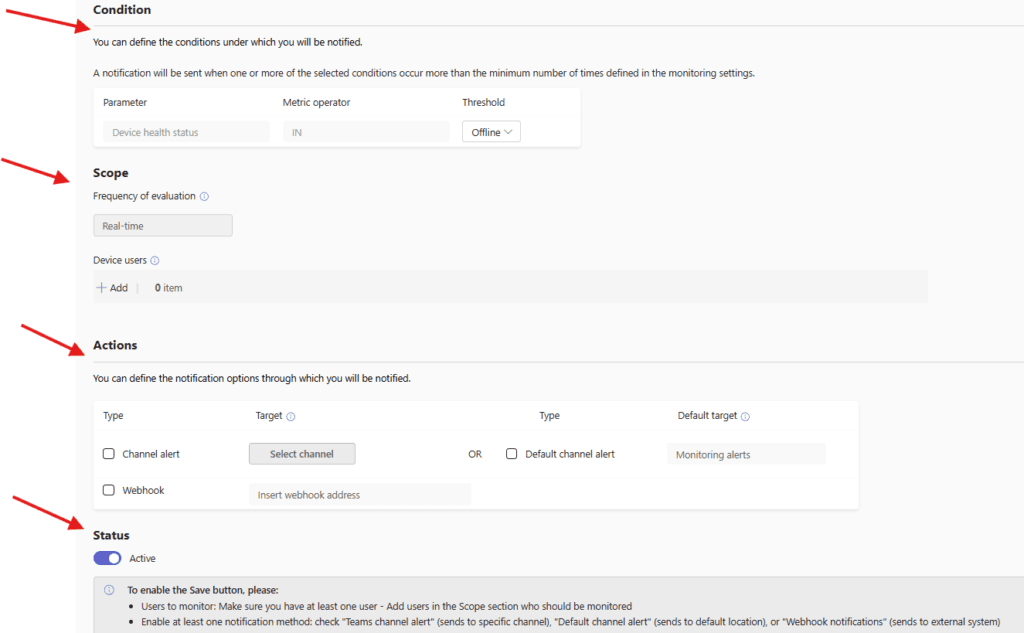
save it, you will get an alerts when “the device health status is detected as offline or critical”
App submissions –> Alerts when the apps are submitted for approval.
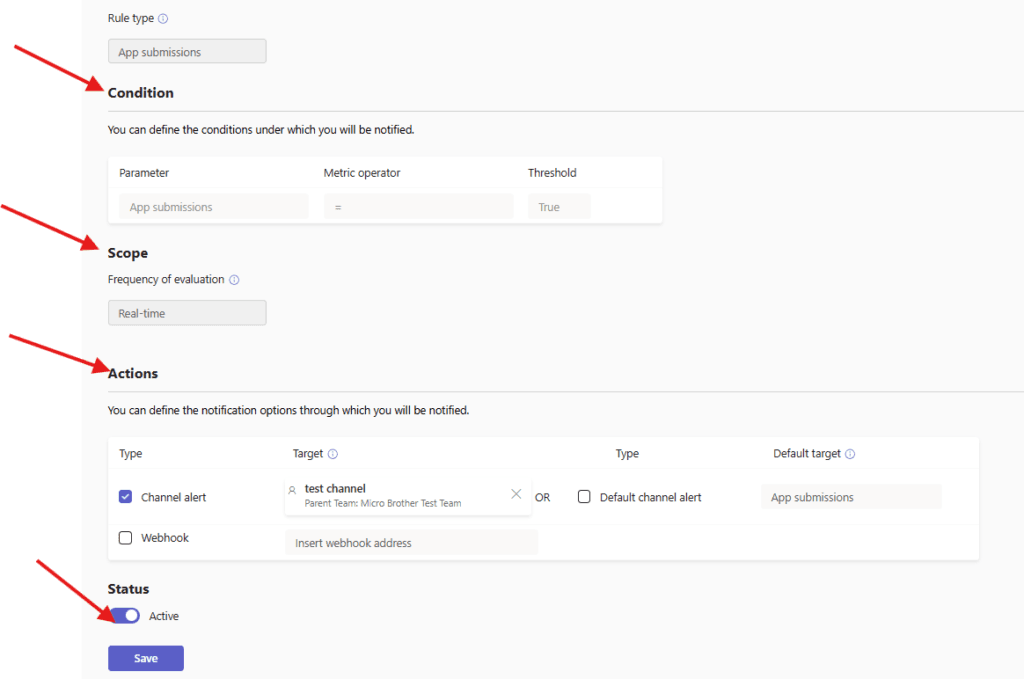
same way you can set condition, scope, actions and status from here
for other four rules Audio quality for in-progress meetings, Video quality for in-progress meetings, Application sharing (VBSS) quality for in-progress meetings and External domains anomalies we need Teams premium license.
Please read this article https://microbrother.com/teams-premium-features-explained-quickly/ to enable and understand the Teams premium features
Thank you 😇