This article talks about on how to add shared mailbox using EXO portal
Shared mailbox
Shared mailbox is a single email address (e.g., info@microbrother.com, support@microbrother.com) that multiple team members can access to read, send, and manage messages collaboratively.
It provides a common calendar and shared inbox without requiring a separate, paid license, making it ideal for team communication, shared workflows, and improved response efficiency
Lets create it step by step
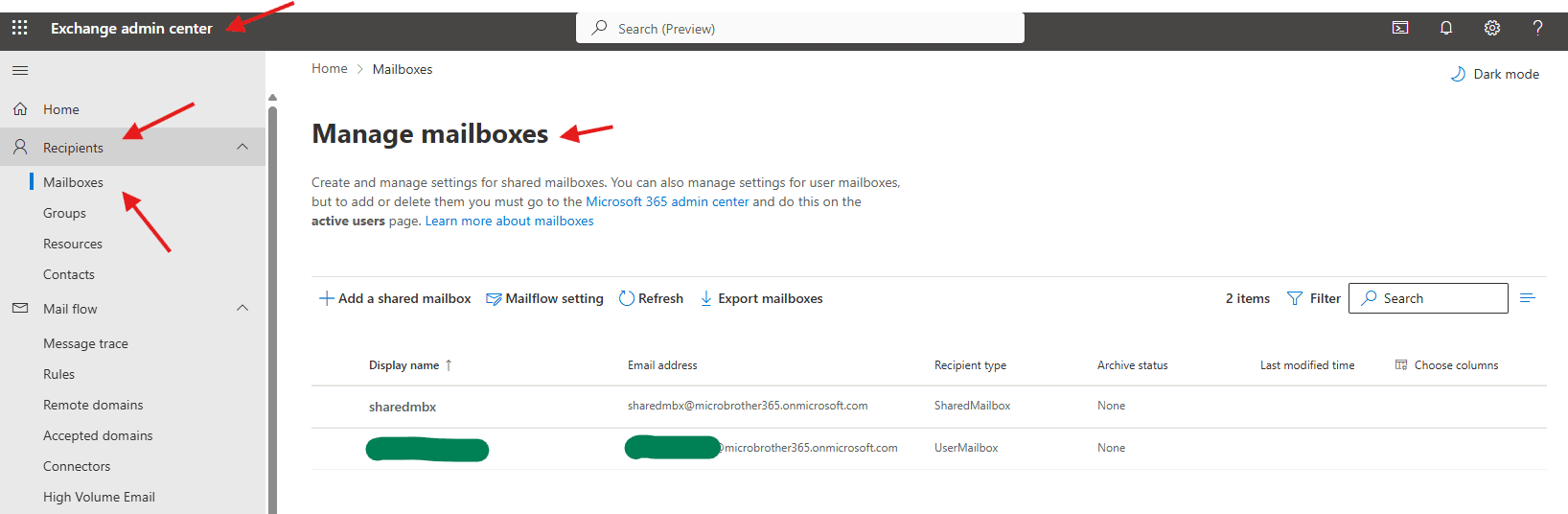
Open EXO admin center : https://admin.cloud.microsoft/exchange#/mailboxes
Navigate to Recipients –> Mailboxes–> manage mailboxes
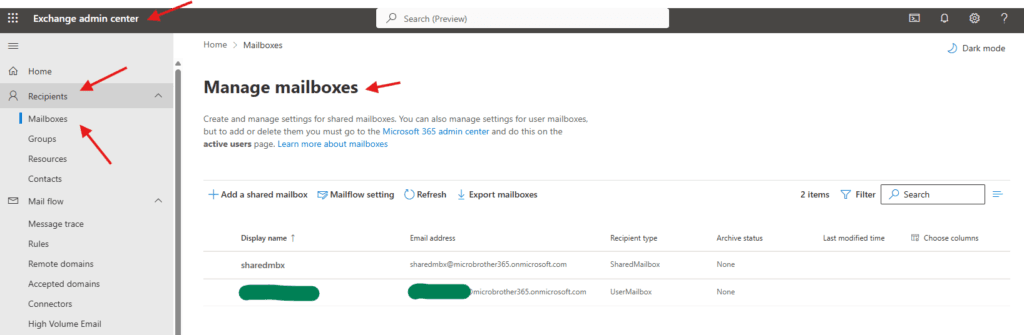
Now click on add a shared-mailbox
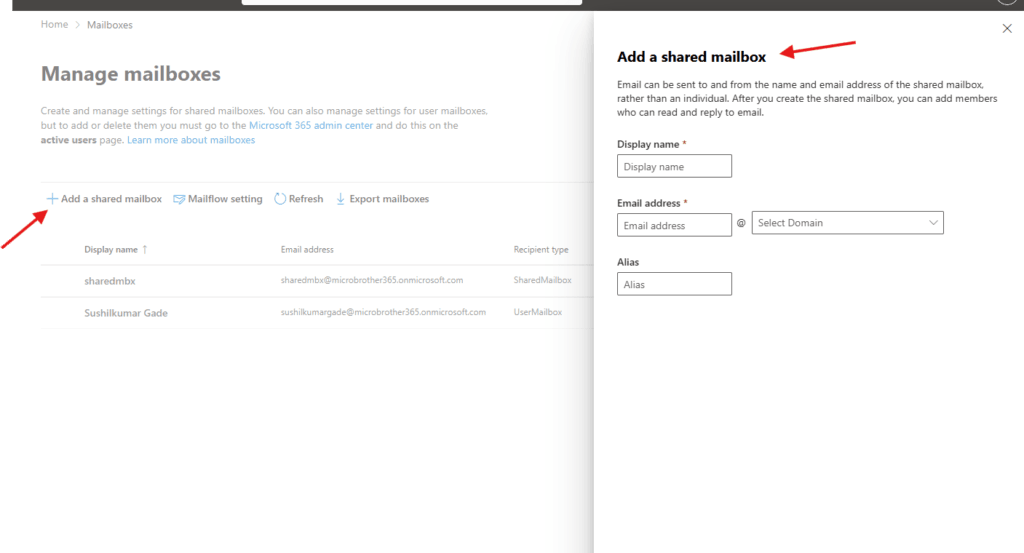
Email can be sent to and from the name and email address of the shared-mailbox, rather than an individual. After you create the shared-mailbox, you can add members who can read and reply to email.
Give a proper name and select the domain
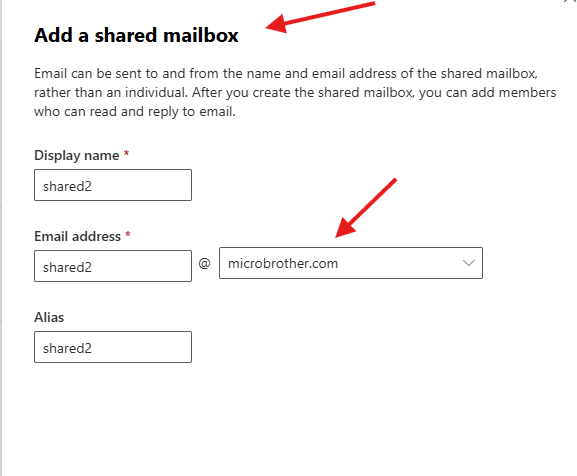
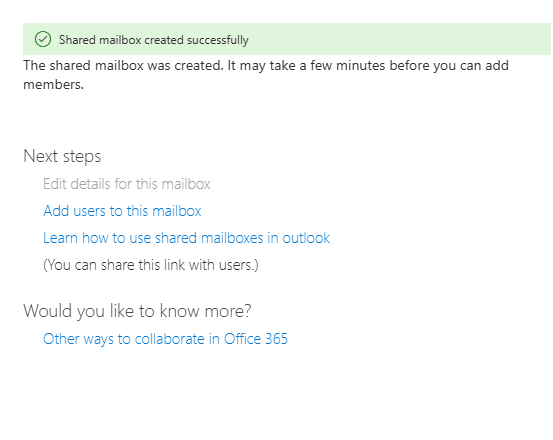
we are done here
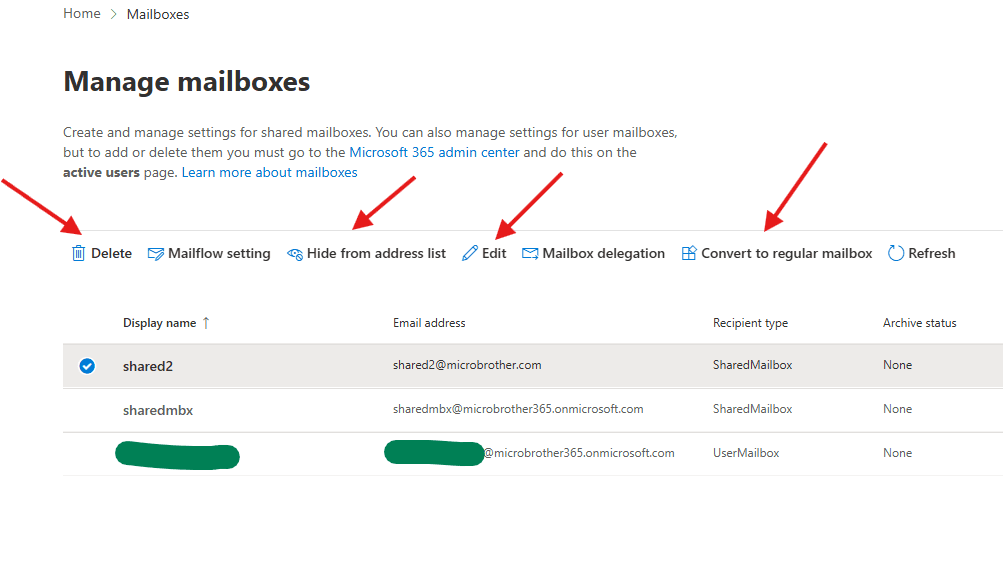
You can either delete , hide it from GAL, edit properties or Convert it to regular mailbox from here
PowerShell script
# =========================================
# Script: Create Shared-Mailbox in O365
# Author: Micro brother admin
# =========================================

# Connect to Exchange Online
Connect-ExchangeOnline -UserPrincipalName admin@microbrother.com

# -------------------------------
# Function to Create Shared-Mailbox
# -------------------------------
function New-SharedMailbox {
    param (
        [Parameter(Mandatory = $true)]
        [string]$Name,

        [Parameter(Mandatory = $true)]
        [string]$Alias,

        [Parameter(Mandatory = $true)]
        [string]$PrimarySmtpAddress
    )

    try {
        # Create the shared mailbox
        New-Mailbox -Shared -Name $Name -Alias $Alias -PrimarySmtpAddress $PrimarySmtpAddress
        Write-Host "Shared mailbox '$Name' created successfully with email $PrimarySmtpAddress"
    }
    catch {
        Write-Host "Error creating shared mailbox: $_"
    }
}

# -------------------------------
# Example Usage
# -------------------------------
# Replace the values with your own
New-SharedMailbox -Name "Support Mailbox" -Alias "support" -PrimarySmtpAddress "support@microbrother.com"
Conclusion:
Post reading above article user will be able to add shared-mailbox using EXO portal
You can also read https://microbrother.com/how-to-create-shared-mailboxes-in-o365/ this article to create shared-mailbox from O365 admin center
Thank you 😇