
This article talks about on how to Manage Email apps & mobile devices settings of a mailbox
Email apps & mobile devices settings
Email apps & mobile devices settings of a mailbox will help us to manage attributes like Outlook on the web, Outlook desktop (MAPI), Exchange web services, Mobile (Exchange ActiveSync), IMAP, POP3 etc.
Lets manage Email apps & mobile devices settings step by step
Open Exchange online admin center : https://admin.cloud.microsoft/exchange?#/mailboxes/
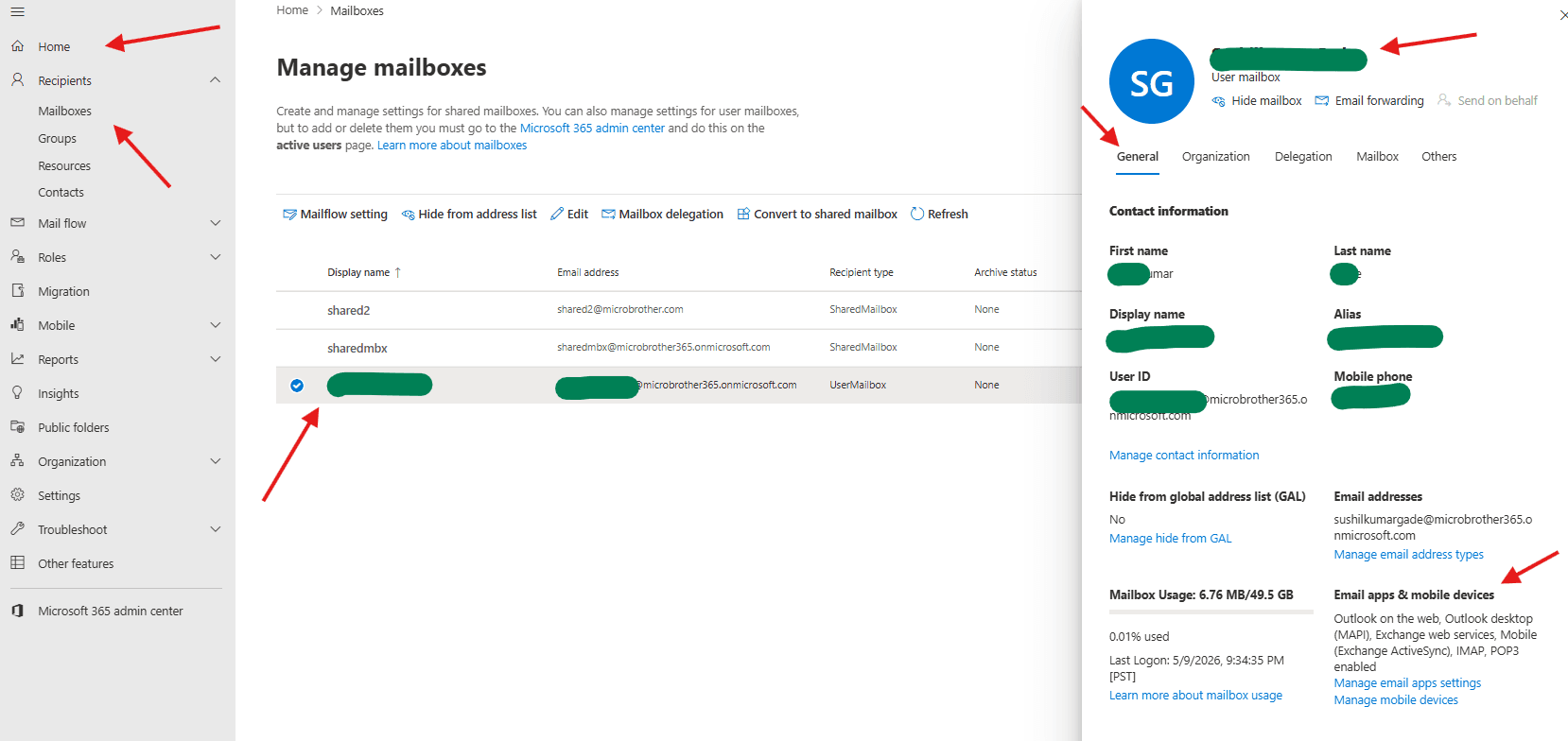
Navigate to EXO–> Home –> Mailboxes–> manage mailboxes–> select the mailbox whose Email apps & mobile devices settings needs to be set
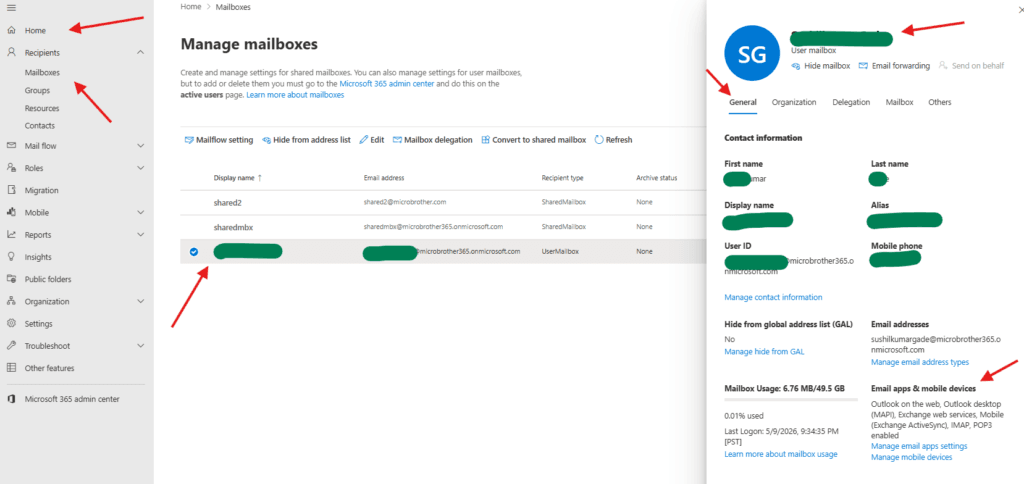
Now click on Manage settings for email apps
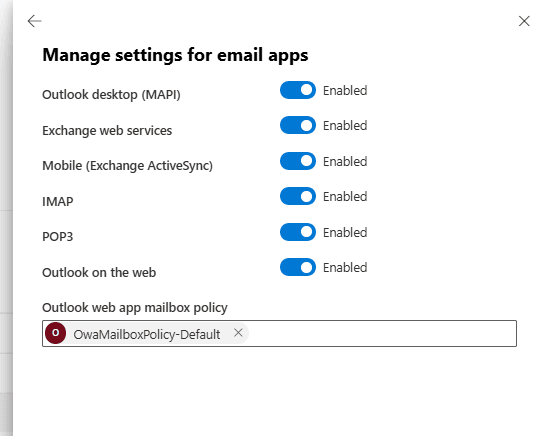
you will be able to turn on and off settings like MAPI, EWS, Exchange ActiveSync, IMAP and POP3
MAPI is a Microsoft set of functions enabling Windows applications to create, transfer, and manage email messages and data. It allows email clients like Outlook to interact closely with Exchange servers for advanced functionality, including handling calendars, contacts, and folder synchronization, rather than just sending mail
EWS is a cross-platform API created by Microsoft that enables applications to access, create, modify, and manage mailbox items—such as email, calendars, and contacts—within Microsoft Exchange Server (2007 onwards) and Exchange Online/Office 365. It allows developers to integrate Outlook data with other systems using SOAP-based XML messages over HTTP
Exchange ActiveSync is a Microsoft synchronization protocol designed to sync mailbox data—email, calendar, contacts, and tasks—between mobile devices and Exchange Server in real-time. It uses “Direct Push” technology over HTTPS for secure, efficient communication, allowing users to access data on low-bandwidth networks, both online and offline
IMAP is a standard email protocol that allows you to access and sync your emails across multiple devices (phone, laptop, tablet) by storing them on a central mail server. When you read, move, or delete an email via IMAP, that action is reflected instantly across all your connected devices
POP3 is a standard internet protocol used to retrieve emails from a mail server to a single local client, such as Microsoft Outlook. It downloads messages—typically deleting them from the server afterward—allowing for offline access
Outlook on the web is a browser-based version of Microsoft Outlook, allowing users to access email, calendars, contacts, and tasks via an internet browser without installing software. It is the primary interface for Microsoft 365 and Exchange Online, providing a similar experience to the desktop app for work, school, and personal accounts
Outlook web app mailbox policy can be set using a PowerShell command
Get-OwaMailboxPolicy -Identity mailbox | Format-List
Name                                                 : OwaMailboxPolicy-Default
DistinguishedName                                    : CN=OwaMailboxPolicy-Default,CN=OWA Mailbox
                                                       Policies,CN=Configuration,CN=microbrother365.onmicrosoft.com,CN=ConfigurationUnits,DC=XXX,DC=prod,DC=outlook,DC=com
Identity                                             : OwaMailboxPolicy-Default
ObjectCategory                                       : XXX.prod.outlook.com/Configuration/Schema/ms-Exch-OWA-Mailbox-Policy
ObjectClass                                          : {top, msExchRecipientTemplate, msExchOWAMailboxPolicy}
WhenChanged                                          : 8/30/2025 2:47:18 PM
WhenCreated                                          : 8/30/2025 2:47:11 PM
WhenChangedUTC                                       : 8/30/2025 9:17:18 AM
WhenCreatedUTC                                       : 8/30/2025 9:17:11 AM
ExchangeObjectId                                     : XXX-8dca-47ce-aa05-XXXX
OrganizationalUnitRoot                               : microbrother365.onmicrosoft.com
OrganizationId                                       : XXX.prod.outlook.com/Microsoft Exchange Hosted Organizations/microbrother365.onmicrosoft.com -
                                                      XXX.prod.outlook.com/ConfigurationUnits/microbrother365.onmicrosoft.com/Configuration
Id                                                   : OwaMailboxPolicy-Default
Guid                                                 : XXX-8dca-47ce-aa05-XXX
OriginatingServer                                    : XXX.prod.outlook.com
IsValid                                              : True
ObjectState                                          : Unchanged
Now click on manage mobile devices
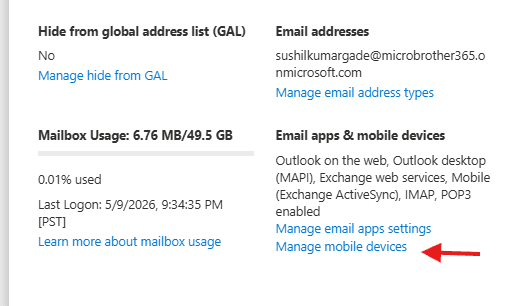
You can perform a remote wipe, select required mobile device mailbox policy and create rule for similar devices.
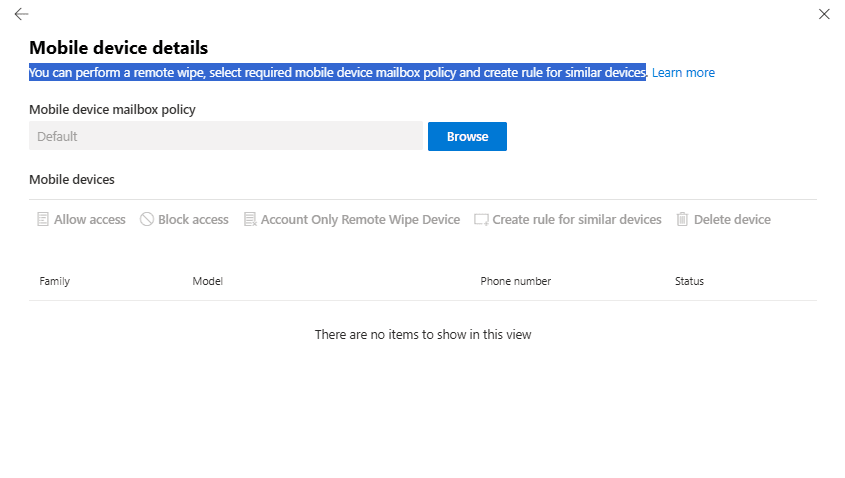
( As of now I do not have aby devices otherwise it would have appeared here)
Below are the PowerShell commands to manage mobile device mailbox policy
Get-MobileDeviceMailboxPolicy: Retrieves existing policies and their specific settings, such as password requirements and encryption.

New-MobileDeviceMailboxPolicy: Creates a new policy with custom security rules.

Set-MobileDeviceMailboxPolicy: Modifies an existing policy's parameters.

Remove-MobileDeviceMailboxPolicy: Deletes a specific policy from the organization.
Conclusion:
Post reading above article reader will be able to Manage Email apps & mobile devices settings of a mailbox
also you can read https://microbrother.com/how-to-manage-mailflow-setting-for-a-mailbox/ this article to to manage mailflow setting for a mailbox
Thank you 😇