
This article talks about on how to Manage Mail tip on a mailbox
Mail tip
Mail Tip in Microsoft 365 are real-time, informative alerts that appear while you are composing an email message. They analyze your message and recipients to warn you of potential issues before you press send, helping you avoid embarrassing mistakes or delivery errors
Lets set up mail tip on a mailbox step by step:
Login to EXO admin center: https://admin.cloud.microsoft/exchange#/
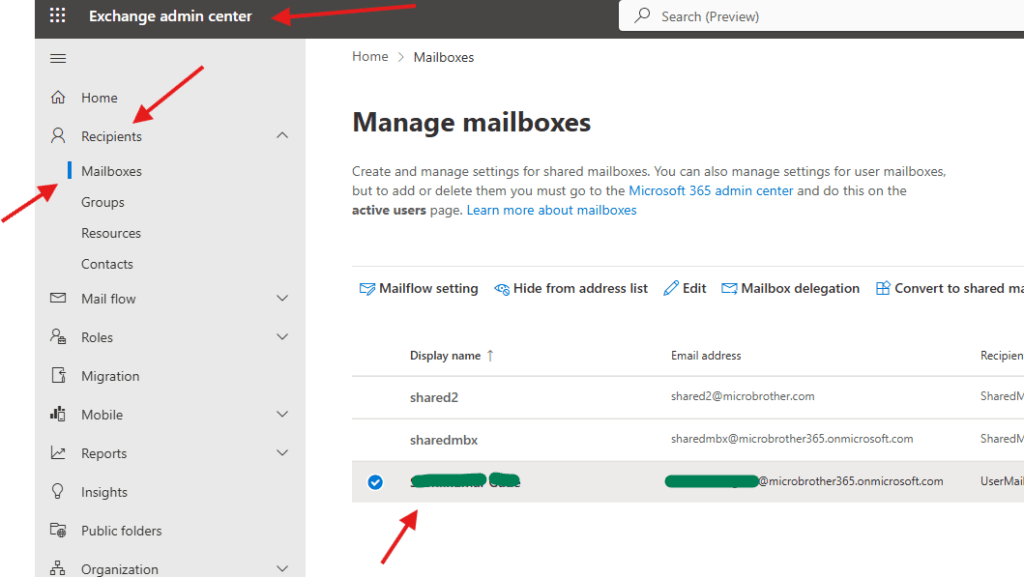
Navigate to Recipients –> Mailboxes–> click on the mailbox on which you want to enable Mail tip
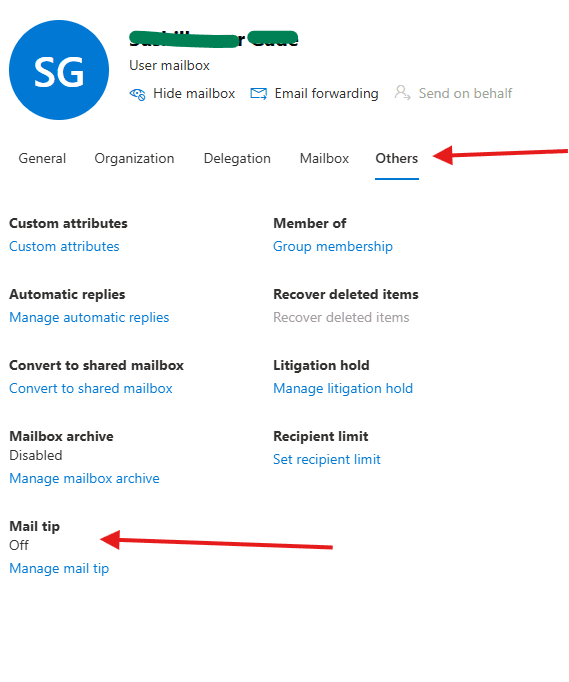
now go to the others tab –> Mail tip
You can create a MailTip to display when people send email to this mail contact. The MailTip can have a maximum of 175 characters.
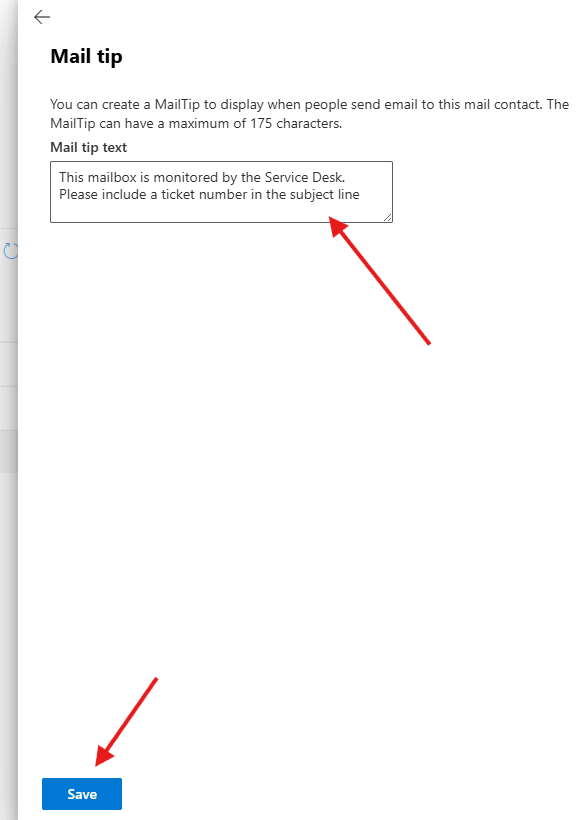
save it
PowerShell script for above manual task
# Connect to Exchange Online
Connect-ExchangeOnline

# Variables
$Mailbox = "user@microbrother.com"
$MailTip = "This mailbox is monitored by the Service Desk. Please include a ticket number in the subject line."

# Add MailTip
Set-Mailbox -Identity $Mailbox -MailTip $MailTip

# Verify MailTip
Get-Mailbox -Identity $Mailbox | Select-Object DisplayName,PrimarySmtpAddress,MailTip

Write-Host "MailTip configured successfully for $Mailbox"

# for bulk opertions

# Connect to Exchange Online
Connect-ExchangeOnline

$Mailboxes = @(
    "user1@microbrother.com",
    "user2@microbrother.com",
    "user3@microbrother.com"
)

$MailTip = "This mailbox is currently under migration. Expect delayed responses."

foreach ($Mailbox in $Mailboxes)
{
    Set-Mailbox -Identity $Mailbox -MailTip $MailTip
    Write-Host "MailTip added to $Mailbox"
}
We are done here
Conclusion:
Post reading above article user will be able to Manage Mail-Tip on a mailbox
Also you can read https://microbrother.com/how-to-manage-litigation-hold-on-a-mailbox/ this article to Manage litigation hold on a mailbox
Thank you 😇