
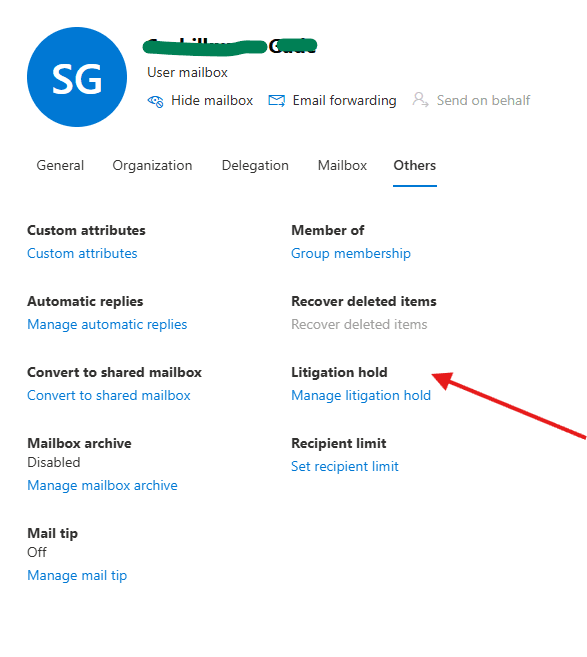
This article talks about on how to Manage litigation hold on a Mailbox
litigation hold
Litigation hold (or legal hold) in Microsoft 365 is a compliance mechanism that preserves user’s mailbox data—including emails, calendar events, and Teams chats—even if the items are permanently deleted or modified by the user or automated cleanup rules
Lets set up litigation hold on a mailbox step by step:
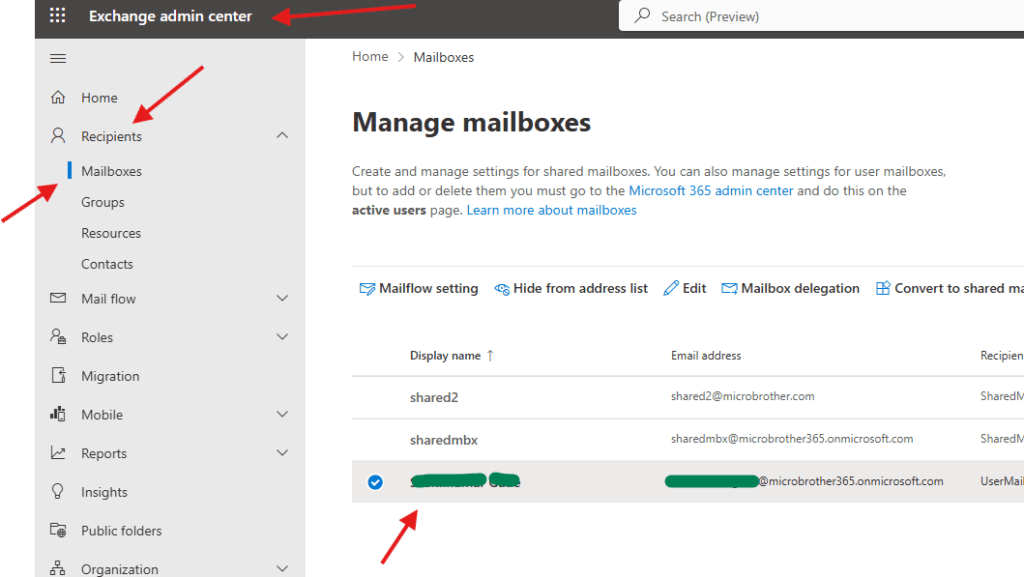
Login to EXO admin center : https://admin.cloud.microsoft/exchange#/
Navigate to Recipients –> Mailboxes–> click on the mailbox on which you want to enable litigation hold
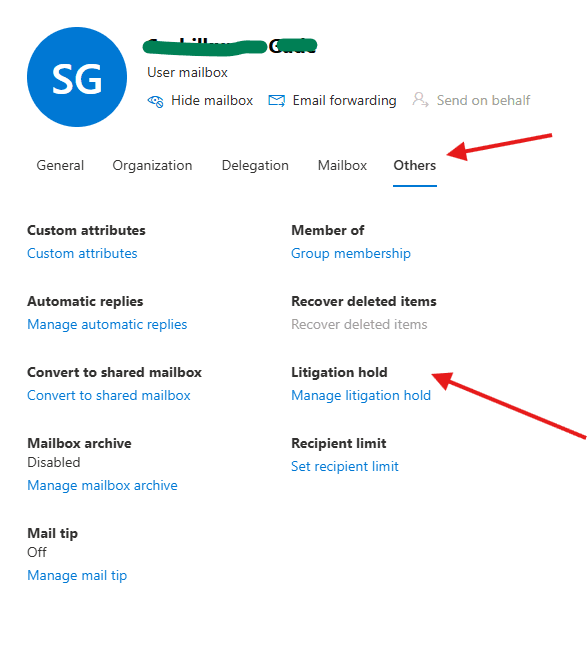
now go to the others tab –> Litigation-hold
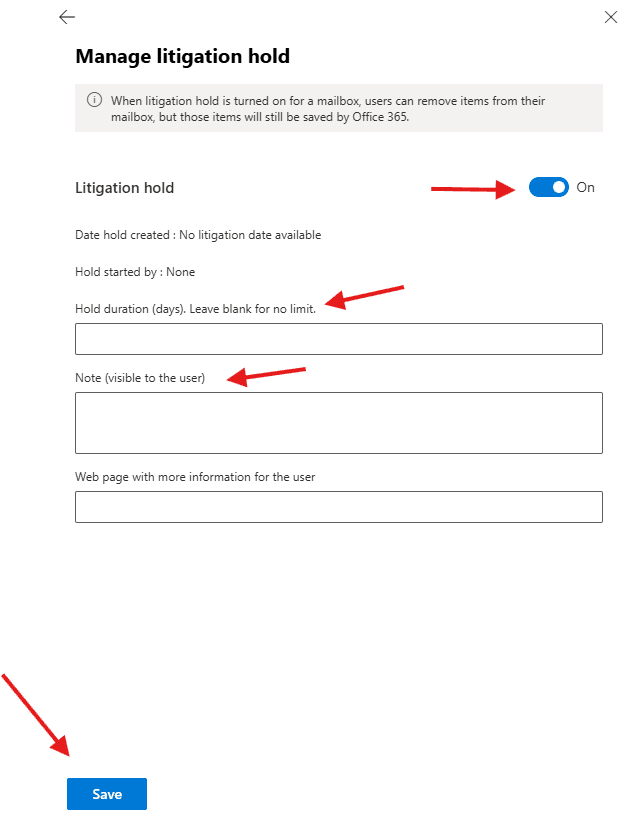
Toggle on the button , then set the hold duration ( in days ) leave blank for no limit, if you want you can add note which will be visible to the user
PowerShell script for above manual task
# Connect to Exchange Online
Connect-ExchangeOnline

# Specify mailbox
$Mailbox = "user@microbrother.com"

# Enable Litigation-Hold
Set-Mailbox -Identity $Mailbox `
    -LitigationHoldEnabled $true `
    -LitigationHoldDuration 2555 `
    -RetentionComment "Mailbox placed on Litigation-Hold" `
    -RetentionUrl "https://microbrother.com/legalhold"

# Verify Litigation-Hold Status
Get-Mailbox -Identity $Mailbox | Select-Object `
    DisplayName,
    LitigationHoldEnabled,
    LitigationHoldDuration,
    RetentionComment,
    RetentionUrl

Write-Host "Litigation-Hold has been enabled for $Mailbox"
Conclusion:
Post reading above article user will be able to Manage litigation-hold on a mailbox
Also you can read https://microbrother.com/how-to-set-recipient-limit-for-a-mailbox/ this article to set Recipient limit for a Mailbox
Thank you 😇