
This article talks about on how to set Recipient limit for a Mailbox
Recipient limit
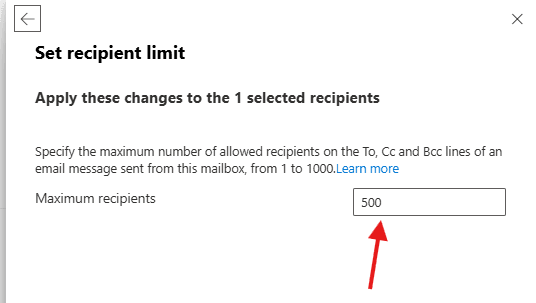
Recipient limit help us to specify the maximum number of allowed recipients on the To, Cc and Bcc lines of an email message sent from individuals mailbox
Let’s set Recipient-limit step by step
Login to EXO admin center : https://admin.cloud.microsoft/exchange
Navigate to Recipients –> mailboxes –> manage mailboxes
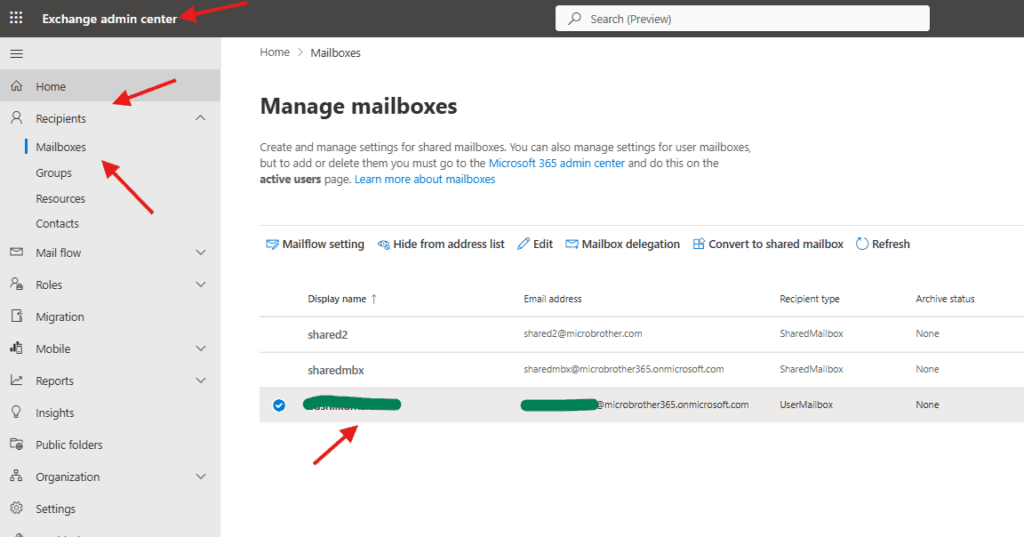
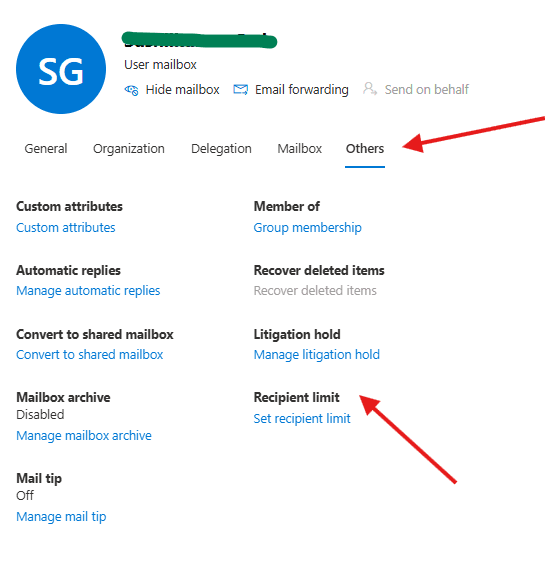
click on the mailbox–> click on others tab –> recipient limit
Specify the maximum number of allowed recipients on the To, Cc and Bcc lines of an email message sent from this mailbox, from 1 to 1000
PowerShell script for above manual task
# Install Exchange Online module if not installed
# Install-Module ExchangeOnlineManagement -Force

# Connect to Exchange Online
Connect-ExchangeOnline

# Variables
$Mailbox = "user@microbrother.com"
$RecipientLimit = 200   # Set desired recipient-limit (example: 200)

# Set Recipient-Limit
Set-Mailbox -Identity $Mailbox -RecipientLimits $RecipientLimit

# Verify Recipient-Limit
Get-Mailbox -Identity $Mailbox | Select DisplayName, PrimarySmtpAddress, RecipientLimits

# Disconnect session
Disconnect-ExchangeOnline -Confirm:$false
We are done here
Conclusion:
Post reading above article reader will be able to set Recipient-limit for a Mailbox
You can also read https://microbrother.com/how-to-manage-mailbox-delegation-using-exo/ this article to manage mailbox delegation’s
Thank you 😇