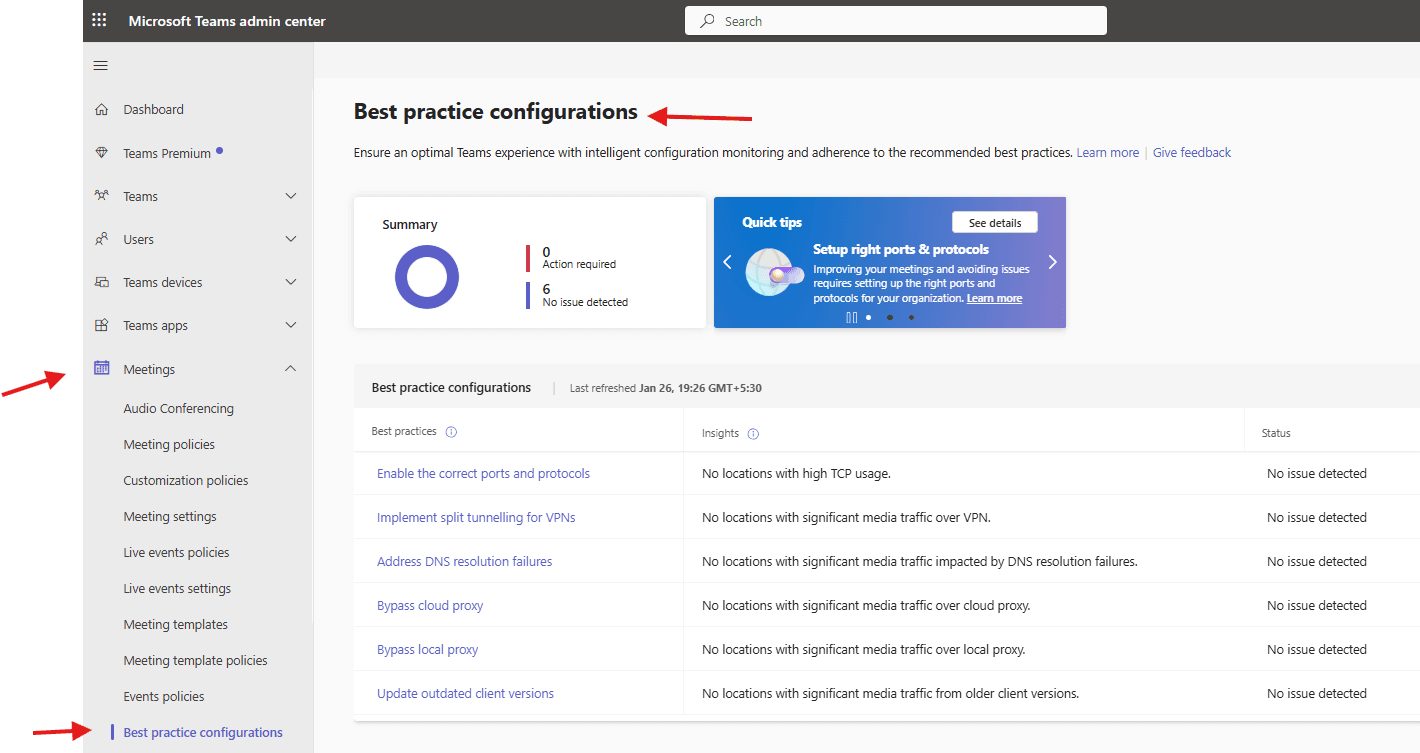
This article talks about Best practice configurations in Microsoft Teams
Best practice configurations :
Best practice configurations are sub-divided into below 6 categories
- Enable the correct ports and protocols
- Implement split tunnelling for VPNs
- Address DNS resolution failures
- Bypass cloud proxy
- Bypass local proxy
- Update outdated client versions
Lets see Best practice configurations 1 by 1
Login to Teams admin center: https://admin.teams.microsoft.com/
Navigate to Meetings –> Best practice configurations
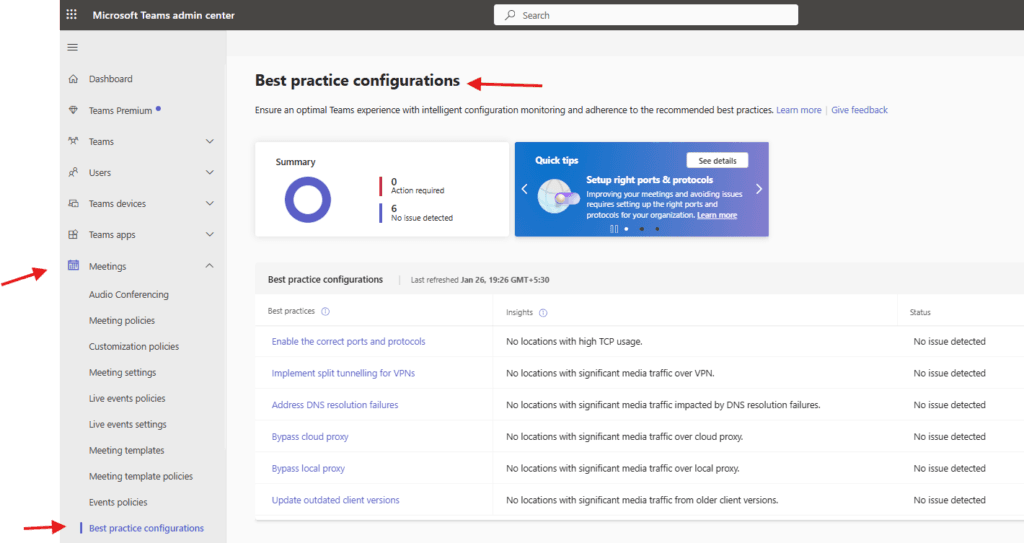
- Enable the correct ports and protocols : High TCP usage can negatively impact the meeting experience for users. Optimize the Teams experience by setting up the correct ports and protocols
To optimize Microsoft Teams performance and ensure proper connectivity, open TCP/UDP ports 443 and 3478-3481 on firewalls. Prioritize User Datagram Protocol (UDP) over TCP for real-time media (audio/video/sharing) to prevent poor quality. Specific UDP port ranges (e.g., 50000-50019 for audio) should be allowed to ensure high-priority traffic.
- Implement split tunnelling for VPNs : Users may experience latency issues over VPN. Enable split tunneling for media traffic to optimize your Teams experience
Implementing split tunneling for Microsoft Teams involves configuring the VPN to allow traffic for Teams media (voice, video, screen sharing) to bypass the corporate VPN, improving performance. Direct routing to Microsoft 365 IPs reduces latency. This is done by creating exclusion rules for specifically authorized IP ranges and URLs in the VPN client.
- Address DNS resolution failures: DNS resolution failures can significantly impact the performance and reliability of Teams when DNS queries are unable to resolve domain names to their corresponding IP addresses, leading to service disruptions and connectivity issues. Configure local DNS resolution for an optimal experience
To address DNS resolution failures in Microsoft Teams, flush the DNS cache (ipconfig /flushdns), verify local network settings, and ensure UDP port 53 is open. If issues persist, update DNS server forwarders, check for broken delegations, or temporarily set DNS to public providers (e.g., 8.8.8.8) to rule out ISP issues.
- Bypass cloud proxy and Bypass local proxy: Routing Teams traffic through a proxy server can impact the performance. Configure Teams traffic to bypass cloud proxy infrastructure for an optimal experience
Many organizations utilize proxy servers today within their network. As Microsoft Teams and Skype for Business media traffic is already encrypted, passing this traffic through a proxy server doesn’t make the traffic any more secure.
Proxies can also cause issues. Performance-related problems can be introduced to the environment through latency and packet loss by attempting to route Teams traffic through a proxy server. These issues can occur if the proxy can’t handle the traffic volume or routes traffic to a Microsoft network service front door location that is farther from the end user.
Issues such as these result in a negative experience within Teams and Skype for Business.
We recommend that Teams traffic bypasses proxy server infrastructure, including SSL inspection. You can achieve this by placing Teams Phones and Teams Rooms devices on a dedicated VLAN with direct internet access.
- Update outdated client versions: Ensure Teams clients are up to date for the best experience
Microsoft Teams typically updates automatically when idle, but you can force an update by clicking the three-dot menu (…) next to your profile picture and selecting Check for updates. For stubborn, outdated clients, restart the application, clear the cache (%appdata%\Microsoft\Teams), or reinstall the latest version from the official Microsoft site.
Conclusion:
Post reading above article user will be able to set Best practice configurations in Microsoft Teams
Also you can read https://microbrother.com/events-policies-in-microsoft-teams/ this article to set event policies in MS Teams
Thank you 😇