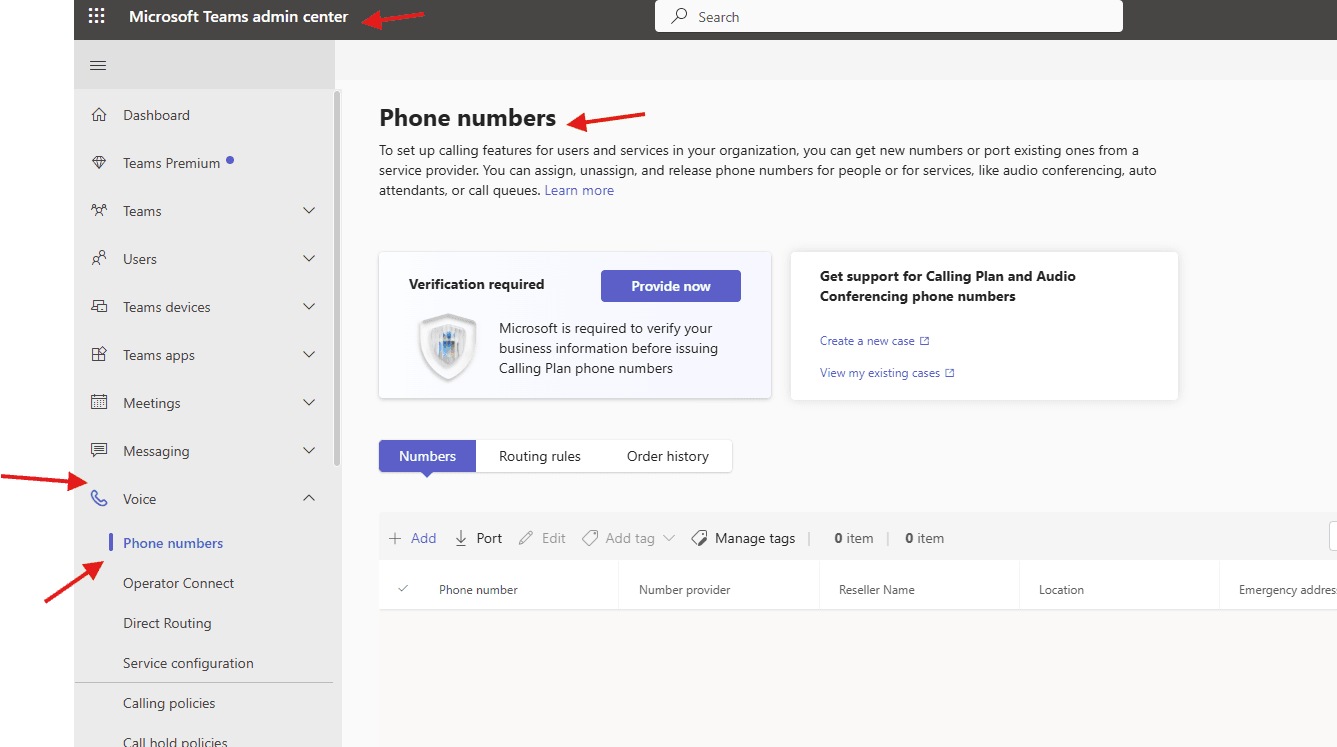
This article talks about Phone numbers in Microsoft Teams
Order and port Phone numbers in MS Teams
To set up calling features for Teams users and services in your organization, you can get new numbers or port existing ones from a service provider.
You can assign, unassign, and release phone numbers for people or for services, like audio conferencing, auto attendants, or call queues
Lets see it step by step:
Login to Teams admin center: https://admin.teams.microsoft.com/
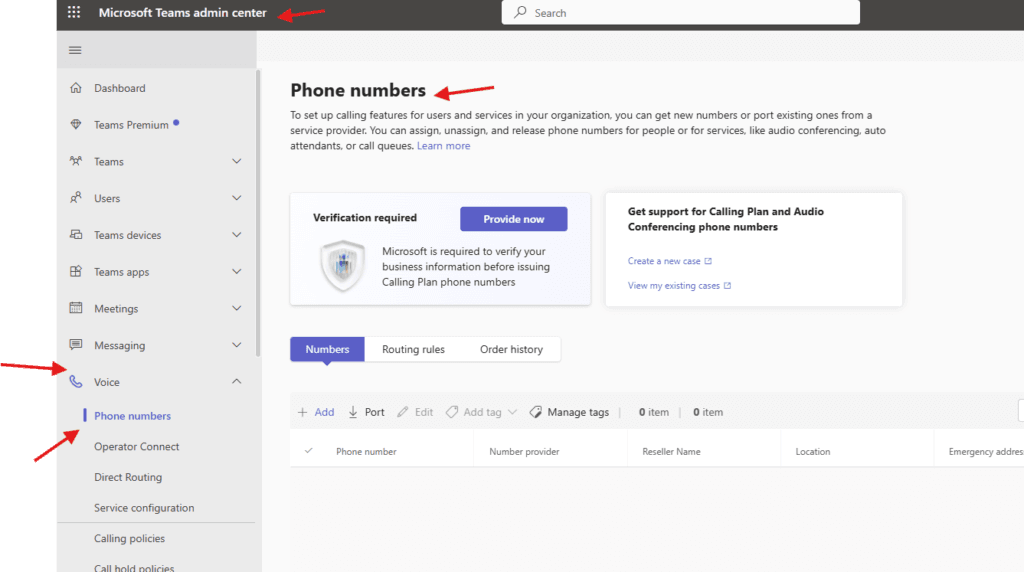
Navigate to TAC–> Voice–> Phone numbers
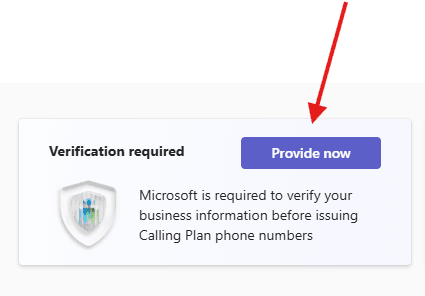
Microsoft is required to verify your business information before issuing Calling Plan phone-numbers
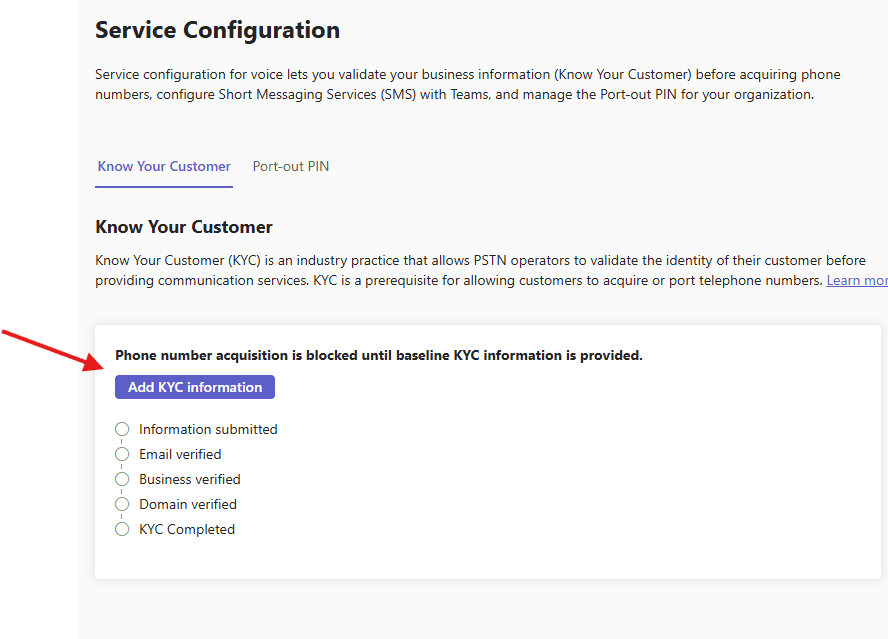
Service configuration for voice lets you validate your business information (Know Your Customer) before acquiring phone numbers, configure Short Messaging Services (SMS) with Teams, and manage the Port-out PIN for your organization
Click on provide –> then click on –> Know Your Customer (KYC) –> Know Your Customer (KYC) is an industry practice that allows PSTN operators to validate the identity of their customer before providing communication services. KYC is a prerequisite for allowing customers to acquire or port telephone- numbers
provide all data
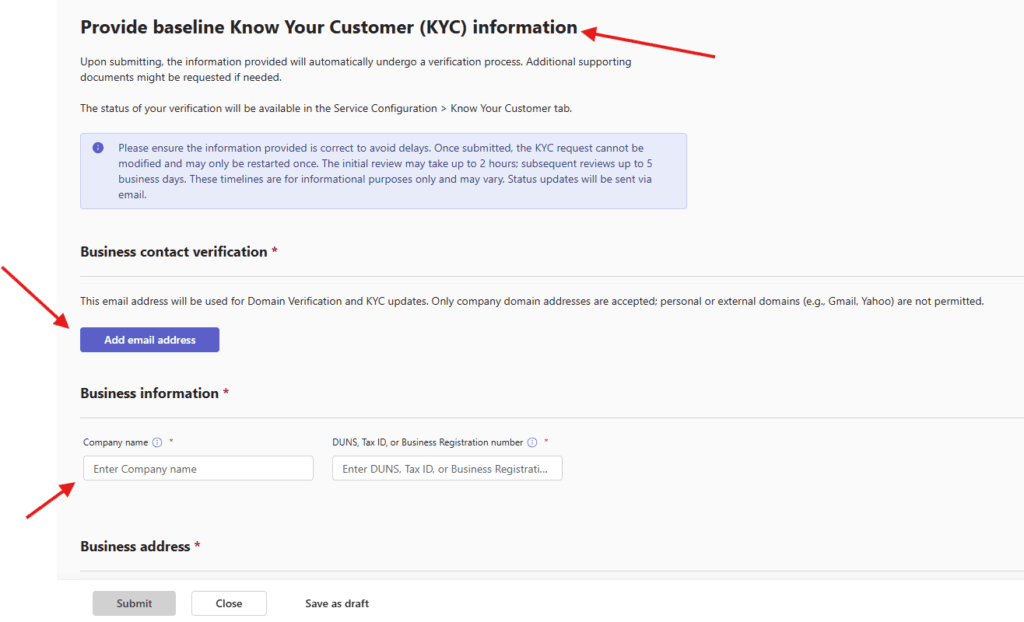
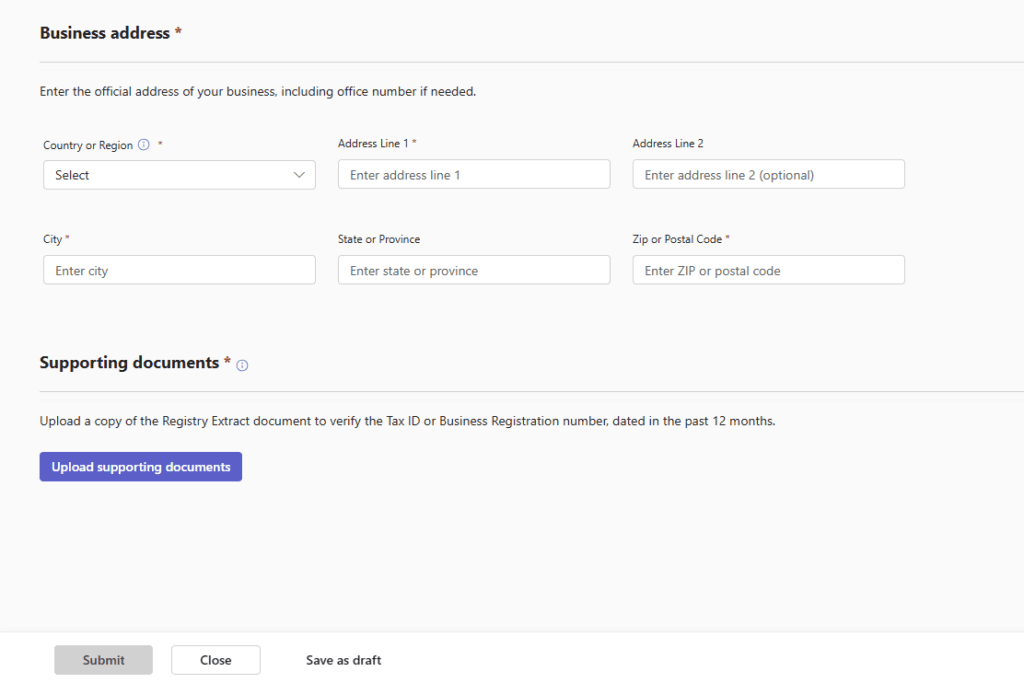
Finally submit it
Port-out PIN : To transfer phone-numbers from Microsoft Teams to another phone service provider, you need to set a PIN here. After you set the PIN, you need to include it on the request you submit to the new carrier. When your new carrier contacts MS with the porting request then MS ask them to provide the PIN
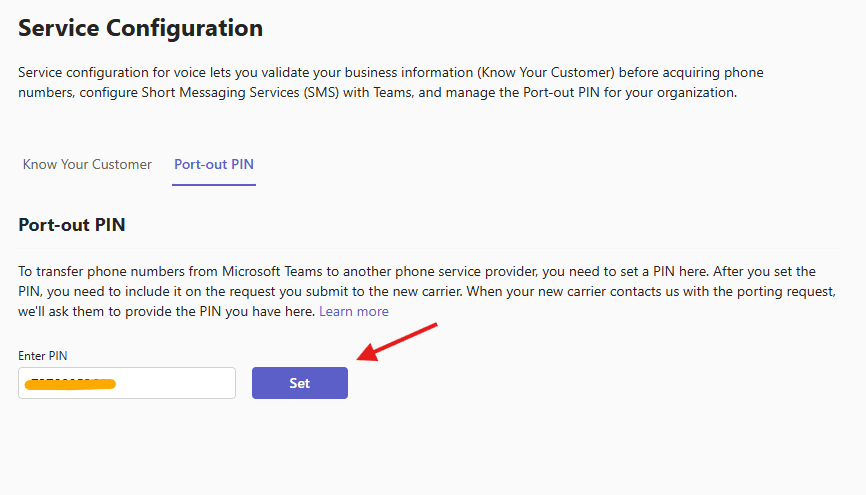
Now click on add
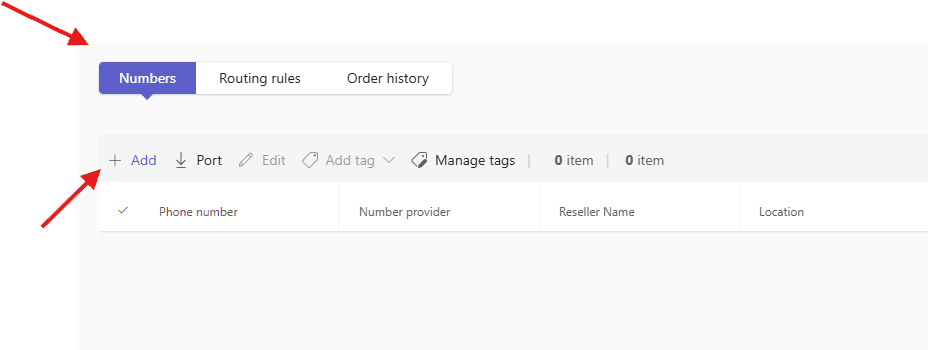
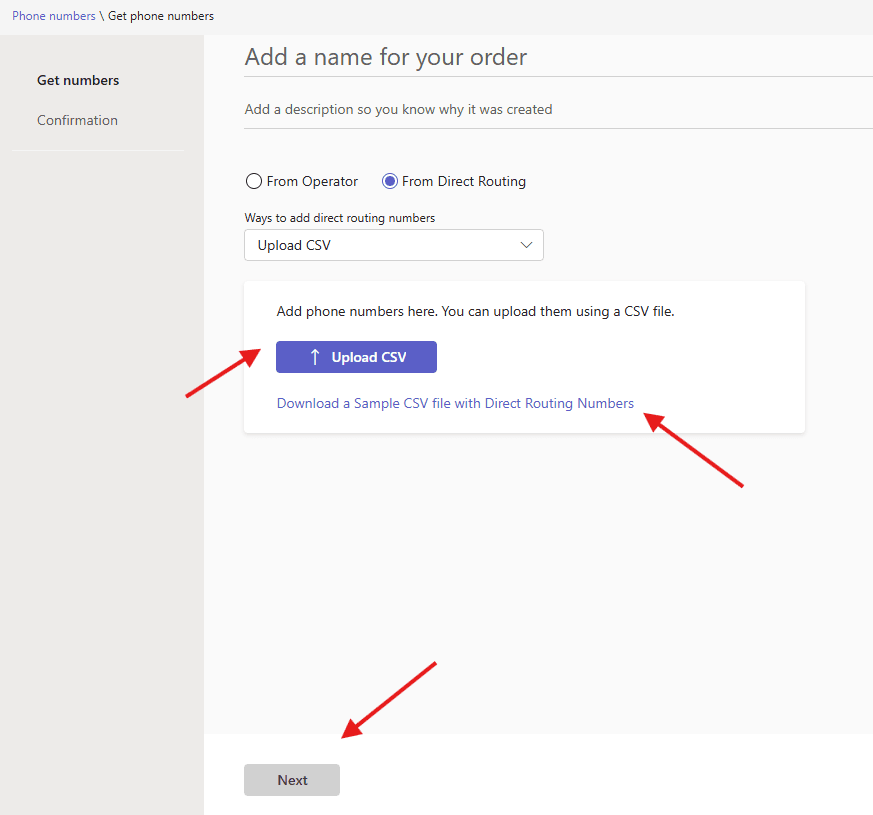
select from operator –> provide necessary data
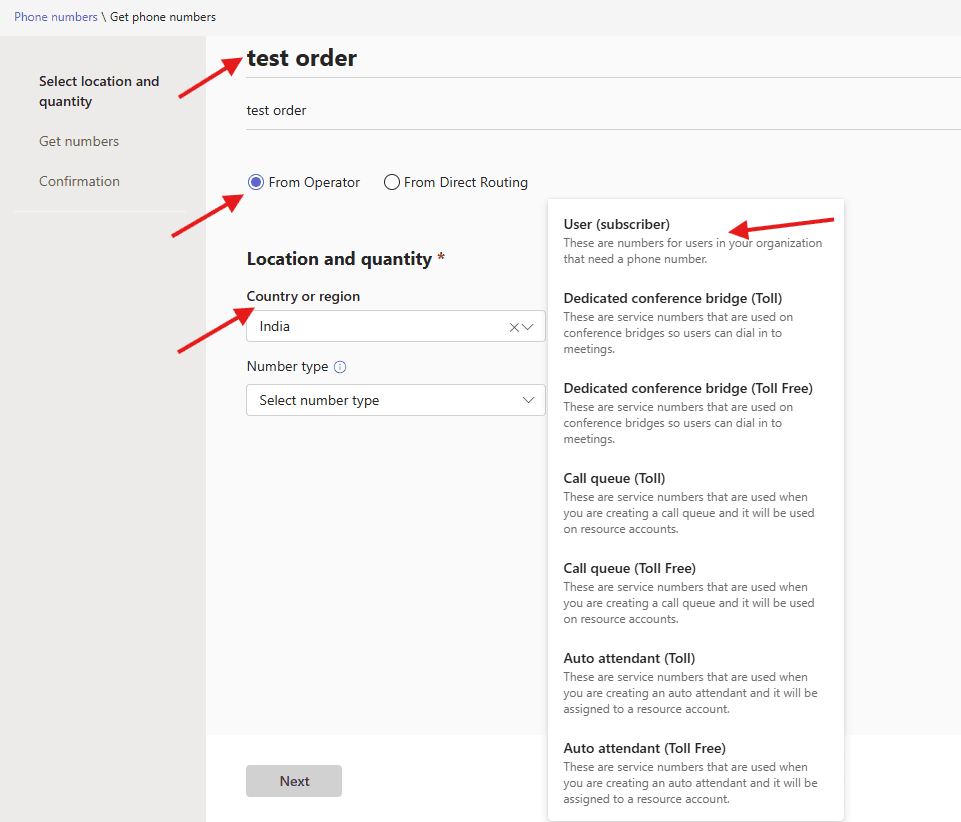
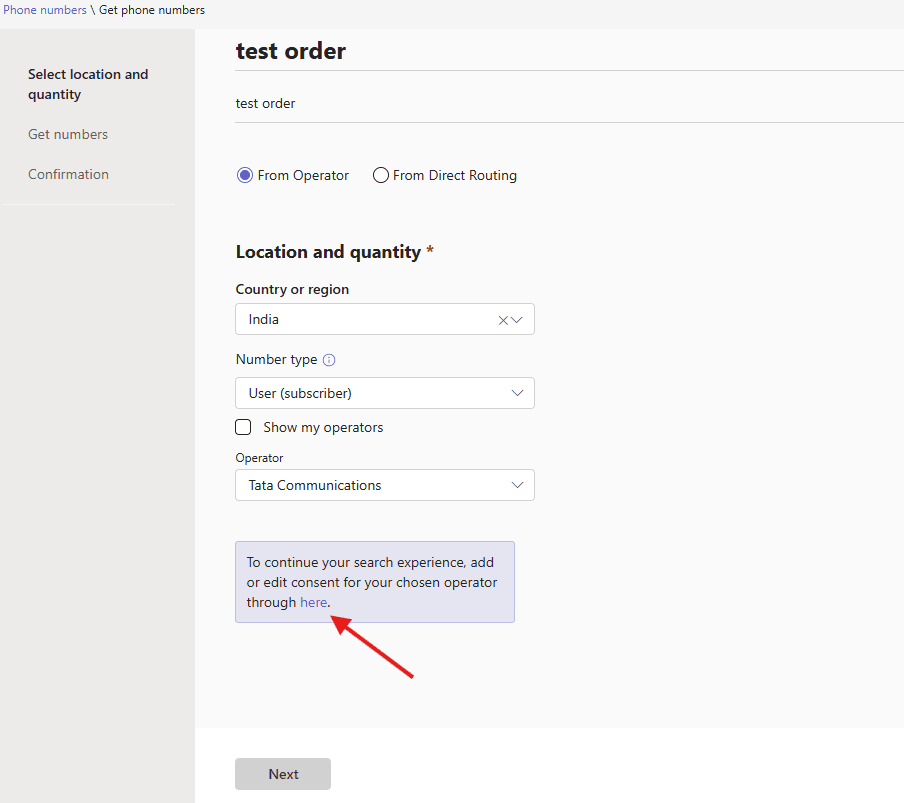
provide all necessary data
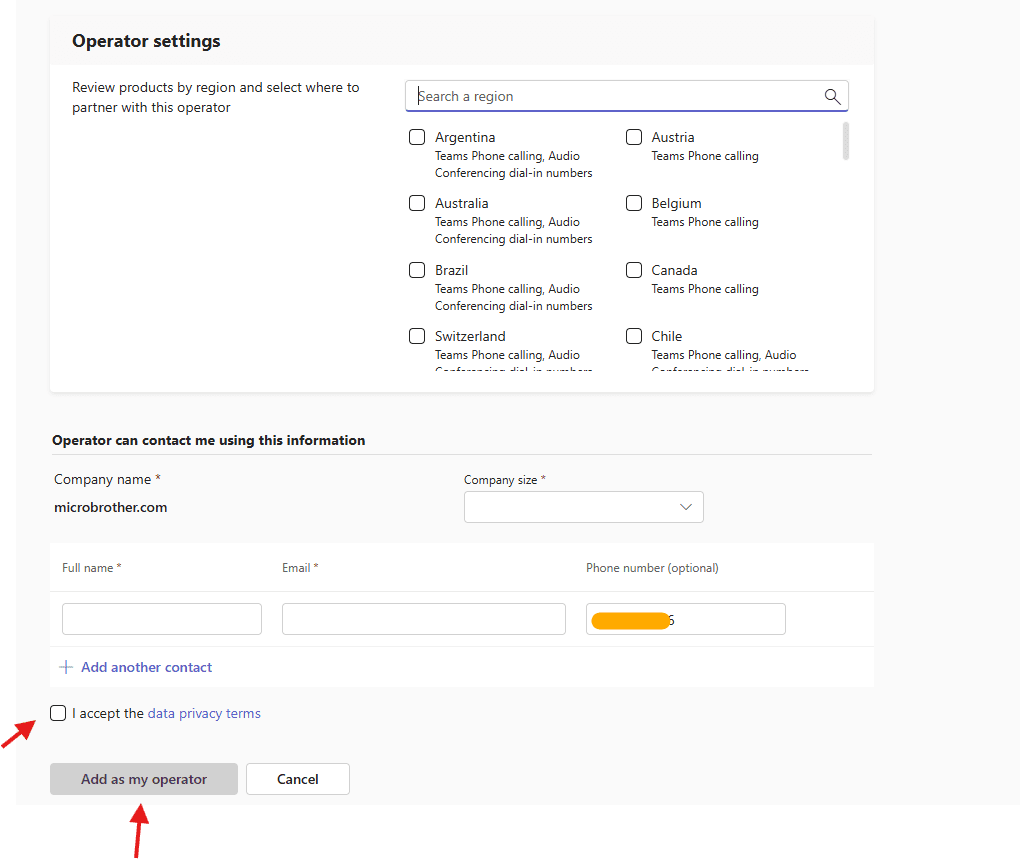
Now select –> direct routing –> upload CSV and submit it –> you can download sample file and edit it
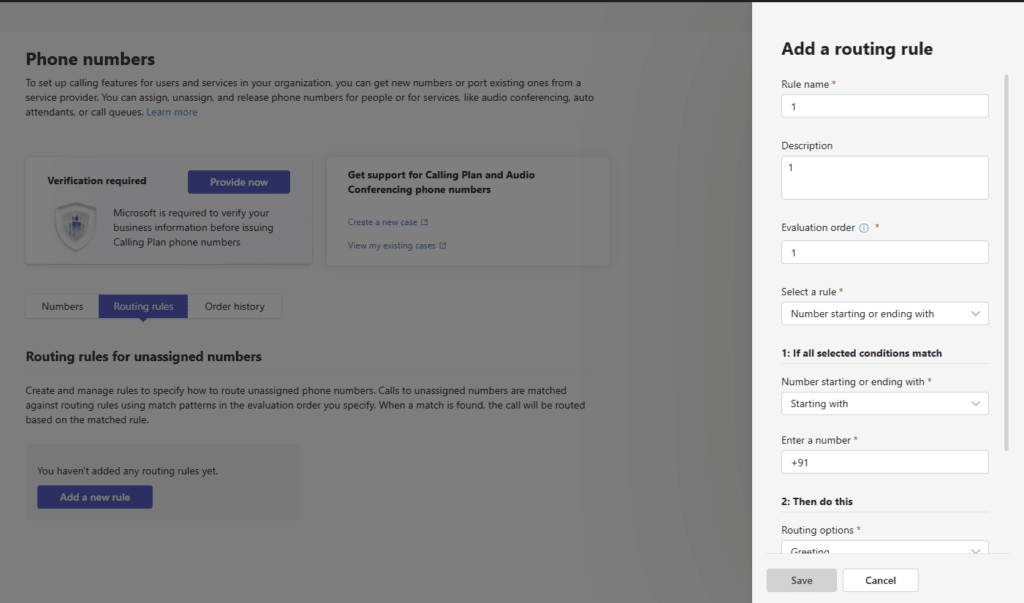
You can set Routing rules for unassigned numbers
Create and manage rules to specify how to route unassigned phone-numbers. Calls to unassigned numbers are matched against routing rules using match patterns in the evaluation order you specify. When a match is found, the call will be routed based on the matched rule.
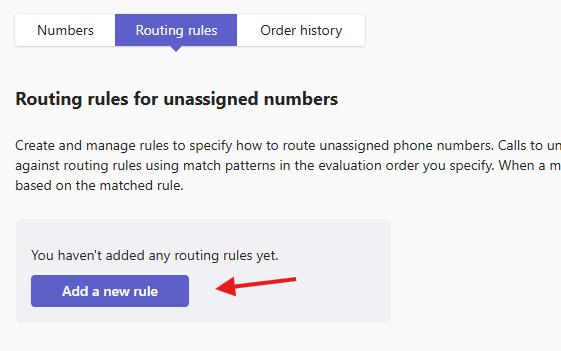
click on add a new rule
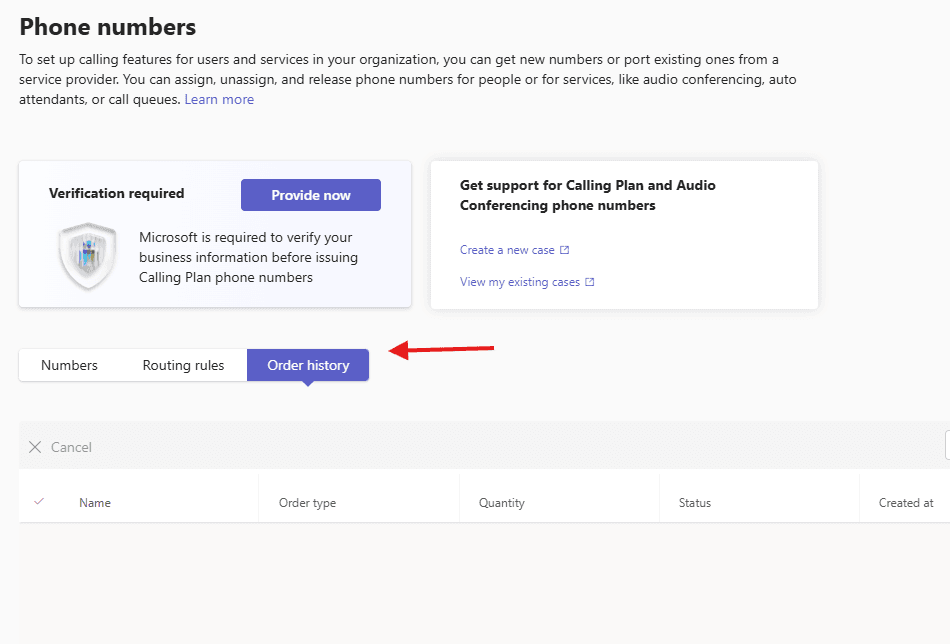
Order history can seen from here
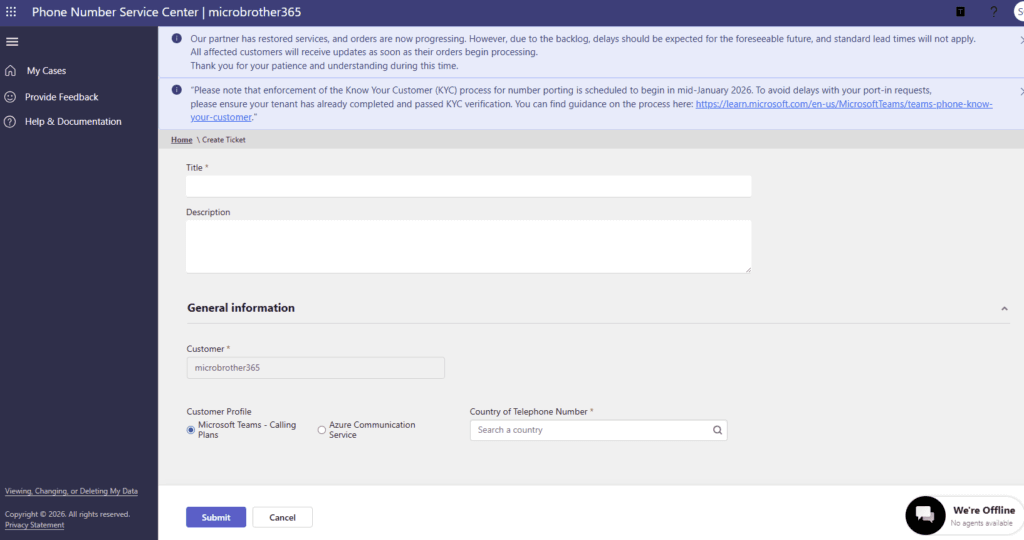
you can also Get support for Calling Plan and Audio Conferencing phone numbers
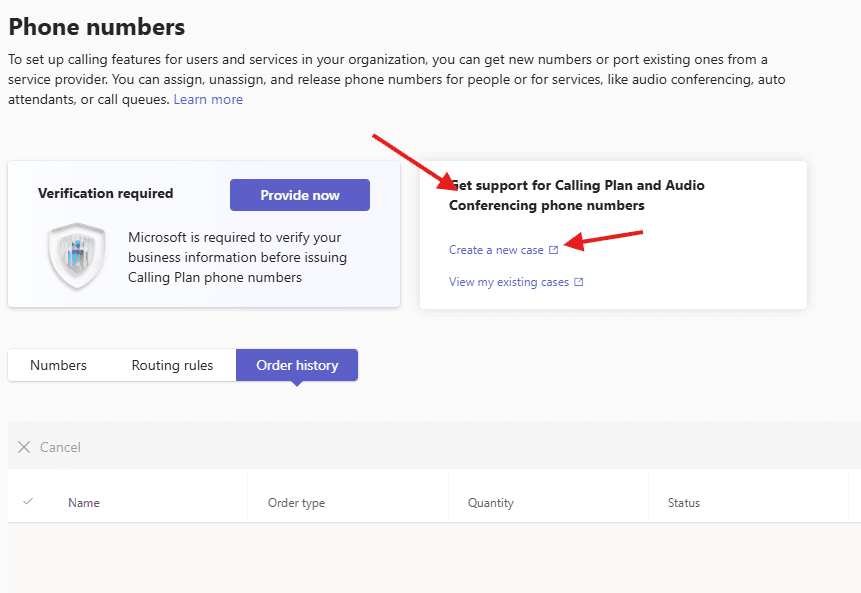
create a new case and fill in all data
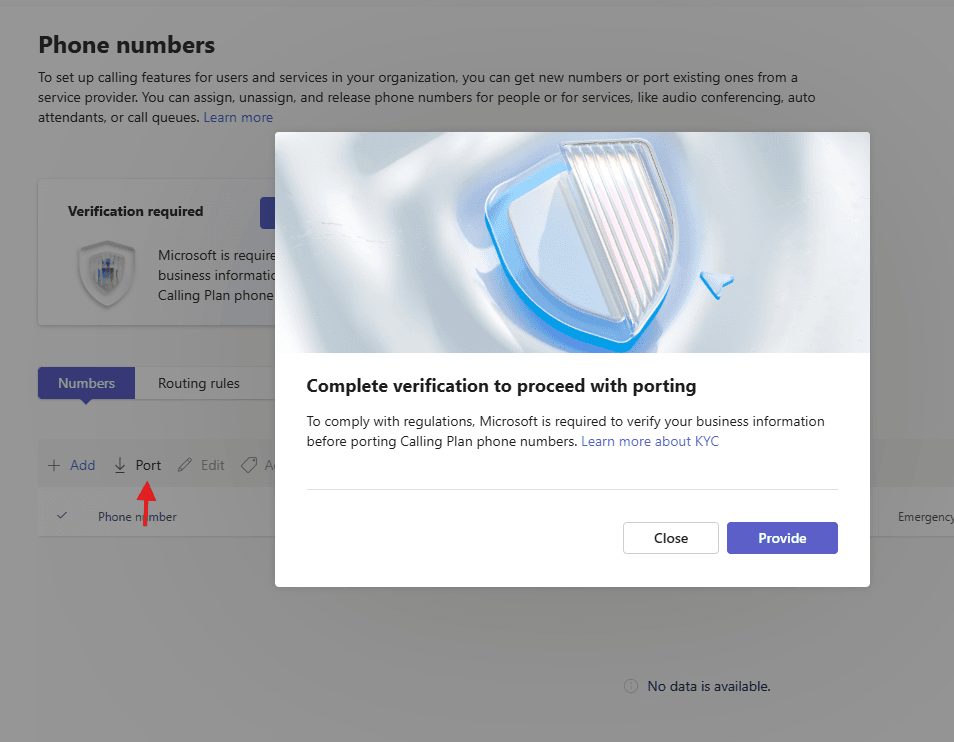
lastly if you want to port the number then click on port –> and provide necessary data
We are done here
Conclusion :
Post reading above article user will be able order and port Phone numbers in Microsoft Teams
You can also read https://microbrother.com/messaging-settings-in-microsoft-teams/ this article for Message settings in Microsoft Teams
Thank you 😇