This article talks about enhanced encryption policies in Microsoft Teams
Enhanced encryption policies
Enhanced encryption policies in Microsoft Teams enable end-to-end encryption (E2EE) for 1:1 calls and sensitive meetings, requiring Teams Premium for the latter.
Admins manage these via the Teams Admin Center or PowerShell, allowing user-level, group-level, or tenant-wide activation to secure, highly confidential communication
Lets enable Enhanced encryption policies step by step
Login to Teams admin center : https://admin.teams.microsoft.com/
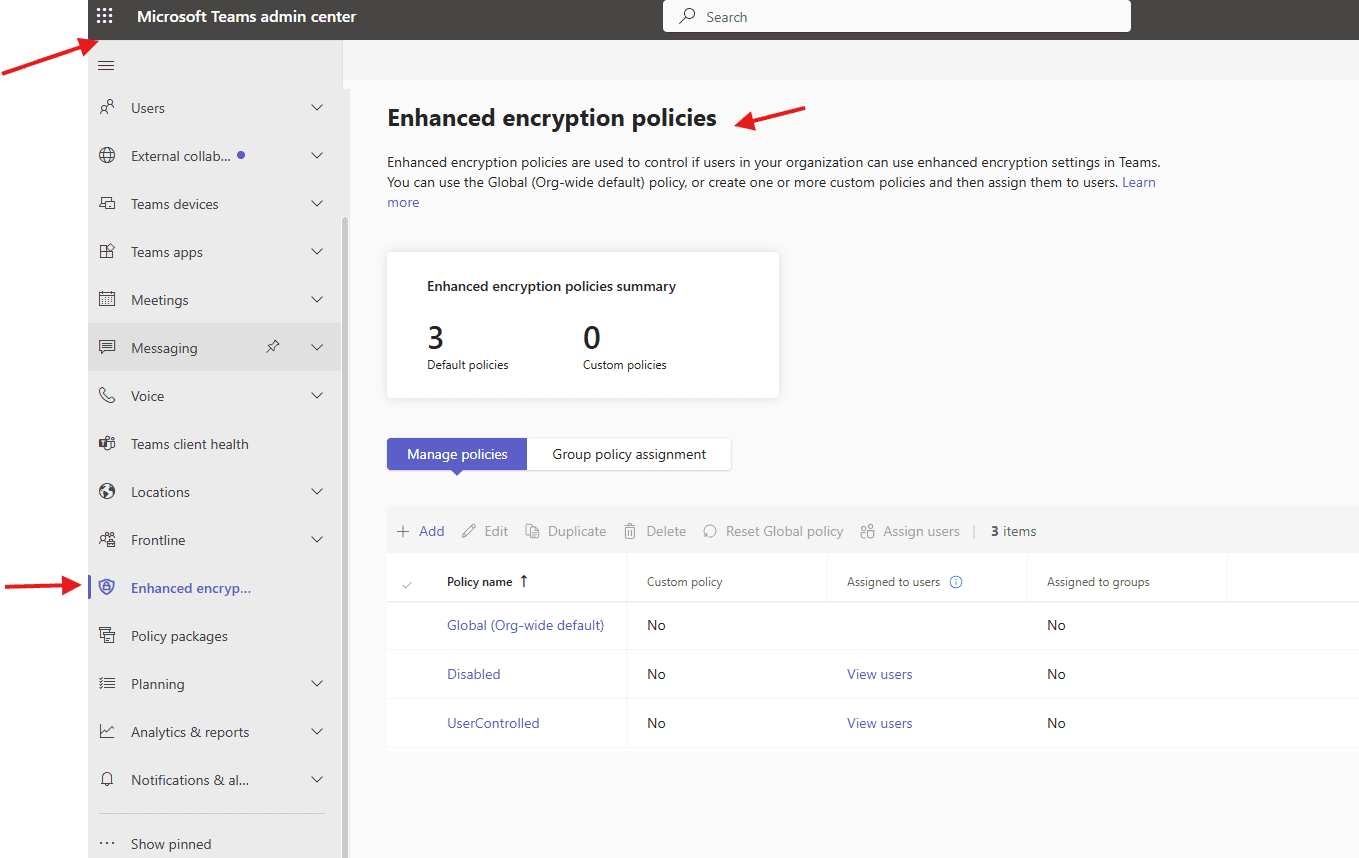
Navigate to TAC–>Enhanced encryption policies
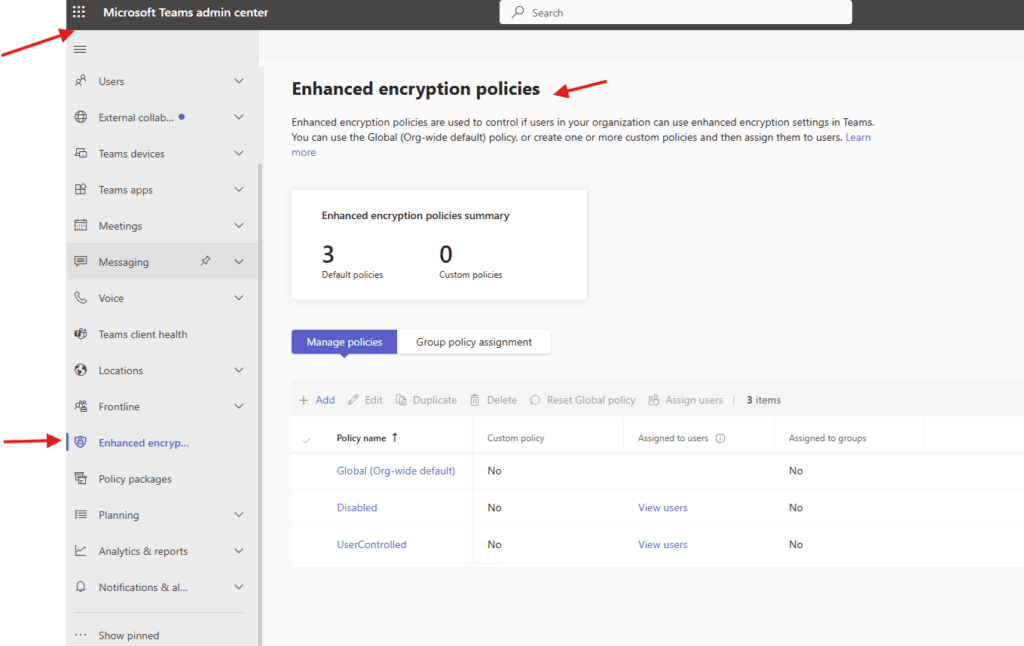
You can use the Global (Org-wide default) policy, or create one or more custom policies and then assign them to users
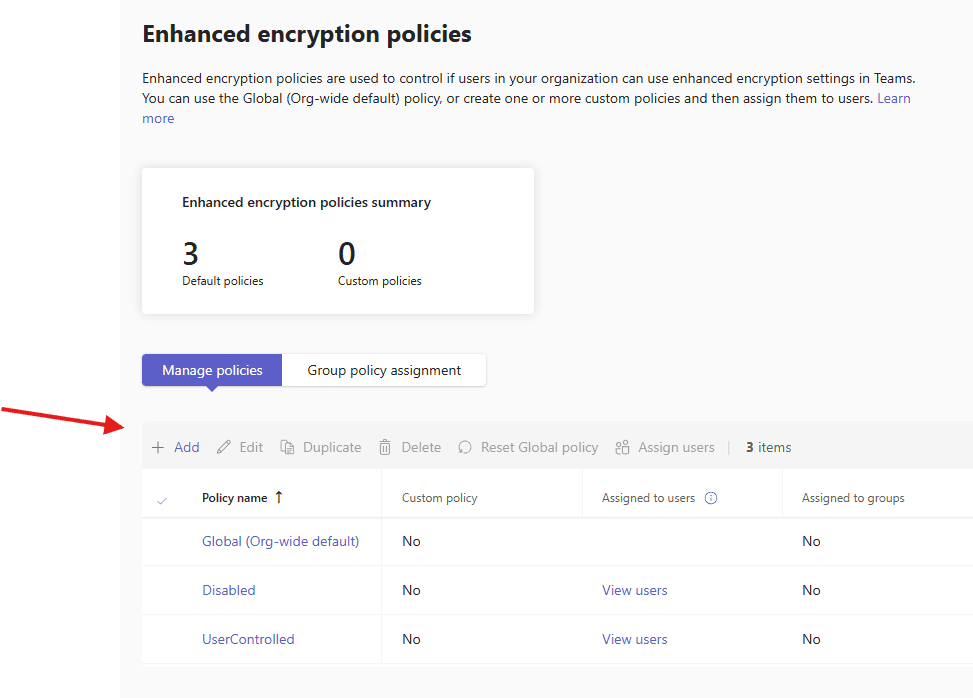
Lets add one
Give a suitable title and set End-to-end call encryption attribute accordingly
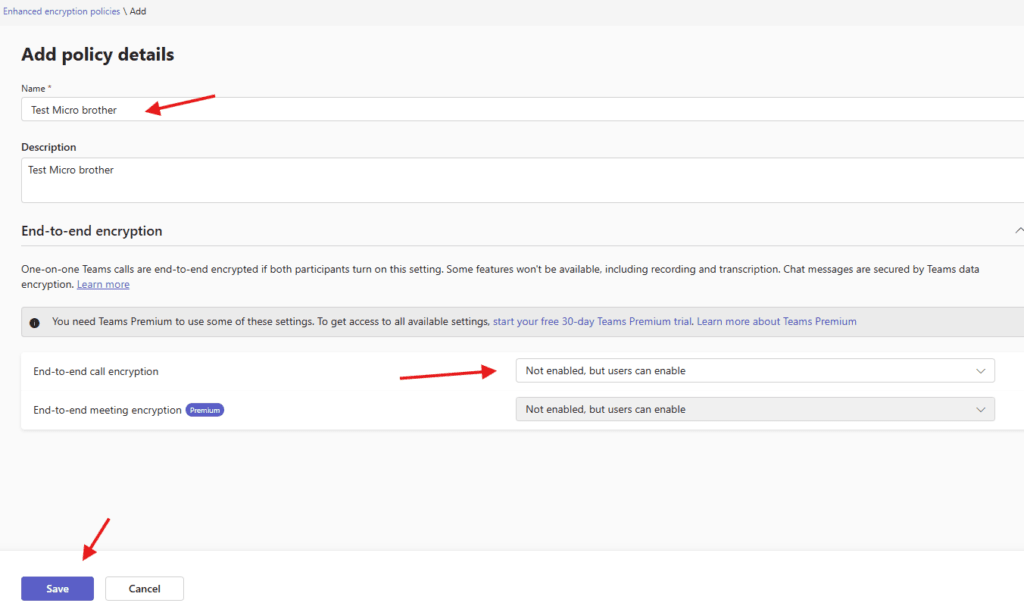
save it
One-on-one Teams calls are end-to-end encrypted if both participants turn on this setting. Some features won’t be available, including recording and transcription. Chat messages are secured by Teams data encryption
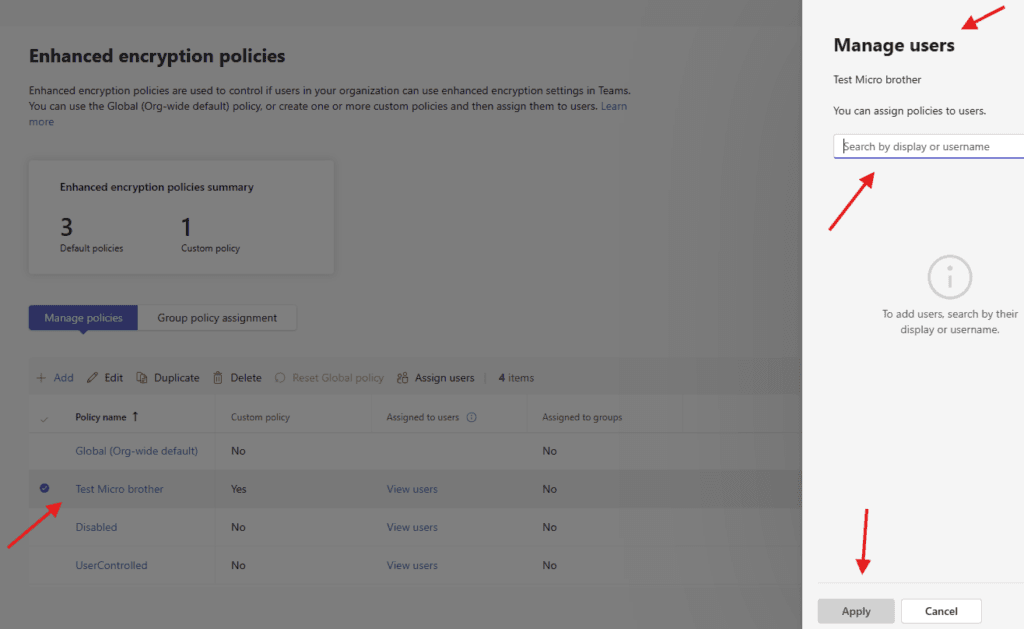
you can assign created policy to the users from here
PowerShell Script: Enable Enhanced Encryption Policy in Microsoft Teams
# ==========================================
# Enable Enhanced Encryption in Microsoft Teams
# Create + Assign Enhanced Encryption Policy
# ==========================================

# Install Microsoft Teams PowerShell Module (if not installed)
# Install-Module MicrosoftTeams -Force -AllowClobber

# Import Teams Module
Import-Module MicrosoftTeams

# Connect to Microsoft Teams
Connect-MicrosoftTeams

# -------------------------------
# Create Enhanced Encryption Policy
# -------------------------------

$PolicyName = "EnhancedEncryption-Enabled"

Write-Host "Creating Enhanced Encryption Policy: $PolicyName" -ForegroundColor Cyan

New-CsTeamsEnhancedEncryptionPolicy `
    -Identity $PolicyName `
    -Description "Enhanced encryption enabled for Teams calls and meetings" `
    -CallingEnhancedEncryptionEnabledType Enabled `
    -MeetingEnhancedEncryptionEnabledType Enabled

Write-Host "Policy Created Successfully!" -ForegroundColor Green

# -------------------------------
# Assign Policy to Users
# -------------------------------

# List of users (edit as per your requirement)
$Users = @(
    "user1@microbrother.com",
    "user2@microbrother.com"
)

foreach ($User in $Users) {
    Write-Host "Assigning Enhanced Encryption Policy to: $User" -ForegroundColor Yellow

    Grant-CsTeamsEnhancedEncryptionPolicy `
        -Identity $User `
        -PolicyName $PolicyName
}

Write-Host "Enhanced Encryption Policy Assigned Successfully!" -ForegroundColor Green

# -------------------------------
# Verify Policy Assignment
# -------------------------------

foreach ($User in $Users) {
    Write-Host "Checking policy for: $User" -ForegroundColor Cyan
    Get-CsOnlineUser -Identity $User | Select DisplayName, UserPrincipalName, TeamsEnhancedEncryptionPolicy
}
Conclusion:
Post reading above article user will be able to create and assign Enhanced encryption policies in Microsoft Teams
Also you can read this article https://microbrother.com/understanding-of-network-topology-in-ms-teams/ to understand Network topology in MS Teams
Thank you 😇