This article talks about on how to manage mailflow setting for a mailbox
Mailflow setting
Mailflow setting for a individual mailbox includes settings like message size restriction, email forwarding and message delivery restriction.
Lets set Mailflow settings for a mailbox
Open EXO admin center : https://admin.cloud.microsoft/exchange#/mailboxes
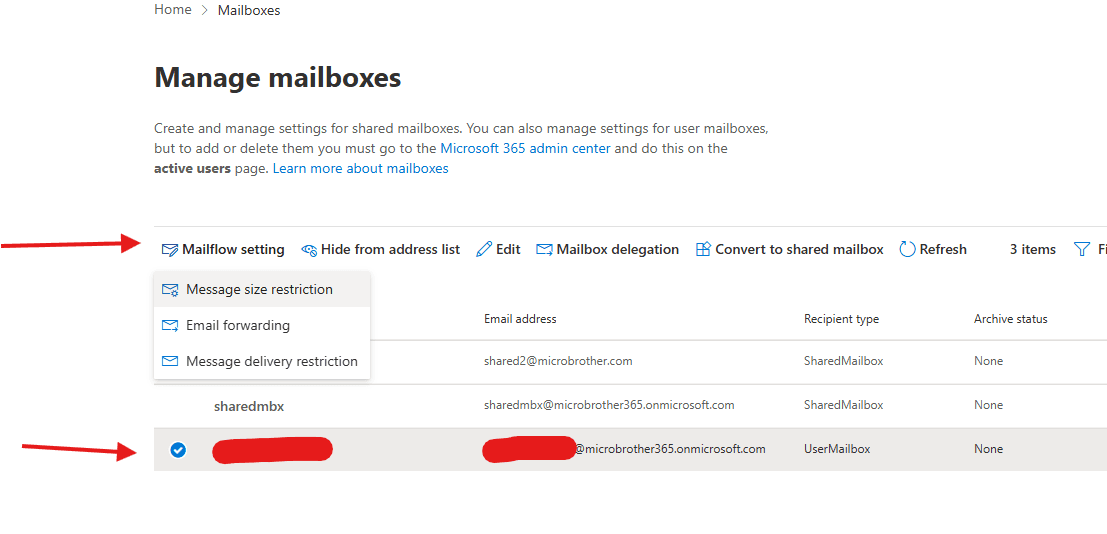
Navigate to Recipients –> Mailboxes–> manage mailboxes
select the mailbox and click on mailflow setting button to set message size restriction, email forwarding and message delivery restriction.
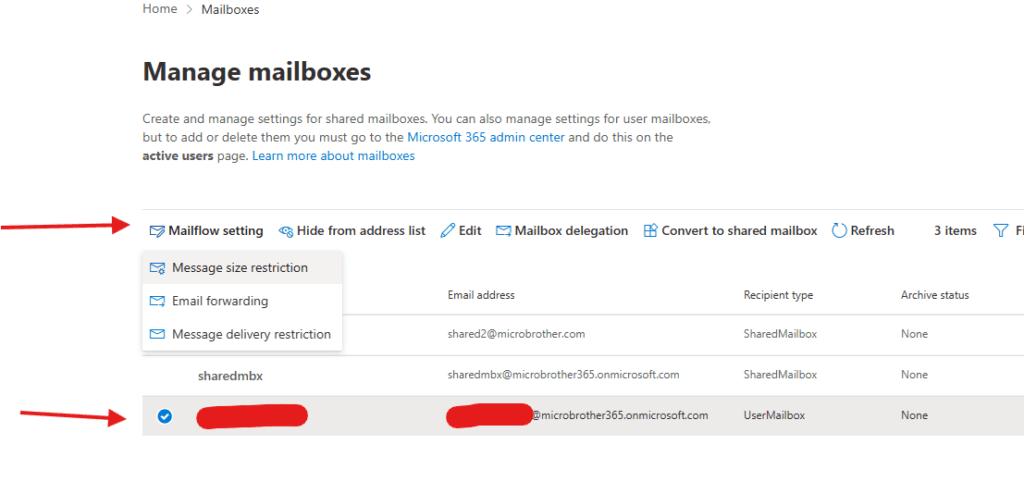
click on Message size restrictions and set attributes like “Sent messages maximum size(KB)” and “Received messages maximum size(KB)” , you can set the maximum sizes for sent and received messages that is between 0 and 153600 KB.
now select Manage email forwarding, You can Forward all emails sent to user’s mailbox ( in case user is travelling, OOF or on sick leave etc) to either internal user, external user or both
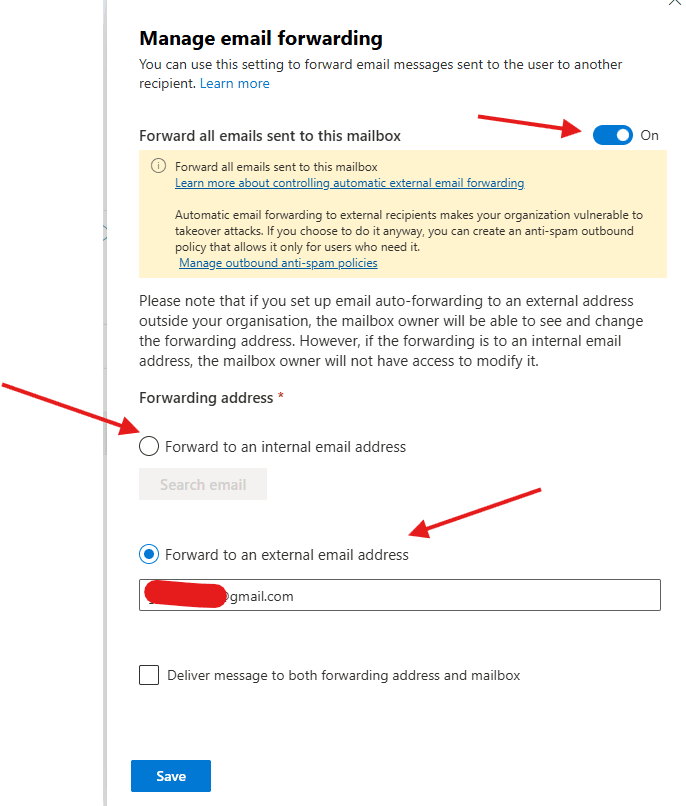
Note : Please note that if you set up email auto-forwarding to an external address outside your organisation, the mailbox owner will be able to see and change the forwarding address. However, if the forwarding is to an internal email address, the mailbox owner will not have access to modify it.
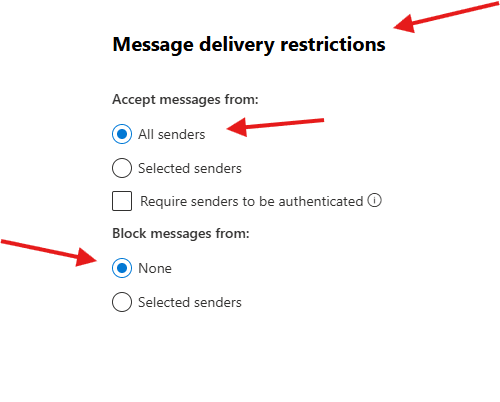
and finally you can set Message delivery restrictions e.g. user can accept/block messages from any user
We are done here.
Conclusion:
Post reading above article user will be able to handle Mailflow settings for an individual mailbox includes settings like message size restriction, email forwarding and message delivery restriction.
You can also read https://microbrother.com/how-to-set-notifications-alerts-in-microsoft-team/ this article to set notification and alerts in MS Teams
Thank you 😇