This article talks about on how to Create a sharing policy in Exchange Online
Sharing policy
Sharing Policy to change how people in your organization share calendars with individual business associates, friends, or family members. Sharing policies control how your users share their calendars with people outside your organization
Steps to Create a sharing policy in Exchange Online
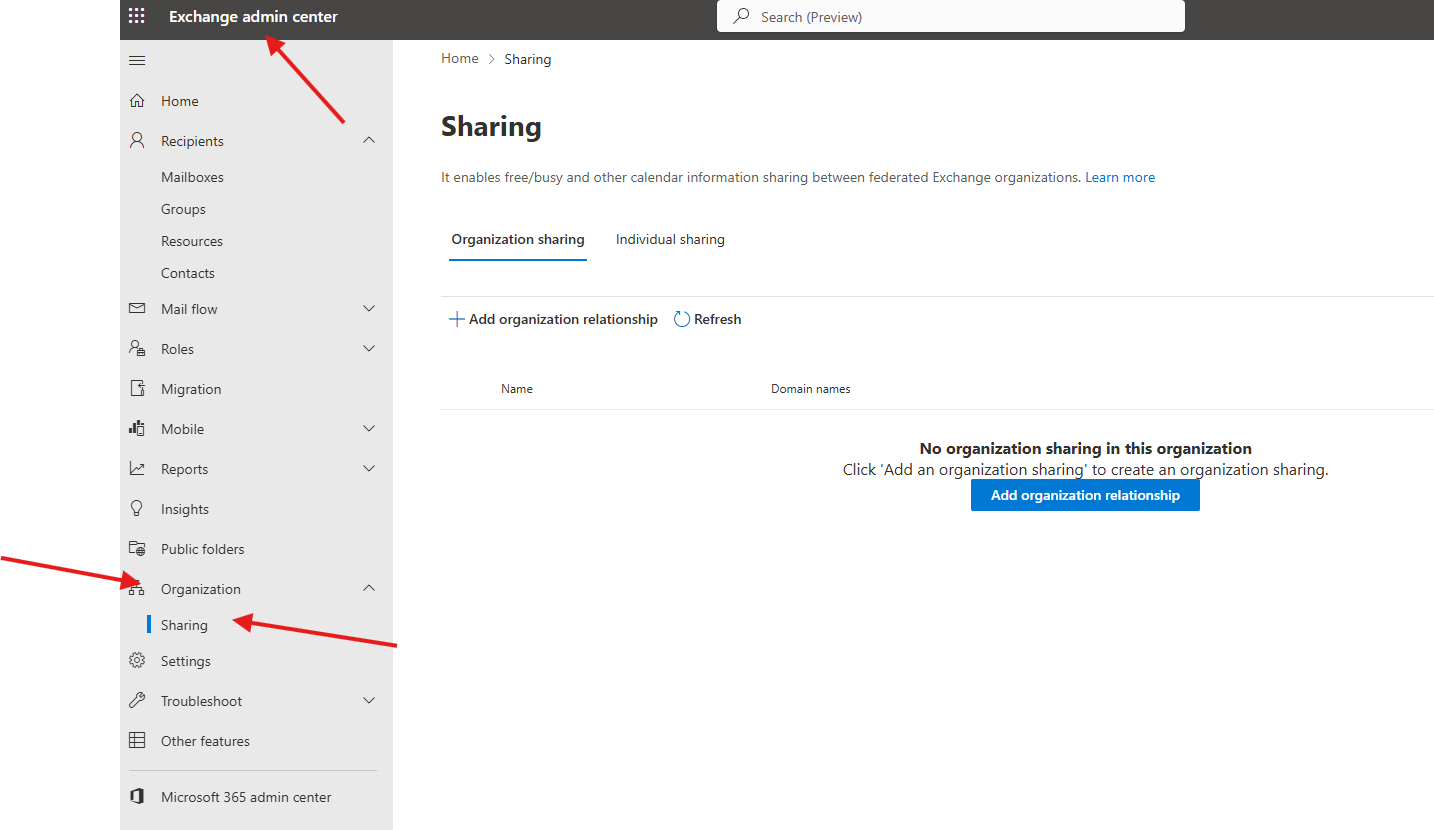
Open EXO admin center : https://admin.cloud.microsoft/exchange?#/
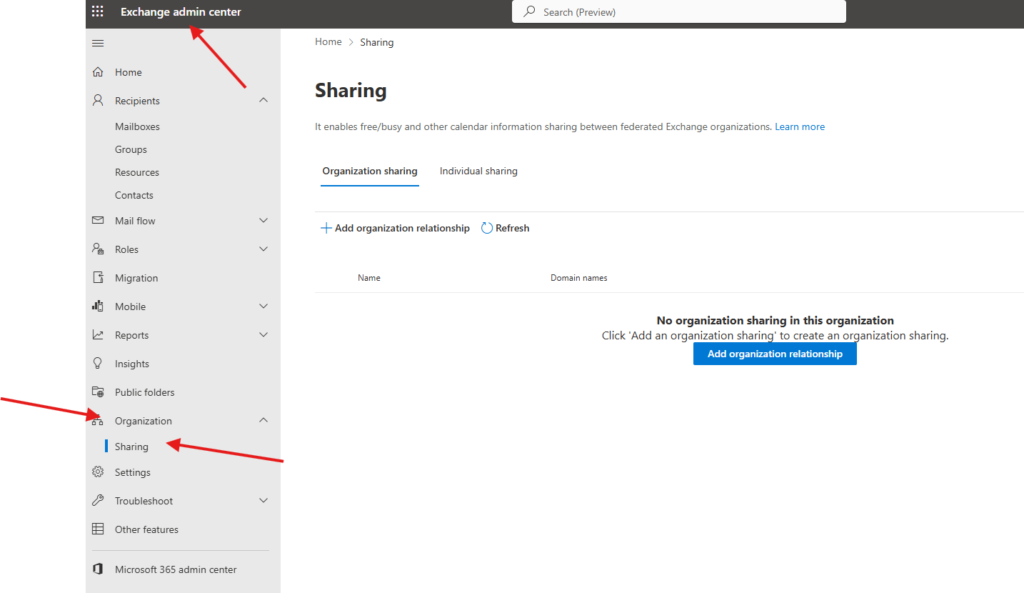
Navigate to EXO–> Organization –> sharing
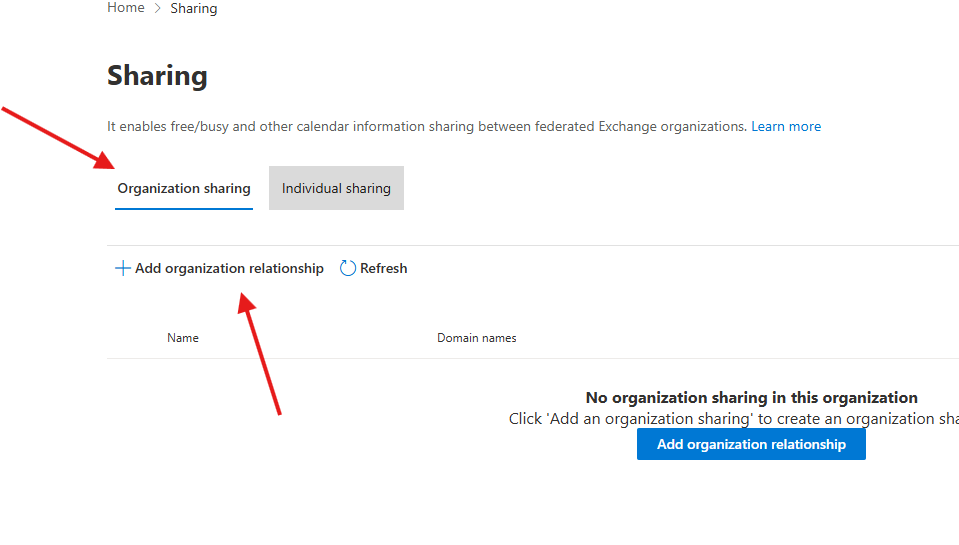
under organization sharing –> add organization relationship
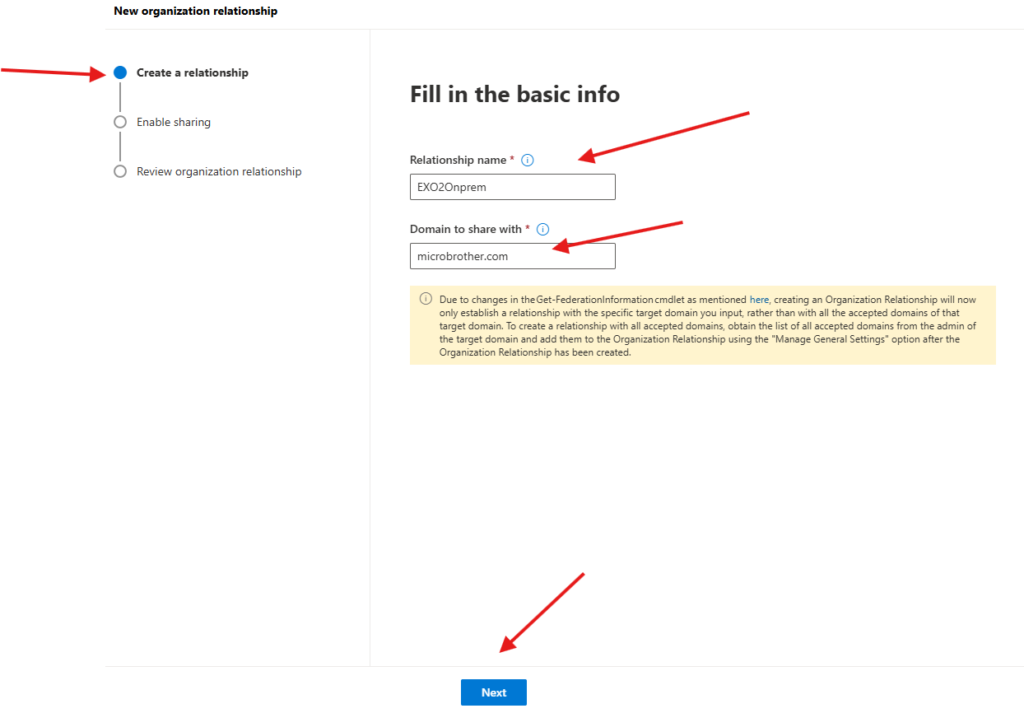
create a relationship –> give a name to Relationship and add a domain name –> next
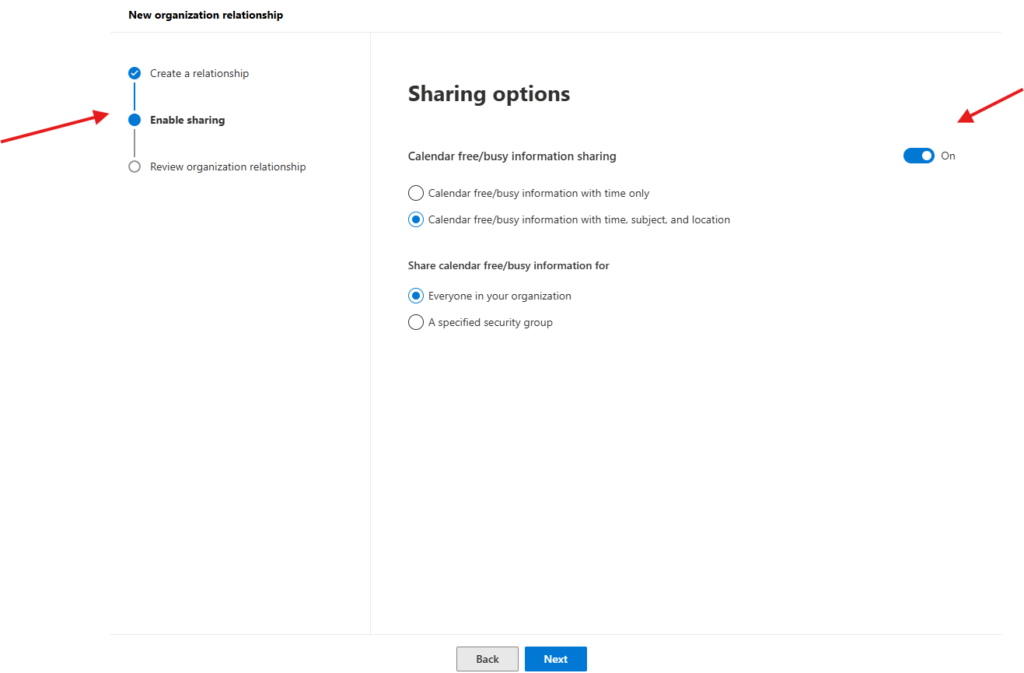
enable sharing –> toggle on “Calendar free/busy information sharing” –> and select options as business requirement
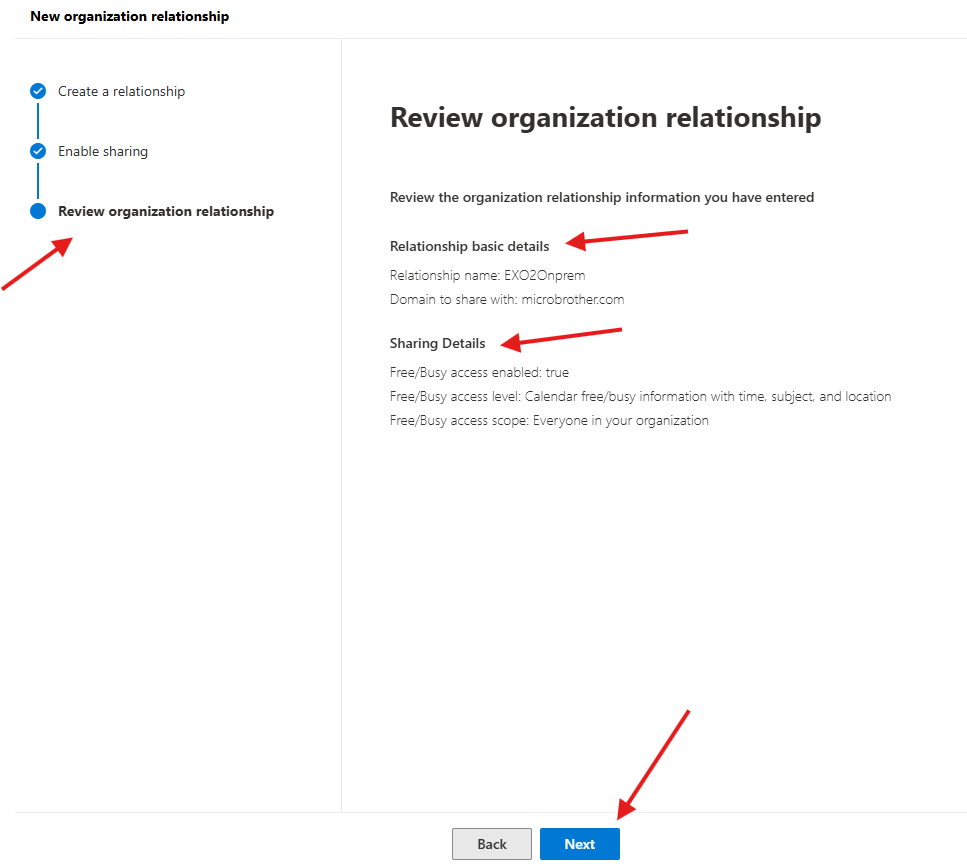
Review organization relationship –> hit next
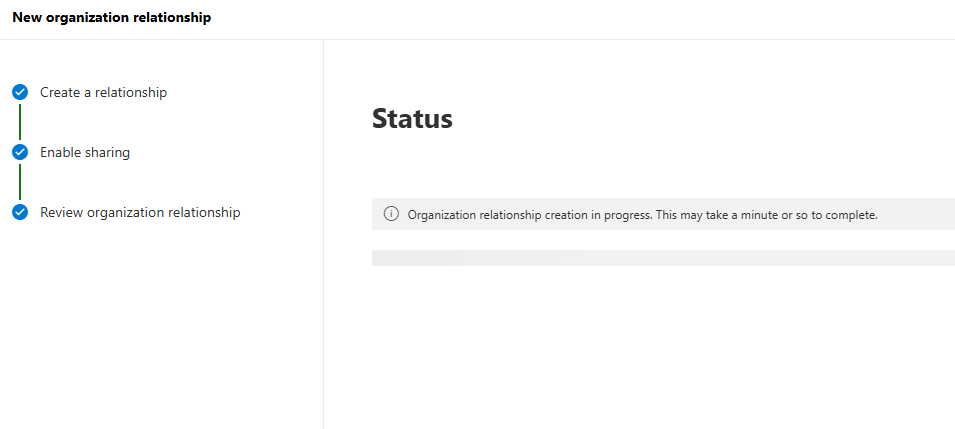
you will get below prompt
Now go to the individual sharing tab
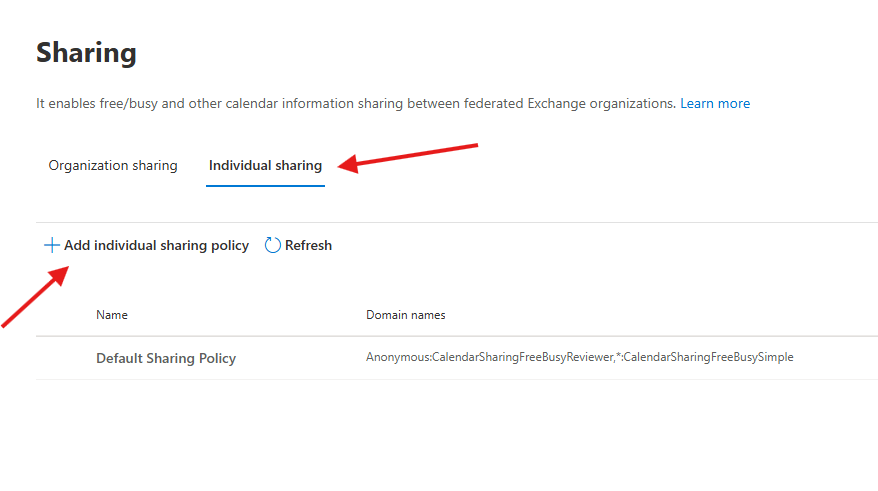
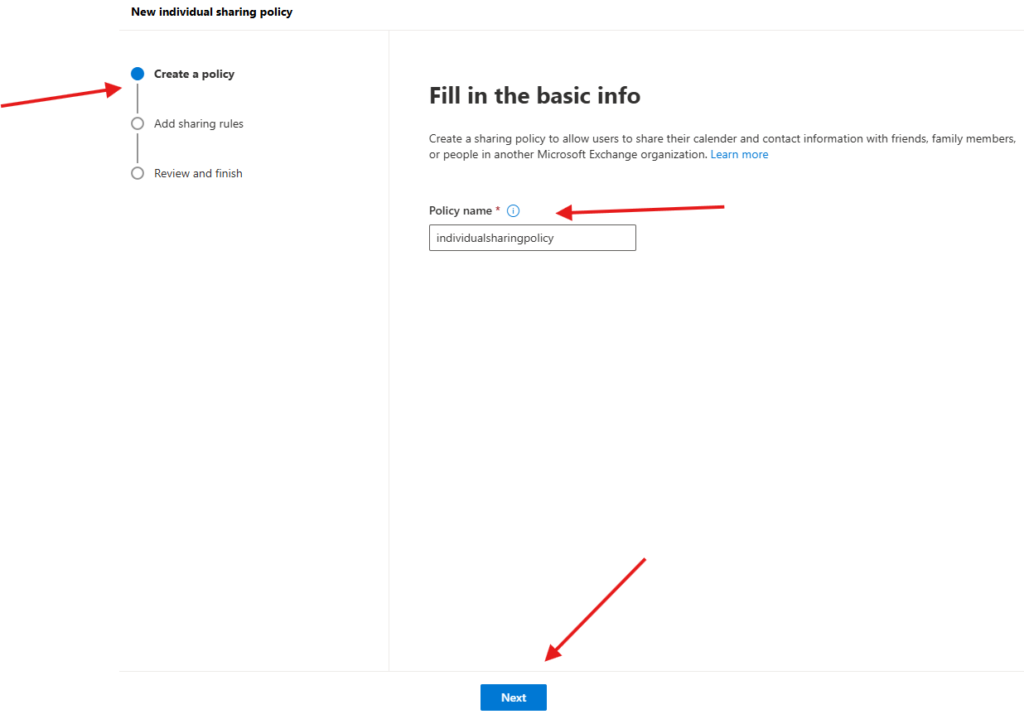
click on add individual sharing-policy –>fill in basic info –> next
Specify domains you want to share with and Specify information you want to share
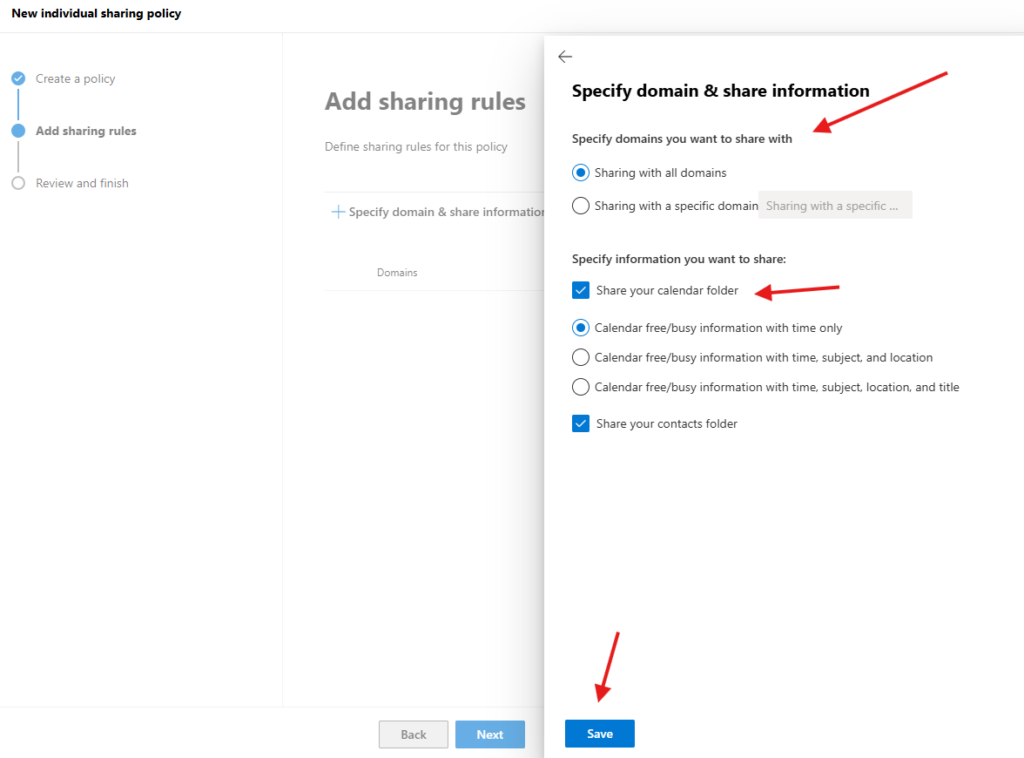
Save it
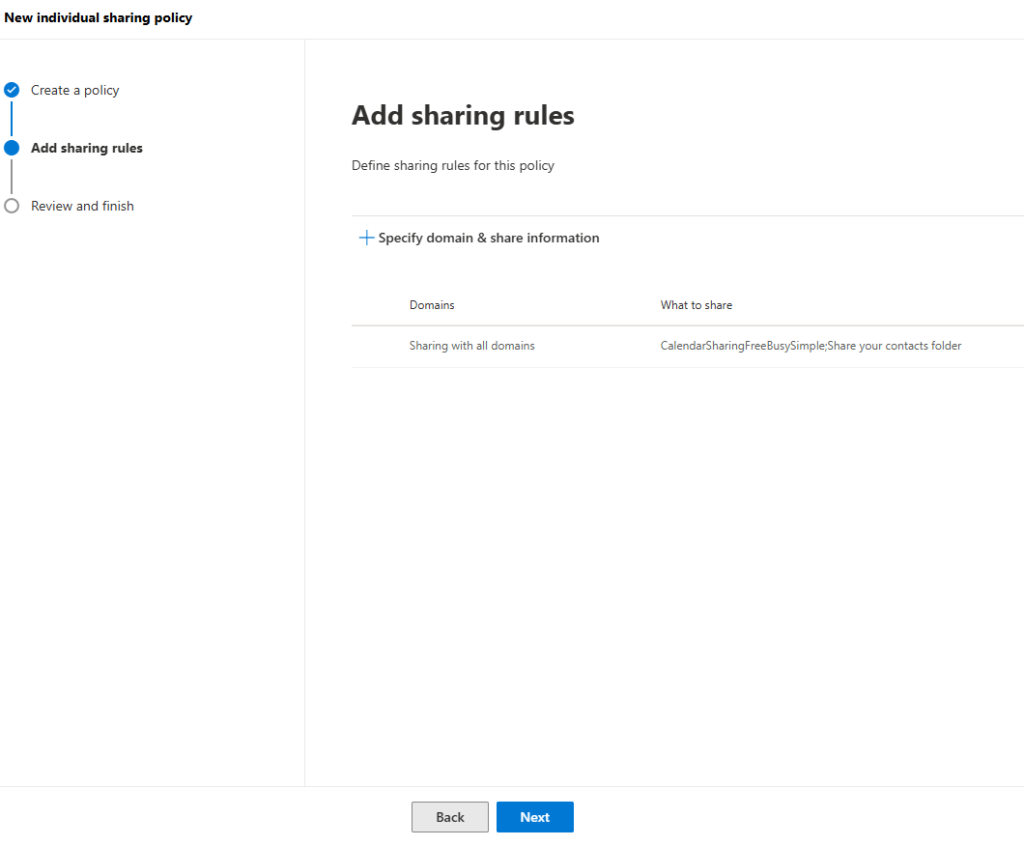
hit next
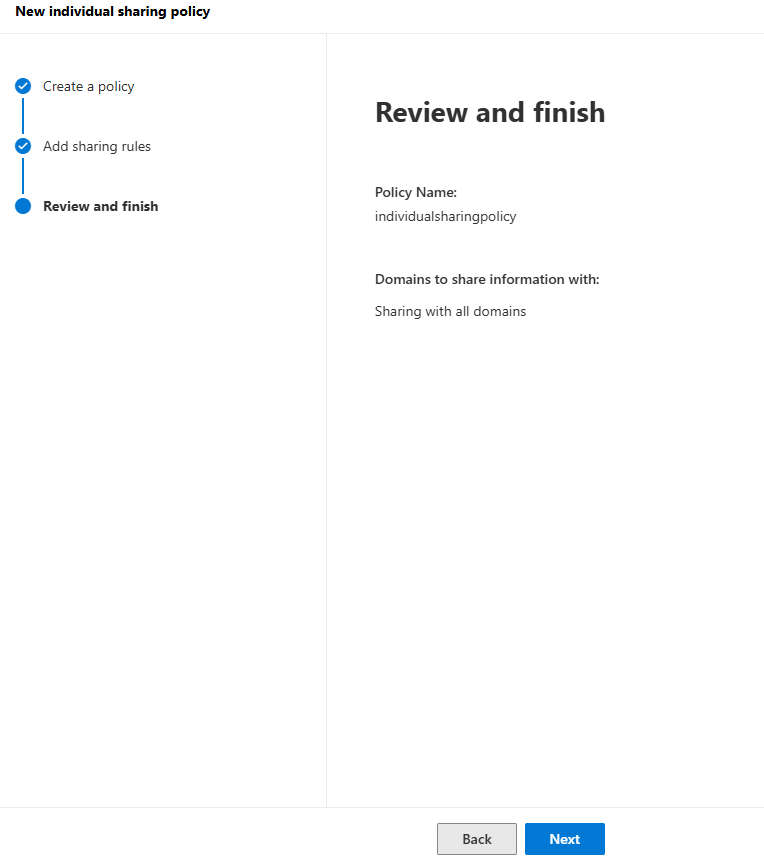
Review and finish –> hit next
PowerShell Script for above manual task
$mailboxes = Get-Mailbox -RecipientTypeDetails UserMailbox

foreach ($mailbox in $mailboxes)
{
    Set-Mailbox `
        -Identity $mailbox.UserPrincipalName `
        -SharingPolicy "External Calendar Sharing Policy"

    Write-Host "Assigned policy to" $mailbox.UserPrincipalName
}
We are done here
Conclusion :
Post reading above article reader will be able to Create a sharing-policy in Exchange Online
Also you can read https://microbrother.com/2026/06/07/add-custom-attributes-for-a-mailbox/ this article to add Custom attributes for a Mailbox
Thank you 😇